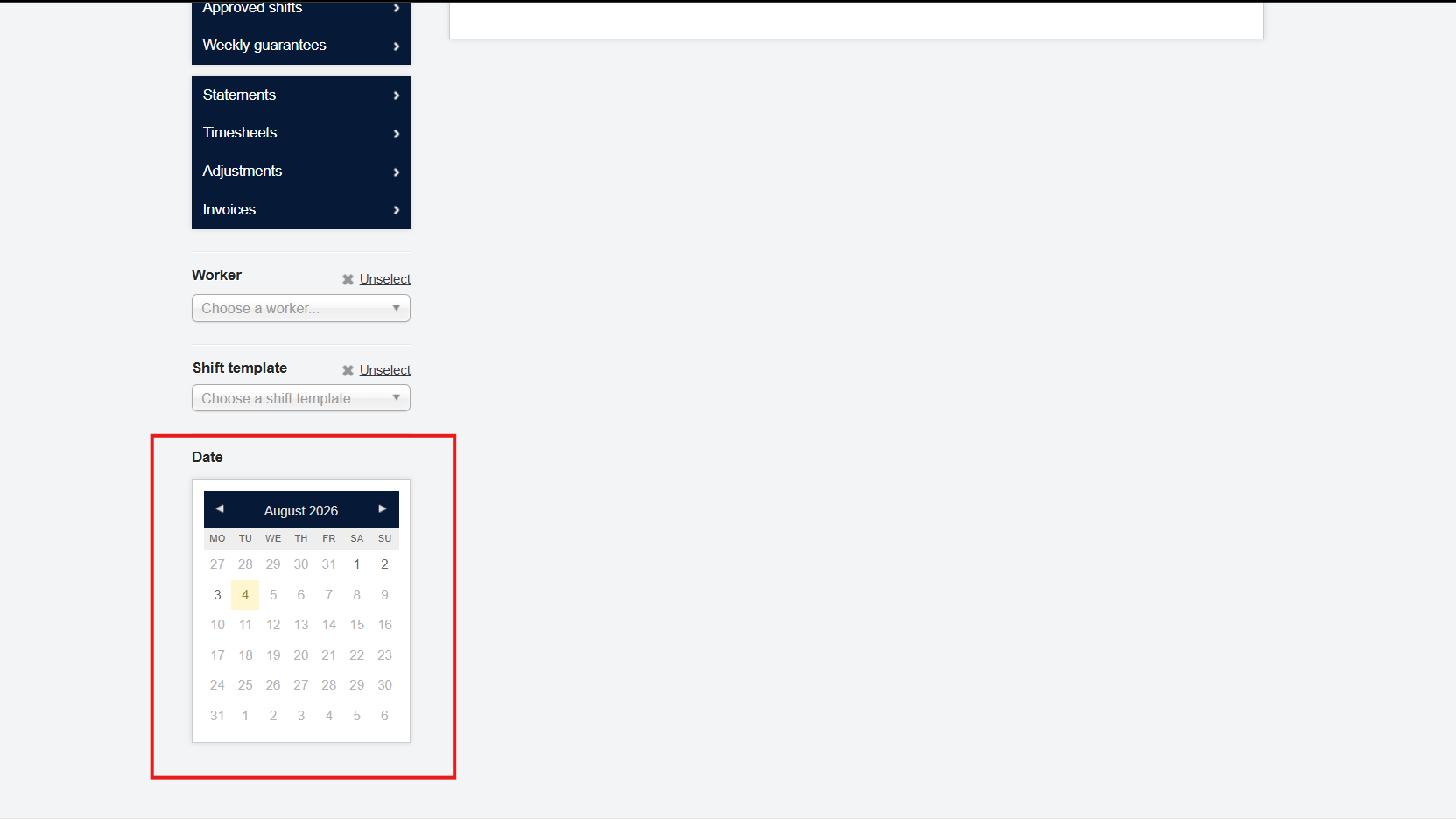
Submitting shifts
This guide shows how to submit shifts for approval.
Once all the times have been added, and you have checked to make sure that the times and the Charges and Payments calculated are correct, you will need to submit the shifts for the Client’s approval, which is the first step of the financial process.
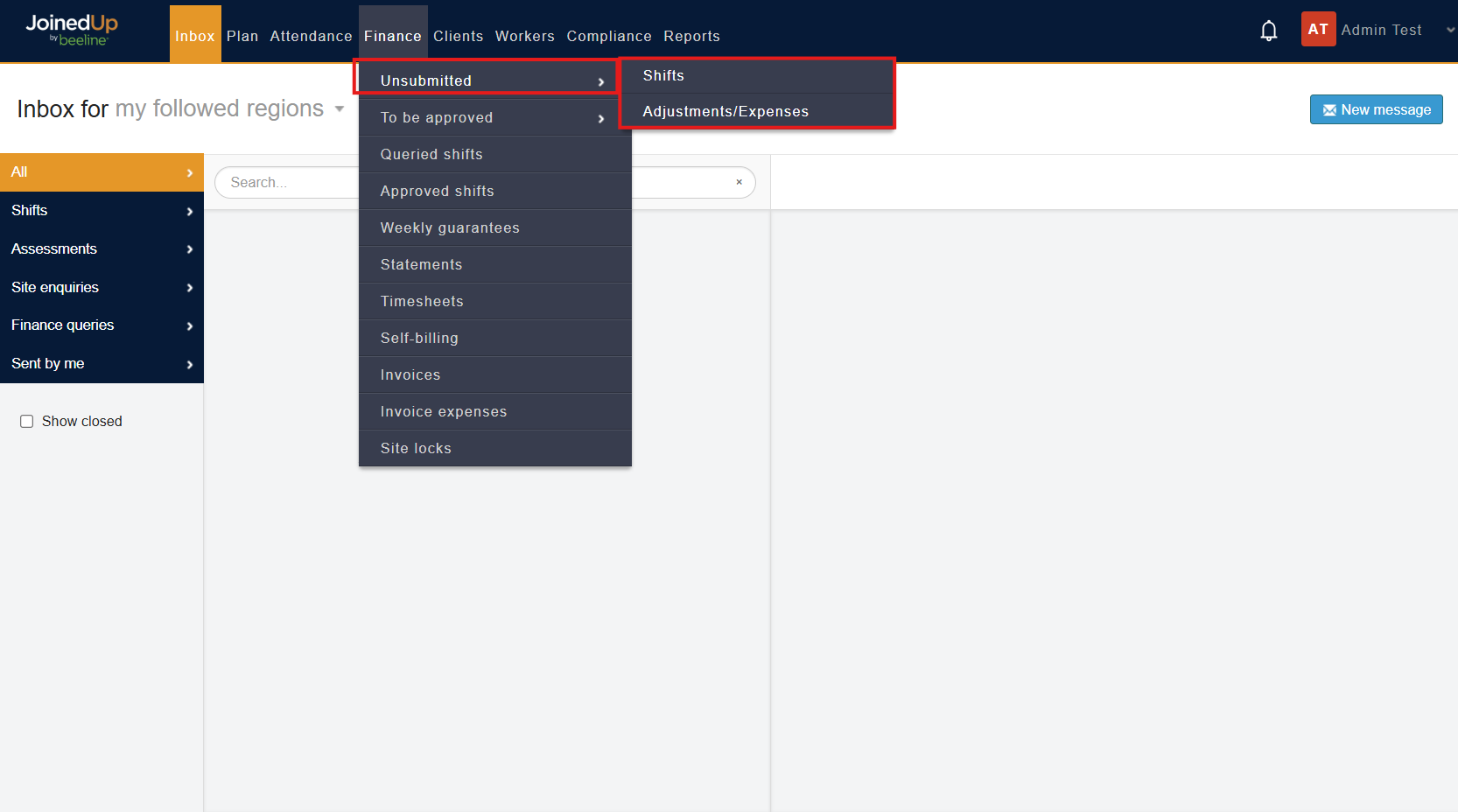
To access this, navigate to .
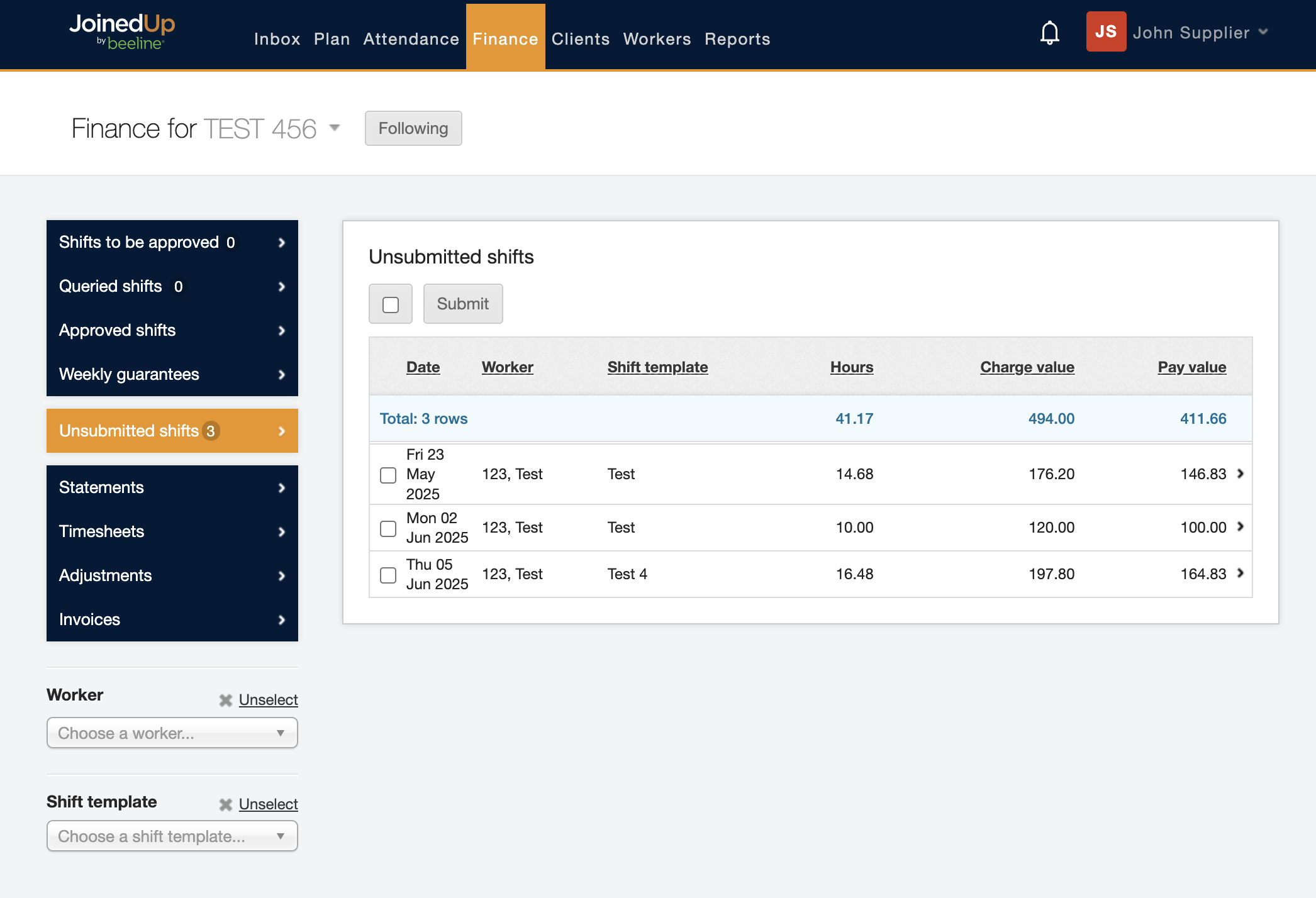
It will display a screen like the example below. All the shifts that need to be submitted will display in a list.
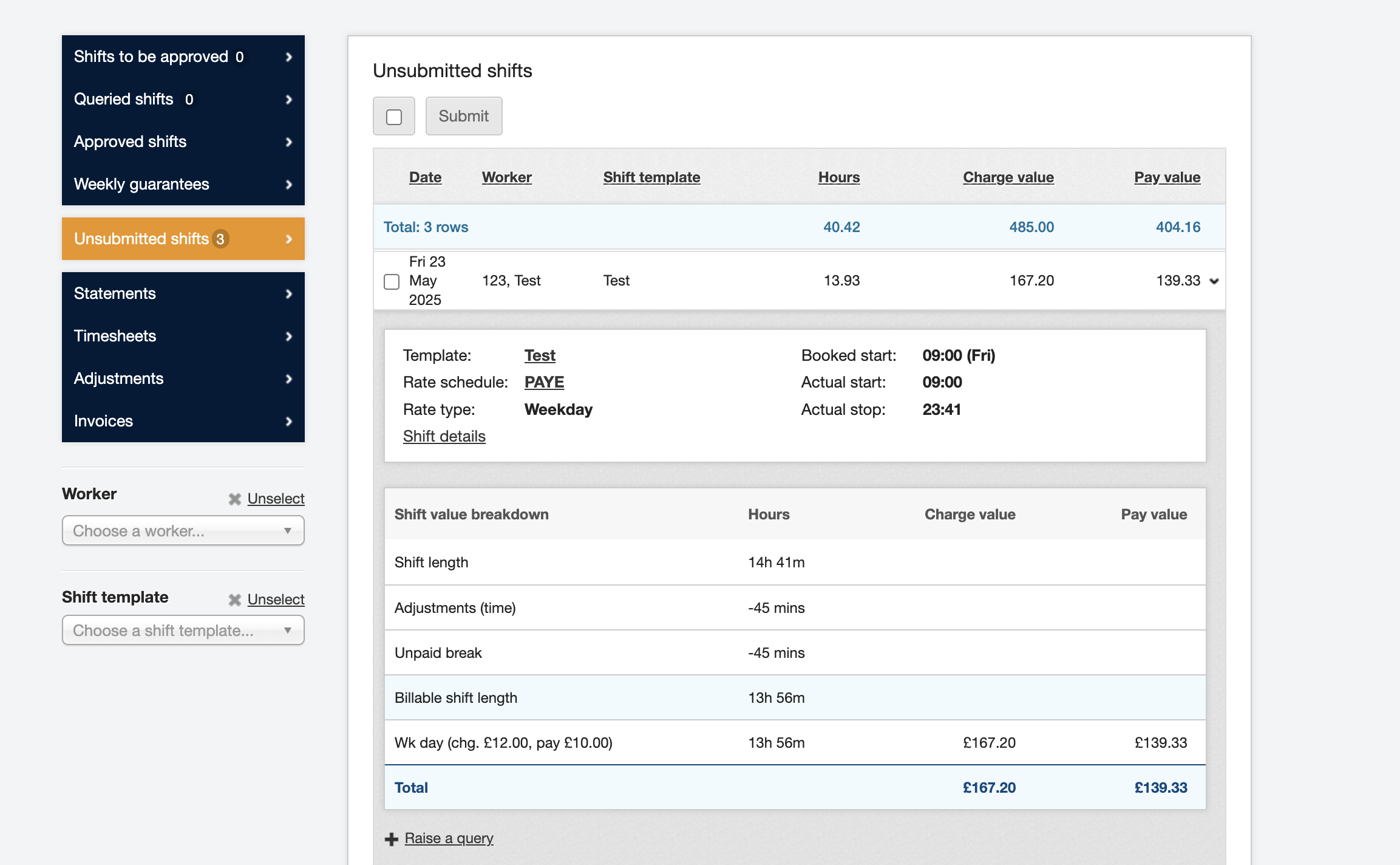
Click any particular line, and it will expand to show more details about the shift.
You can submit shifts individually or process them as a batch. To submit all the shifts at once you will need to click the select all button next to submit.
Please note that this will select only the last fifty shifts visible on the screen. You then need to choose Expand selection to capture all the shifts ready to submit.
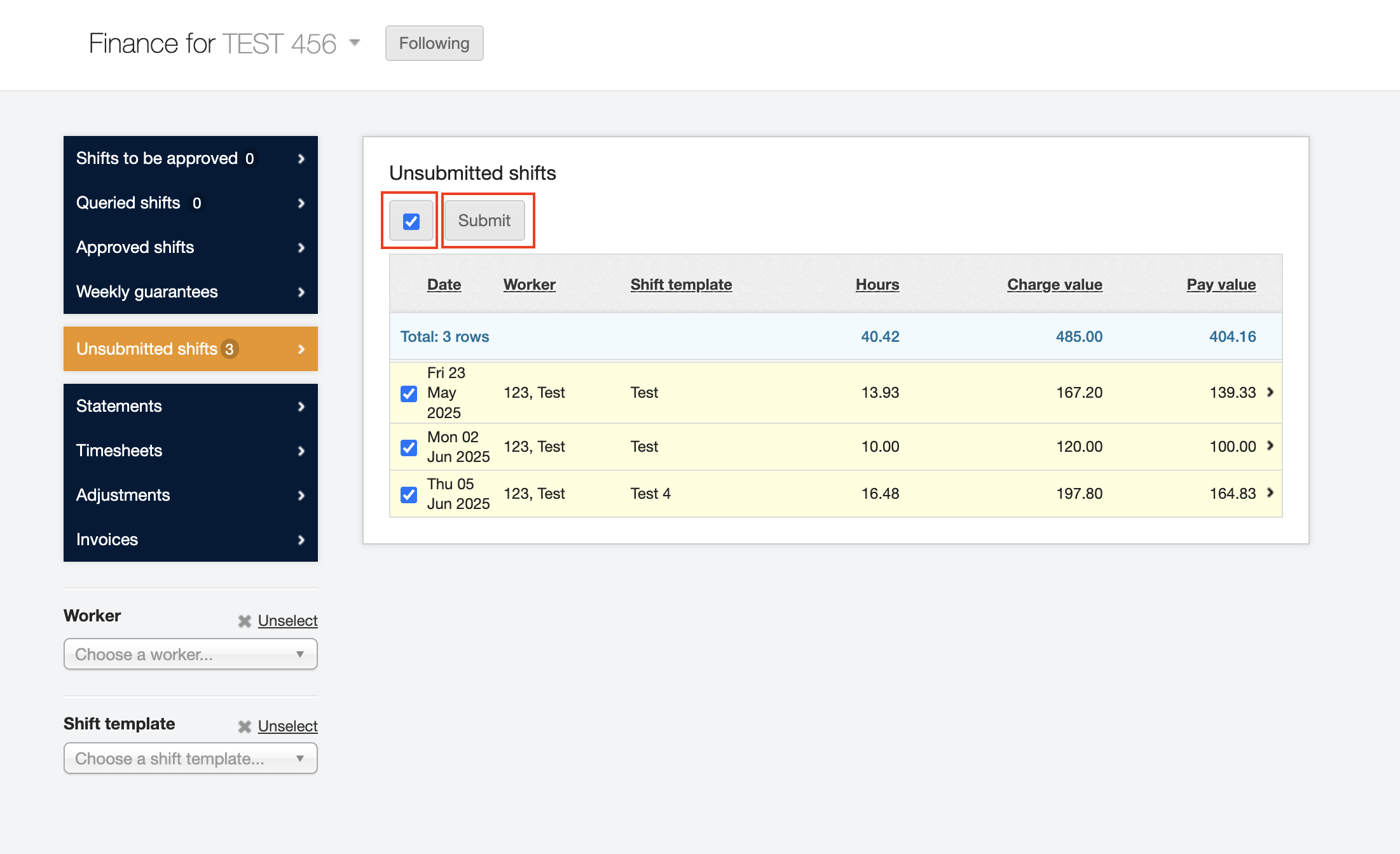
Once you’ve selected the shifts, just click the Submit button.