Stopping Shifts for a Night Out
As an End-hirer on JoinedUp, you are able to stop the timer on a shift for a night out, and set it to restart at a specific time.
To do this you need to open the shift information for the specific shift.
You can find the shift information page easily by navigating through the . Although, there are many ways of accessing this page on JoinedUp.
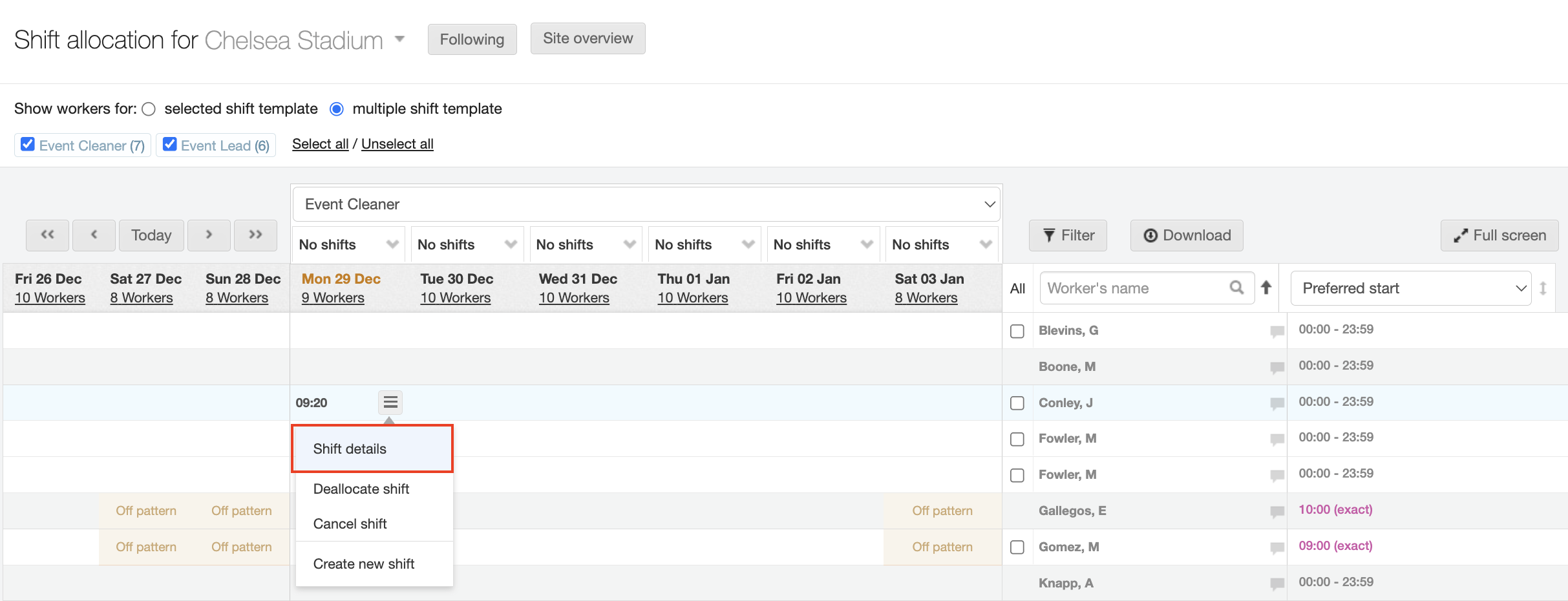
Once you are in the Shift Allocation (On Site) tab, choose the shift you wish to edit. Then, click Shift details.
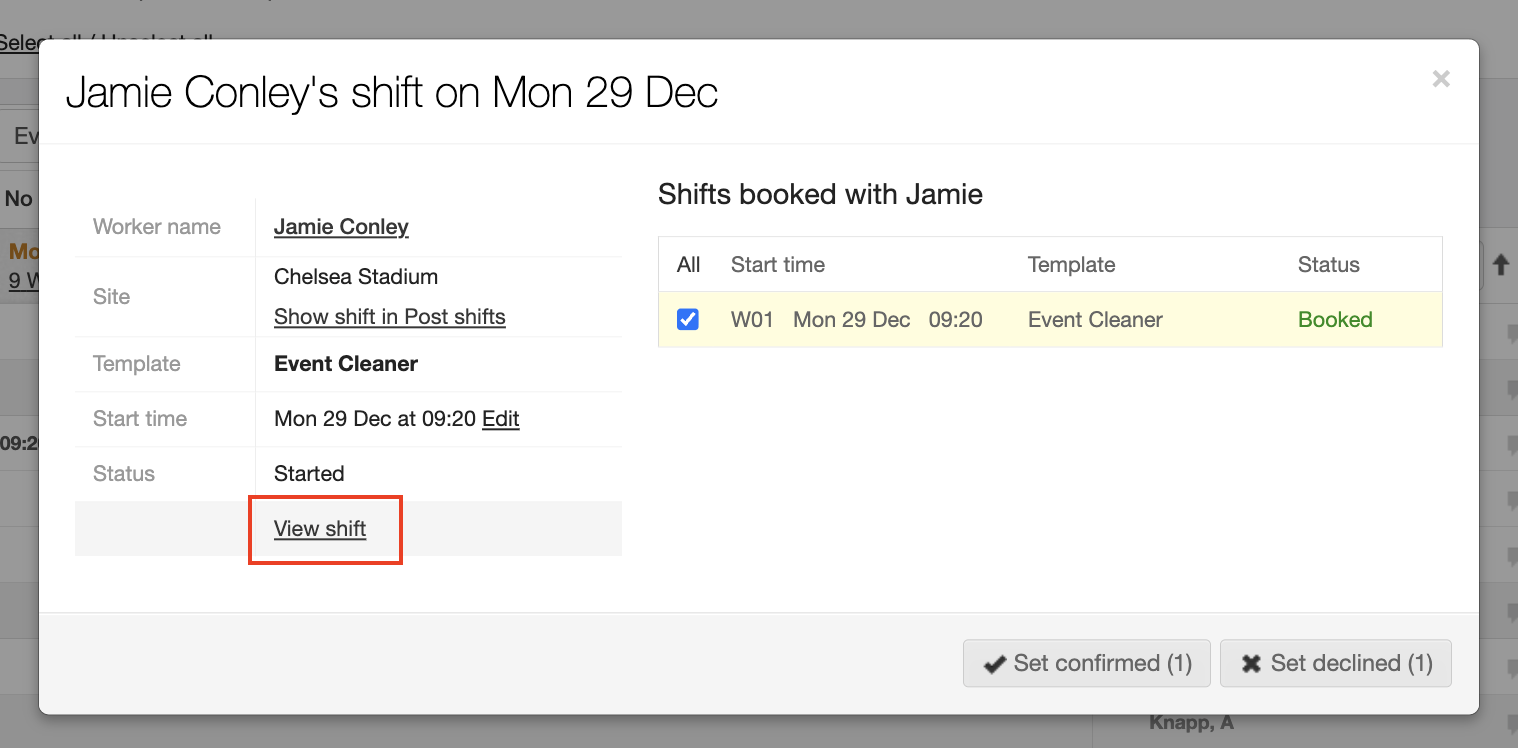
Next, click View shift.
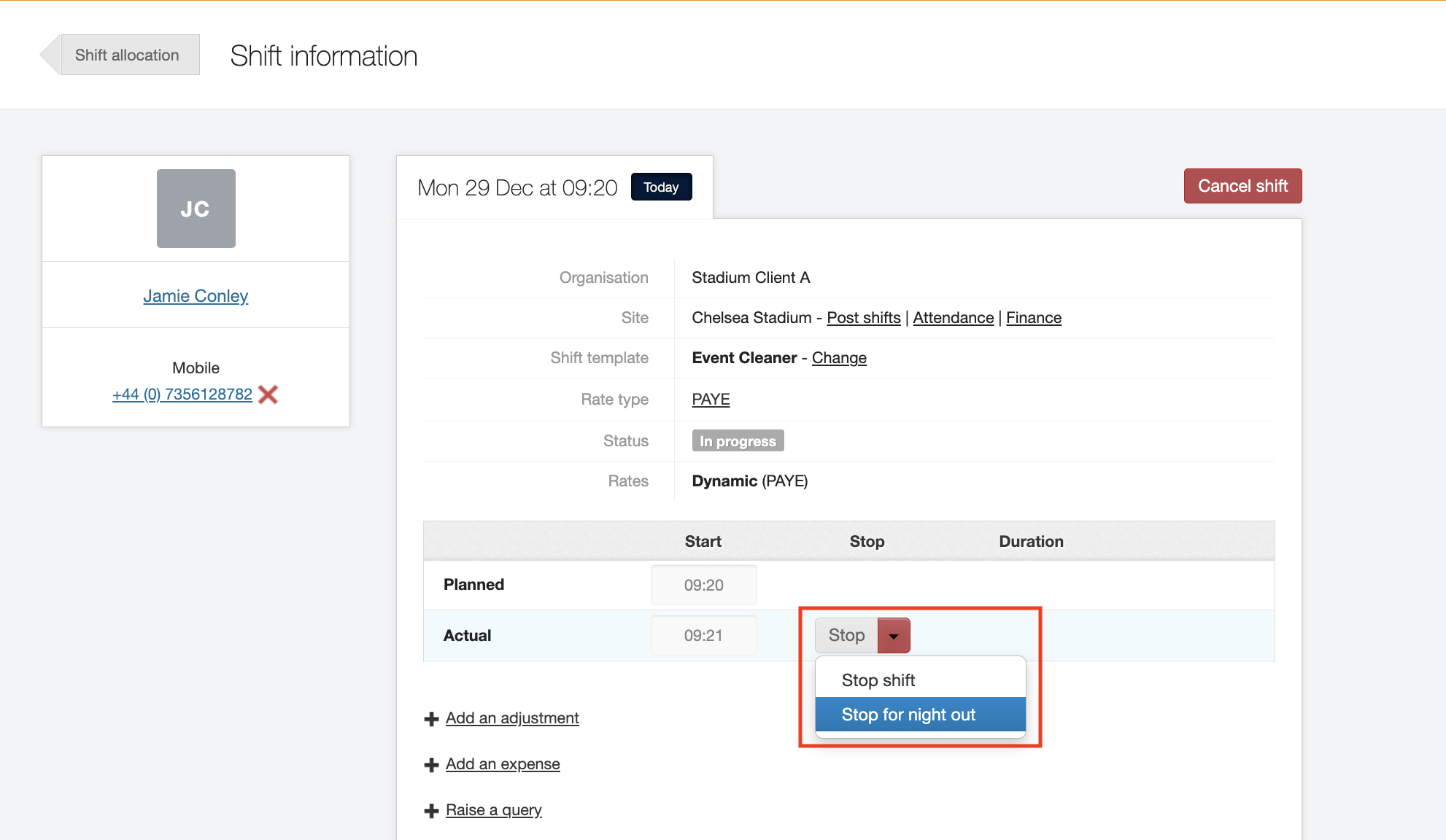
Here you can now you can view all the details for that shift.
To stop the shift for the night out, click the arrow beside Stop. From the drop-down menu, choose Stop for night out.
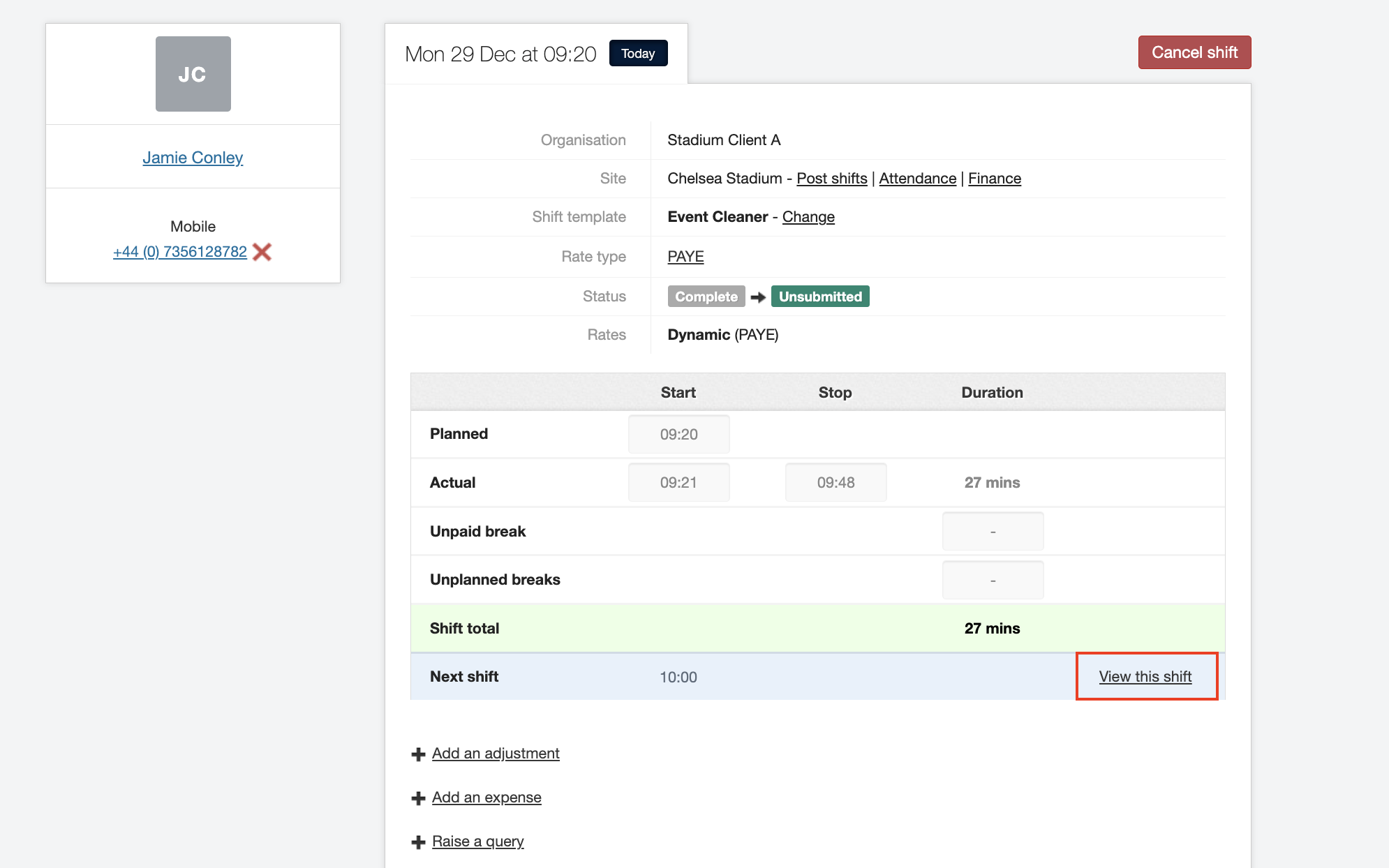
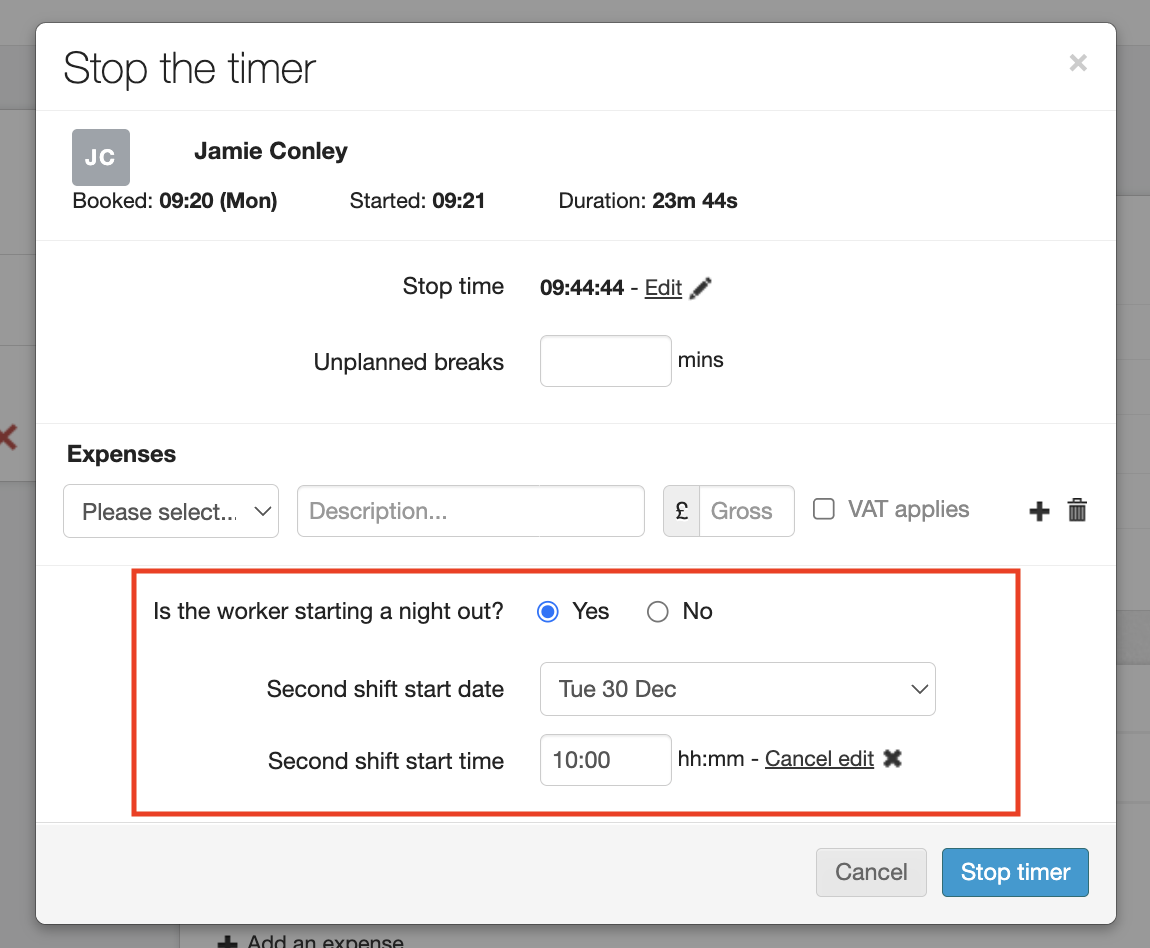
Now you can edit the details of the second shift.
Click the Edit button.
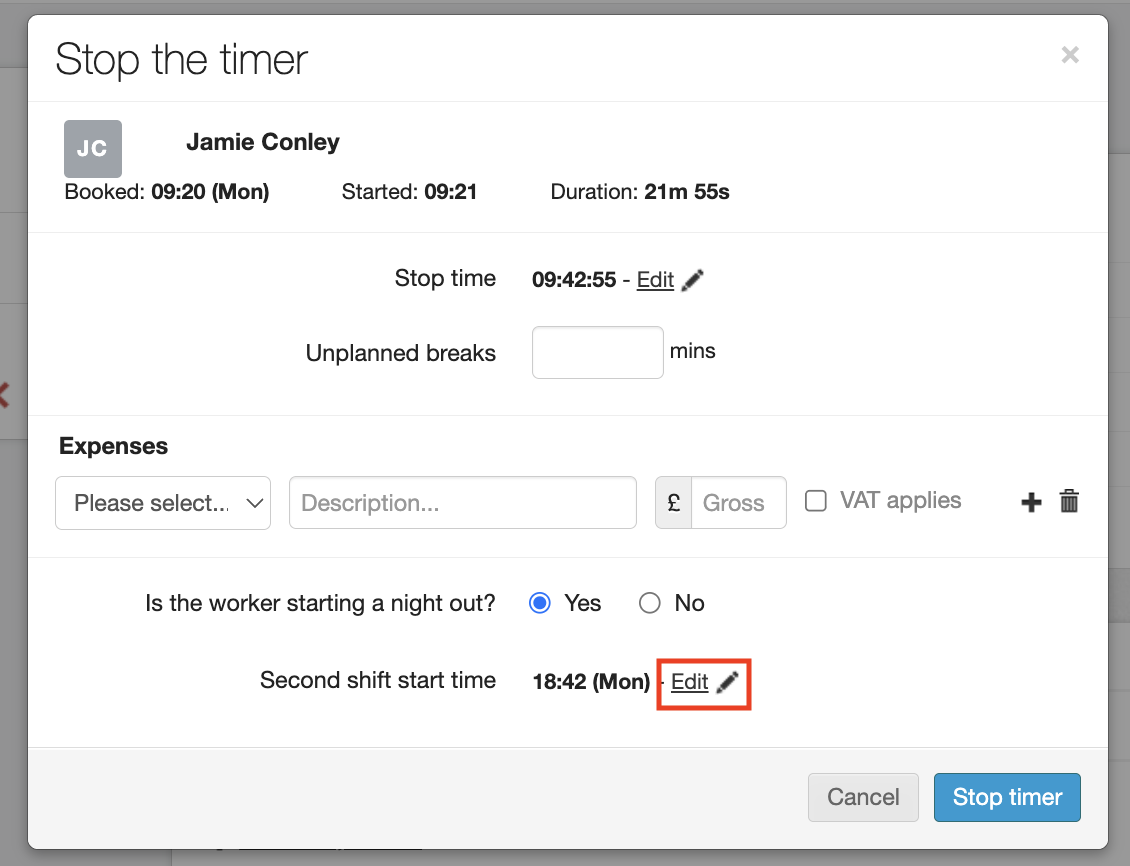
You can manage the start date and time here.
Once completed, this new second shift will appear on the Shift information screen, and you can view its details by clicking into it.