Site Locks
The site locks screen can be used as an end-hirer.
| To use this screen, please contact your Customer Operations Specialist. |
Before the site can be locked all shifts must be submitted by your supplier and approved by you.
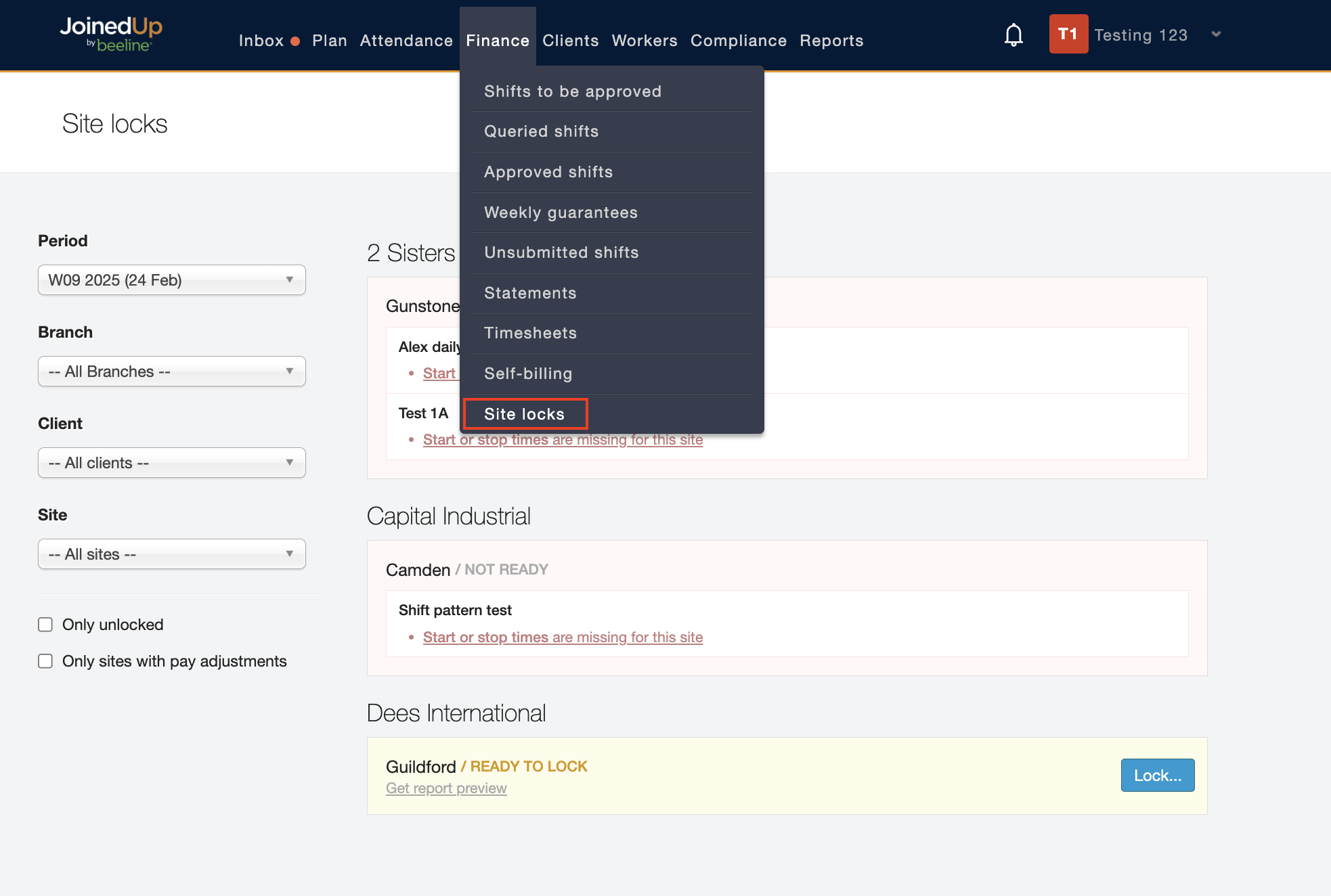
Navigate to the Site locks screen through the Finance tab.
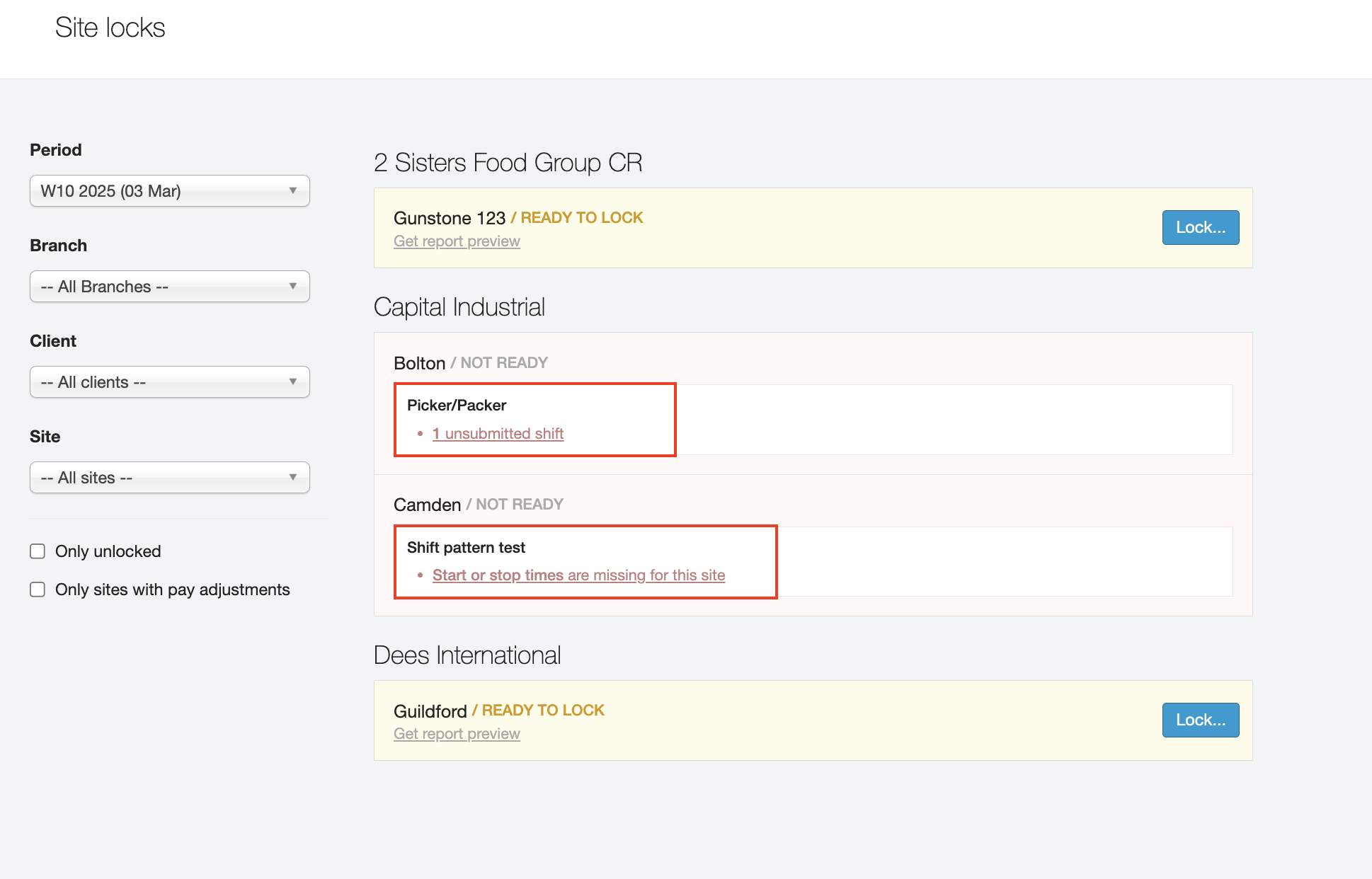
You can filter the Site locks screen on the left hand side. Sites with unapproved shifts or shifts missing start/stop times cannot be locked. The shifts will need to be approved and start/stop times entered in order to lock a site.
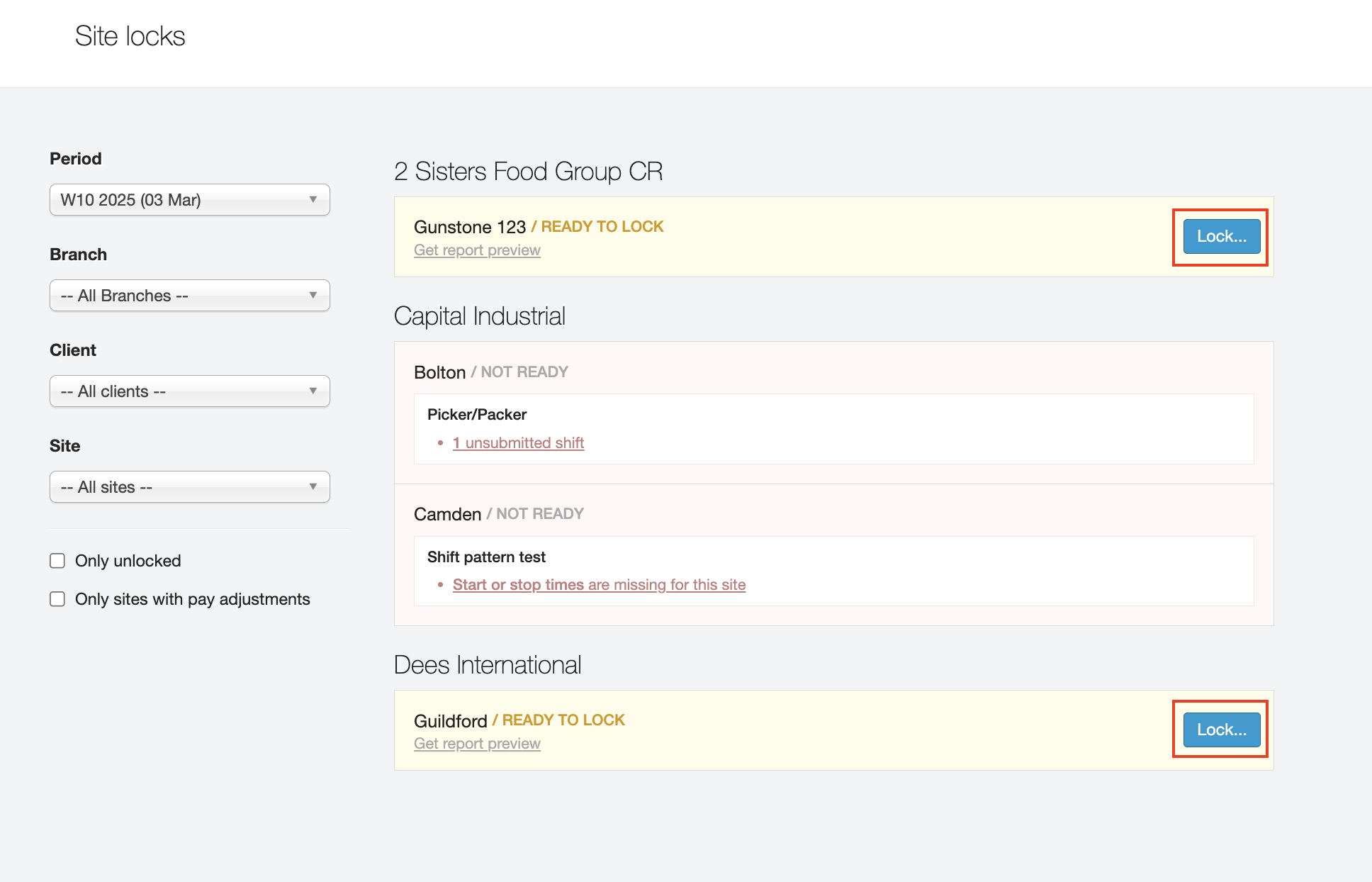
Once all shifts are approved, the site is Ready to lock.
| Once a site is locked you have 15 minutes to make any immediate changes, after that the site is locked permanently and any other changes should be a historic adjustment. |
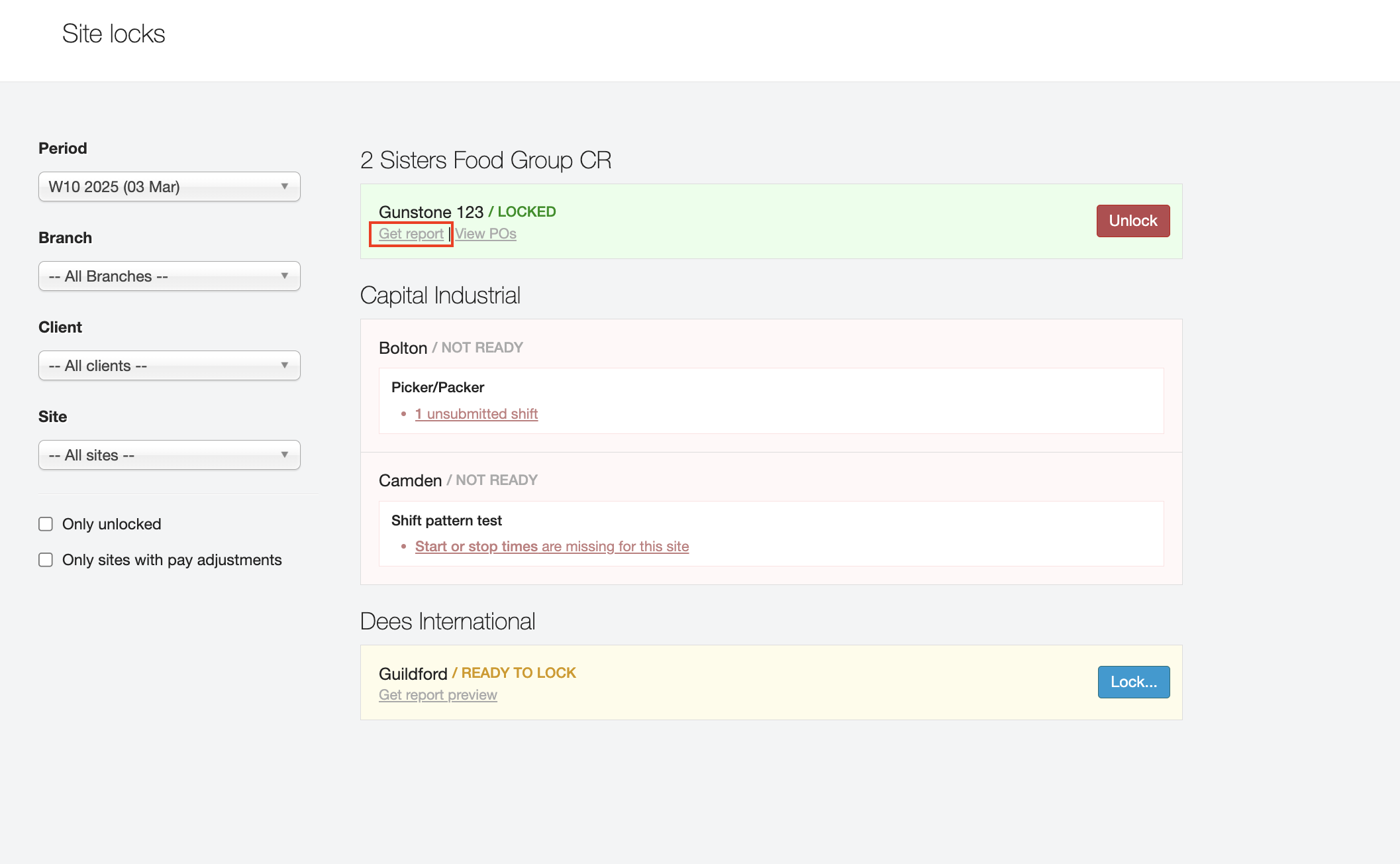
Once a site has been locked, you can download the site lock report and adjustment report.