Setting up your availability
I want to set myself available or unavailable at certain times
You can set up your availability in your Work Calendar so that your agency knows when to book you for shifts and when you are off.
The agency will be allocating you to shifts based on your availability.
If you are struggling with this, please contact your agency.
Availability - Day by Day
You can click a specific day in your calendar and then select one of the options.
Clicking Available sets you as available for the entire day.
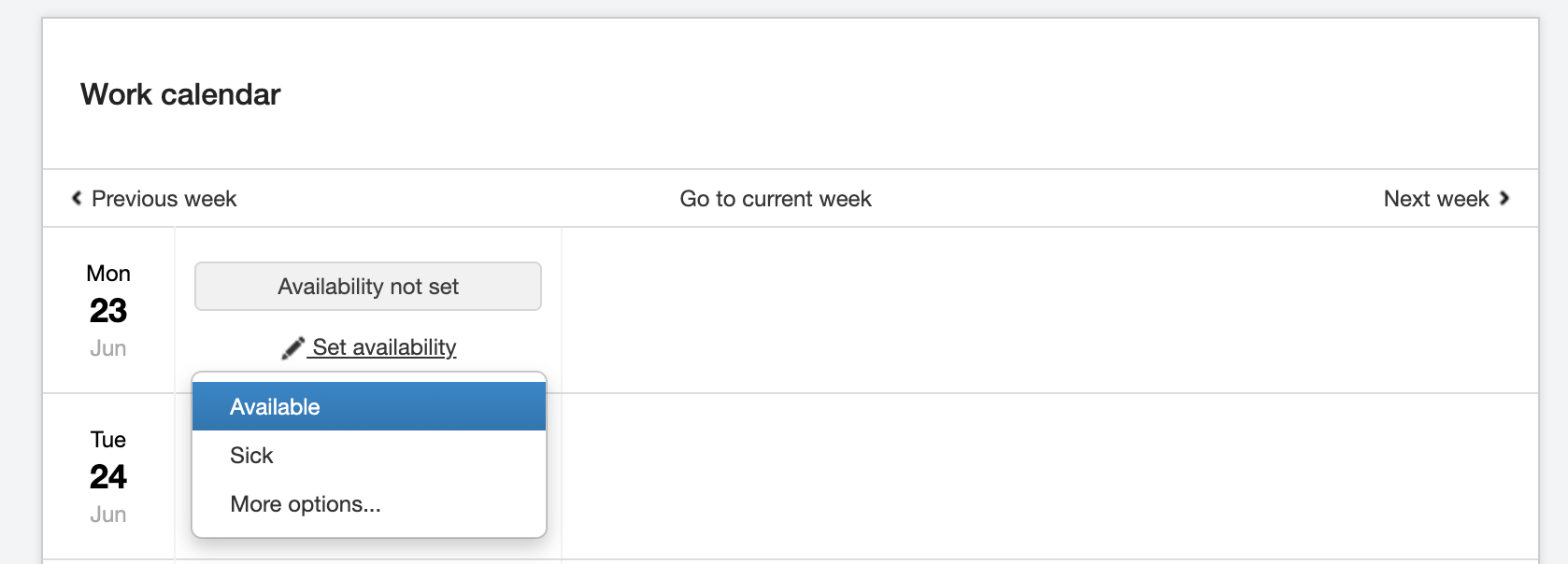
You can also click More Options which lets you choose specific times you wish to work.
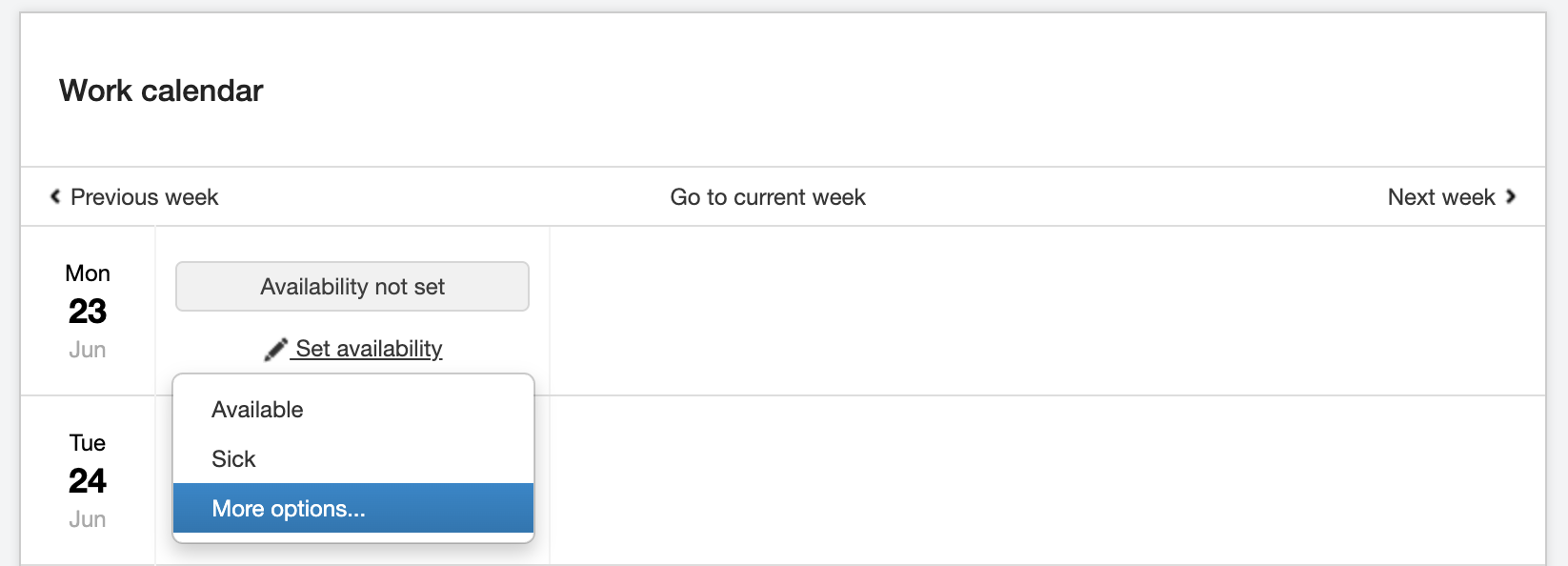
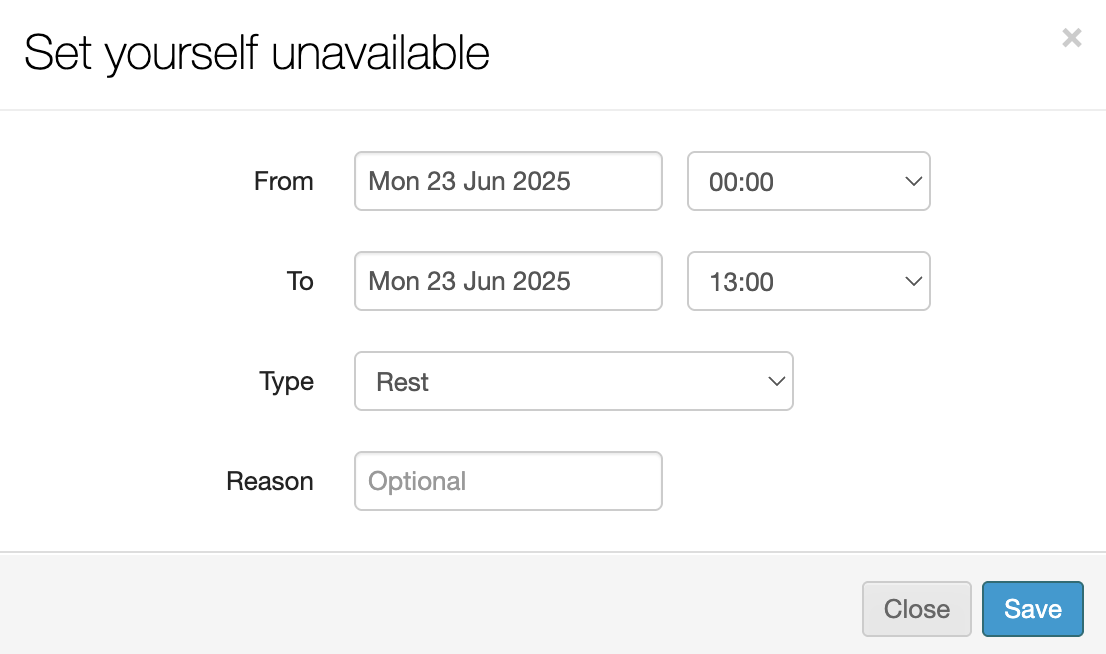
When you click More Options, you have to input when you are unavailable.
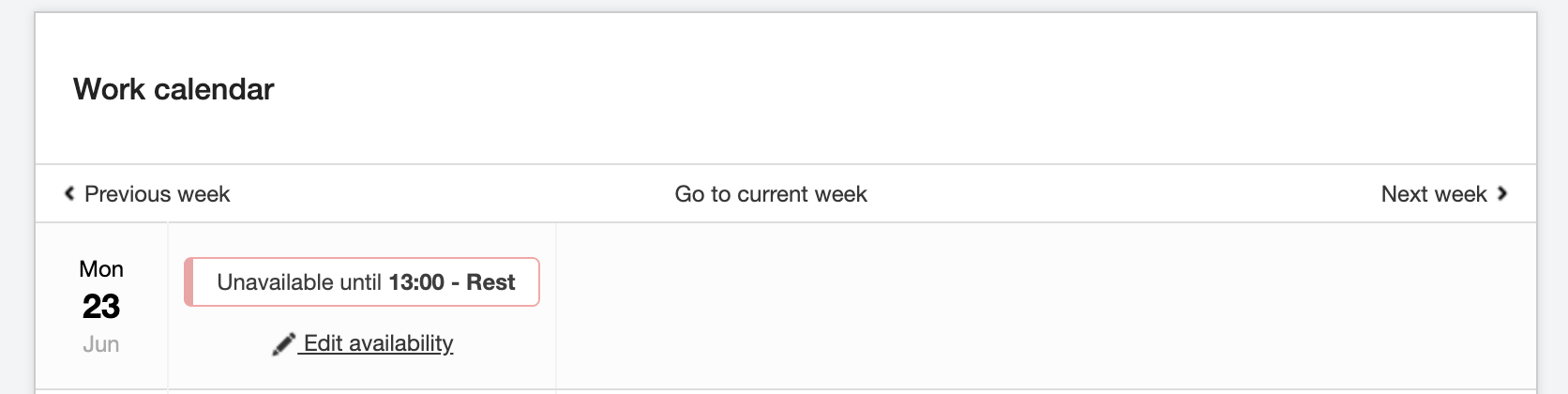
For example, the screenshot below would make you unavailable before 1pm.
Your calendar will then look like this:
You will receive a text message (provided that you verify your mobile number on your profile!) for every shift you are booked into and in the message you will see a button to Accept or Decline the shift.
Availability - Longer Periods
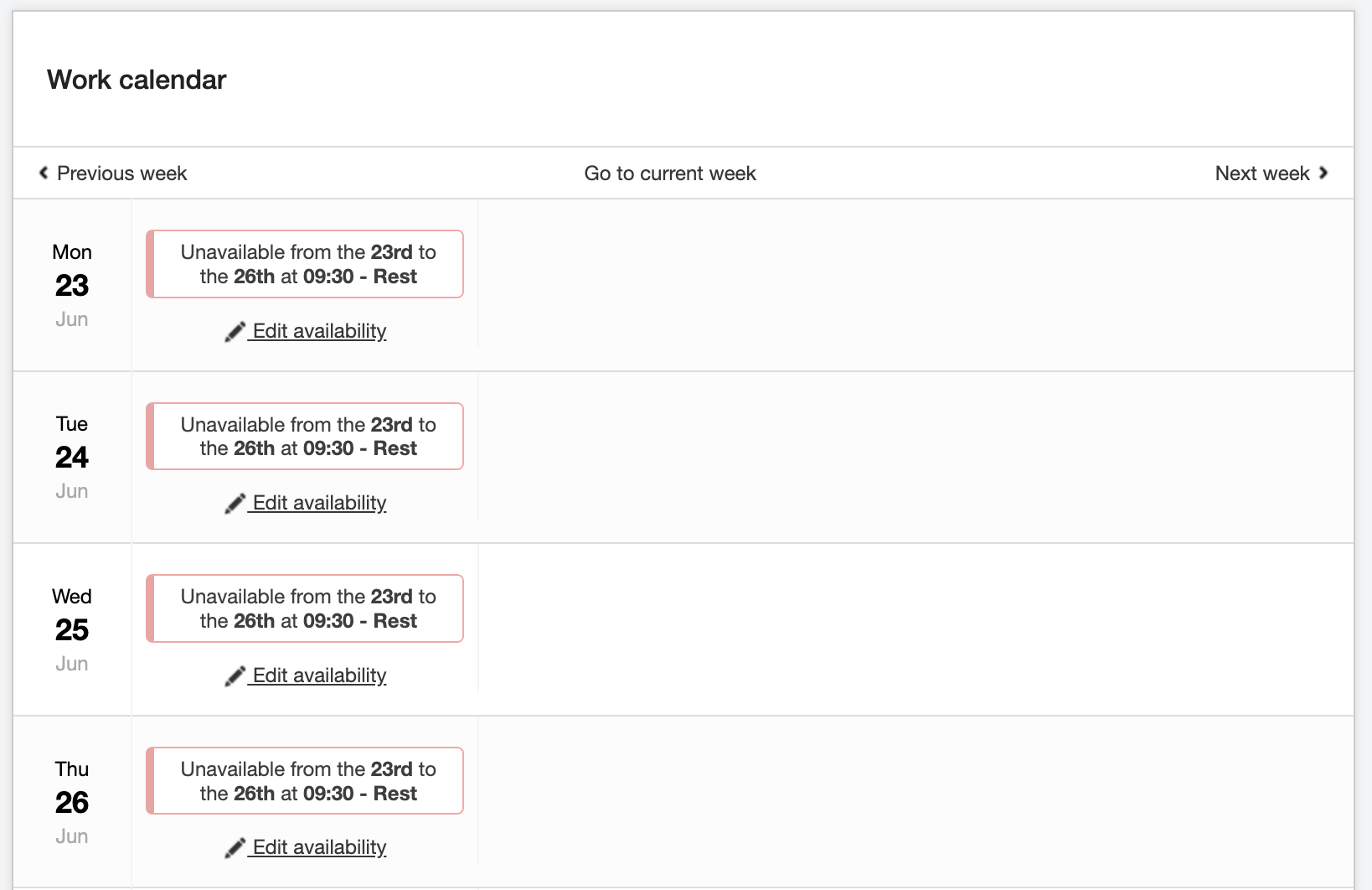
You can also click More Options and set up a status for a longer period by setting up a start and finish date which spans a number of days, for example if you are on holiday.
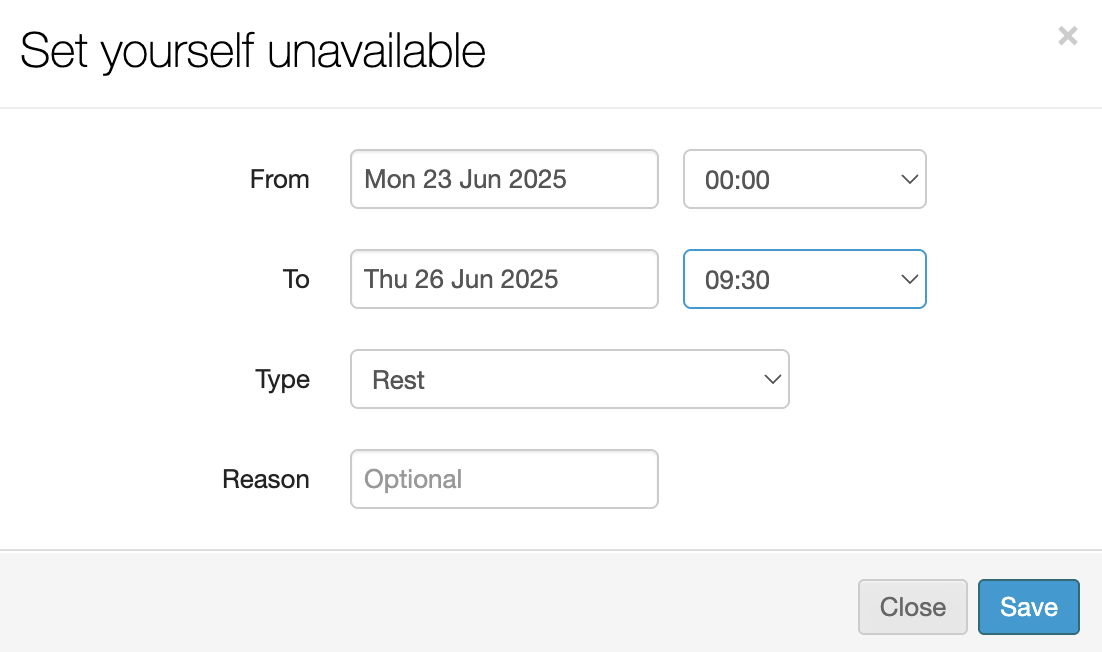
Your profile will then look like the example shown below.
Your agency will know not to book you for any shifts during this period.