End Hirer Shift Sharing
End-Hirers can share shifts to their suppliers exclusively or competitively by using Order Templates.
| To use this feature, please contact your Customer Operations Specialist. |
Once this feature is enabled, an order template must be created before you can start sharing shifts.
Sharing Shifts
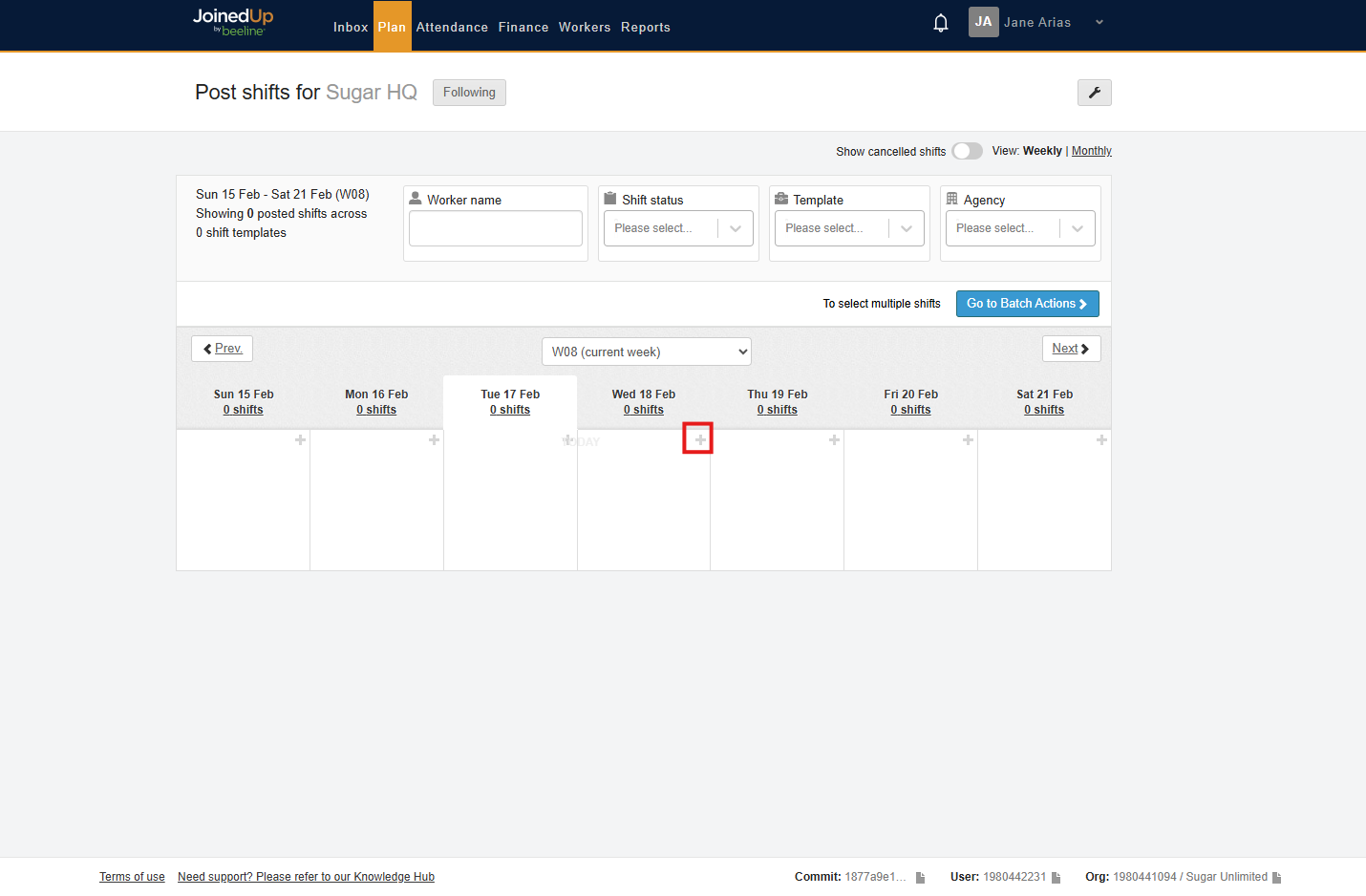
To begin sharing shifts, navigate to Plan Tab then select Post Shifts for your intended site. Click the + in the tile to create a shift.
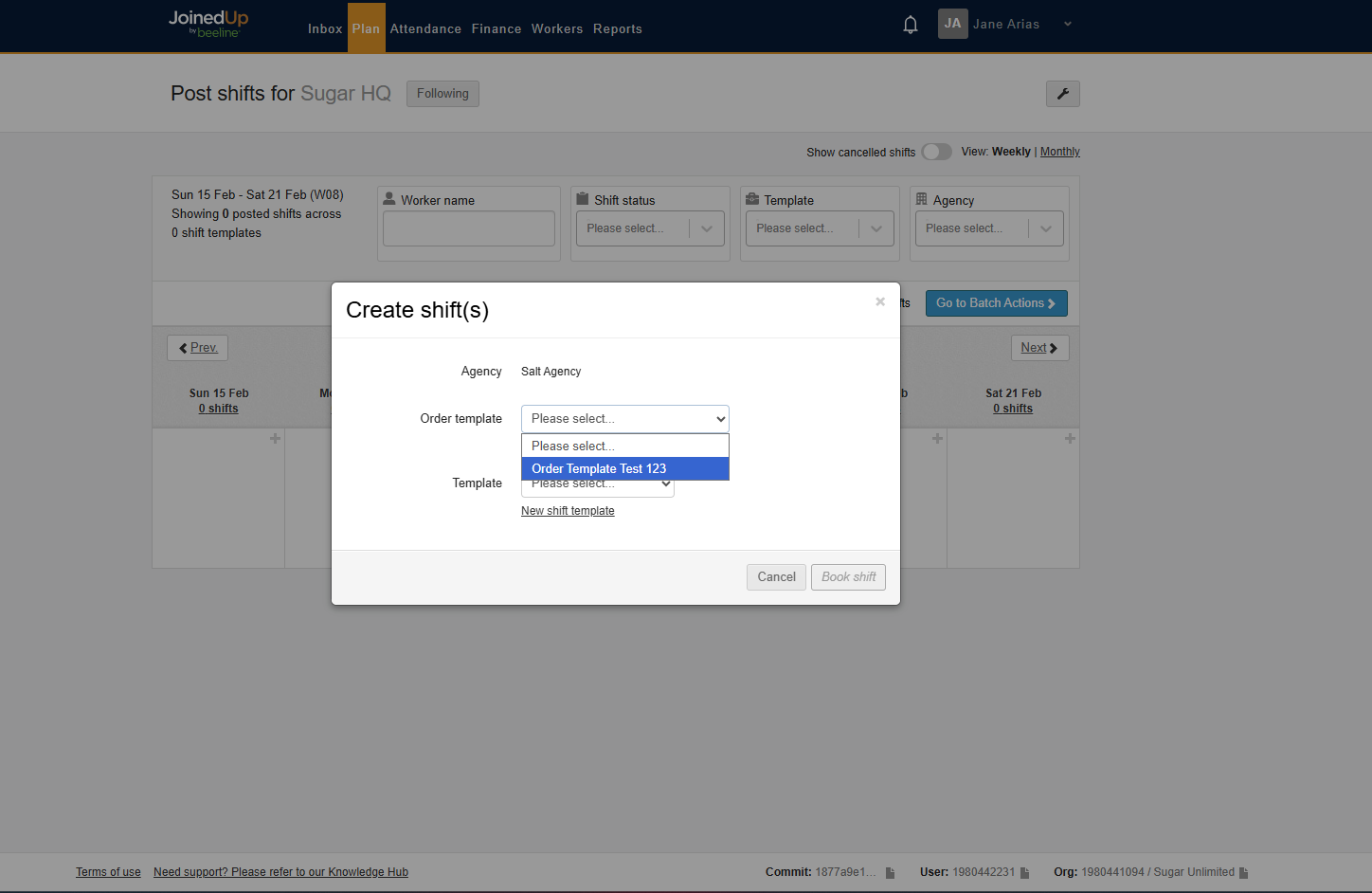
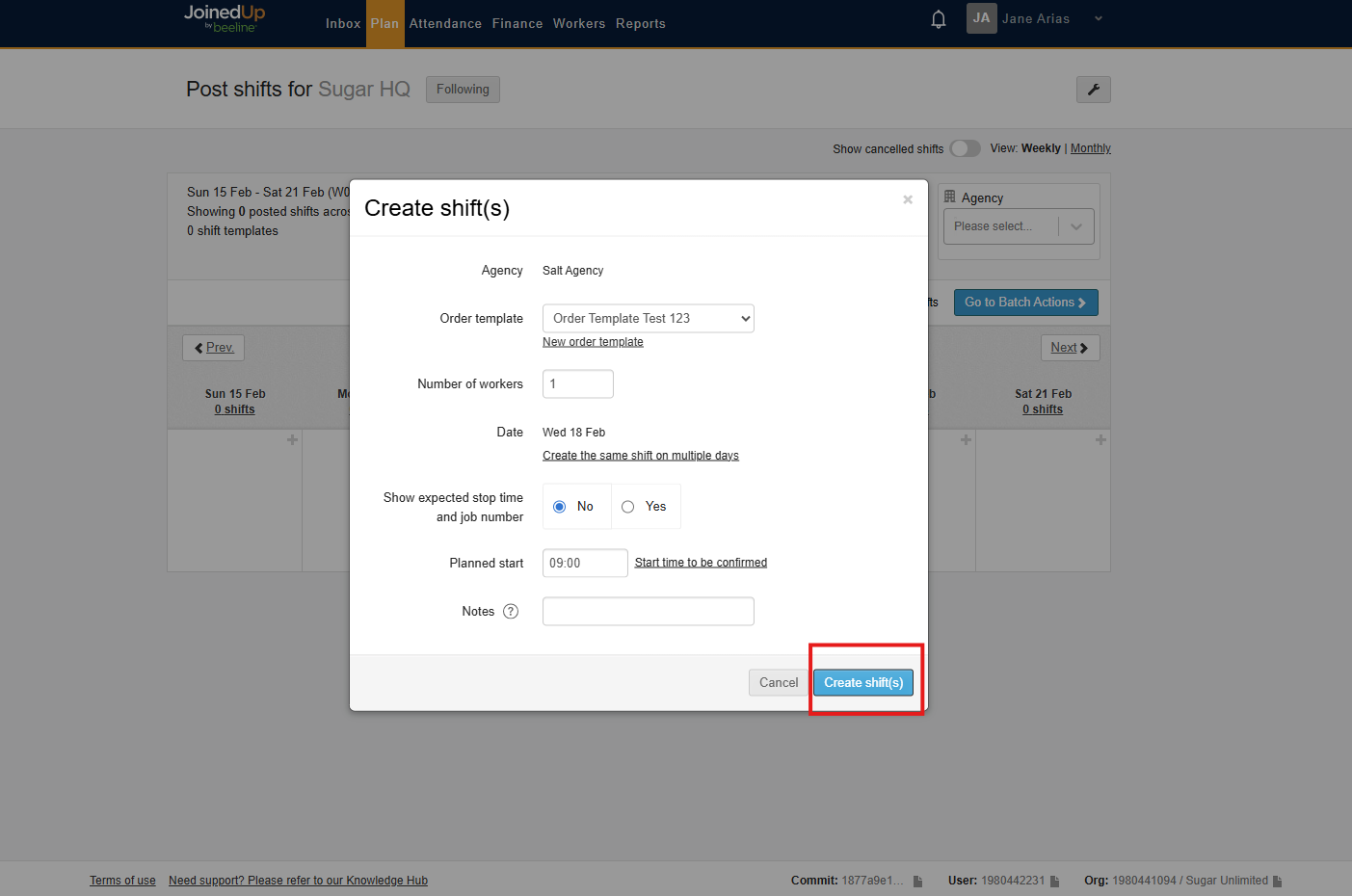
A create shifts modal will appear, here you should select your Order Template from the drop-down menu.
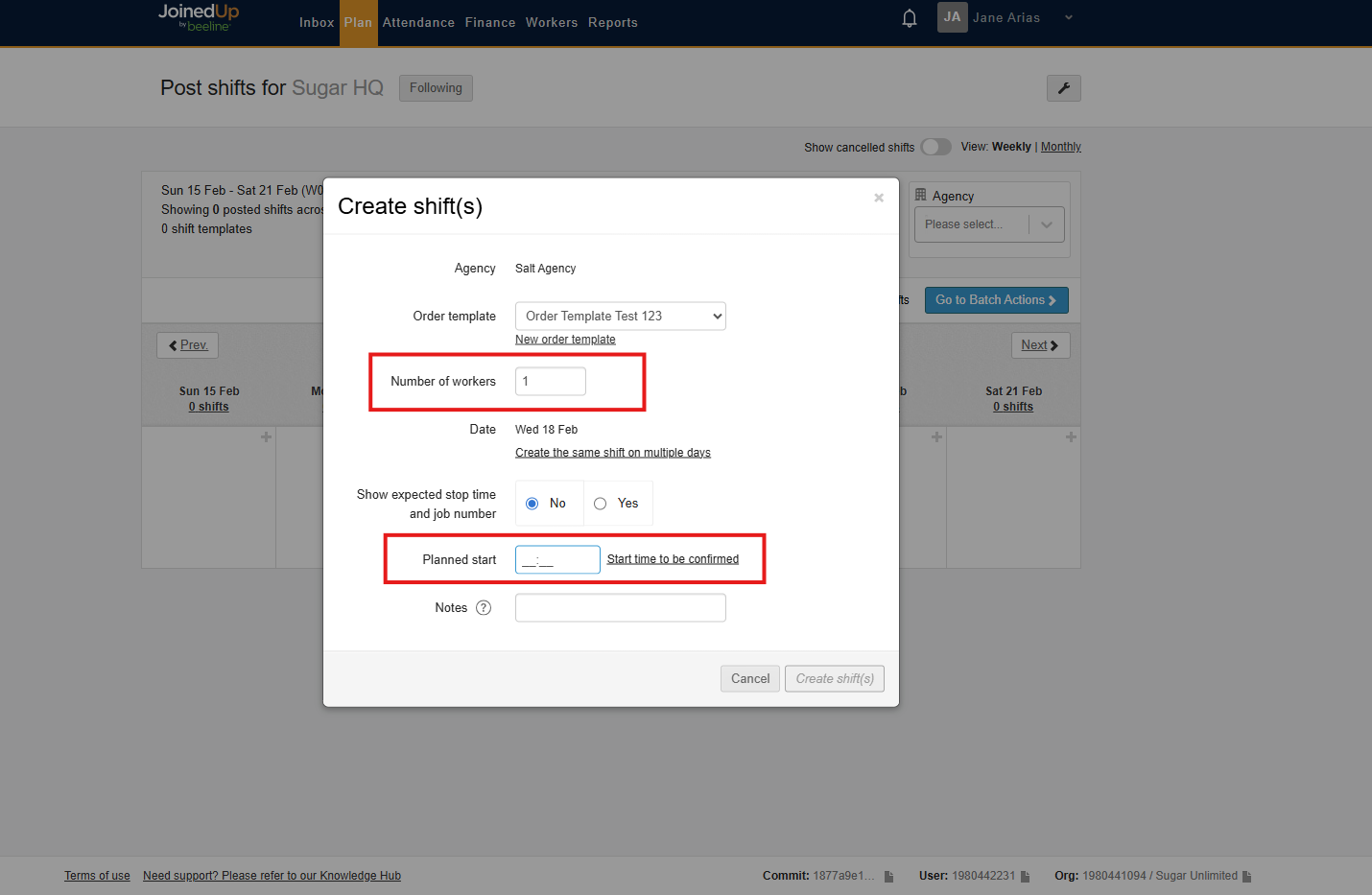
Fill in the necessary fields like the number of workers required and the planned start time.
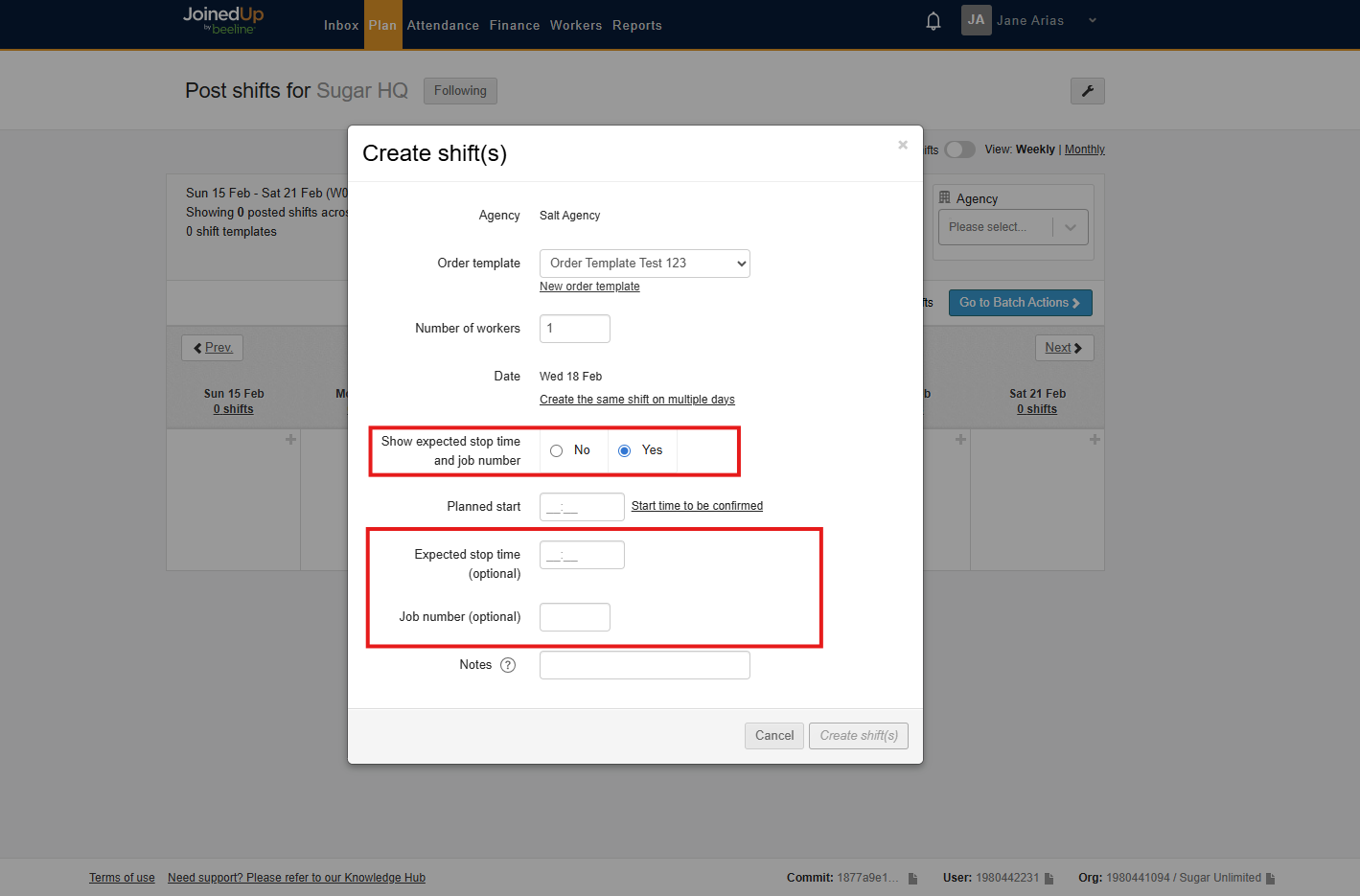
Optional Step: If you would like to enter a Stop Time or Job Number, select Yes for the Show Expected Stop Time and Job Number Field.
Now you can click the Create Shifts button on the lower right part of the modal.
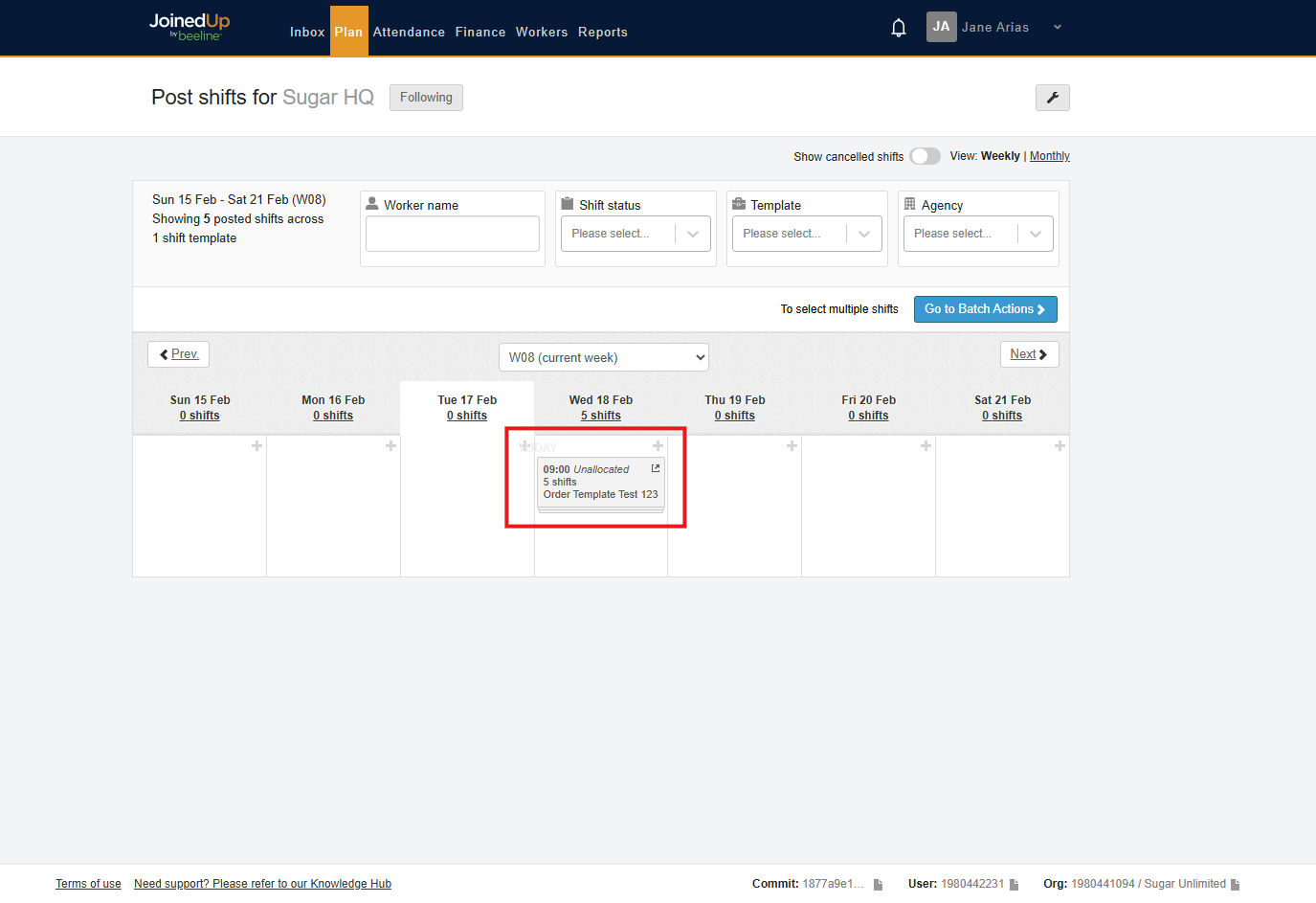
Created shifts will be reflected on the Post Shift screen as grey boxes.
To share shifts, click into the grey tile which will show a slide out panel on the right side.
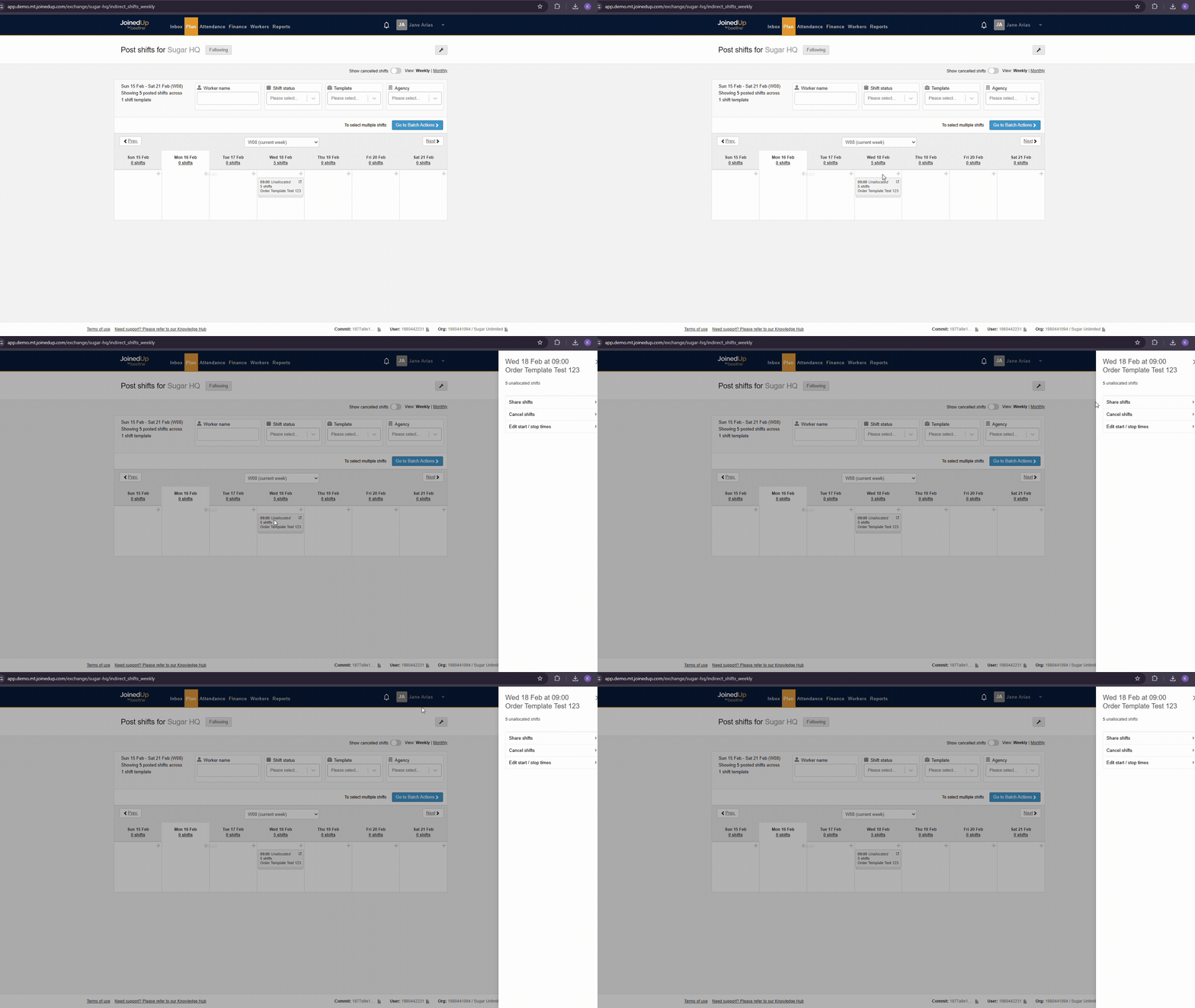
Once the slide-out panel is visible, click the share-shift button which will prompt you to select whether to share:
-
With a single agency
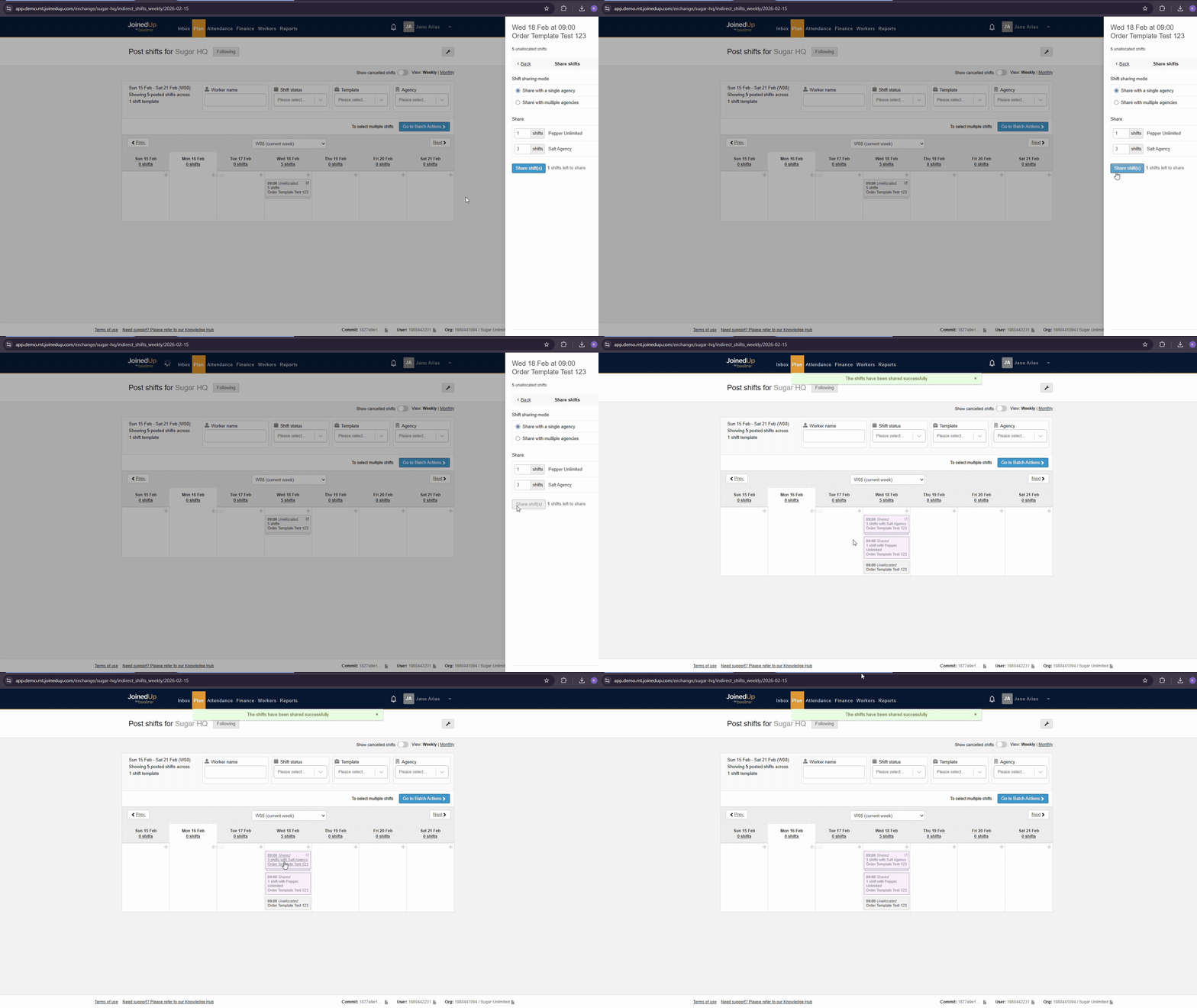
Sharing with a single agency means that suppliers are able to propose shifts without any competition from other suppliers because in this mode shifts are shared to suppliers individually.
To begin, select the share shifts button. you will be prompted to select the number of shifts to share per agency – so in the sample below, if you choose 3 shifts to share for one supplier, the supplier can propose 3 workers then the other agency can propose for the remaining 2 shifts if you share it with them.
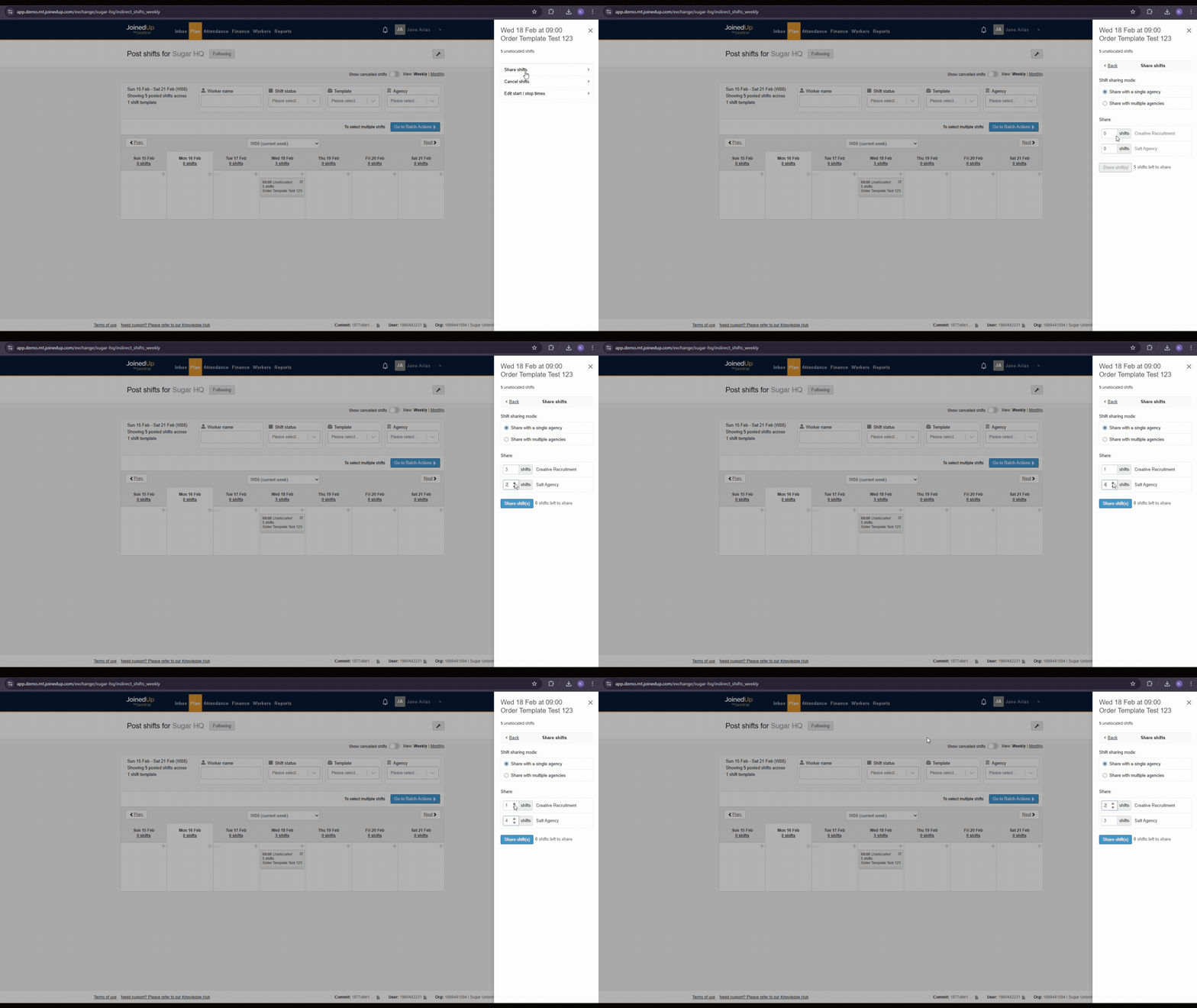
Once completed, click the Share button in the lower-right corner. The shared shifts will then appear on the Post Shift screen as separate purple tiles for each agency.
-
OR With multiple agencies Sharing with multiple agencies allows competition among suppliers. For example, 5 shifts are shared among 2 agencies. The 2 agencies can now propose to the 5 shifts you shared.
To start, select the Share shifts button. Click share with multiple agencies. Input number of shifts you want to share to the selected agencies.
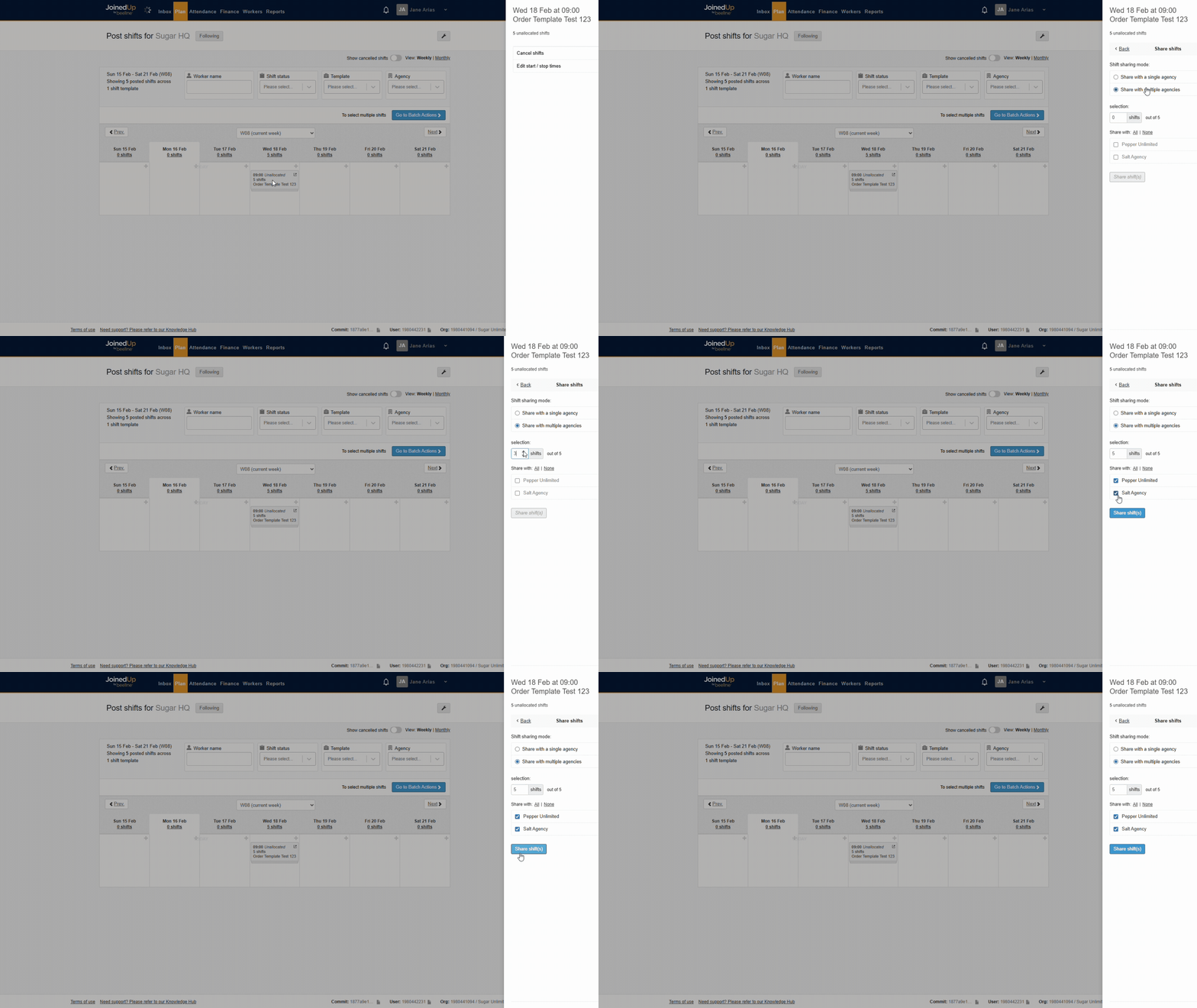
Once completed, click the Share button in the lower-right corner. A stack of purple tiles will appear on the Post Shift screen, representing shared shifts for each agency.
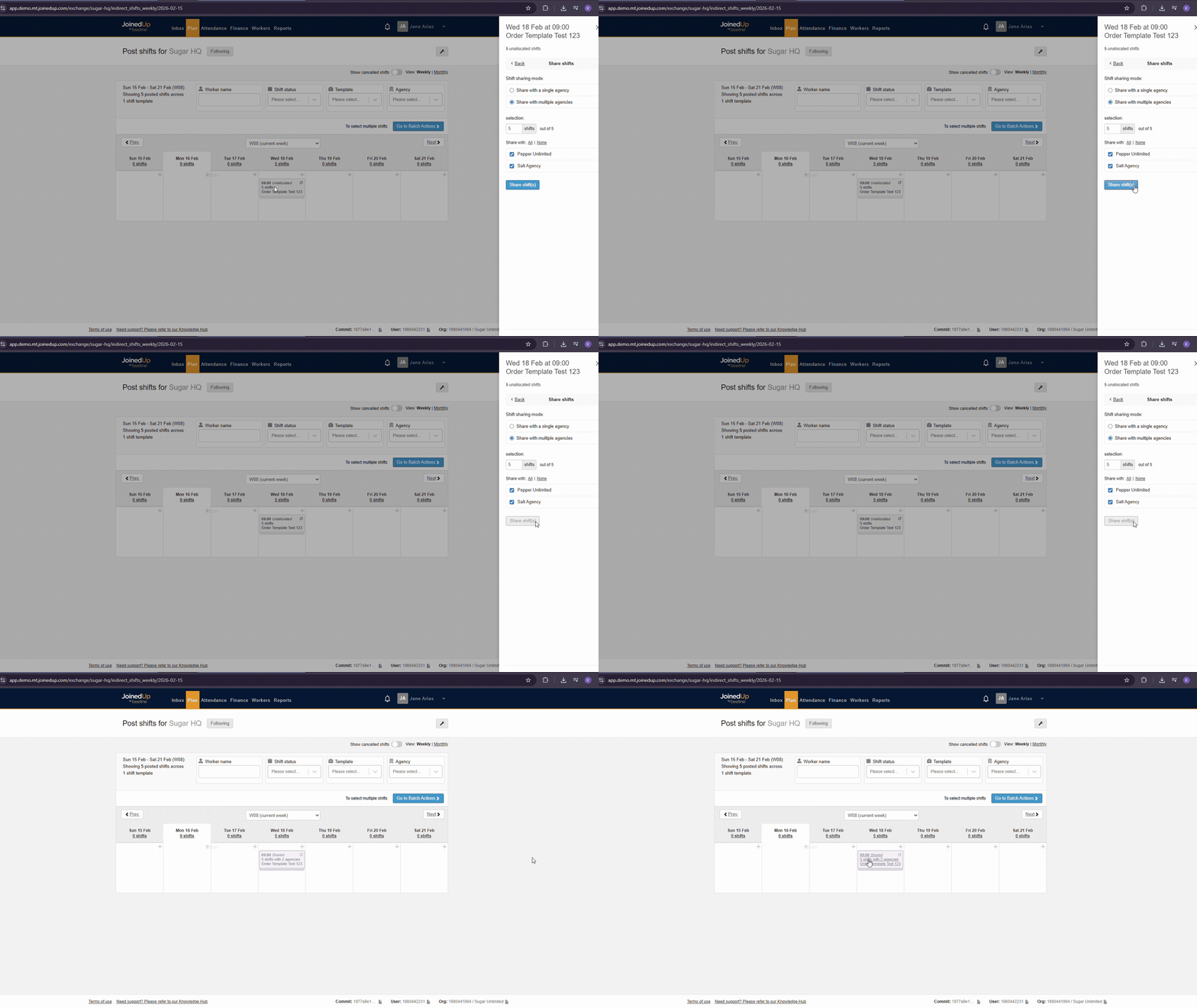
To check the workers proposed to the shifts, click the purple tile.
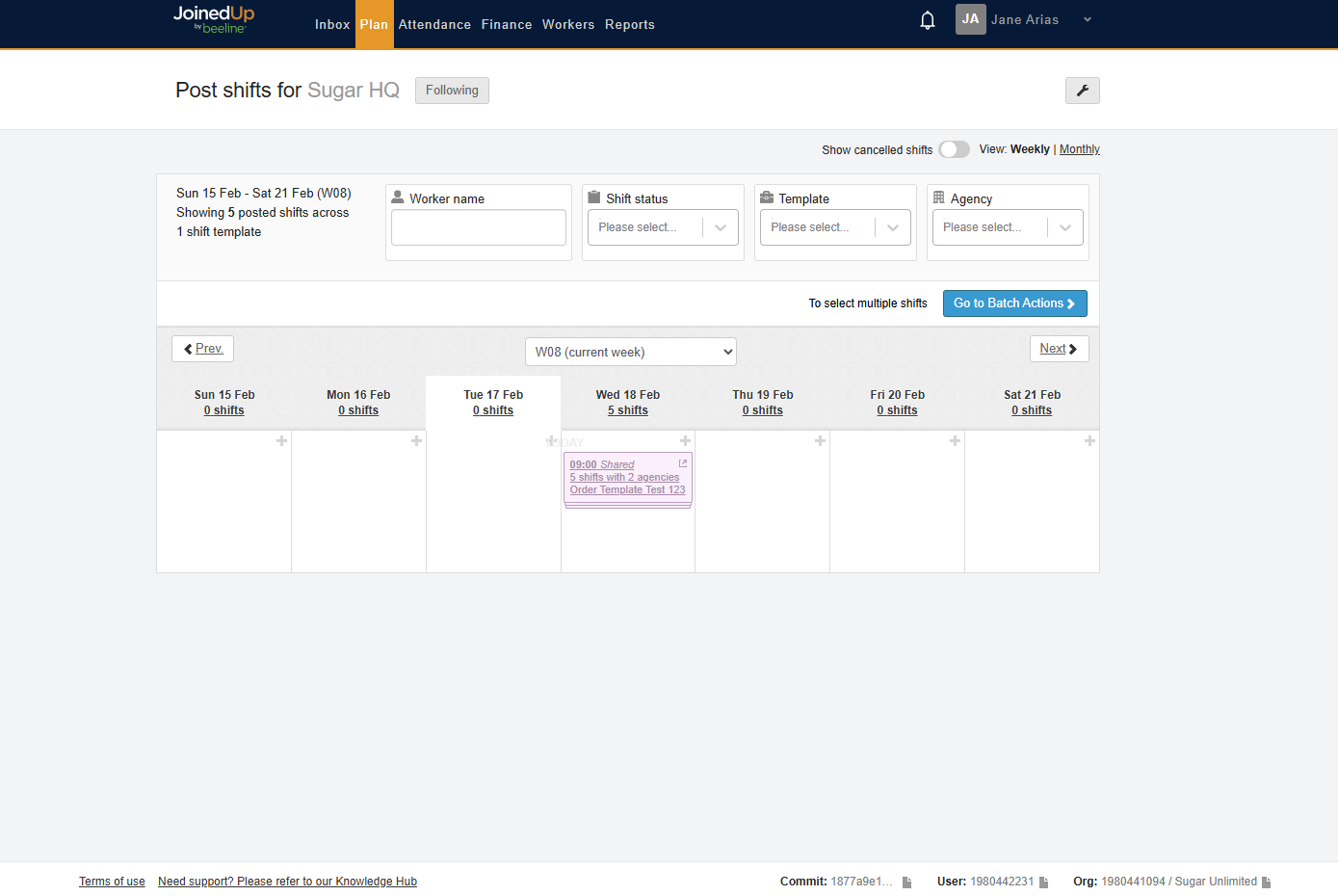
From here, you have the following options:
-
Accept Proposed Workers
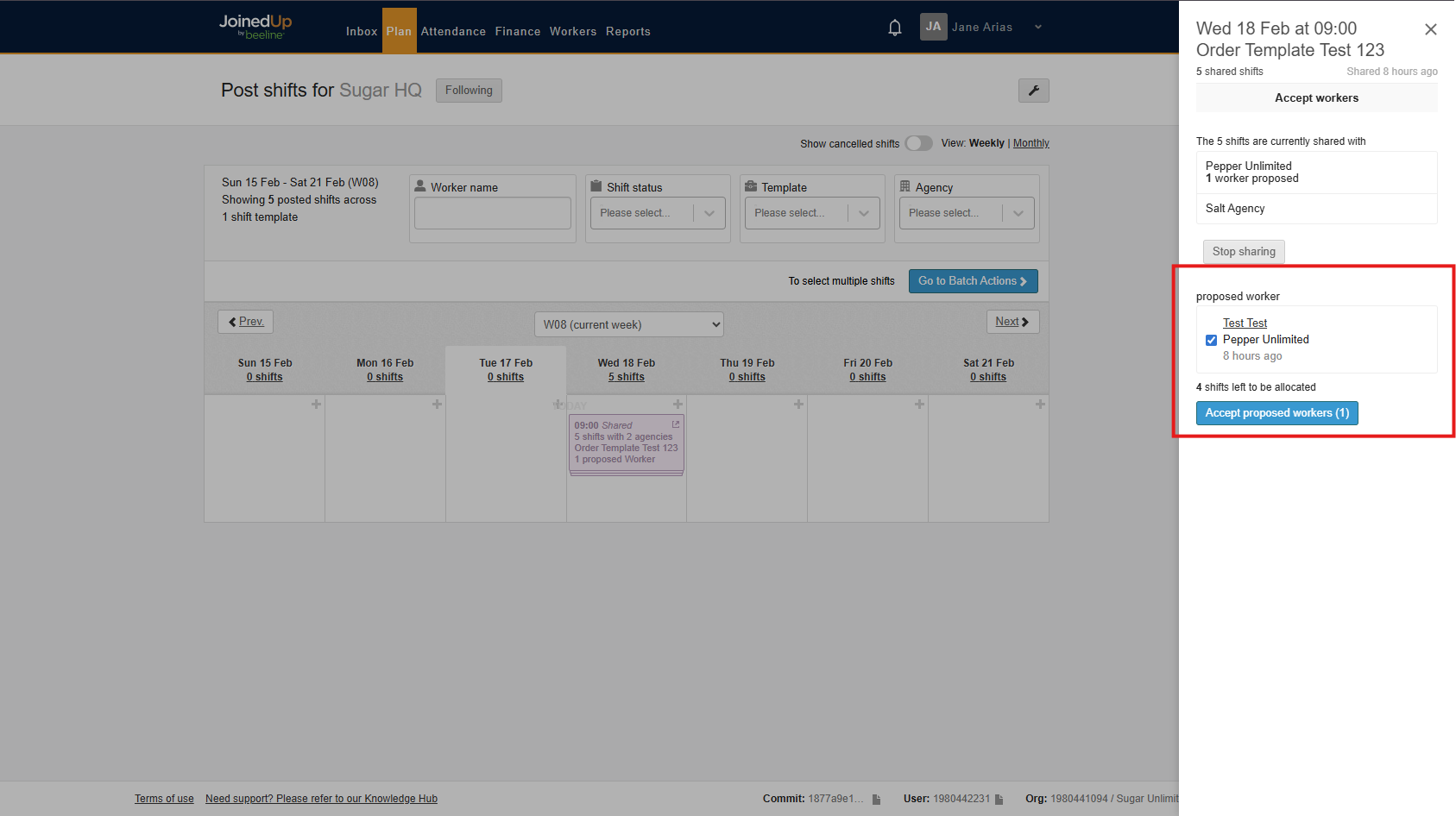
Once Proposed Workers are accepted, it will show that the worker is allocated on the Post-Shift Screen with a corresponding status.
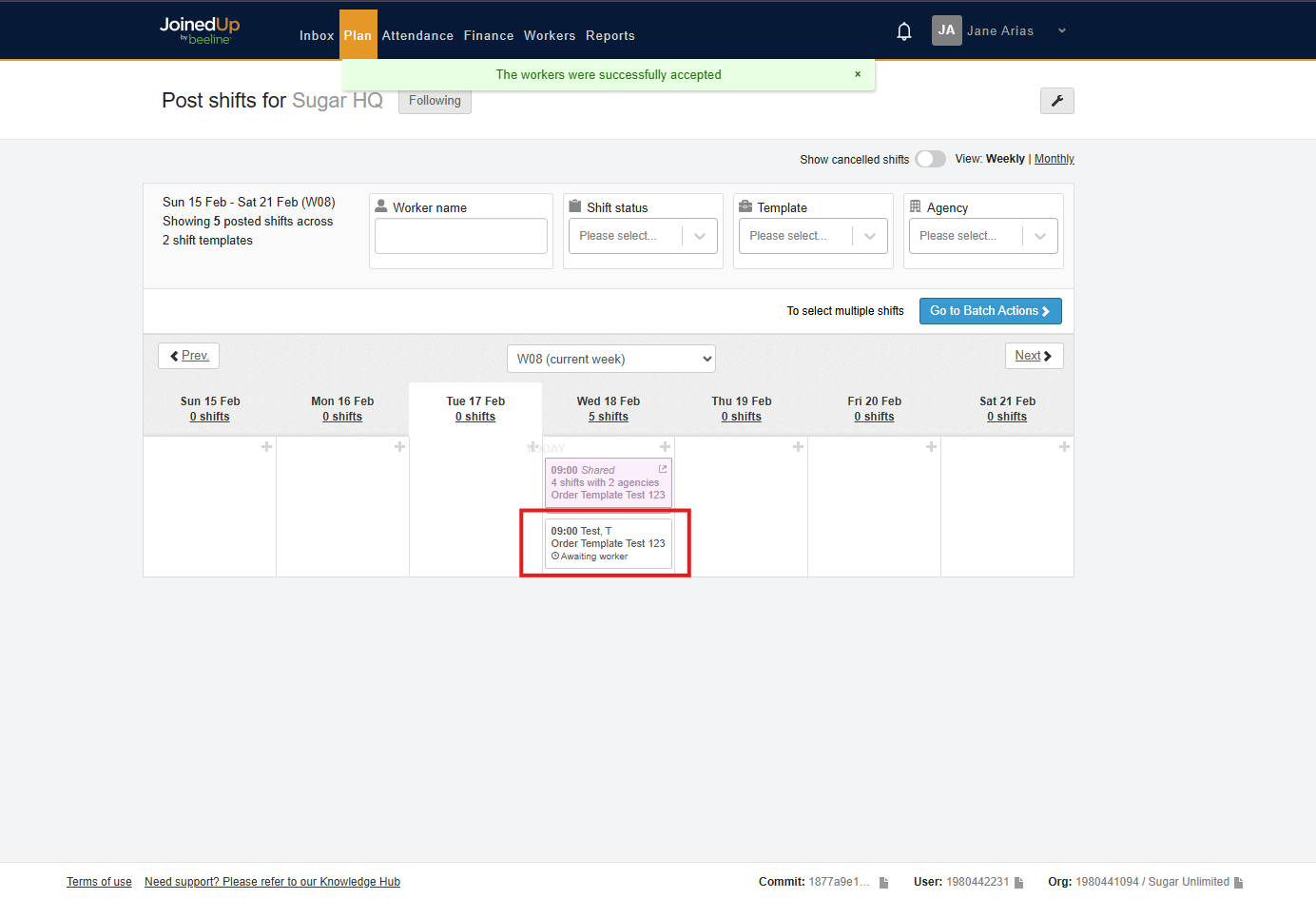
| If the Automatic Worker Acceptance setting is enabled in the template, proposed workers will be automatically accepted, and this step will be skipped. |
-
Stop Sharing Shifts
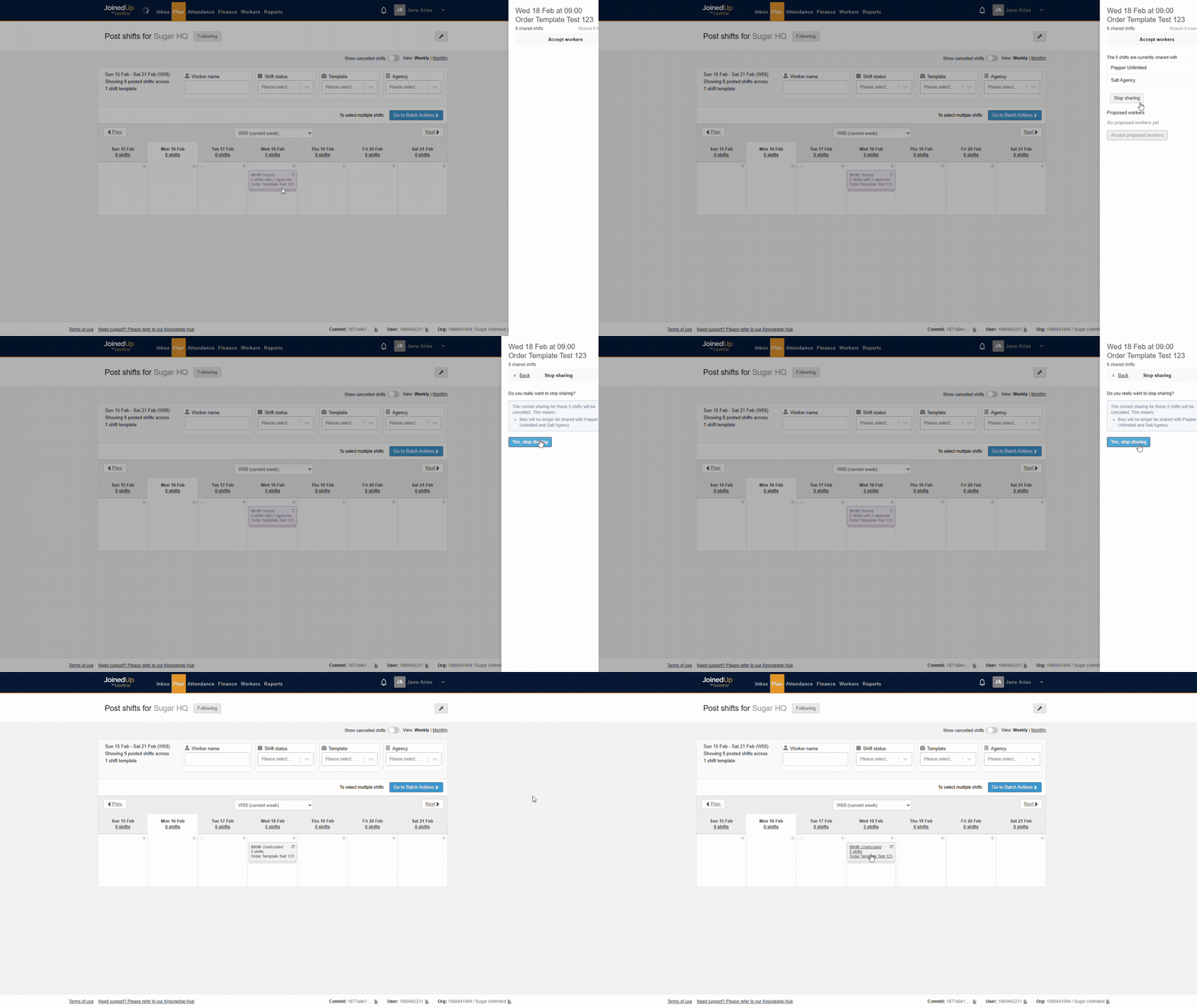
You can choose to stop sharing shifts by clicking on the purple tile again, then select Stop sharing on the slide-out panel, then a confirmation message will appear to verify the action. Once complete, the purple tile will become white indicating that the shifts are not shared anymore.
See more: