Tickets - JoinedUp User
As a JoinedUp User you can submit tickets to our Level 1 team.
Our Level 1 team manages General enquiries such as:
-
Technical queries.
-
General understanding of JoinedUp functionality.
-
A technical issue with Jira, such as being unable to log in or see your tickets.
Although, we suggest that you browse through our documentation articles or make use of our AI chatbot before logging a ticket.
This platform is extensive and should be able to provide you with any information needed.
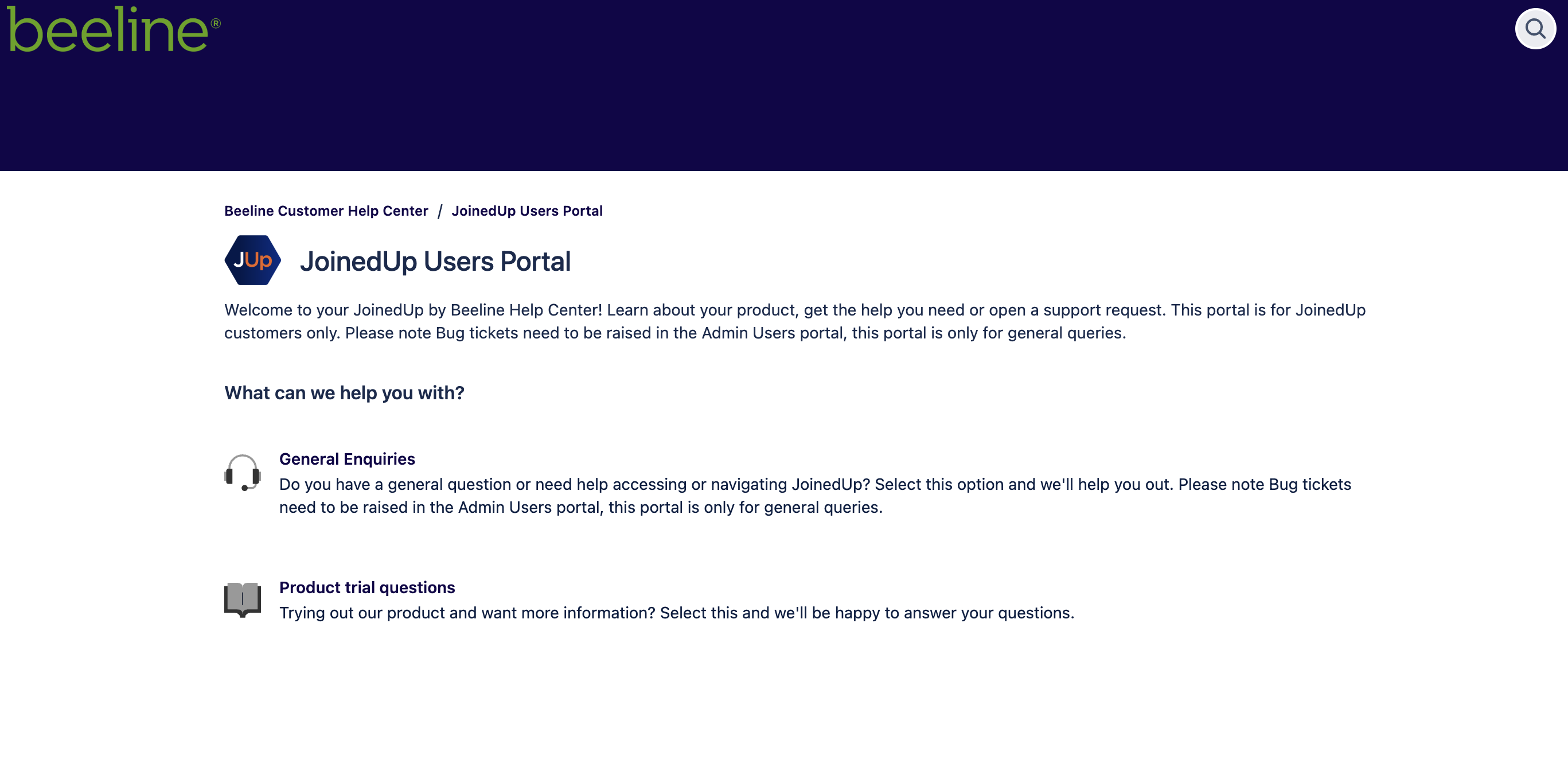
However, if you are still unable to find the information you require, click this link to log a ticket.
| Please let us know if your query becomes more urgent by sending a message in the Comments section of your ticket. |
Submitting tickets
To create a new ticket as JoinedUp user:
-
Log in to the JoinedUP Users Portal
-
Select General Enquiries.
-
Fill in the appropriate fields. Some options will request additional data, these details are required for your query to be accepted.
-
Click Send. You will then see your completed ticket.
| The more thorough and detailed responses you provide, the more efficient the ticket resolution will be. |
| You do not need to be invited in order to log a ticket. We also monitor the portal 24/7 so you can log tickets at any time. |
Reviewing tickets
If you would like to update or comment on an existing ticket:
-
Log in to the ticket portal and go to Requests in the top right-hand corner.
-
Find and select the ticket you would like to update.
-
From this screen, you can:
-
Review all original ticket details.
-
Review ticket status and activity.
-
Add new ticket comments for JoinedUp’s review.
-
Turn off email notifications for this specific ticket.
-
Mark the ticket as resolved, canceled, or escalate it.
-

| The number preceding Requests indicates the number of tickets that are open. |
Searching tickets
To search for a specific ticket, click on Requests in the top right hand corner.
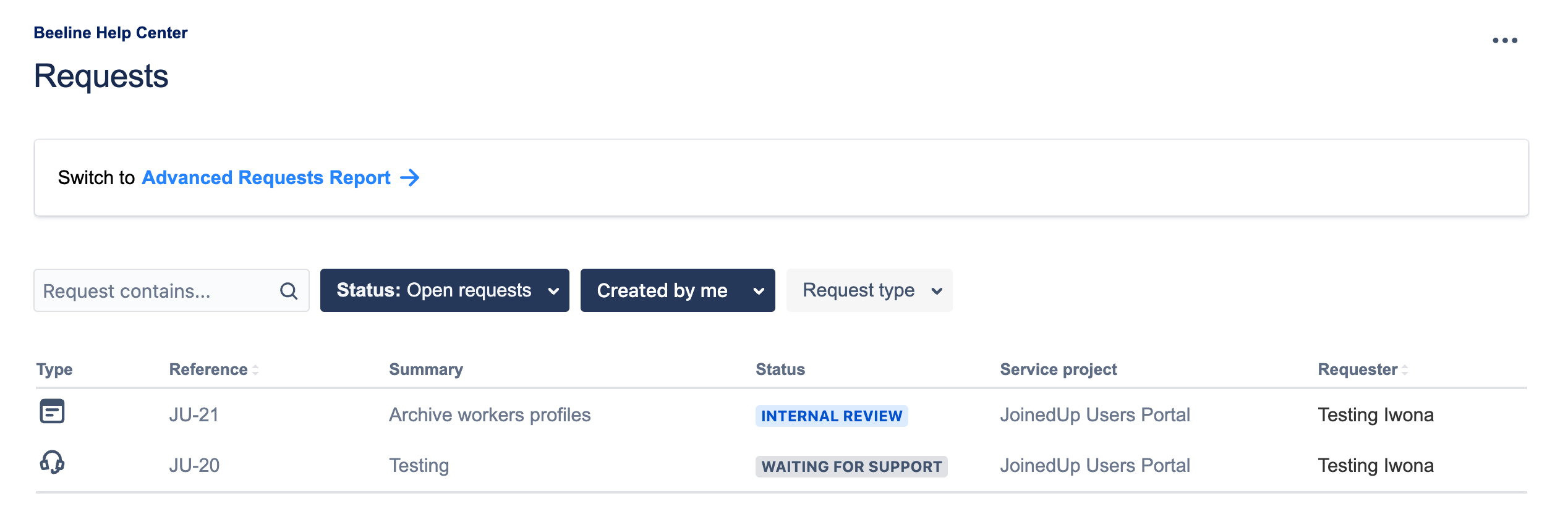
A drop-down list with the following options will appear:
-
Created by me – provides a search option for all open tickets you have submitted.
-
All – provides a search option for all open and closed tickets you or your company have submitted.
Each option provides you with flexible filters to complete your search including status, created by user, participation users, and request types.
In addition, you can use the simple search option to search any keyword across all tickets.