Worker Confirmations
When worker confirmations are enabled on a shift template, workers are prompted to confirm their shifts for attendance.
As a supplier, you can also confirm workers to shifts on their behalf.
To do this navigate to the Shift allocation (On-site) screen in the Plan tab.
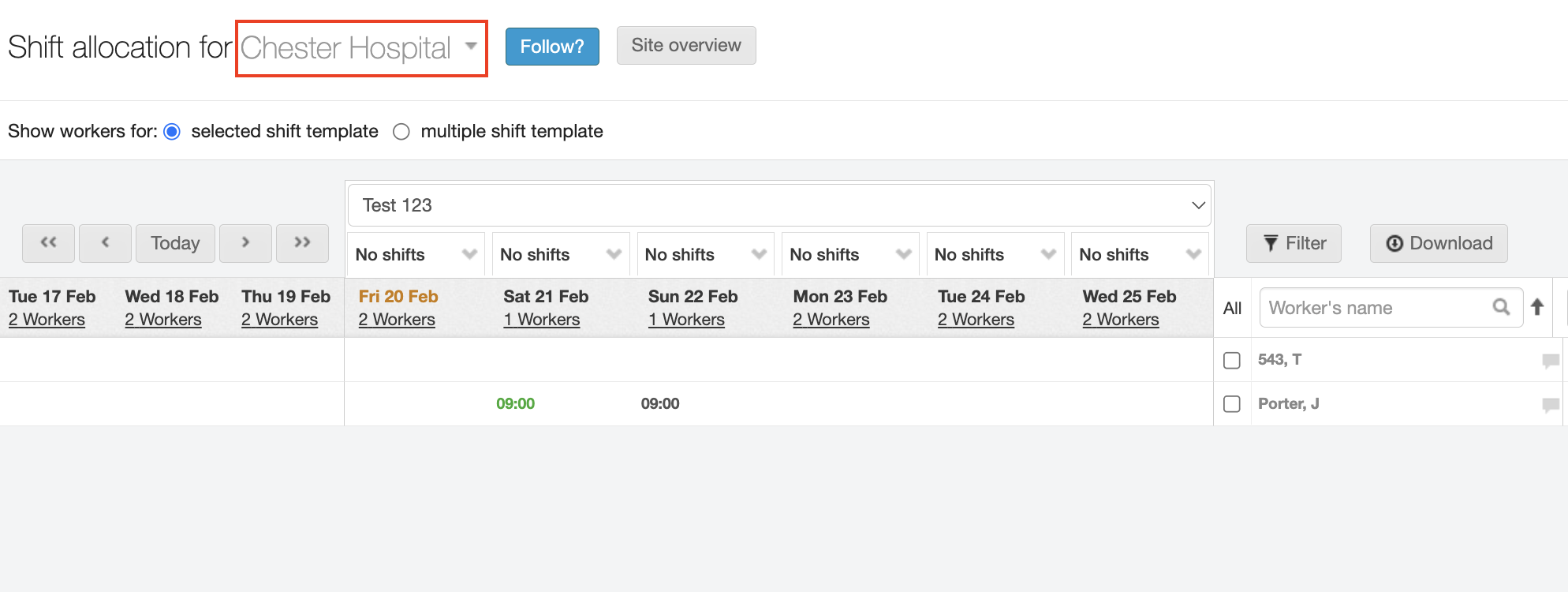
Select a shift you would like to change the Confirmation Status for, by clicking three lines on the tile, that appears when your hover over it.
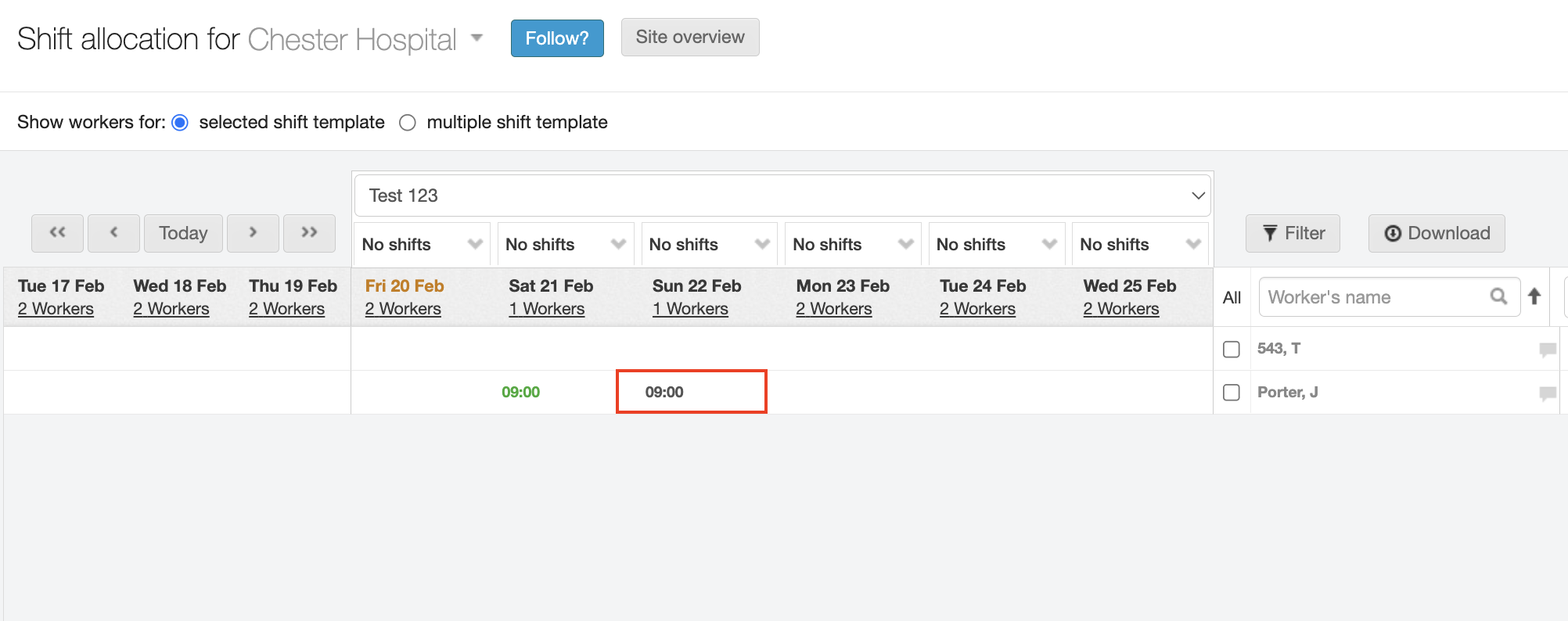
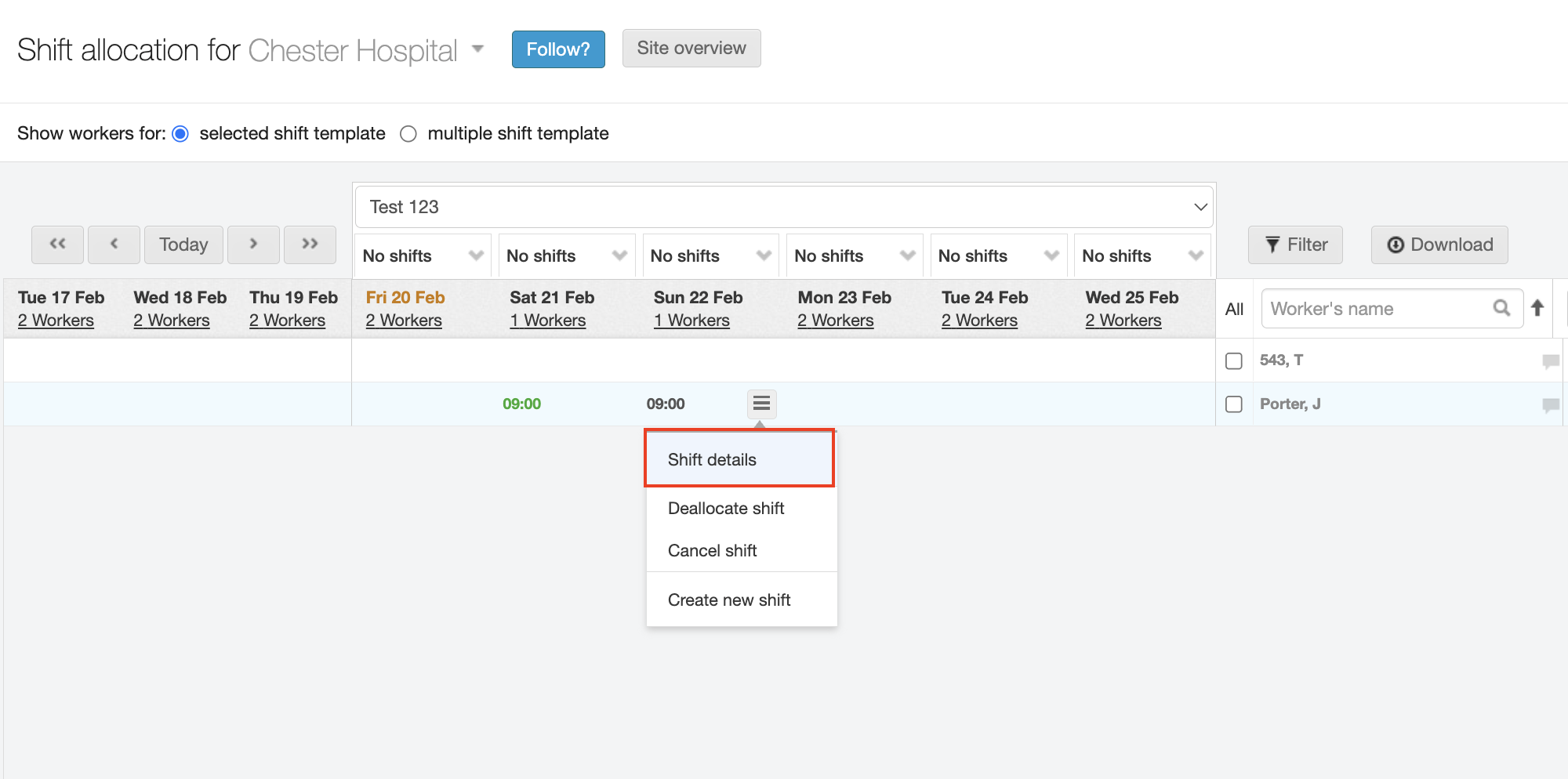
A dropdown list will appear, select the Shift Details option.
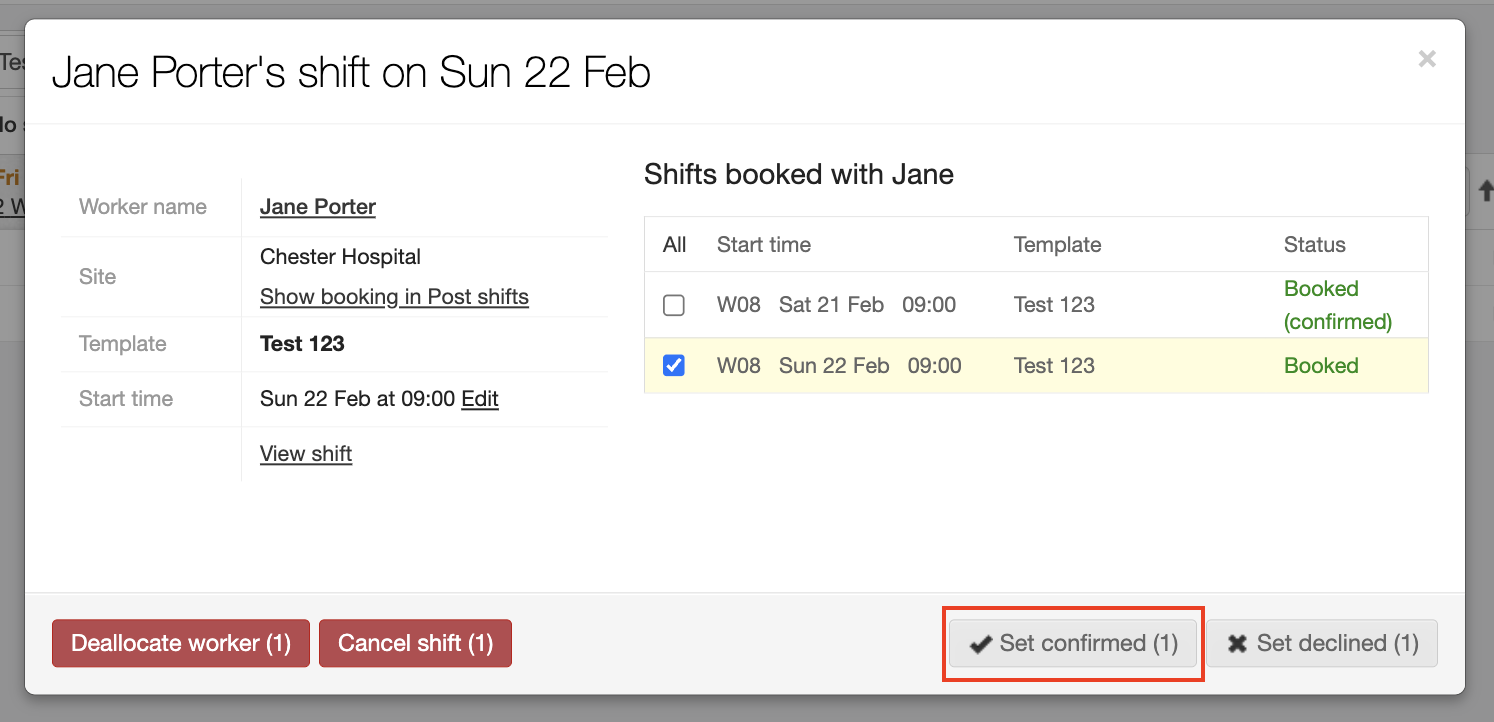
Once selected you will see the options to Set Confirmed or Set Declined.
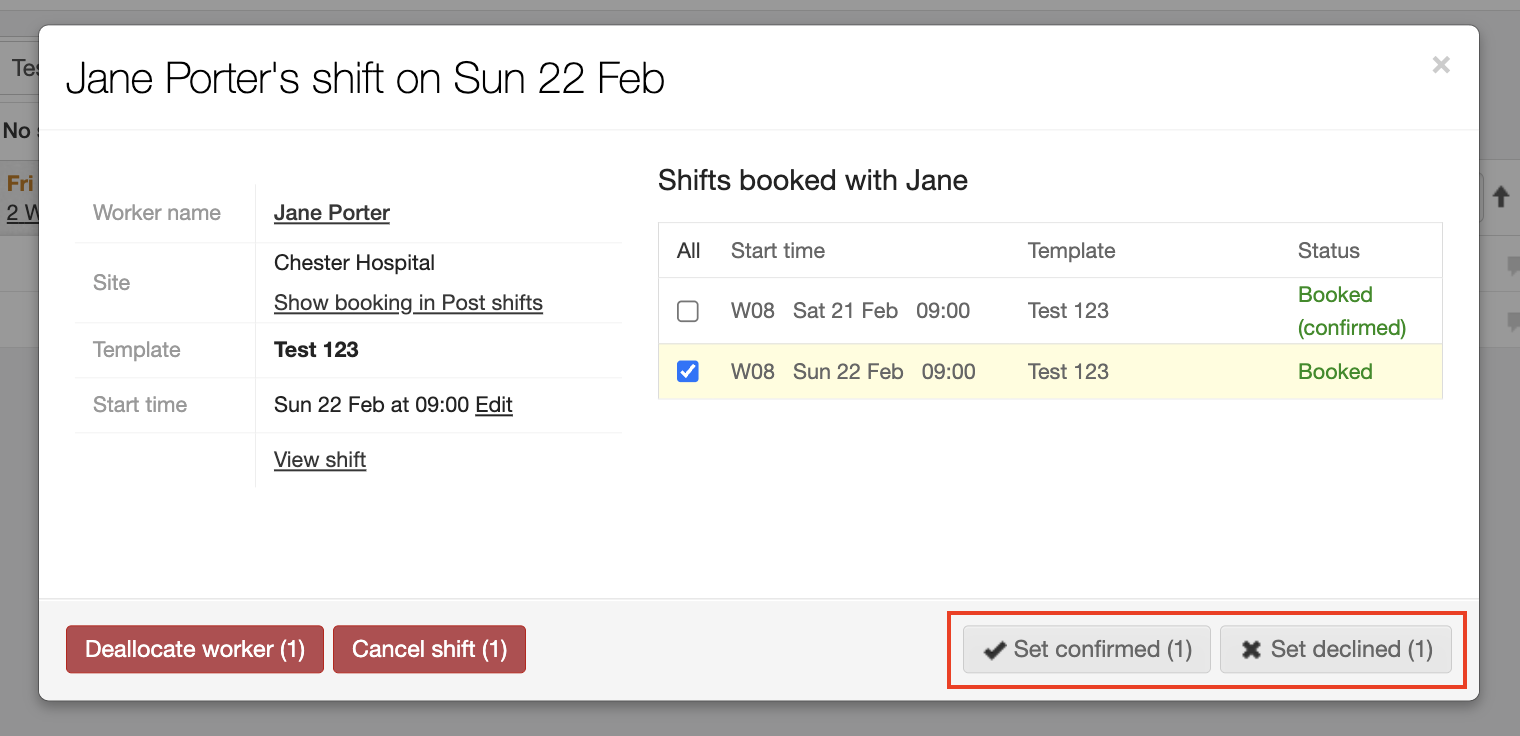
Select the Set Confirmed option to confirm this worker for the shift.
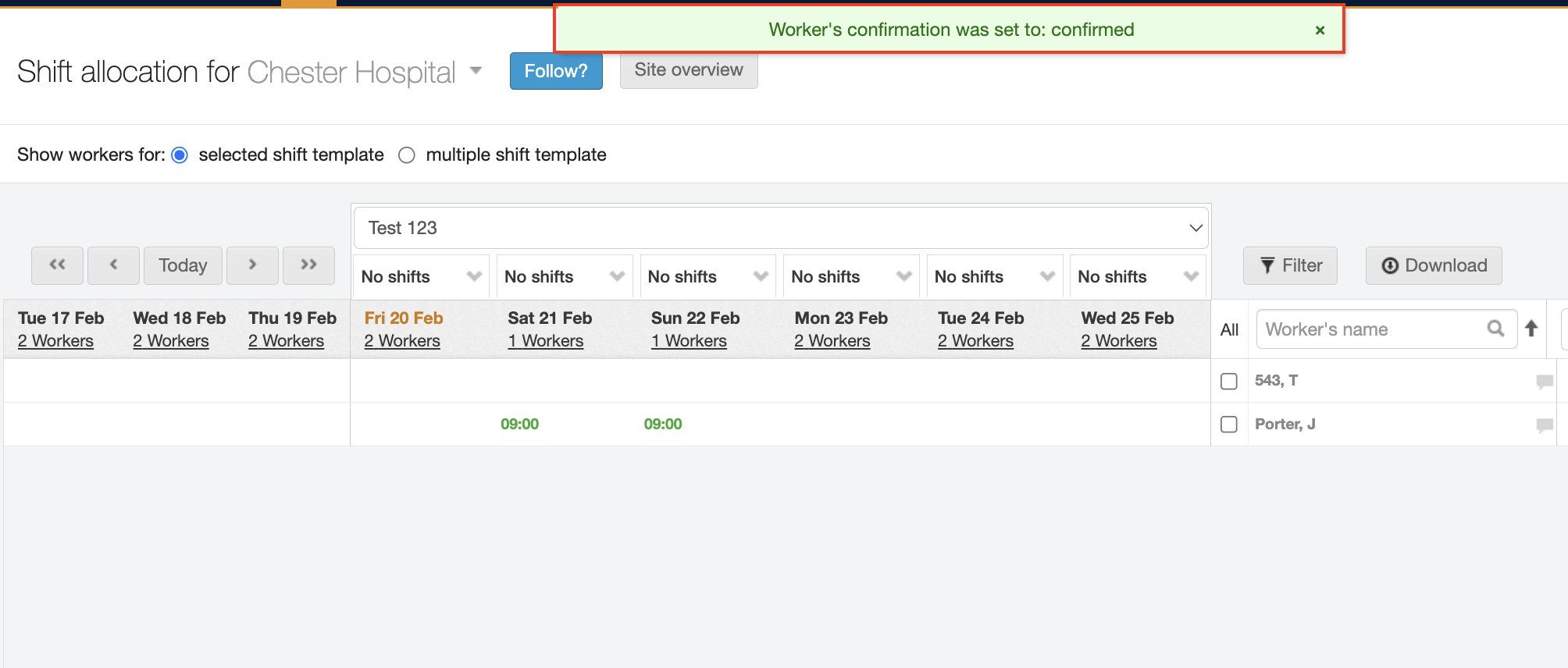
Once Selected, a green success message will appear to confirm your action.
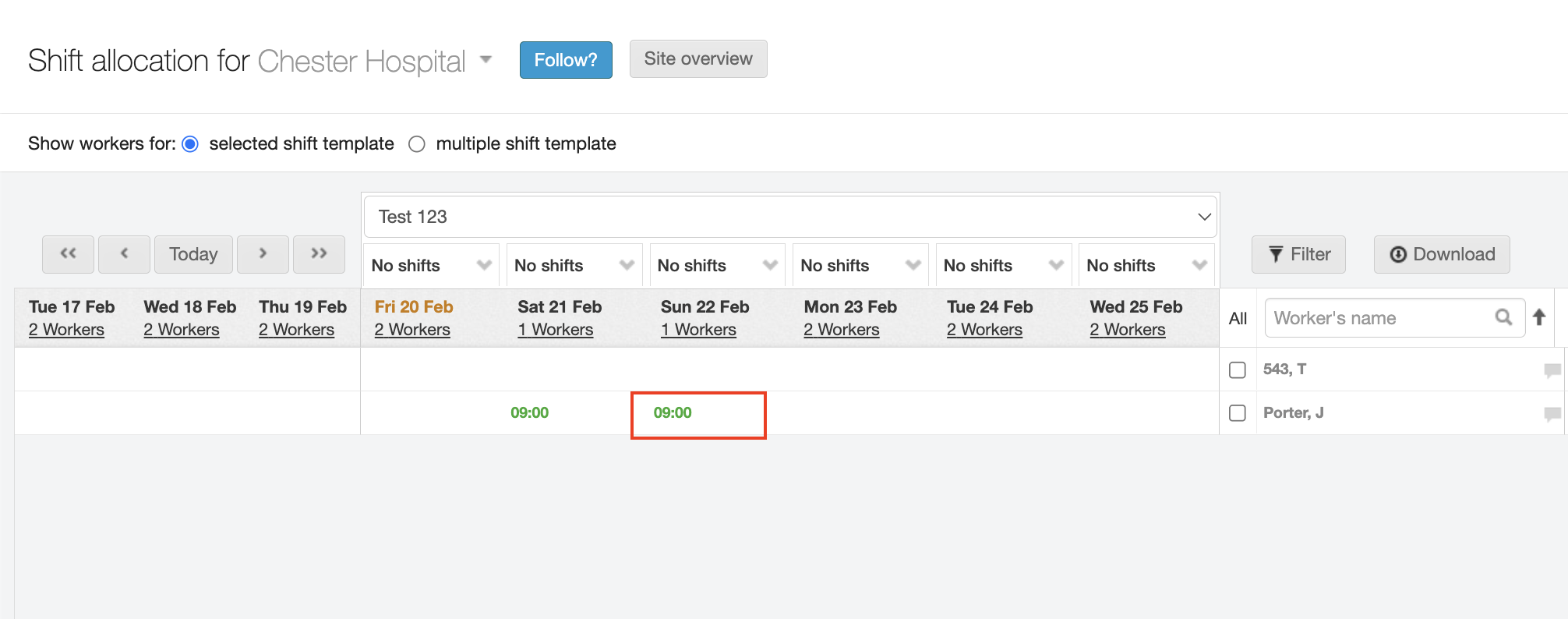
The shift time colour in your tile will also change from black to green – indicating this shift has been confirmed.
Encouraging your workers to confirm or decline their shifts ensures your planning screen remains accurate and provides real-time visibility into team attendance.