Getting started with JoinedUp
Registering on JoinedUp and completing your profile
Agencies use JoinedUp to register and manage their workers and their shifts.
Everyone working for an agency has a virtual profile on the JoinedUp platform.
Your agency creates a profile for you and then sends you an email invitation to join the JoinedUp system, just click the link inside the invitation to set up your password and get started. (Your email address is your system username).
| Ensure your password is strong by not including common words in your password (no names or emails) and by using both lower and upper case characters along with numbers and special symbols (e.g., £ % & etc.) |
You log in with your email address and your password. If you’re not sure about your password you can always reset it. Read this article for more information on Changing/ Updating your password
Complete your profile
Once you’re logged in, you may need to add all the required information until your profile is 100%. You can see the completion percentage and a list of what information is still missing on your main profile page.
Every position on the list is a link so you can just click it, and it will take you to the place in the profile where the missing information needs to be added.
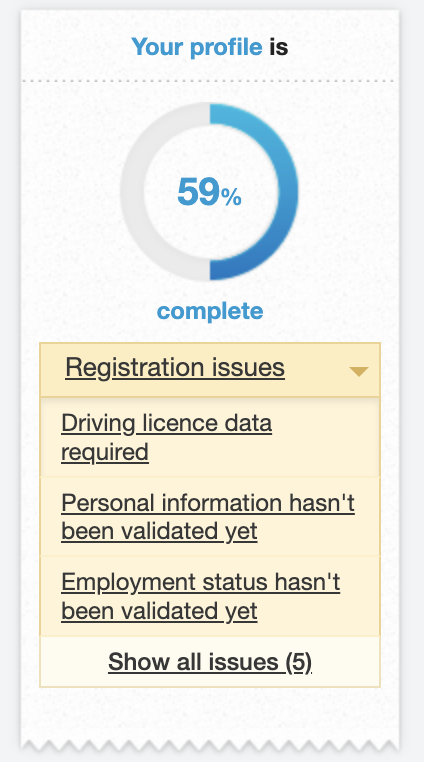
Once your profile is 100% complete, it will display a Requires Validation status. Your profile is validated by your agency after they’ve checked the details you entered.
Set your Availability in the Work Calendar
Next, log your availability in the Work Calendar so that your agency knows when to book you for shifts and when you are not available for shifts.
You can set your availability status for each day by clicking the specific day in the calendar and then selecting one of the options in the pull down list.
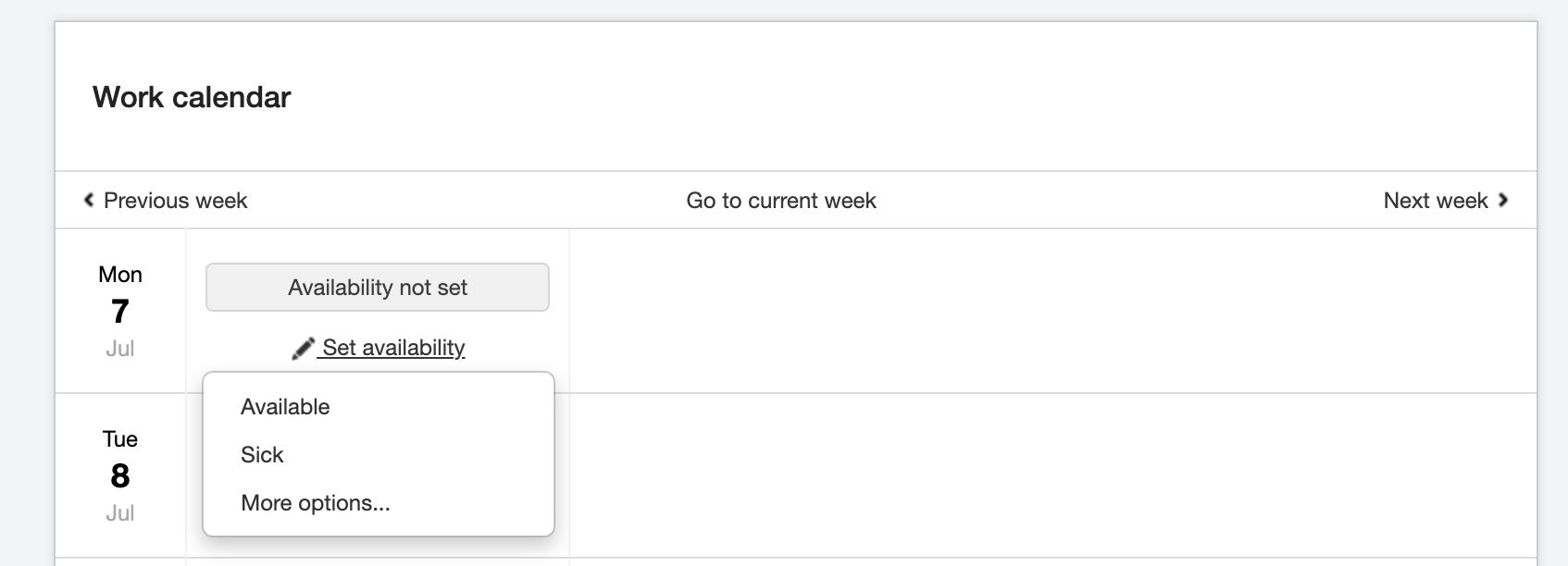
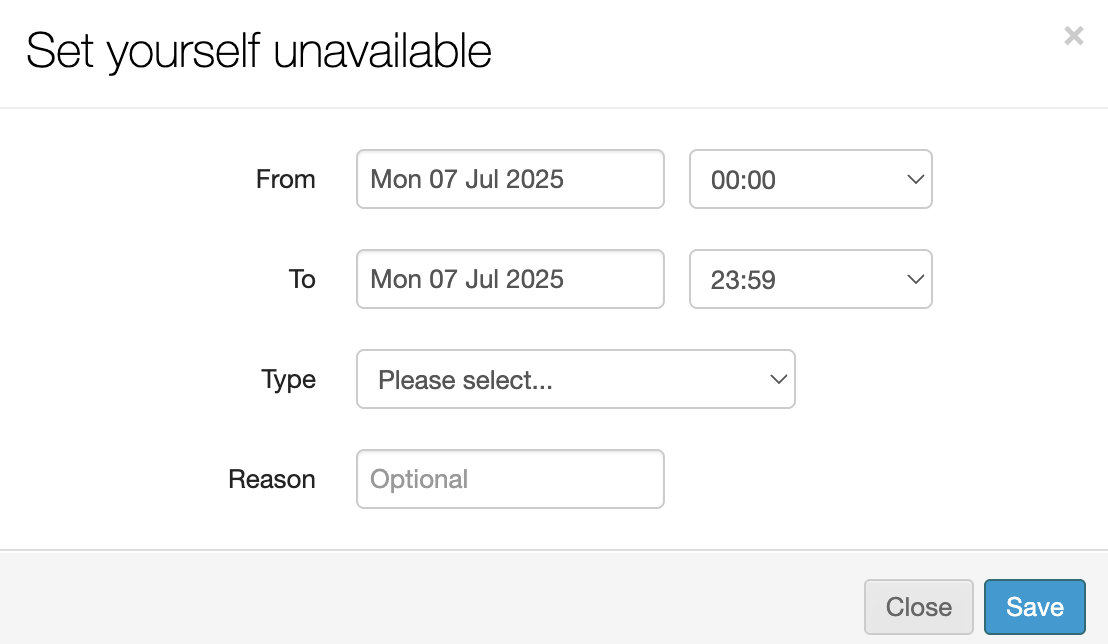
You can also click to select More options and set up a status for a longer time period by setting up a start and finish date.
The agency will allocate you to shifts based on your availability. You will receive a text message (provided that you verify your mobile number on your profile) for every shift you are booked into, in the message you will see a button to Accept or Decline the shift.
Every shift you’re booked into will also show in your Work Calendar.