Bulk rate uploader guide
Our bulk rate change uploader is useful when you need to change lots of rates at once, e.g., when there’s a National Minimum Wage increase, or you’re choosing to change rates across the board.
Downloading the Shift Template Report
In order to use the bulk rate change uploader, first you need to download the Shift template report. You can do this by going to and then selecting Show for all sites.

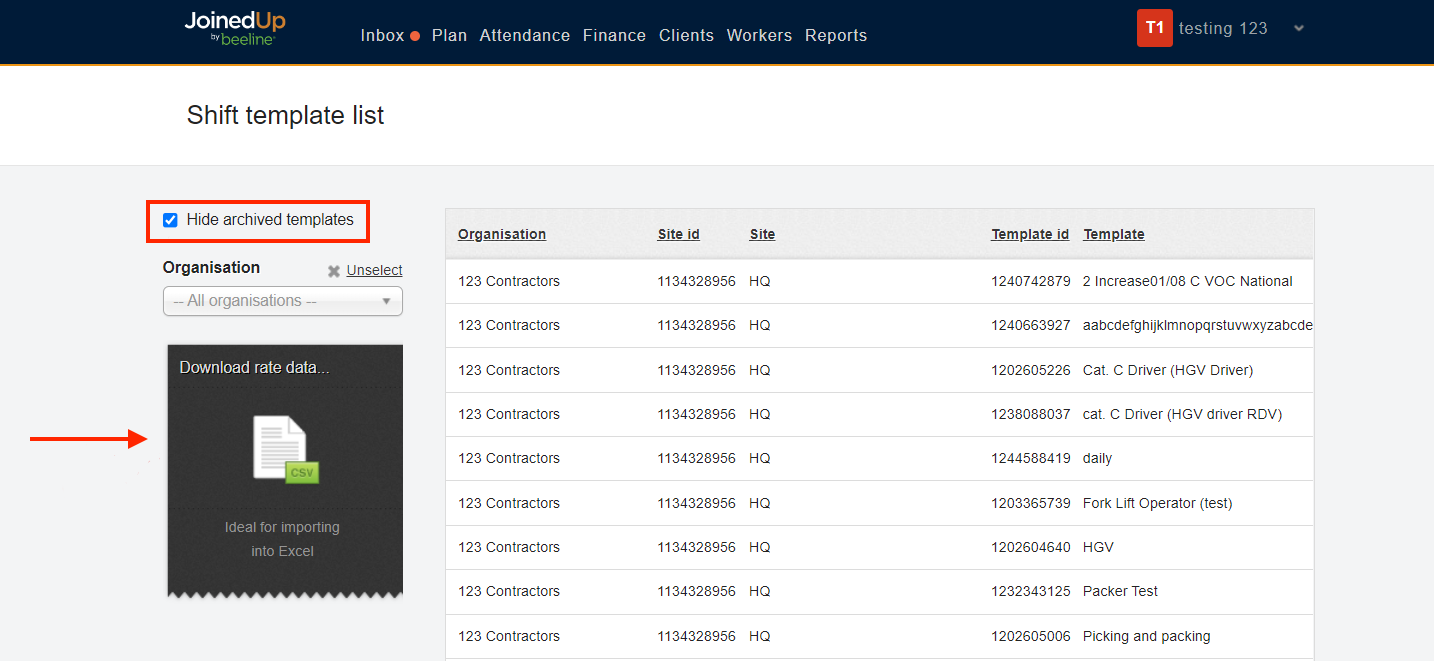
Once you’re there, make sure you hide all archived templates and then download the CSV report:
Rate Columns
In that downloaded CSV, update the rate value column and the effective date column. These are found in the following columns:
| If Order Templates are enabled for your organisation, the report will include additional columns, and the rate columns will be adjusted accordingly. See the table below for details |

| Column (Order Template Enabled) | Column (Order Template Disabled) | Header Name |
|---|---|---|
S |
P |
Charge rate |
T |
Q |
Charge OT premium |
U |
R |
Pay rate |
V |
S |
Pay OT premium |
AE |
AB |
Effective date |
AF |
AC |
Charge OT |
AG |
AD |
Pay OT |
| Effective Date’s format should be (dd/mm/yyyy). Please configure the format in the file before uploading. |
OT Calculation
OT premium is calculated as follows:
Charge Rate + Charge OT Premium = Charge OT
Pay Rate + Pay OT Premium = Pay OT
Uploading the File
Once you’ve updated the CSV of the shift template report, ensure that it is no more than 400 rows. You may need to split it into multiple files to do this. Each row is one worker type, eg PAYE pre-parity, PAYE Post-parity, Ltd, and Partner agency rates would all be on separate rows.
| Please ensure that you include all worker types needed in the template in the CSV file, especially if they weren’t included in the previous version of the rates. |
When your CSV file is all ready, navigate to . Select Bulk rate change and the relevant agency from the File format and Agency dropdowns.
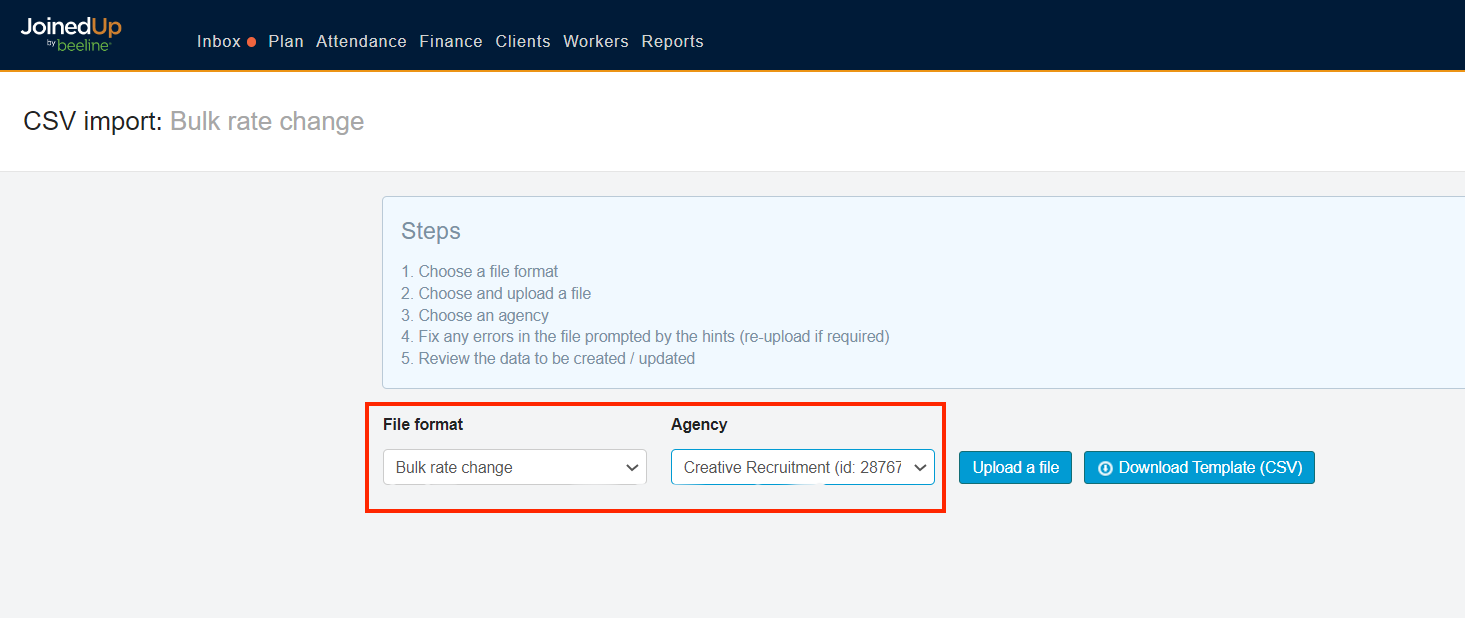
Click Upload a file, and upload the CSV. The uploader will alert you to any issues in the file, which you can amend before cancelling the upload and trying again:
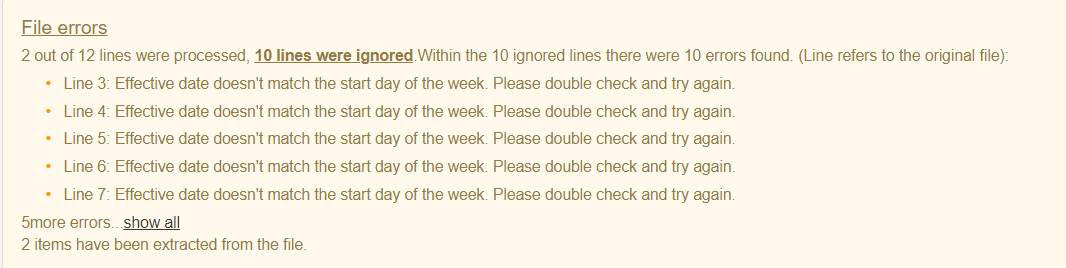
Once all the lines have been processed successfully, click Create [number of lines] items, and the rates will be amended.

| You will only be able to amend the pay and charge rates using this uploader, not any other part of the shift template. |