QR codes
JoinedUp’s on-site tablet app is a convenient way to check workers in and out of shifts. Here’s how to set up QR codes at one of your sites.
Setting up the tablet app
-
Determine whether the Wi-Fi is strong enough at each location or whether SIM cards will be required to enable network connection to the tablet. We recommend trying both at first.
-
Determine the entrance area where tablets will be set up, decide how many tablets will be required, and install any necessary anti-theft wall brackets or booths. Where you expect many workers to turn up at the same time, use multiple tablets. Each sign in/sign out usually takes around 3 seconds once the system is properly set up.
-
Follow your tablet’s screen pinning guidance to ensure the program is secure and workers cannot exit the T&A screen.
-
Log in to our portal using your JoinedUp login details and select the relevant site from the drop-down selection. The tablet security PIN will be required to exit this screen after screen pinning setup.
Use the T&A web address that matches the region where your JoinedUp program is based. Options include:
-
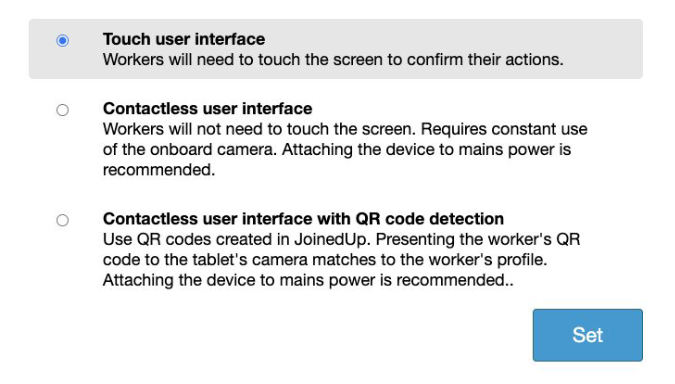
Select either the contactless or touch QR code interface in settings.
-
Depending on the model of tablet, you may need to access the settings to ensure that sleep mode is turned off to ensure that the tablet stays on during the course of the day.
| The system may run a little slower than expected initially, but after the first 4 workers have signed in successfully, the process will naturally speed up (dependent on the strength of the network). |
Setting up QR codes on JoinedUp
Ensure your site is properly set up ready to accept workers starting their shifts using the tablet app.
-
Make sure the site is set up in the Clients tab.
-
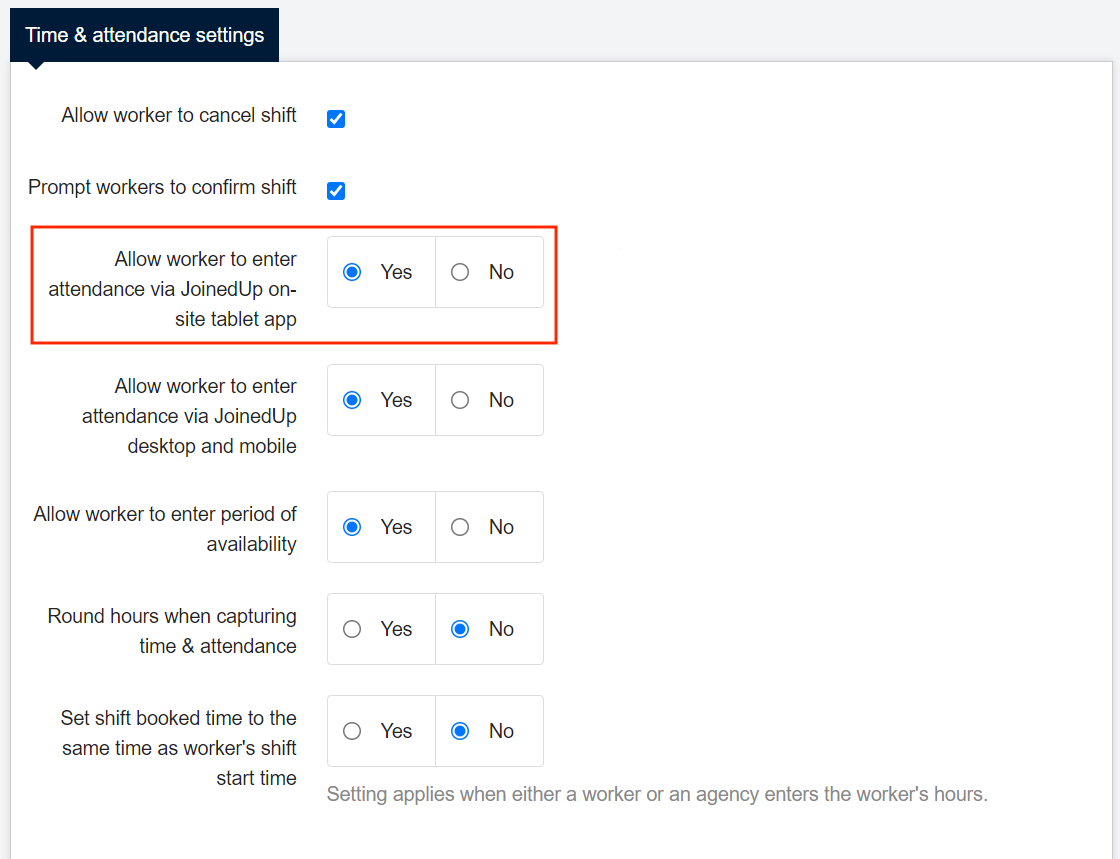
Check that the templates/job cards have the option 'Allow worker to enter attendance via JoinedUp on-site tablet app' selected in advanced settings.
-
Link the workers to the correct templates.
-
Assign workers to the correct shifts.
How workers check in using QR
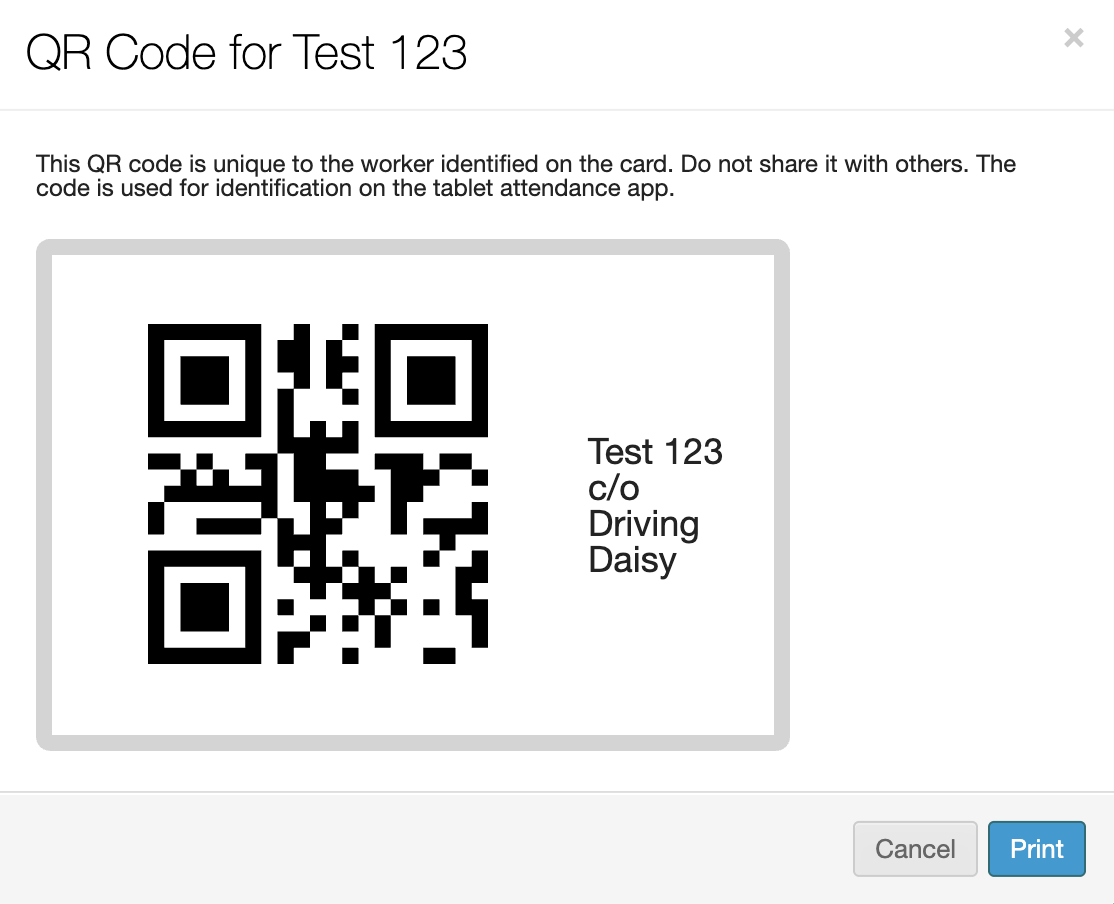
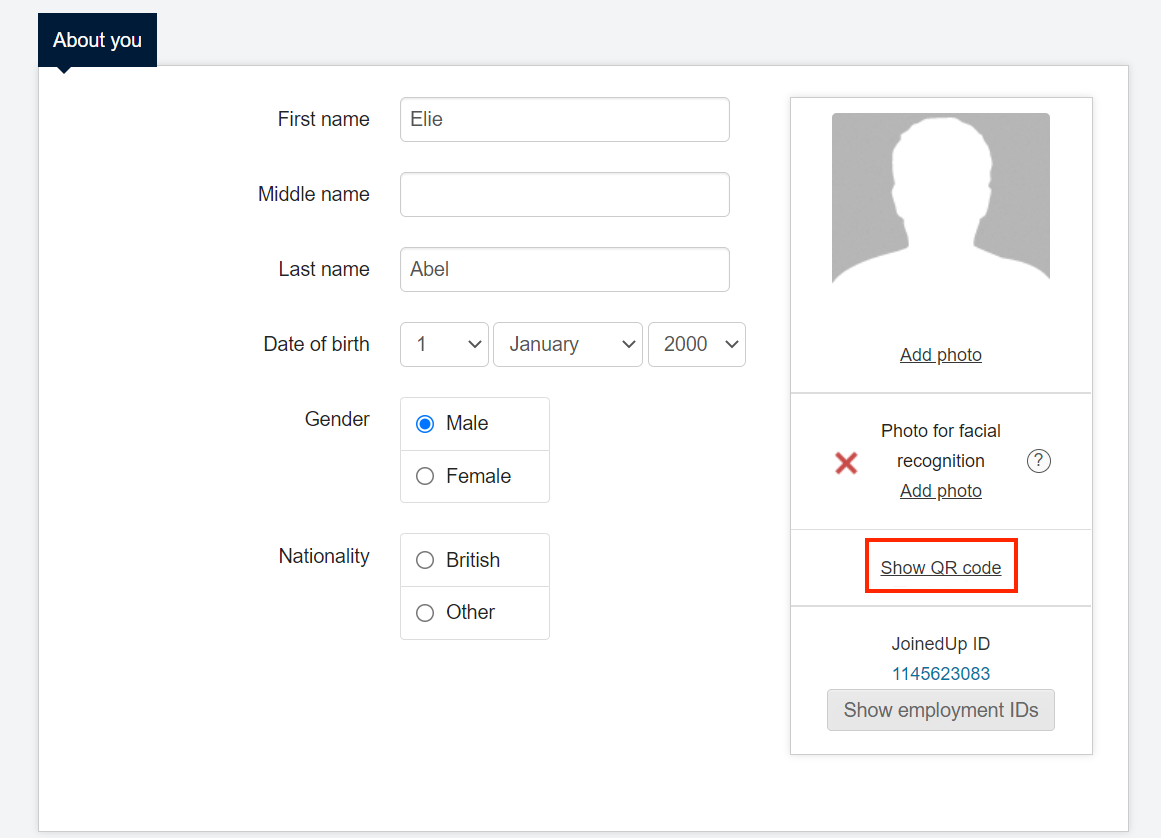
QR codes are generated uniquely in a worker’s profile. The code can be presented directly to the tablet’s camera on a smartphone, or printed onto a card for the worker to carry.
To show the code, simply click the link below in the worker’s profile.
The tablet will prompt the worker to scan their QR code to start their shift.
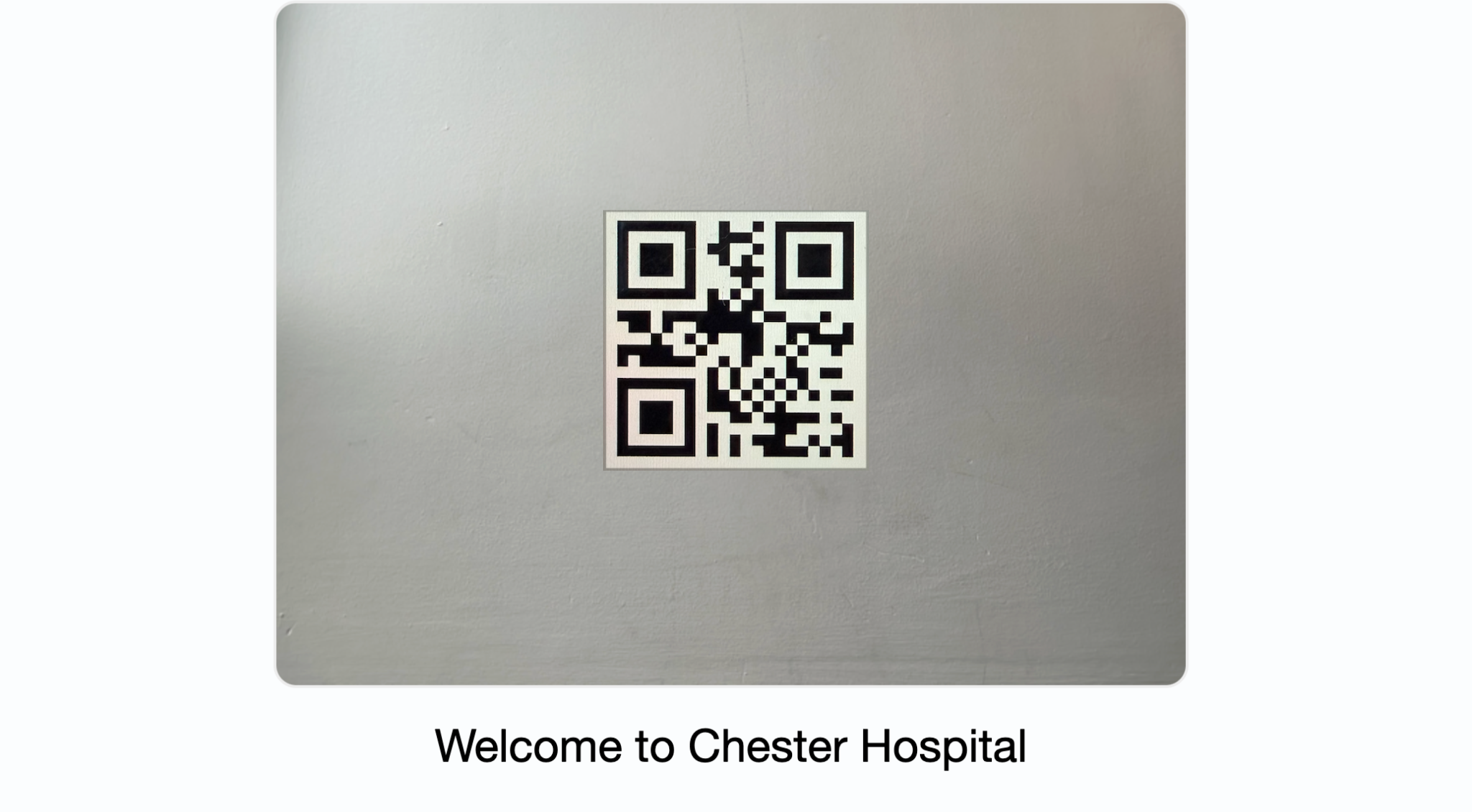
When the camera picks up a QR code, we run a match for the code and check if there’s a valid shift for the worker. The tablet then records the worker’s start/stop time.
| Workers can clock in up to an hour before and after the booked start time of their shift. |
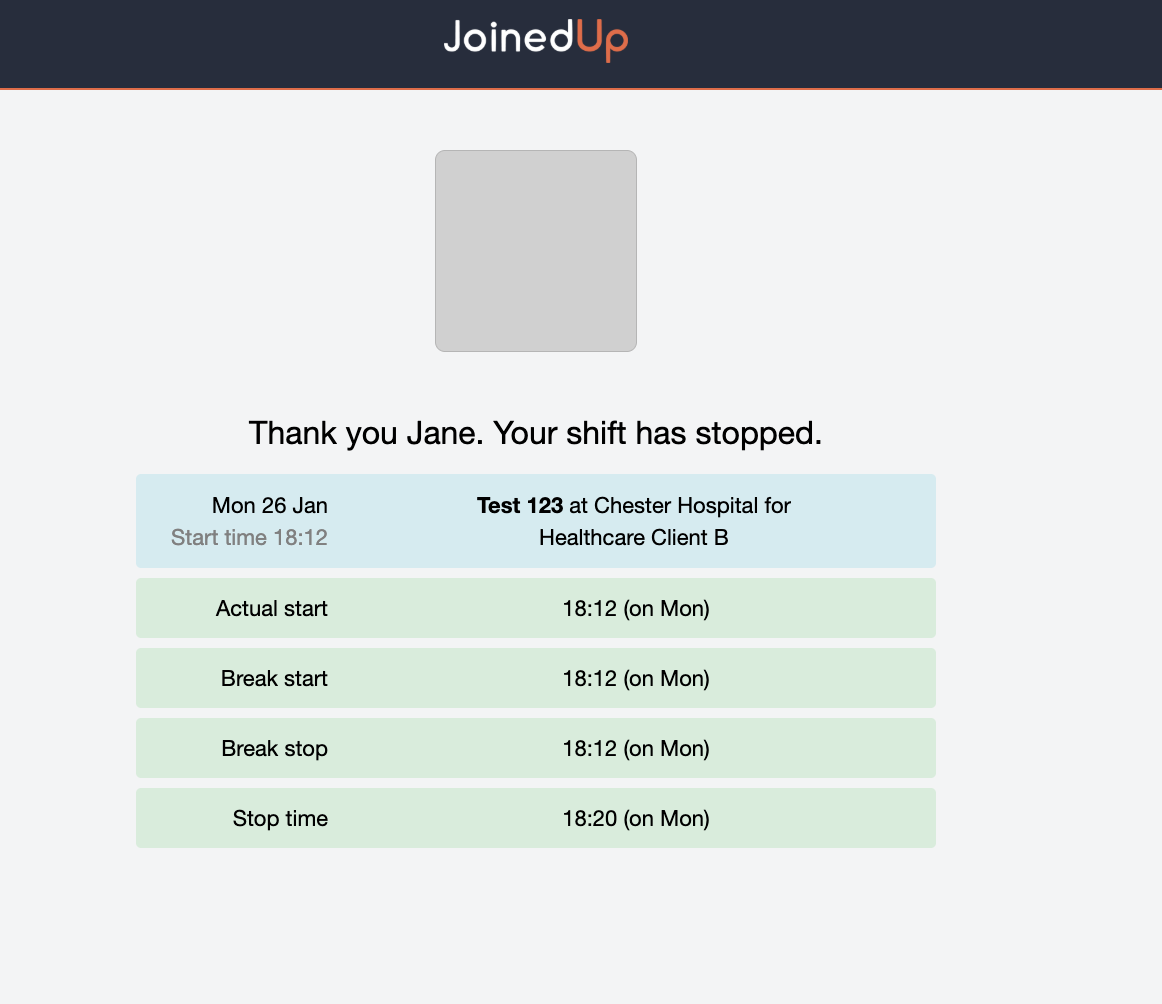
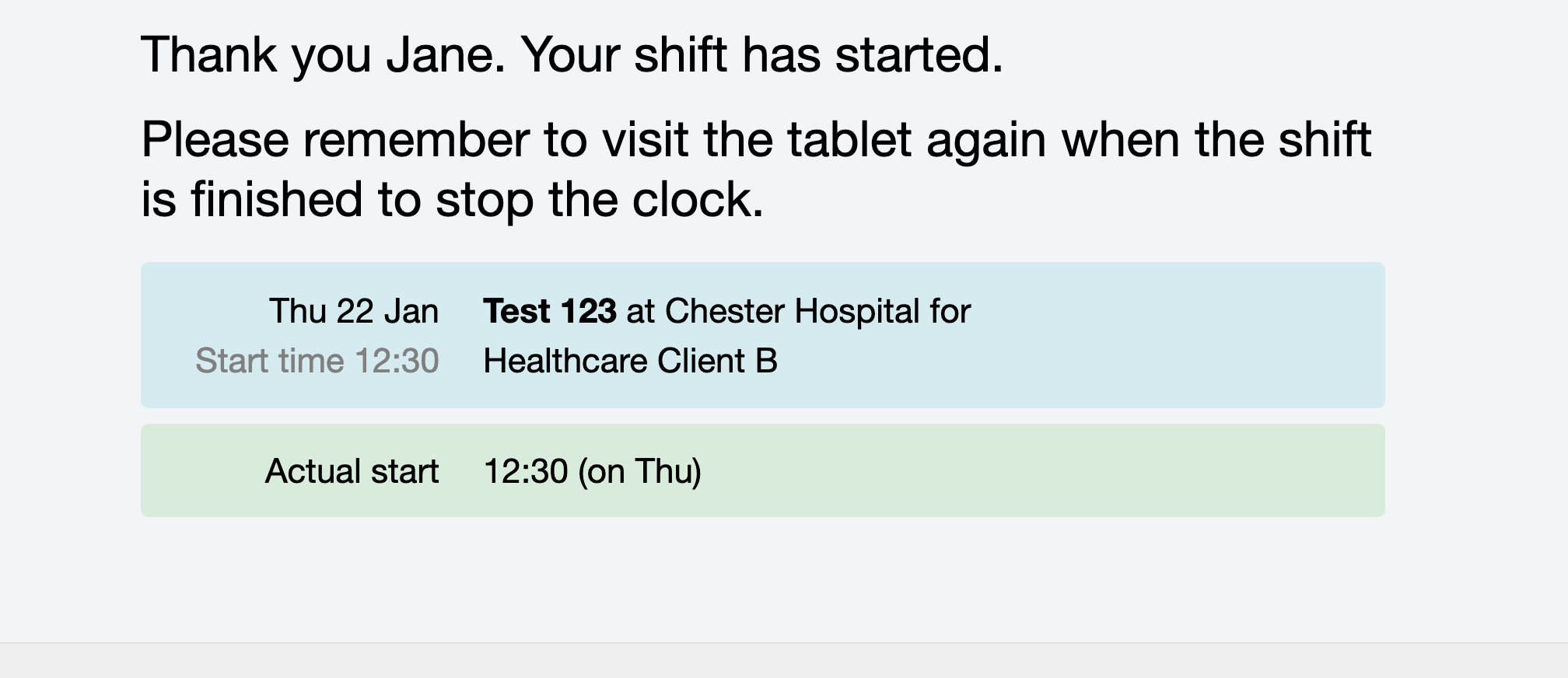
A confirmation will appear on the screen to show that the shift start time has been successfully submitted. The system then prompts for the next worker.
When the worker is ready to end their shift, the same process applies. Once the worker presents their QR code, the system recognises that the shift has started, and records the stop time.
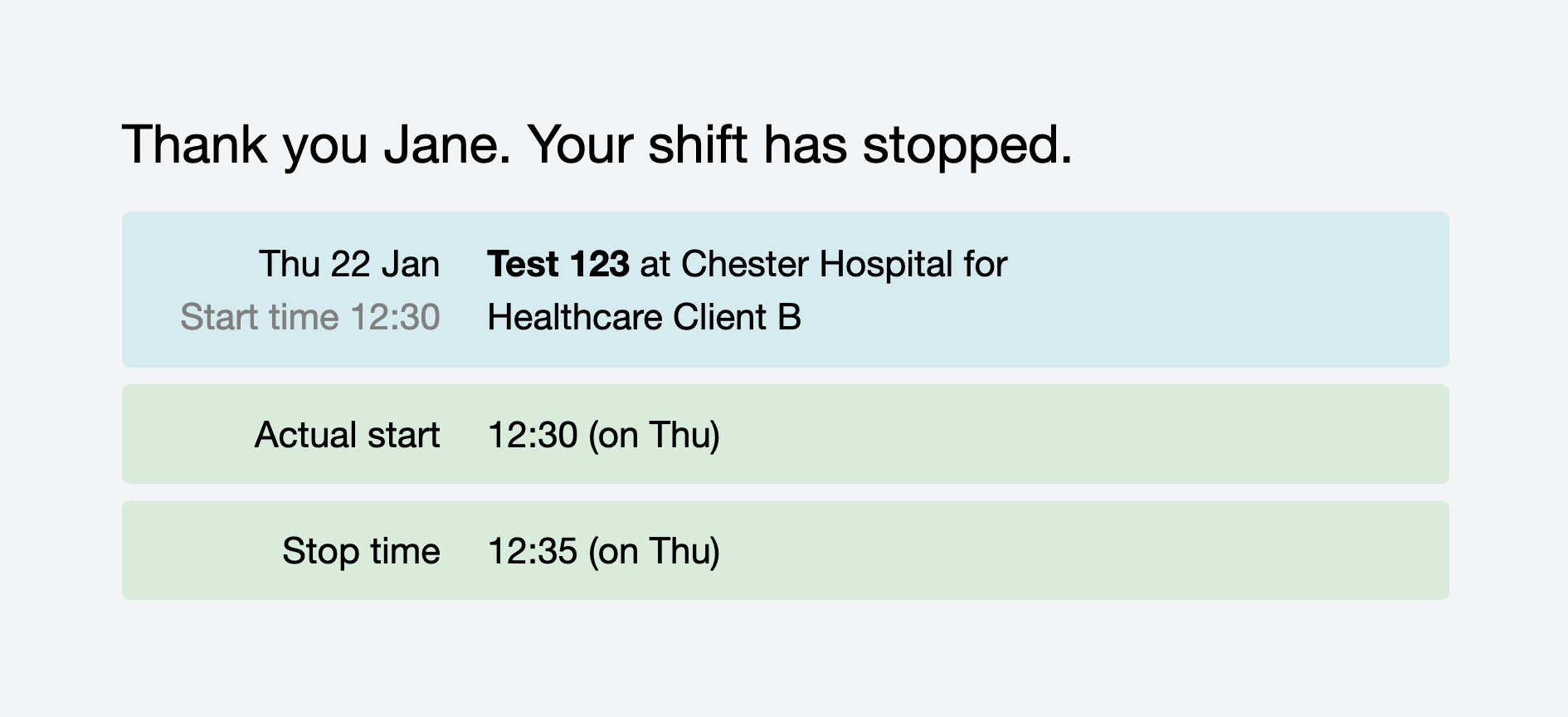
The process is now complete, the next worker can then proceed.
Breaks
Workers are able to manually record their breaks using the T&A tablet.
| If you would like this feature switch enabled please contact your Customer Operations Specialist. |
Once this feature is enabled, navigate to the Shift templates.
Click on the Rate rules in the Rates section, and choose Manually for how breaks are captured.
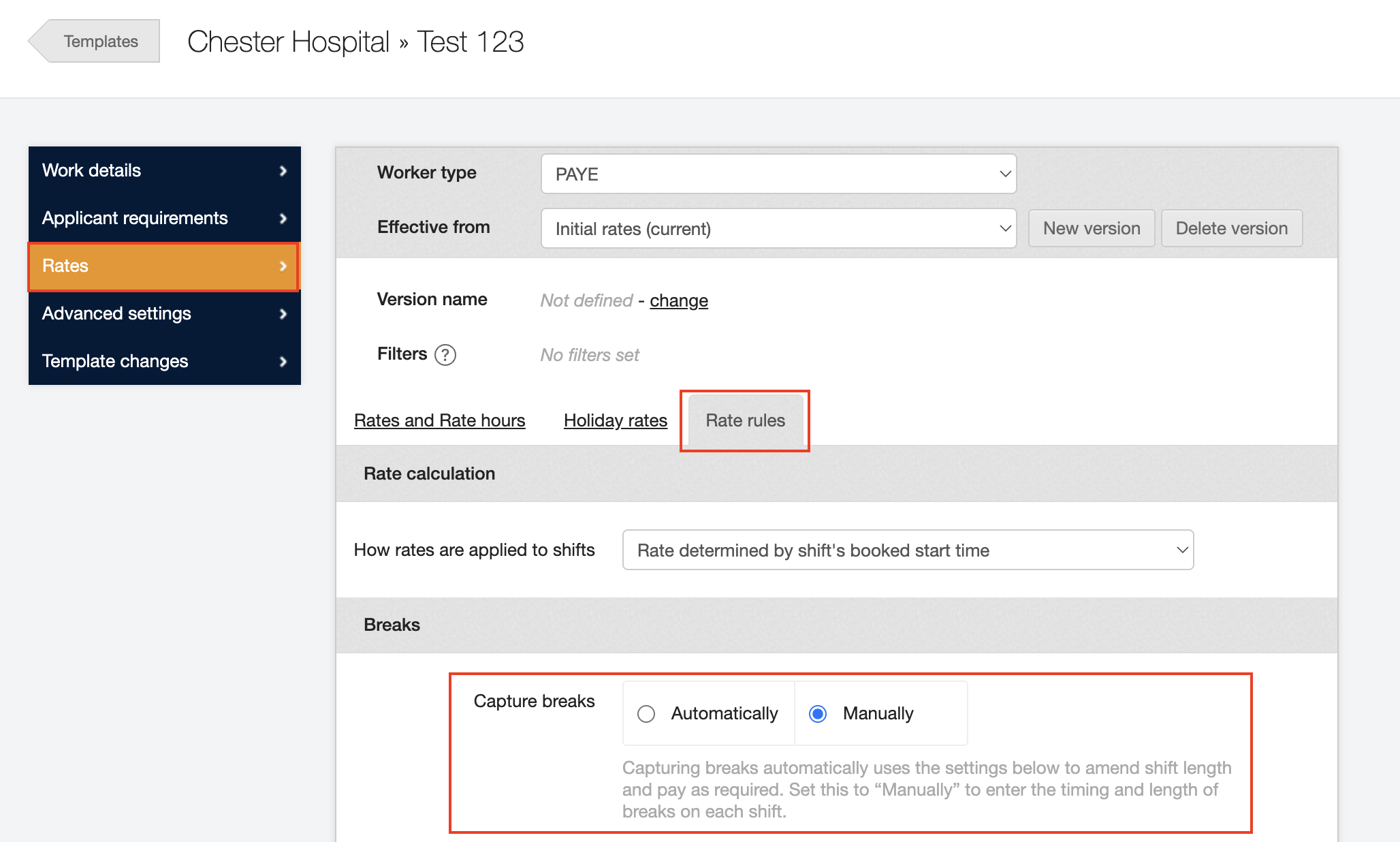
Once this has been enabled, workers will then be able to manually enter their breaks on the T&A tablet.
By scanning their QR code, they first can begin their break by clicking Start break:
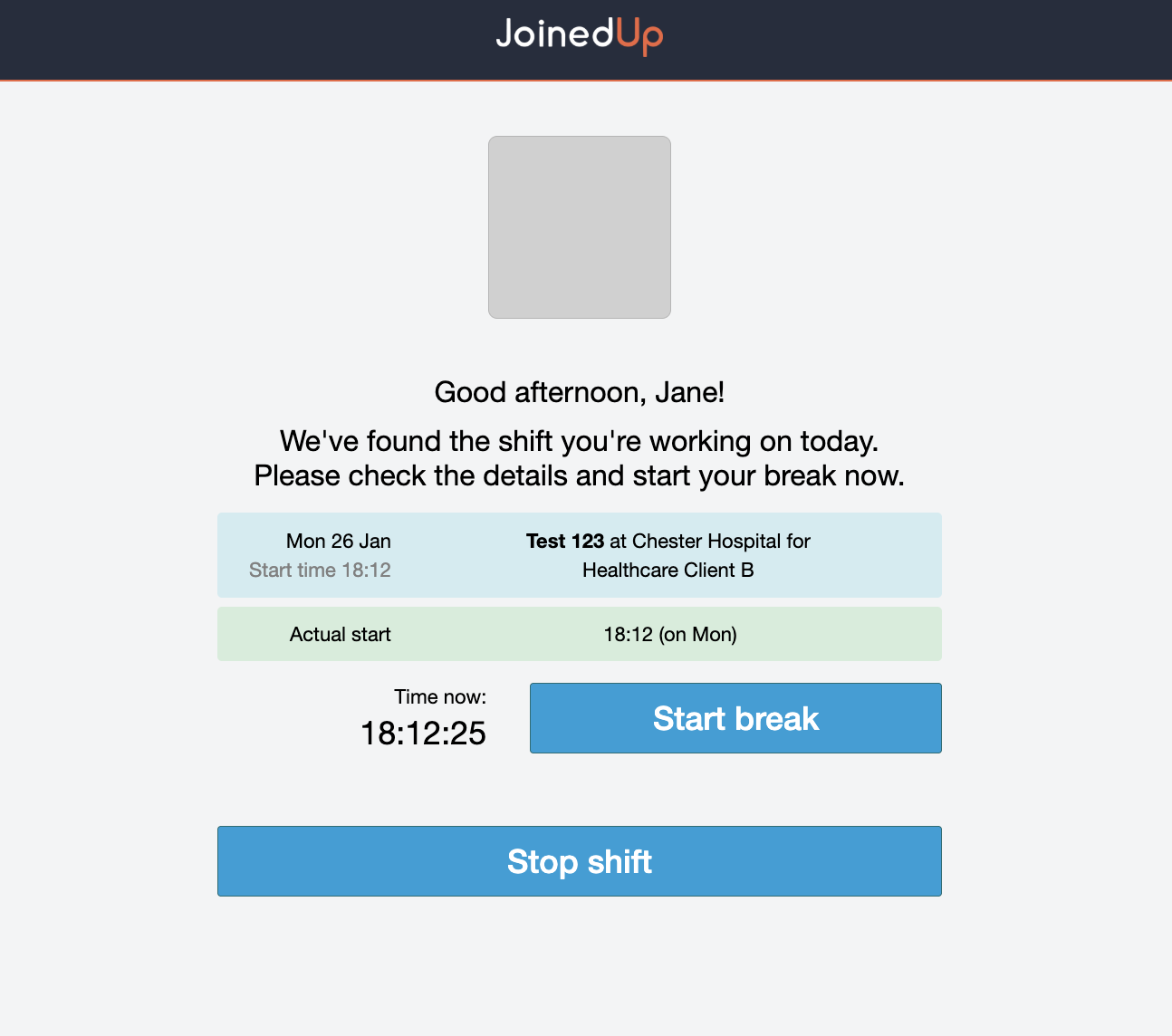
| Workers can also stop their shift instead of taking their break. |
To end their break, workers again must scan their QR code on tablet. This automatically ends the break and records the length of the break.
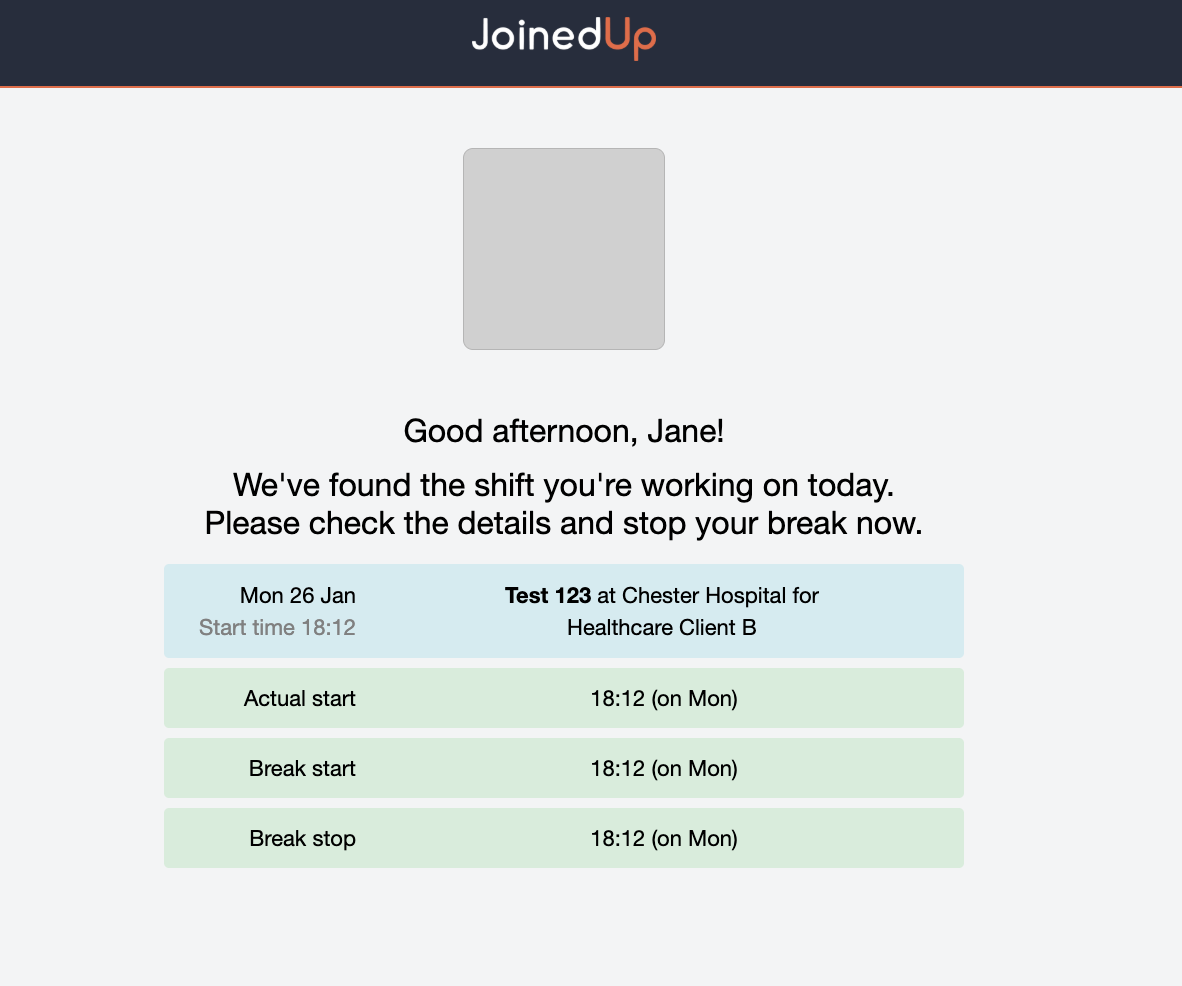
By scanning their QR code a final time, the shift will be stopped, and the details recorded.