Requests (Shift Manager)
When creating shifts you can now include a request and approval process.
| To switch on this feature please contact your Customer Operations Specialist. |
As a Shift Manager, you are able to create shift requests and submit them to your Operations Manager. Once they have been approved, you can then share these shifts with your suppliers.
Creating requests
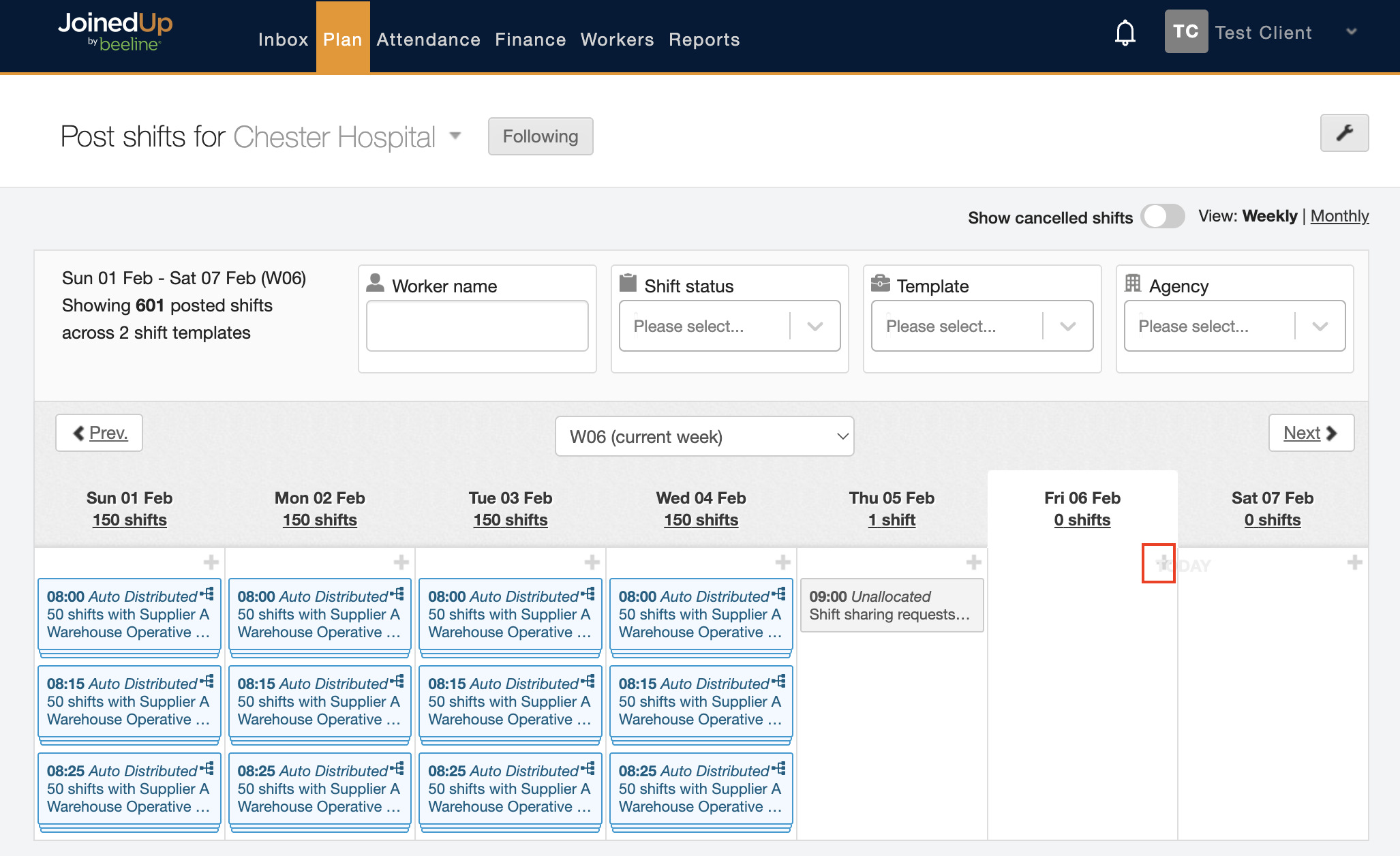
To create a new shift request, as a Shift manager, navigate to the Post shifts screen through the Plan tab for your selected site.
Then click the + button.
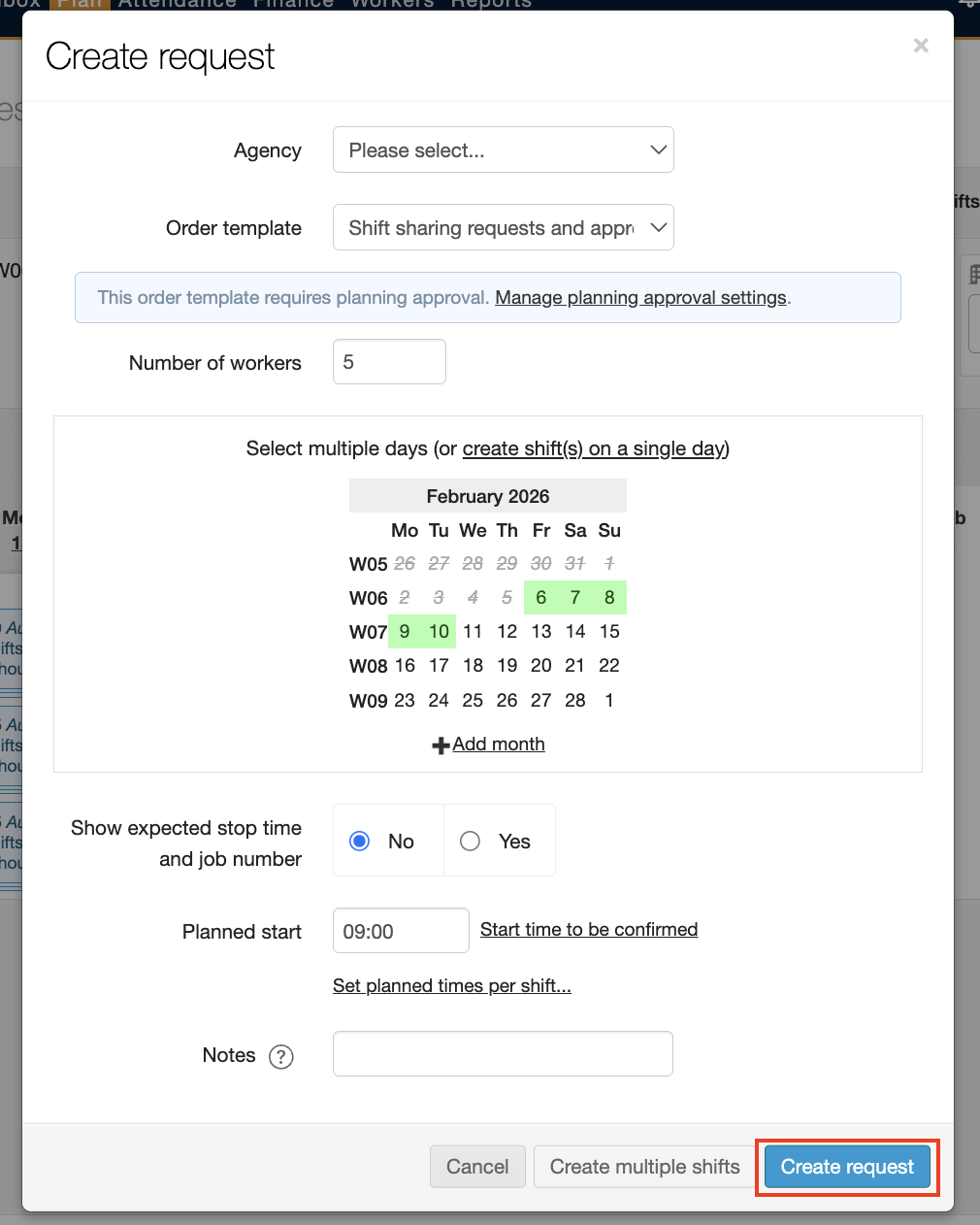
Select your order template. A banner will notify you that the template you have selected requires planning approval, and a button to Create request will appear.
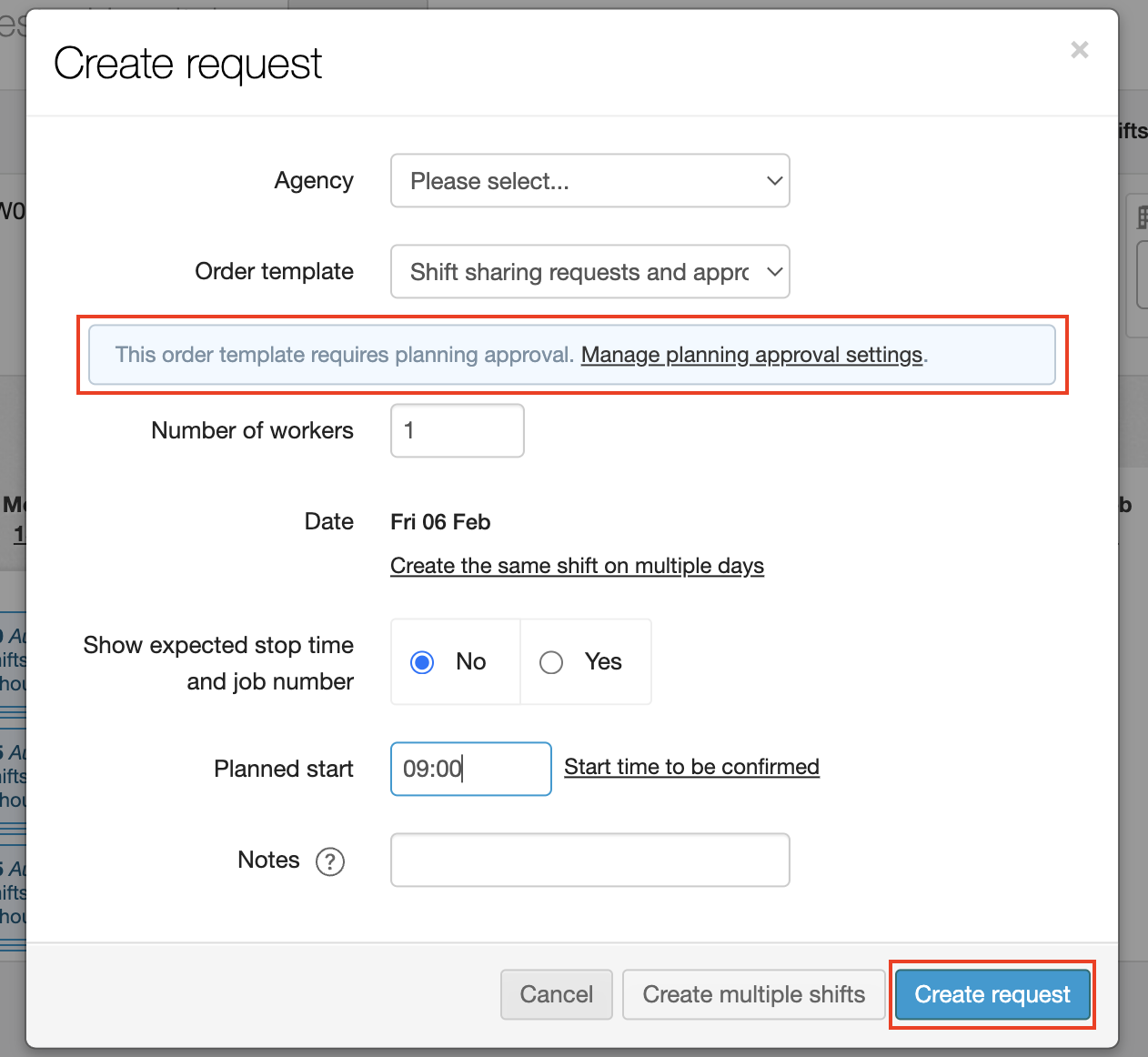
Here you can input the number of workers (shifts) needed.
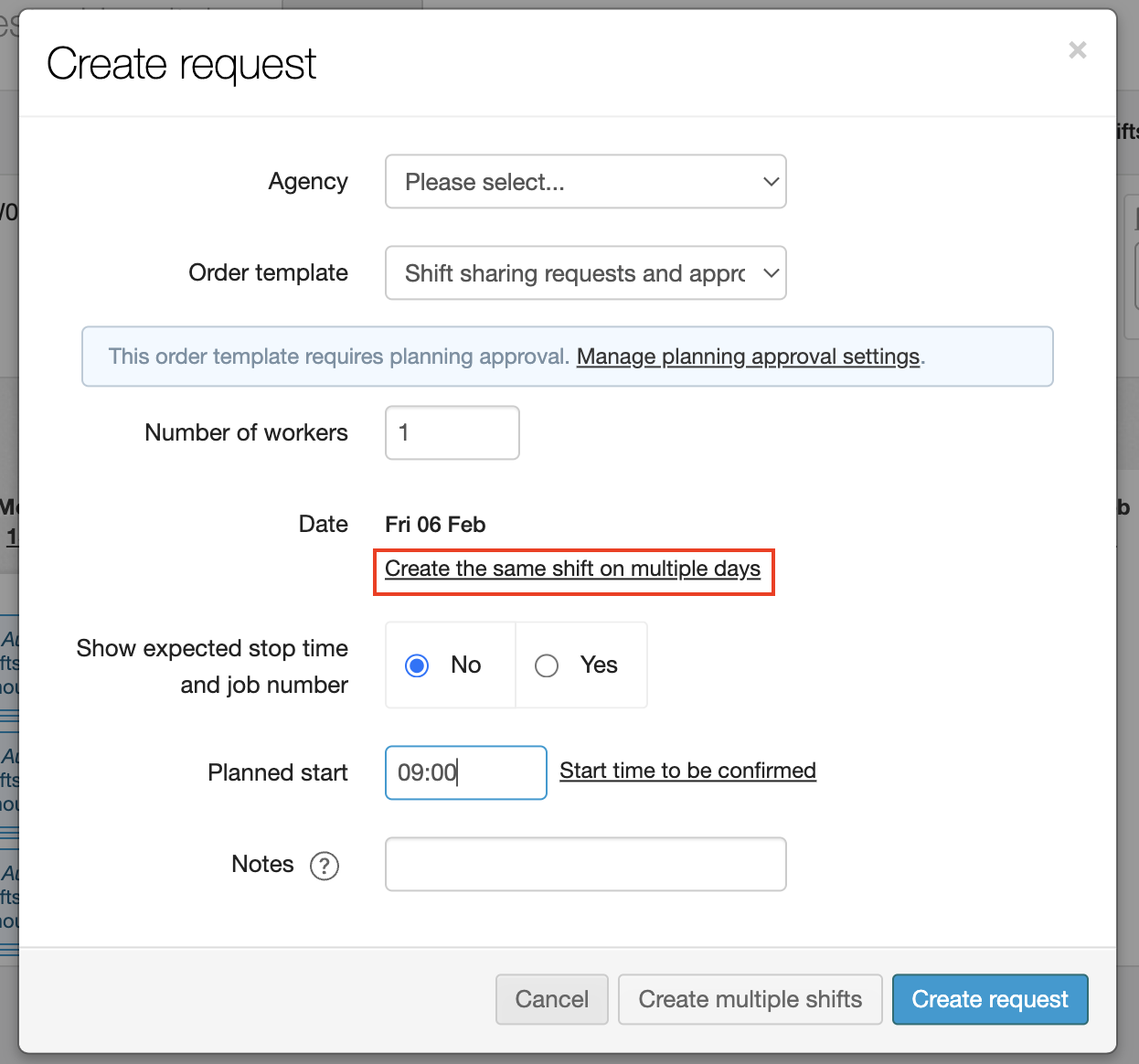
You can also create requests months in advance if needed, to do this you will need to select the Create the same shift on multiple days option.
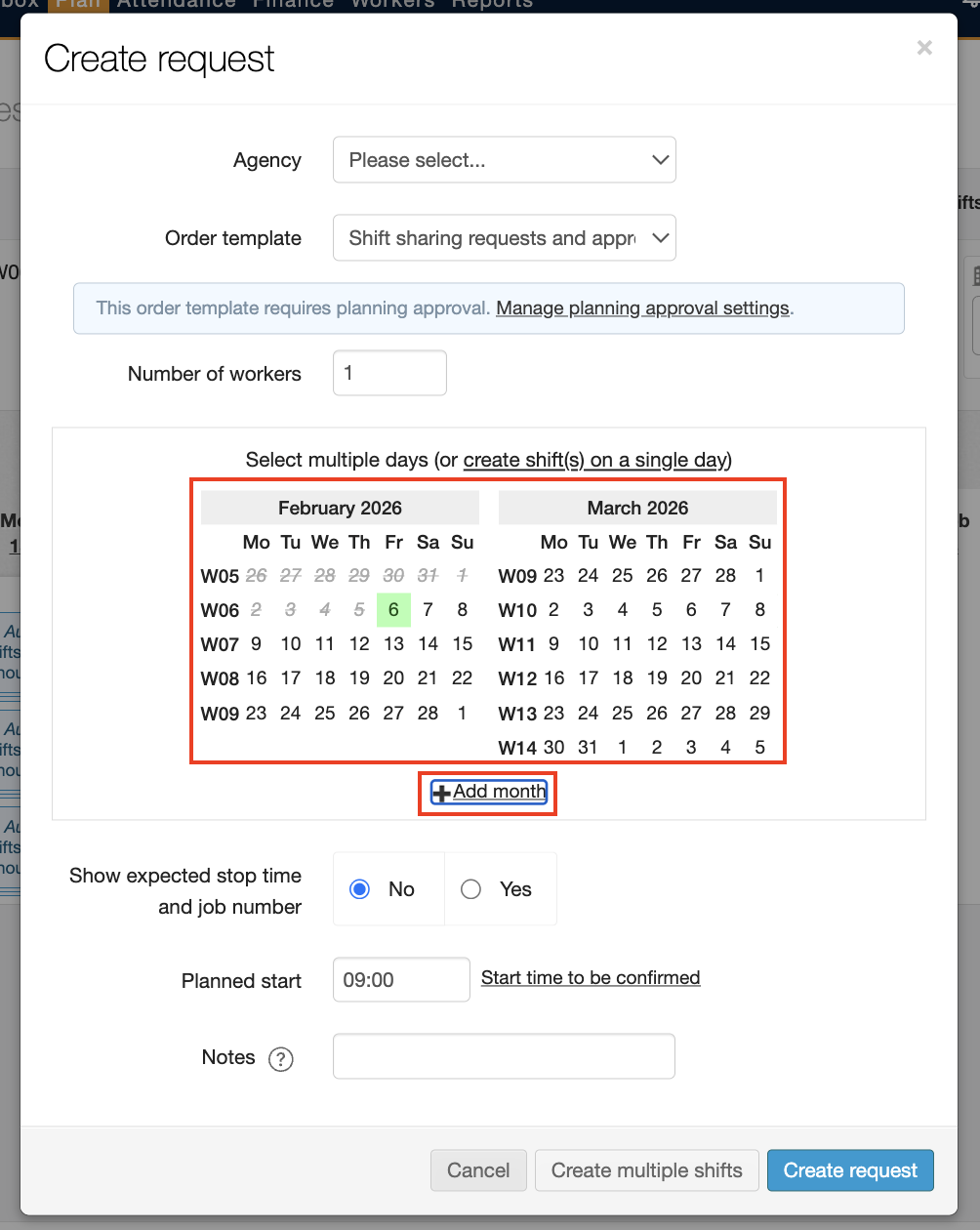
To add another month, simply select + Add month. This will open a calendar where you can select days, weeks, or months.
If you know the expected start and stop times for the request click Yes on the Show expected stop time and job number option.
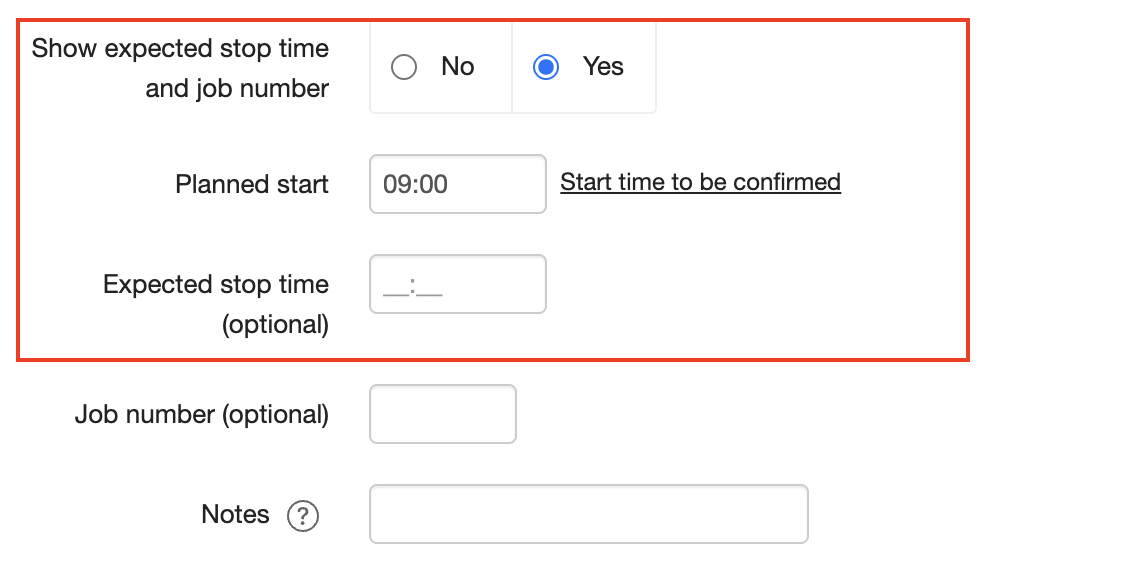
| JoinedUp only requires a start time, adding a stop time is optional. You can always update your stop time once the request has been approved. |
You can set the times per shift if needed, to do this select the Set times and job numbers per shift option.
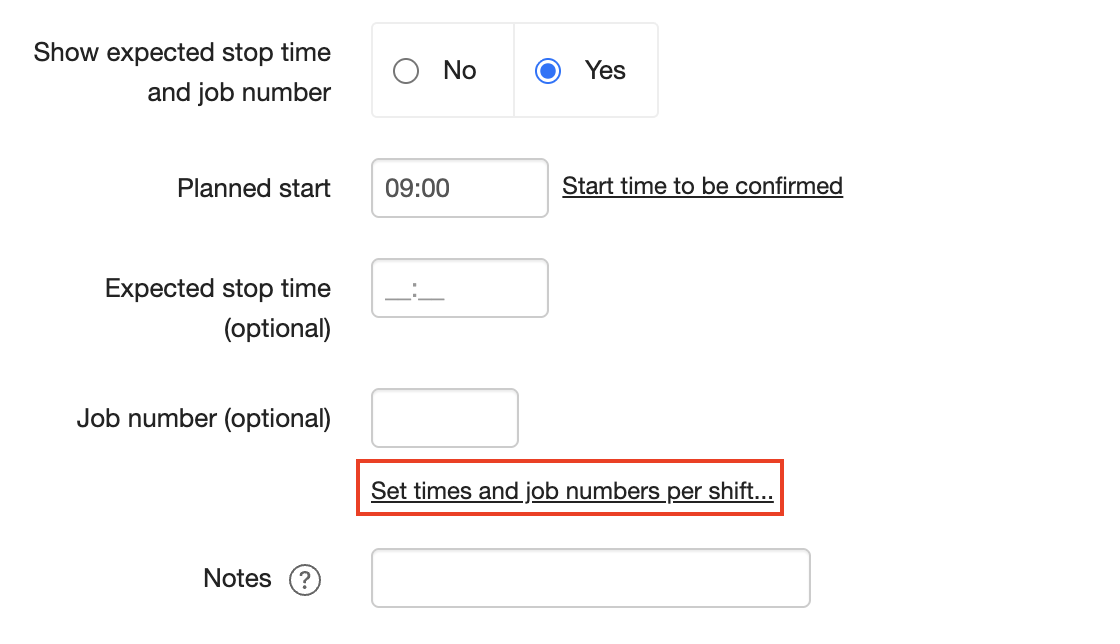
This field allows you to specify the Start Time, Expected Stop Time, or Job Number. This feature is particularly useful when shift times fluctuate daily.
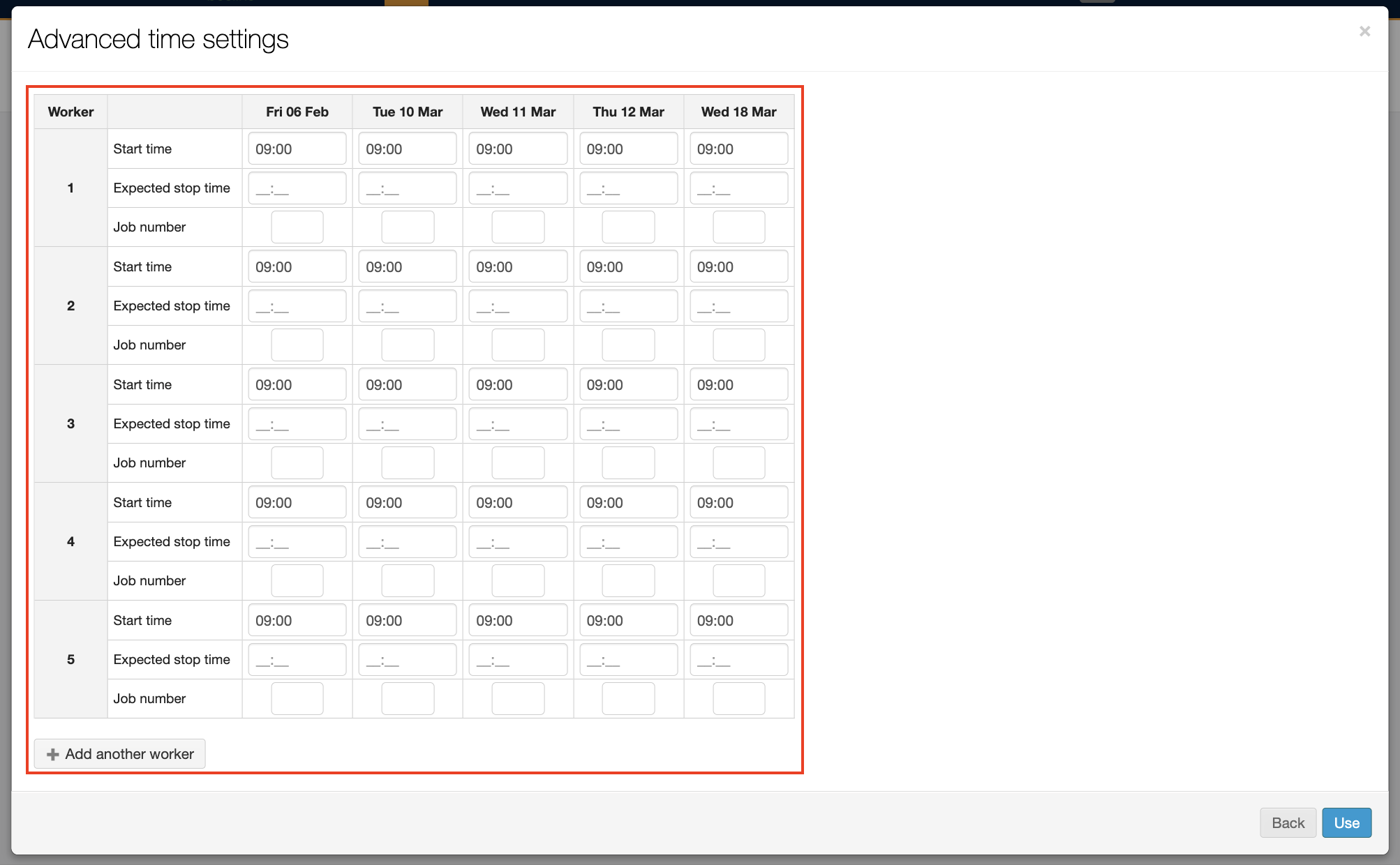
When you have completed entering your varying start/stop time click Use, you will be navigated back to the Create request modal where you can create your request and await approval by an Operations Manager.
| Entering a stop time here is optional and can be completed at a later time. |
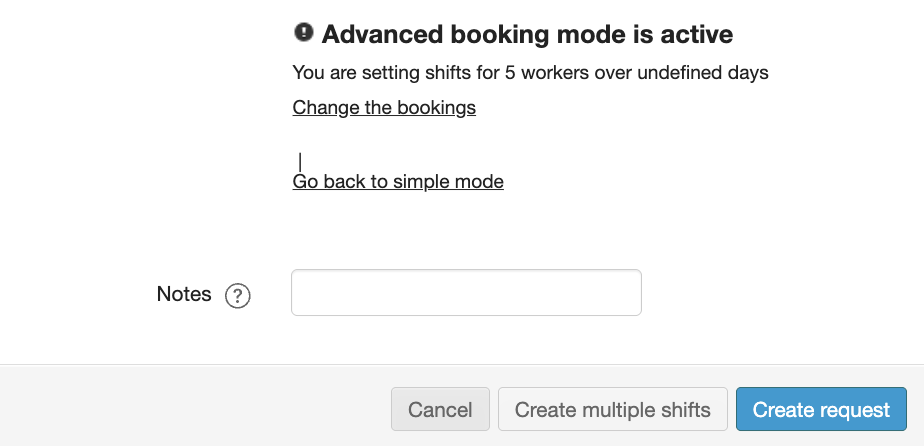
If your start time will be the same for all shifts in your request, once you have inputted the requirements needed for your request, click the Create request button.
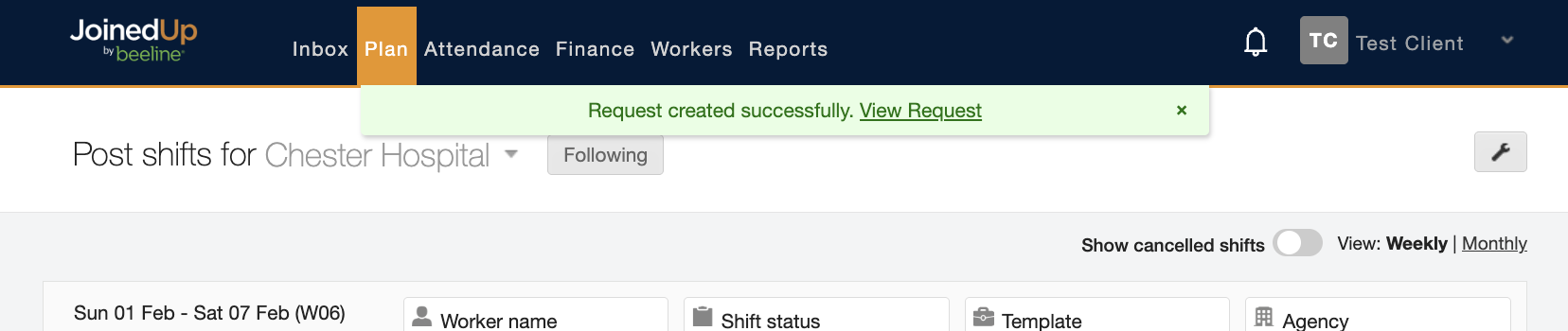
Once your request has been created, you will receive a success message with a link to navigate to the Shift Requests page.
Approved/ Rejected Requests
Now that you have created a shift request, this request will need to be approved by your Operations Manager.
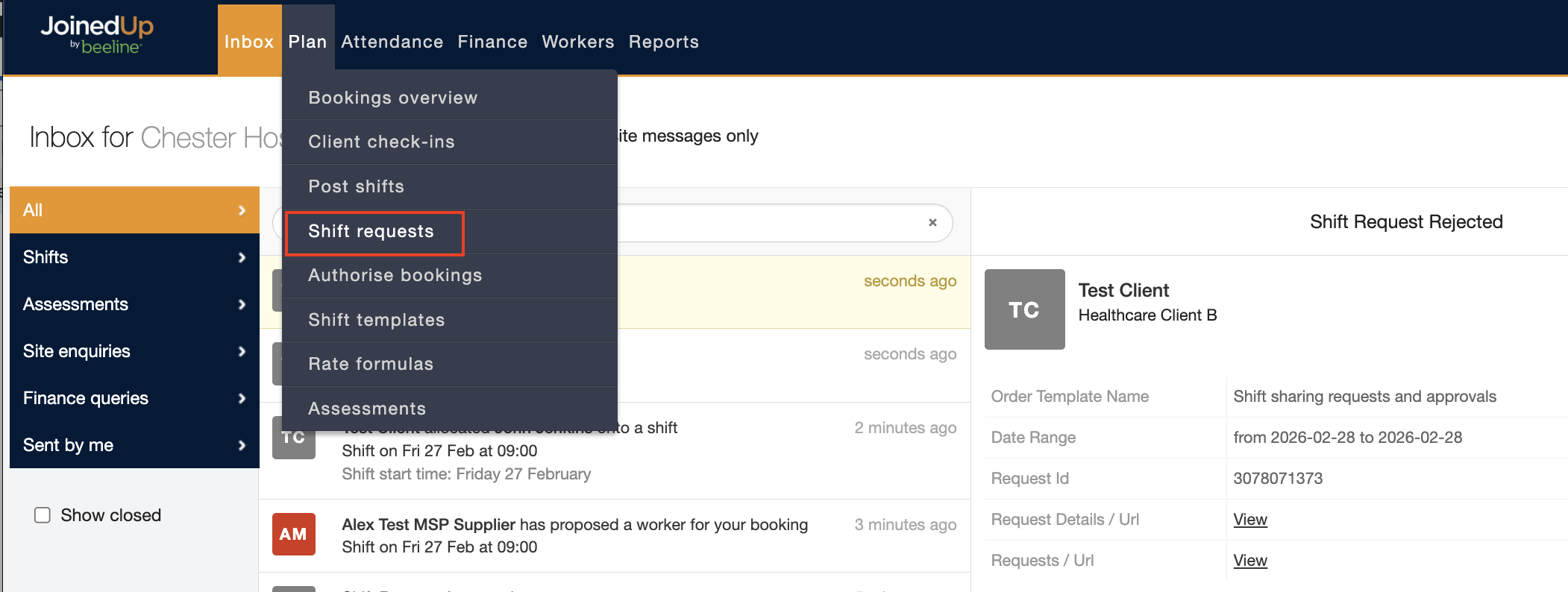
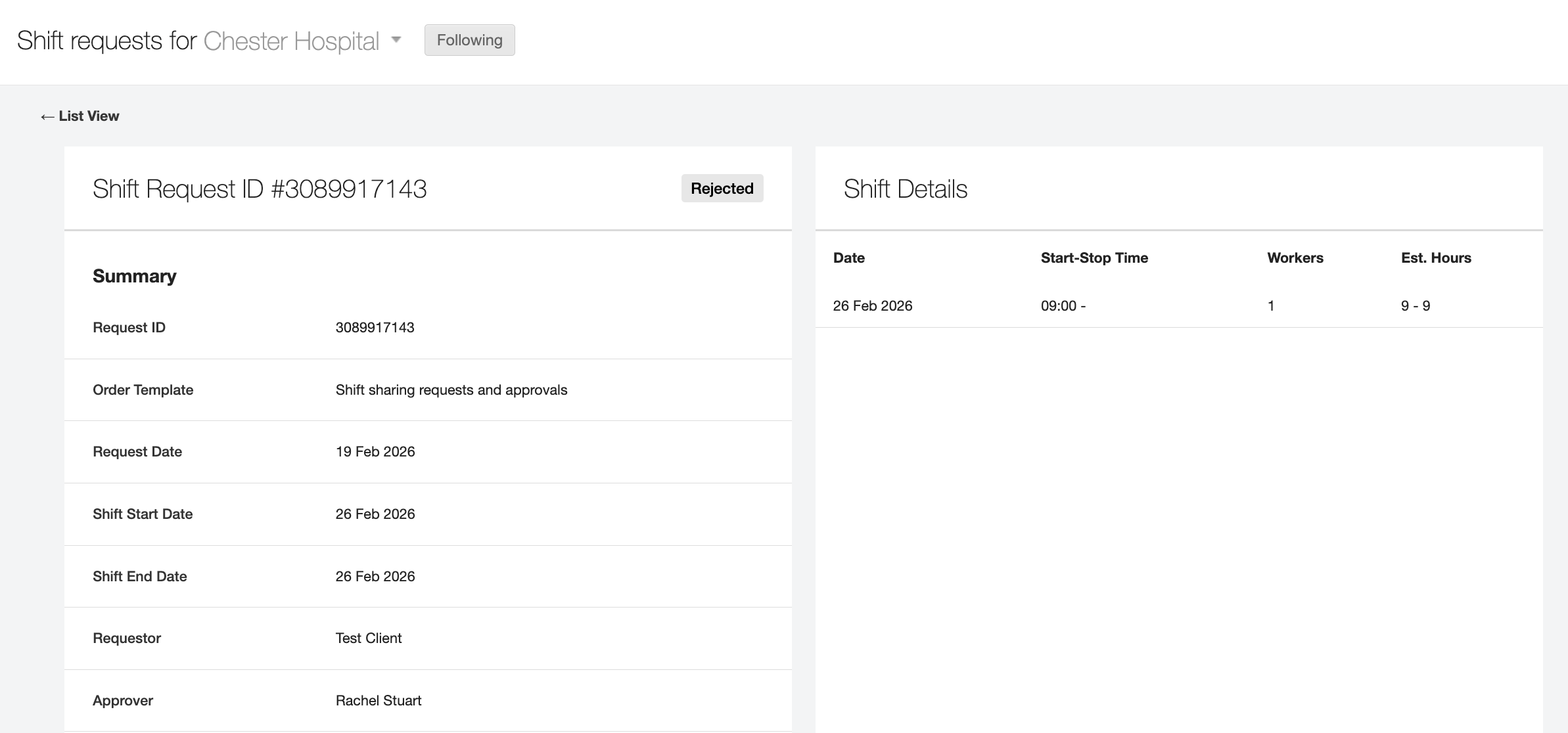
By navigating to the Shift Requests screen, through the Inbox tab, you can view the details of your request and status.
All past and current shift requests and approvals will appear here. You can click into a specific request to view more details and also view the status of the request.
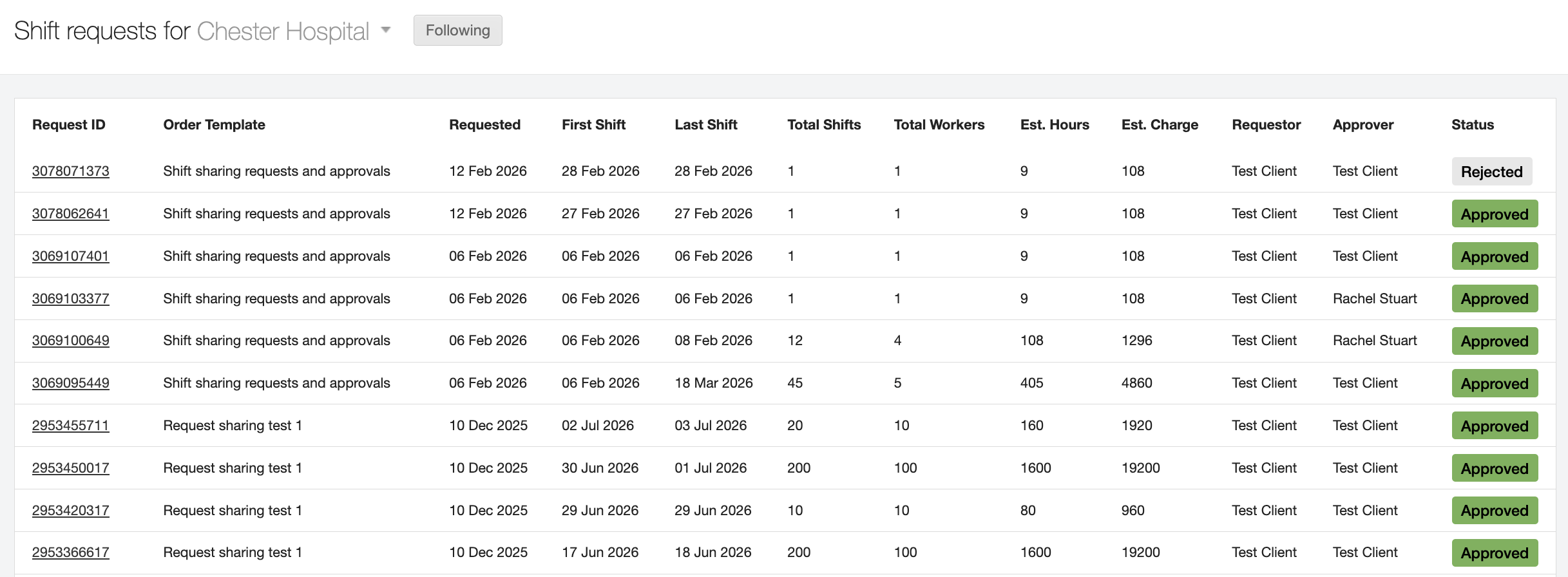
While you are awaiting a response the status of the shift request will be Open.
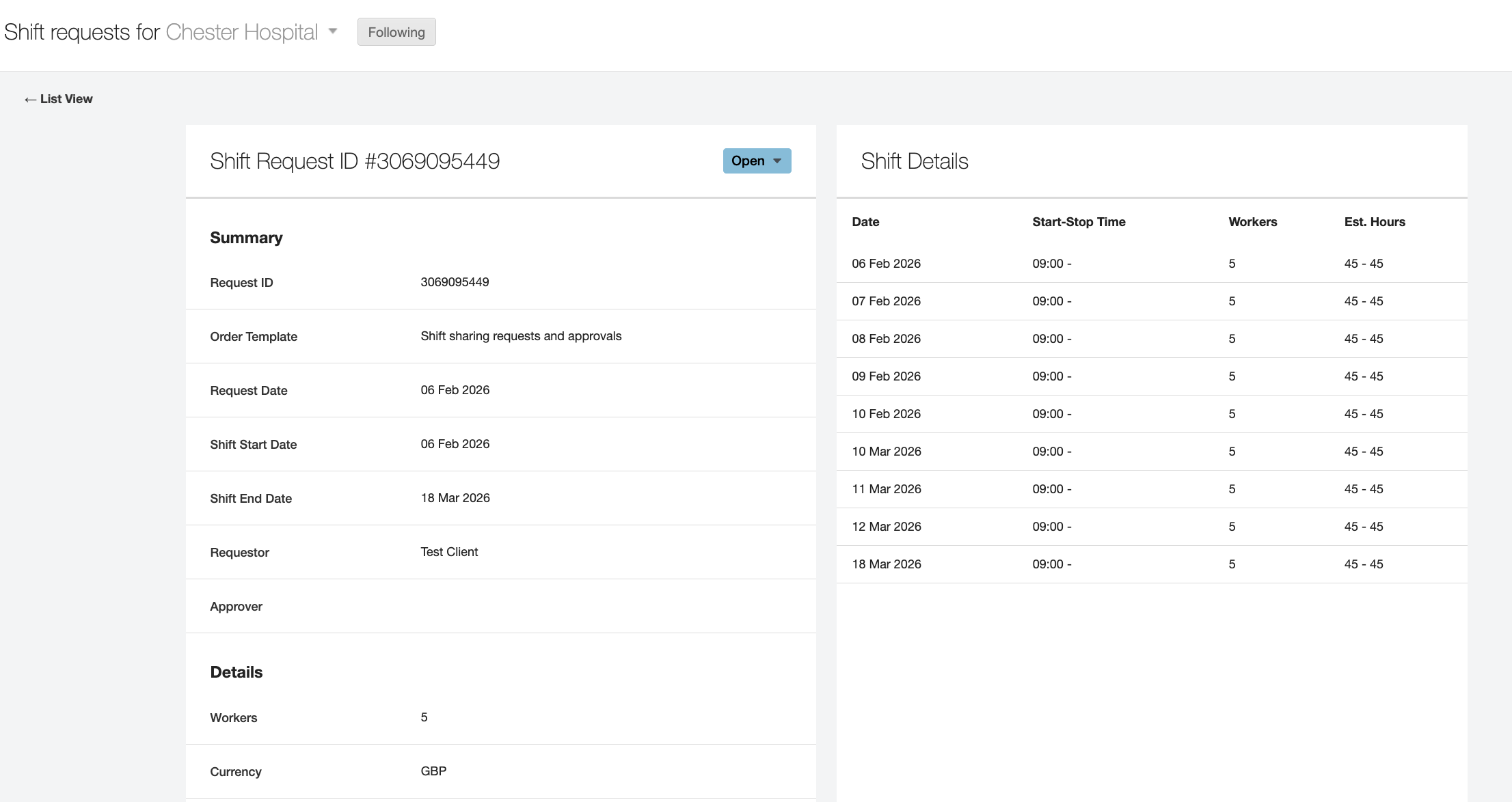
The Operations Manager on the template will be notified that a request is awaiting approval.
Once your request has been approved, you will receive a notification in your Inbox tab. You can view the details of the shift or navigate to the Shift Requests screen by click the two View buttons respectively.
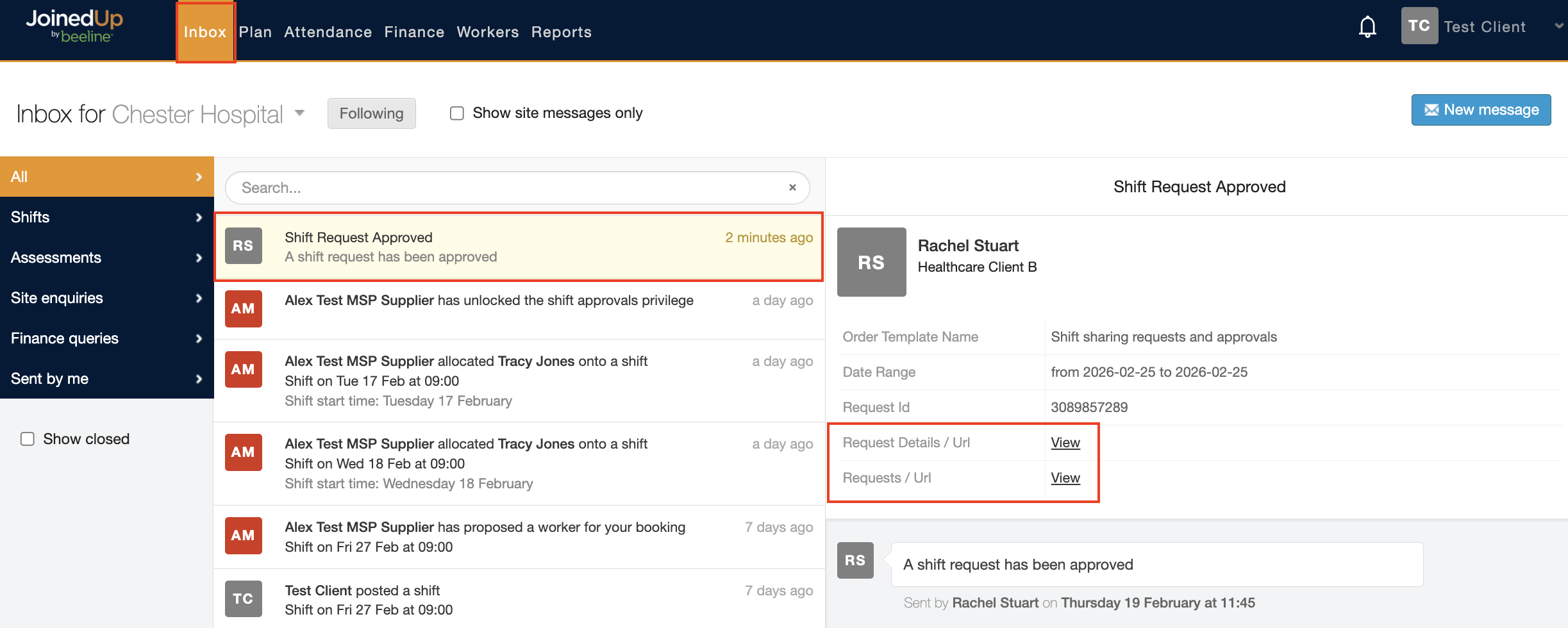
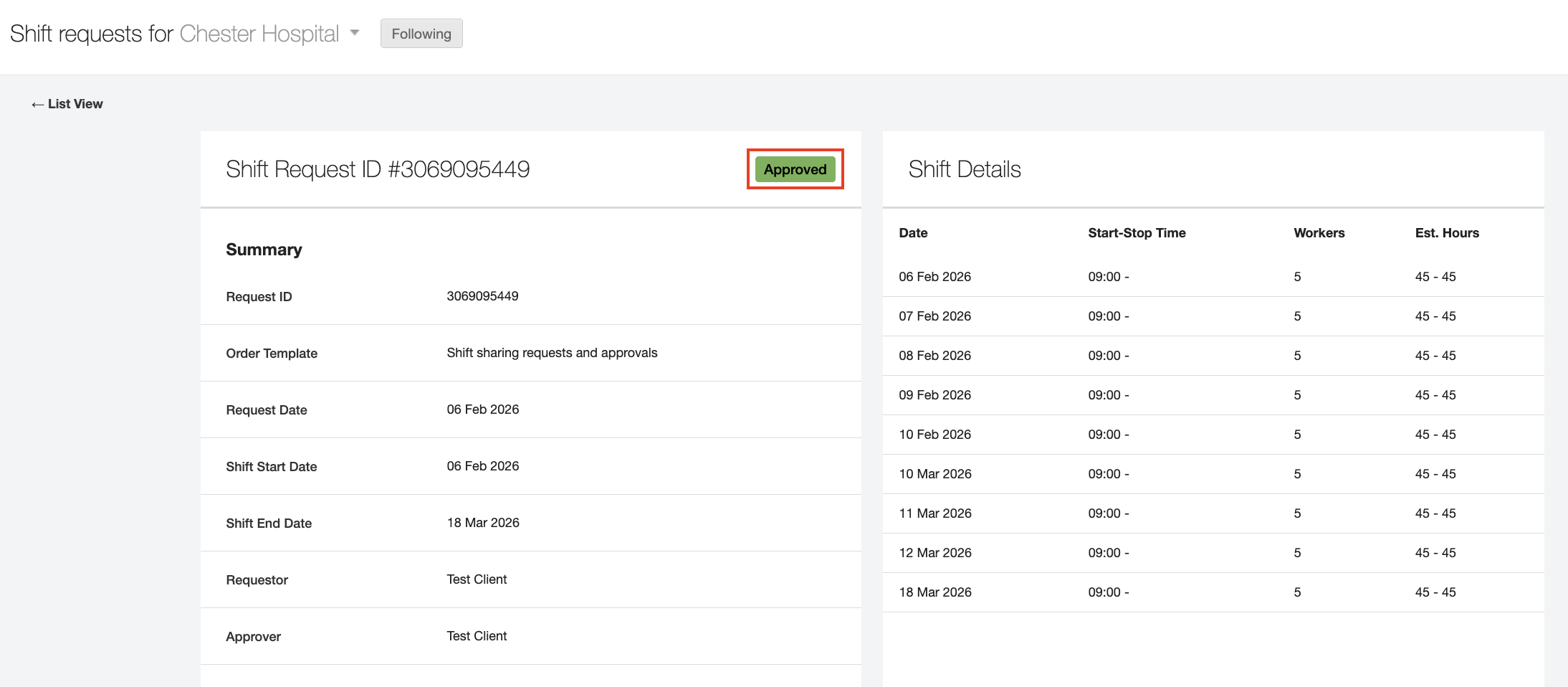
The status of your request will have changed to Approved.
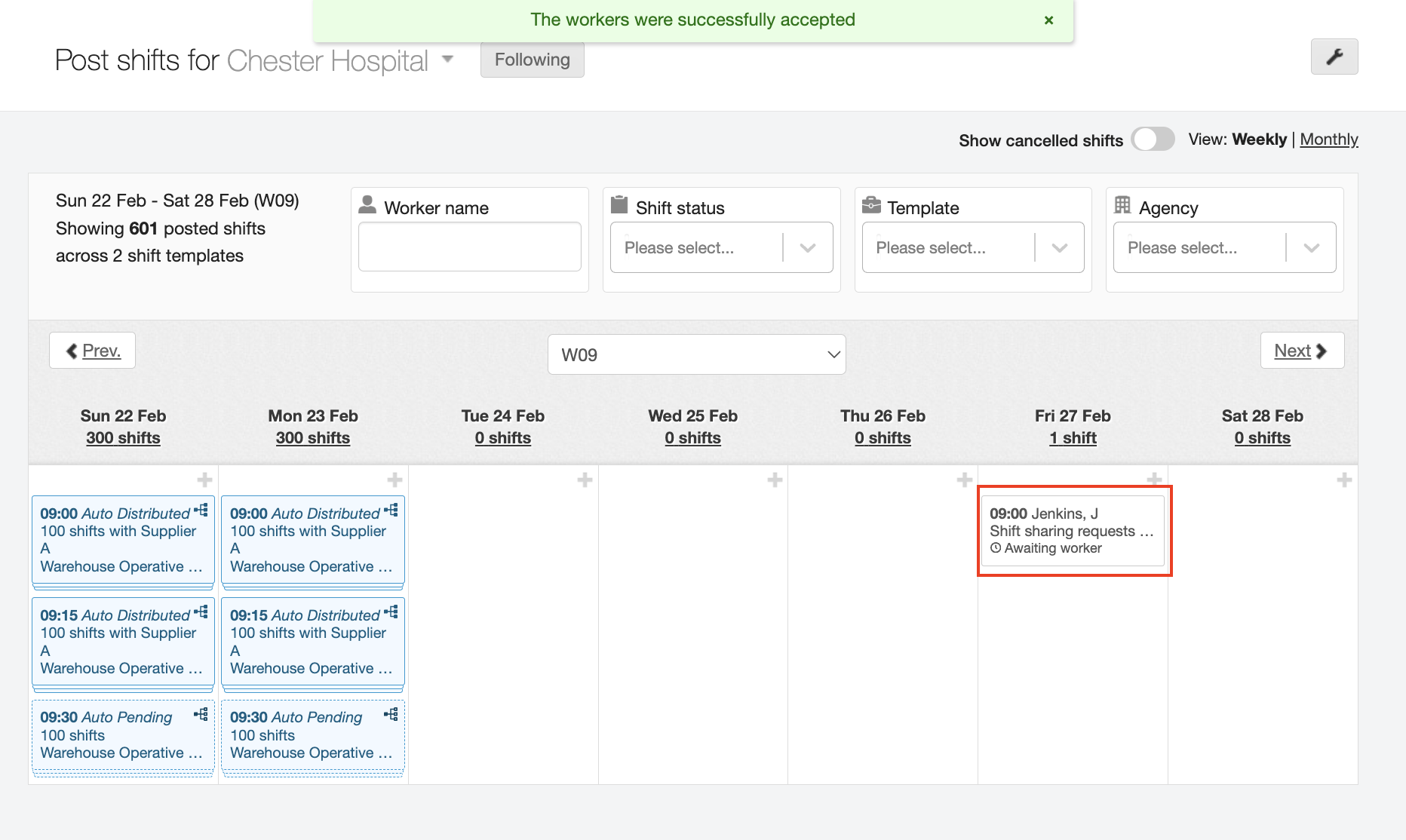
The approved shifts will now appear on the Post shifts screen in grey tiles.
If a shift request is rejected by your Operations Manager you will receive a notification in you Inbox tab outlining this.
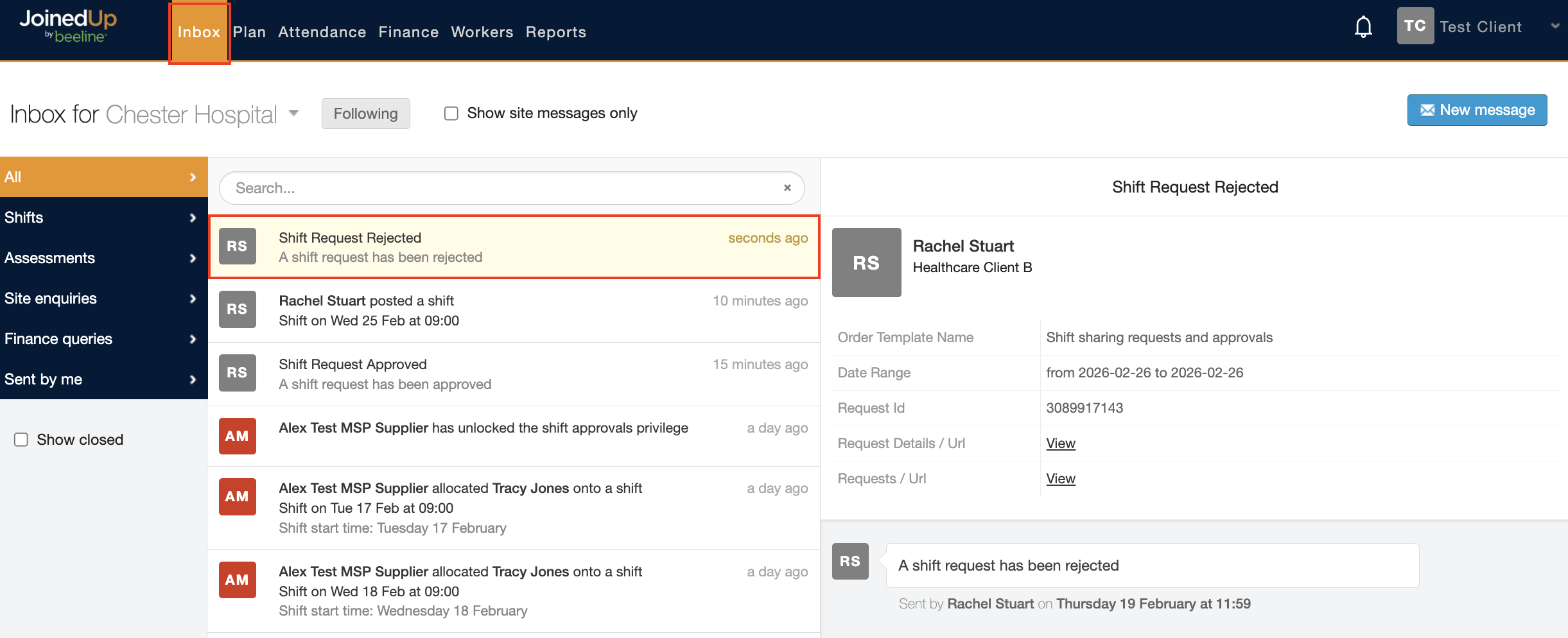
The shift will not appear in the Post shifts screen.
The shift request overview will appear with the status saying Rejected.
Shift Sharing
Once the shift has been approved, you are then able to share this shift with your suppliers.
Please read the article at the end of this page for more information on this process.
| If you would like to auto distribute your shifts, you can switch this feature on in your order template. Please read this article: BDS (Automated Shift Distribution). |
Once you have accepted proposed workers from your supplier the tile will become white.
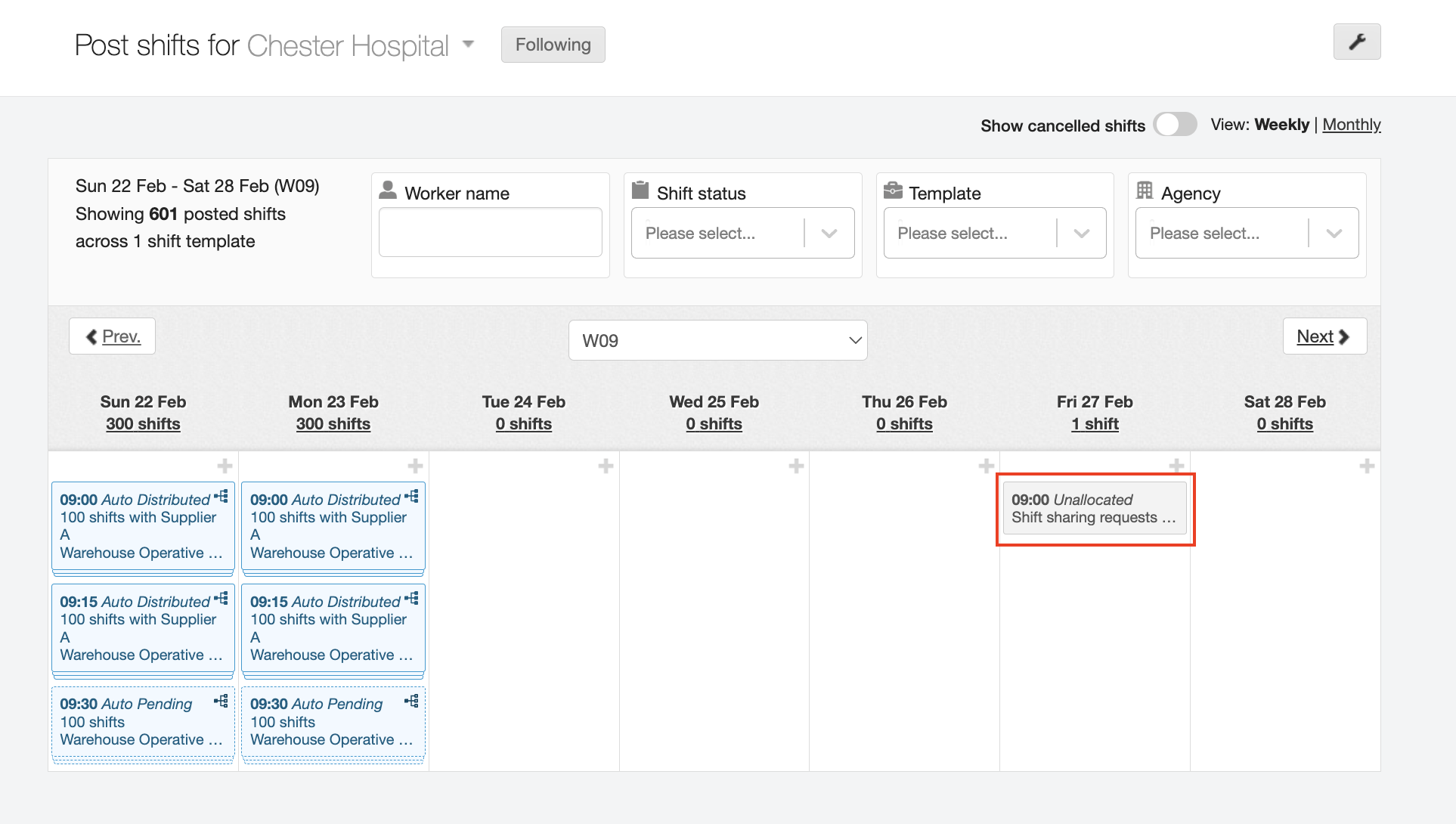
The requests and approvals process is then complete.