Linking a worker
Adding a worker to your On-Site planner
With the on-site plan you will need to link a worker’s profile to a shift template for them to appear on the planning screen.
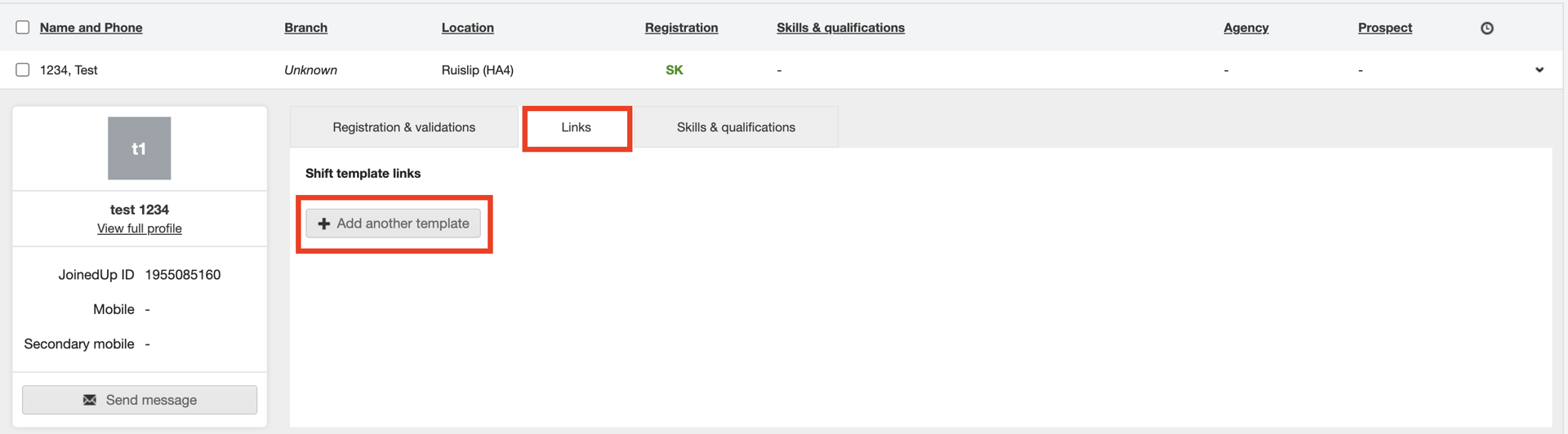
Step 1: Navigate to the Workers tab, then find and select the relevant worker’s name to view their profile summary.
Step 2: Click the + Add another template button. A separate window displays to add the template details.
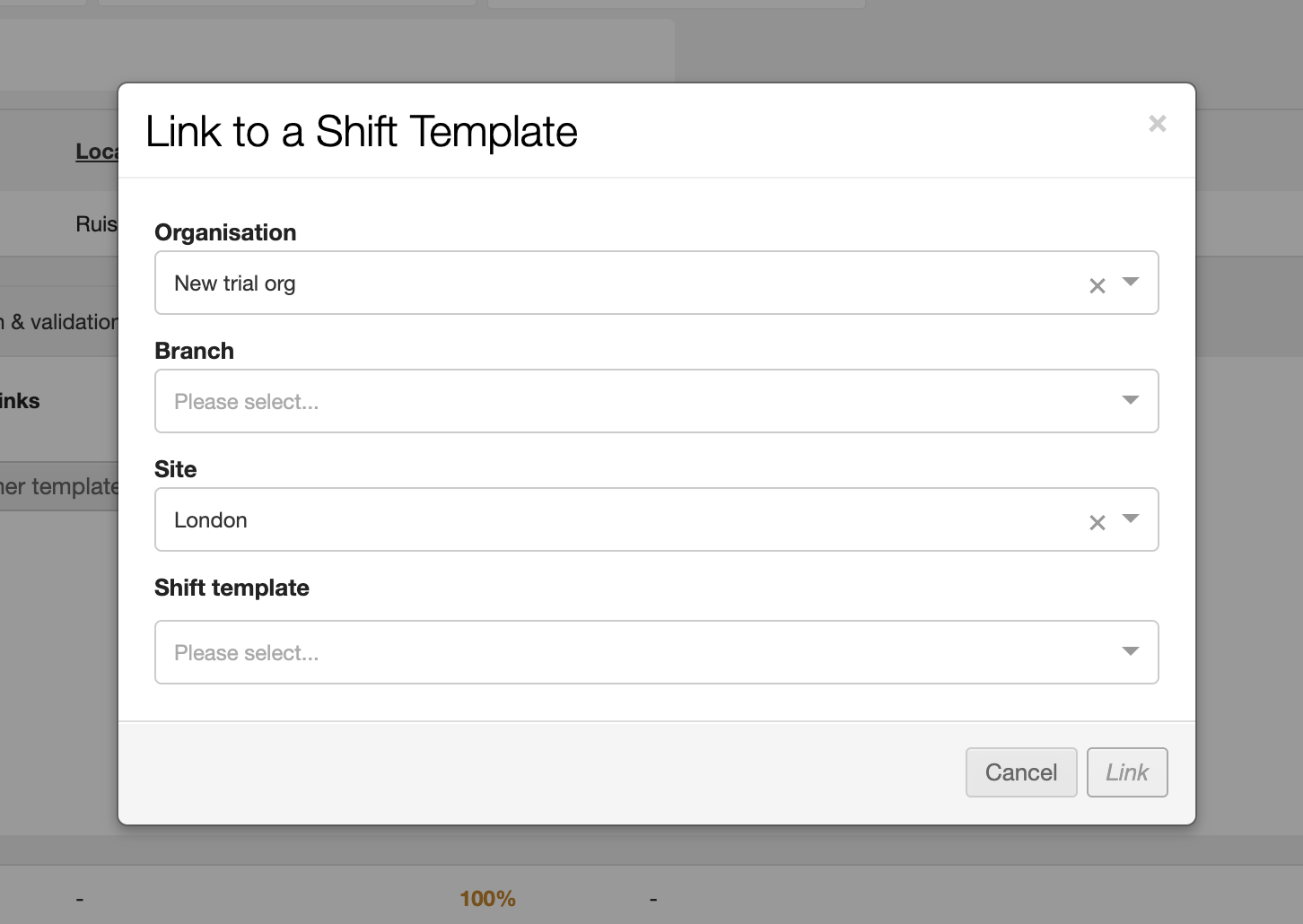
Step 3: Select the organisation, site, the template, and the pay schedule this worker will be working on (for example, the company they are working for and which rates they should be on).
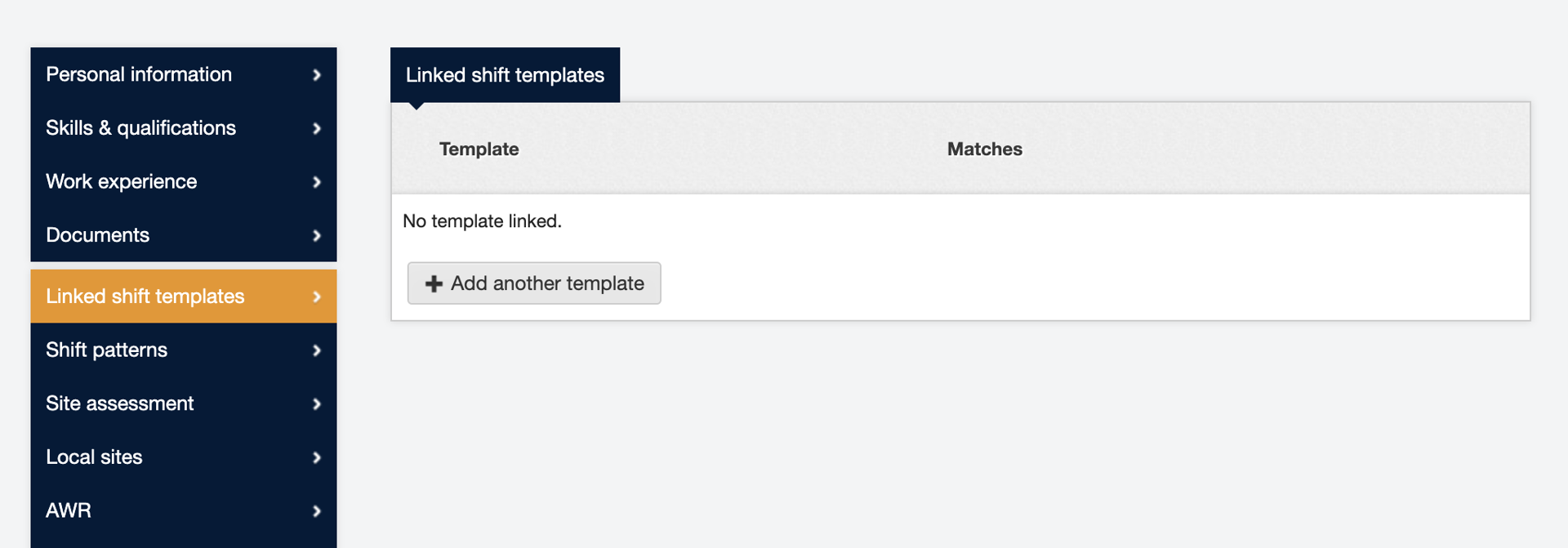
Step 4: You can also link a worker from their full profile. On the profile menu on the left-hand side there is a 'Linked shift templates' section. You can link workers to multiple templates if they work at a variety of sites or a variety of roles.