Adding Users
Adding profiles for users from your organisation
Every user of JoinedUp gets their own login in their name and under their email address. If you are set up with the Admin role you will be able to add profiles for your colleagues.
To do that please hover over your name and navigate to Settings > Add users.
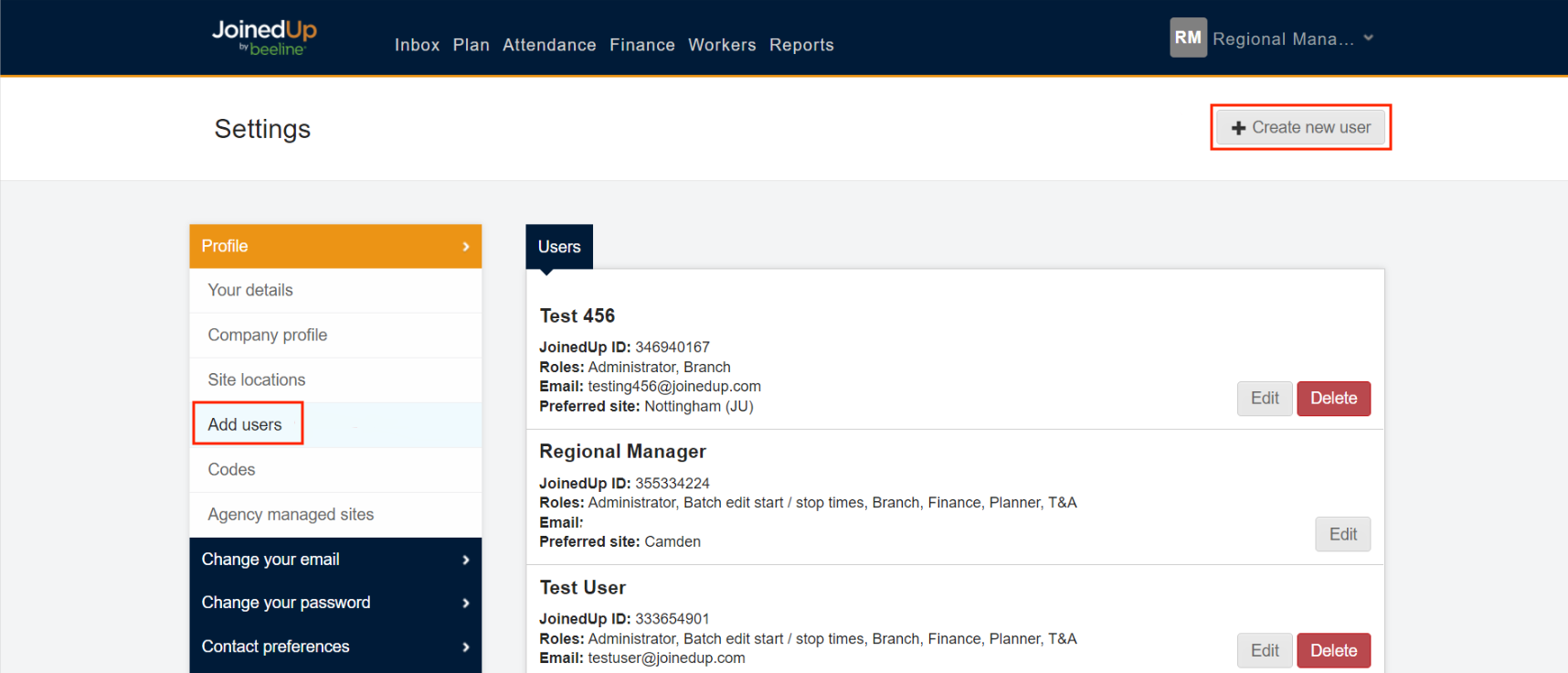
You will be able to see the profiles already added and add new ones. Click the Create new user button and you a pop-up window displays to create a new invitation.
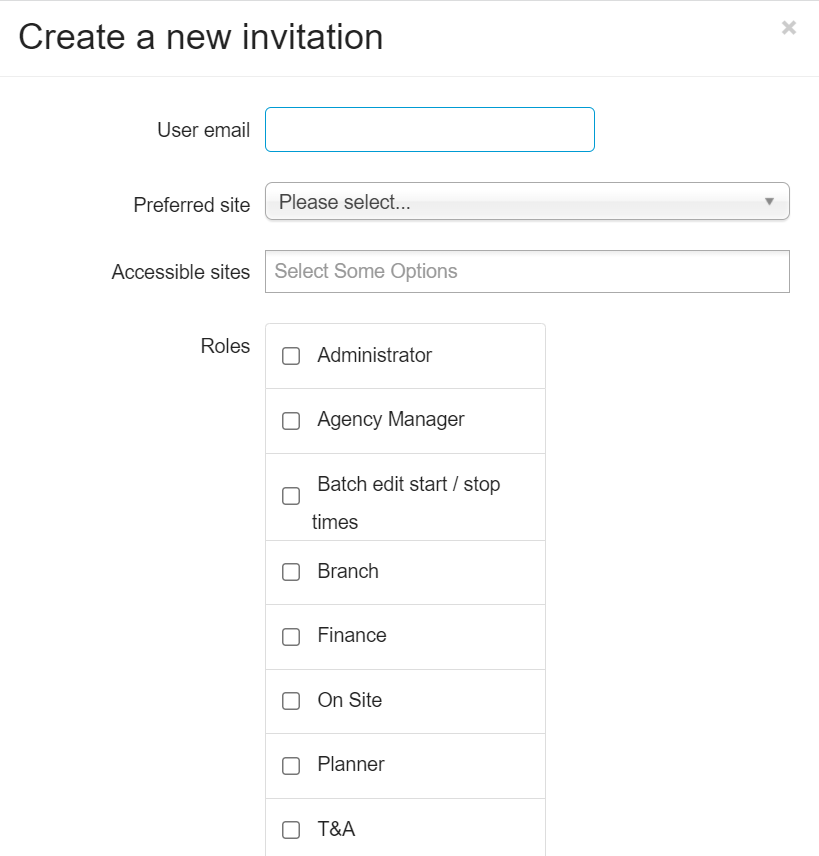
When creating a profile you will need to put in the email address for the user.
Select a Preferred site from the drop-down list—this will be the first site they will be getting email notifications from. More sites can be added later on by setting ‘following’ links for them.
Tick the boxes to assign roles and shape the users view and access levels.
-
Administrator – Admin privilege allows user to change or add new elements on JoinedUp. Only Admin users can add new clients and sites, create and edit shift templates, add new users, etc. The admin role also contains and enables all the other roles.
-
Batch edit start/stop times – enables access to the Batch edit screen in Attendance allowing users to add times to completed shifts.
-
Branch – enables access to the Shift allocation (branch) screen used for planning.
-
Finance – enables access to all the screens under Finance required to run payroll.
-
On Site – gives the user access to the Shift allocation (on-site) screen. The other planning screen available in JoinedUp.
-
Planner – enables access to the screens under Plan. This role is usually accompanied by ‘Branch’, ‘On-site’ or both to enable the planning screen.
-
See bank details – users with this role will be able to view the bank details (account number and sort code) on worker profiles. The details are asterisked for users without this role.