Historic Adjustments
There are two types of adjustments available on JoinedUp. There are Manual adjustments that can be added any time until the site gets locked and the payroll closed. When the site is locked, you will no longer be able to change anything about the shifts booked nor add any new ones. If you discover afterwards that shifts or hours have been missed, then the best way is to add them using a Historic adjustment.
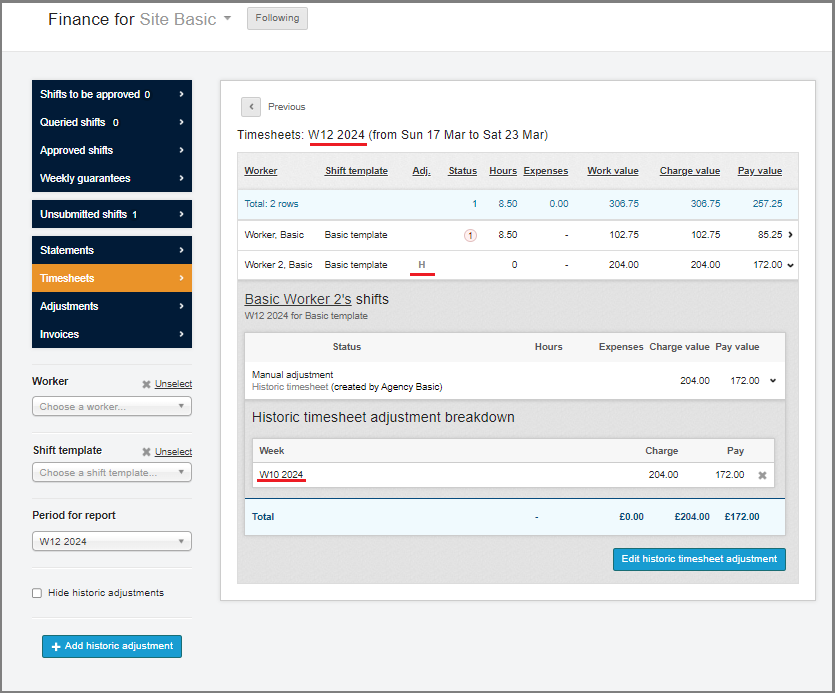
Historic adjustments can only be added after the site has already been locked. They get added to the historic week where the shift has been missed, but come out at the next available opportunity—with the next payroll.
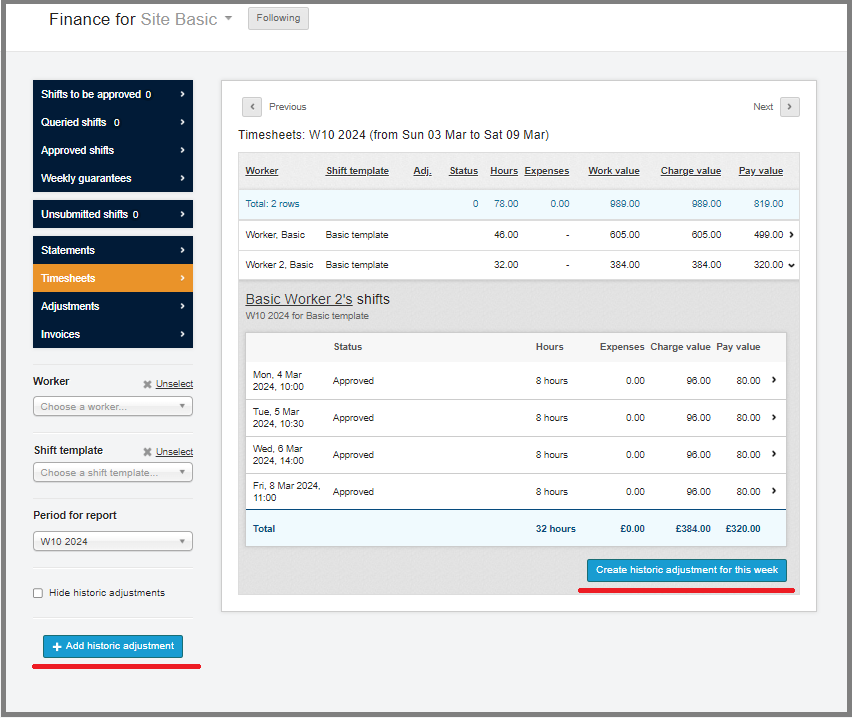
Once a site has been locked you can navigate to Finance > Timesheets and view all the Approved shifts, however the button to add a Manual Adjustment is no longer visible because the site is now locked and this option is no longer available.
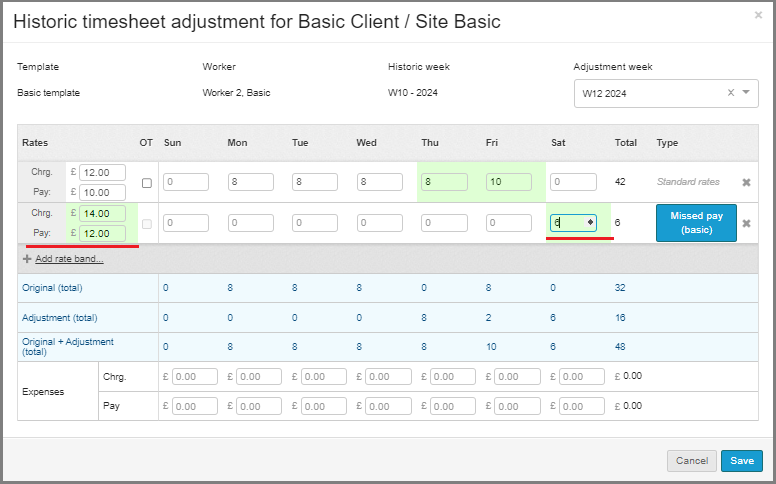
When you click to + Add historic adjustment, a pop-up window displays like the one shown below.
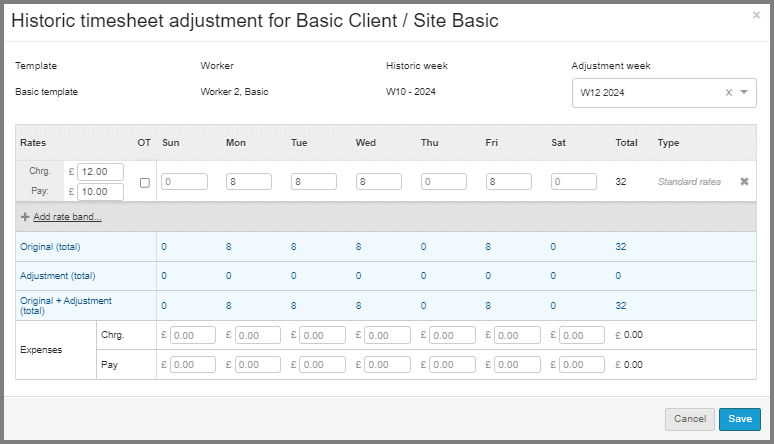
It includes the following fields:
-
Template – indicates the role that the worker was booked in for
-
Worker – displays the worker’s name
-
Historic week – the week in which something was missed and needs to be adjusted
-
Adjustment week – the week we are currently doing the payroll for and in which our adjustment will display.
Underneath that we will see the hours that have been added for each day and the Charge and Pay rates at which these hours were calculated for payroll.
Below that, in blue, we will see breakdowns of how many hours are already there and how many are being adjusted.
Underneath that you also have fields to add expenses to each shift.
One option is adding more hours at the same rate as the ones that have already been booked. In this case all you need to do is add or change the number of hours worked for the selected days For example, we have just added 8 hours for Thursday and changed 8h to 10h on Friday in the example below.
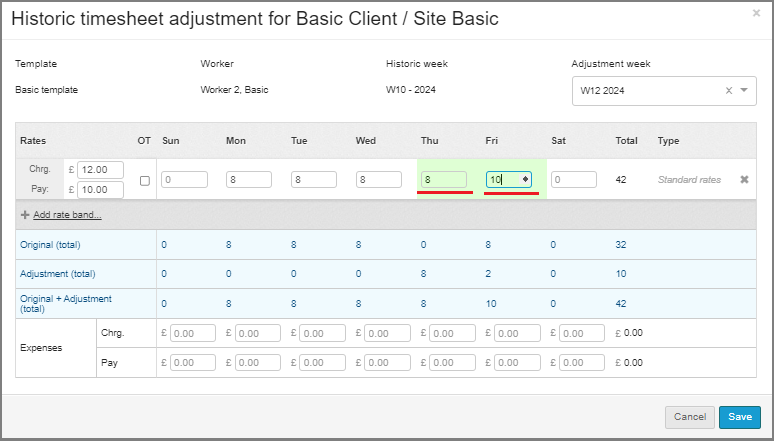
The other option would be to add hours at a different rate. To do this you would need to click + Add rate band, type in the rates, and add the hours for the selected day. In the second example shown below, I have also added 6h done on Saturday, but these are calculated at a different rate from the weekday ones.
After you’ve added the adjustment you will be able to see it by navigating to Timesheets in the left-hand menu. Timesheets with adjustments will have a special marking. They will display in the Adjustment (current payroll week) and not in the Historic one, but you will be able to see information about which week the adjustment has been added to. Adjustments pull through on the financial reports and are added to the totals for the Adjustment week.