Submitting and approving timesheets - Finance Tab
Submitting Shifts
Payroll is automated in JoinedUp. It calculates the Charge and Pay for every shift using the rate information in the Shift templates as well as shift durations after the times have been added. The user’s job is to check to make sure that these calculations are correct, i.e., the correct number of hours has been recorded and they have been calculated using the correct rates. If there are any errors in the shift durations you can correct the start or stop times and the shift will instantly recalculate to reflect the new length. If you see that the shift is not calculating at the correct rate then check the Shift template.
If everything is correct, you then sign off on the shifts by submitting them.
Each shift will have its own breakdown. T hey can be viewed grouped into timesheets in the Timesheets section or listed out in Unsubmitted shifts. You can click each shift to see the details.
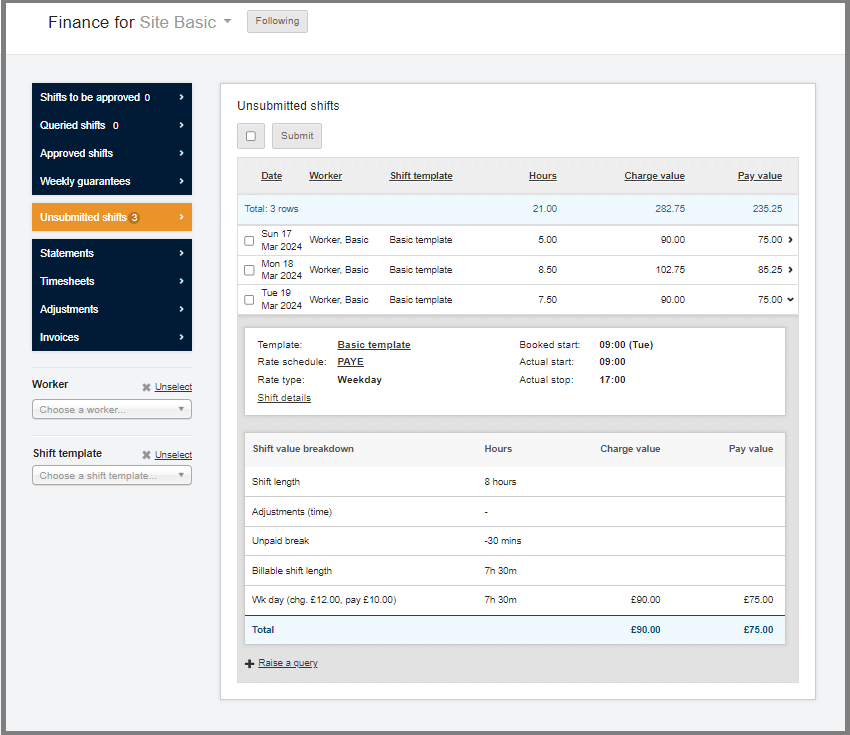
Tick the boxes to select the shifts to submit and then click the Submit button to complete the action. Submitted shifts will be removed from the display on this screen.
Raising Queries
After a shift is submitted, it is locked and the times or the rates can no longer be amended. Should you spot an error on a shift that’s already been submitted you can unlock it by raising a query.
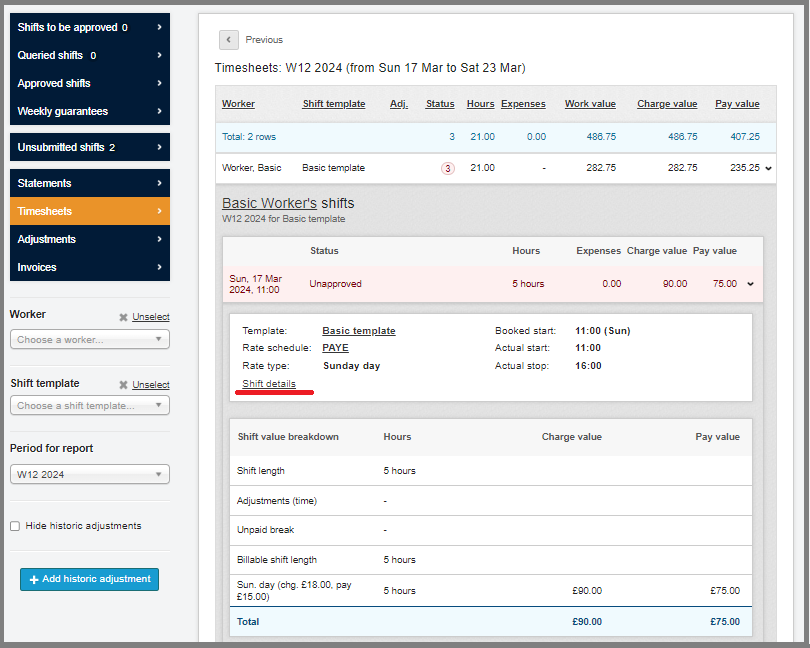
From the Timesheets tab in Finance, click the Shift details link.
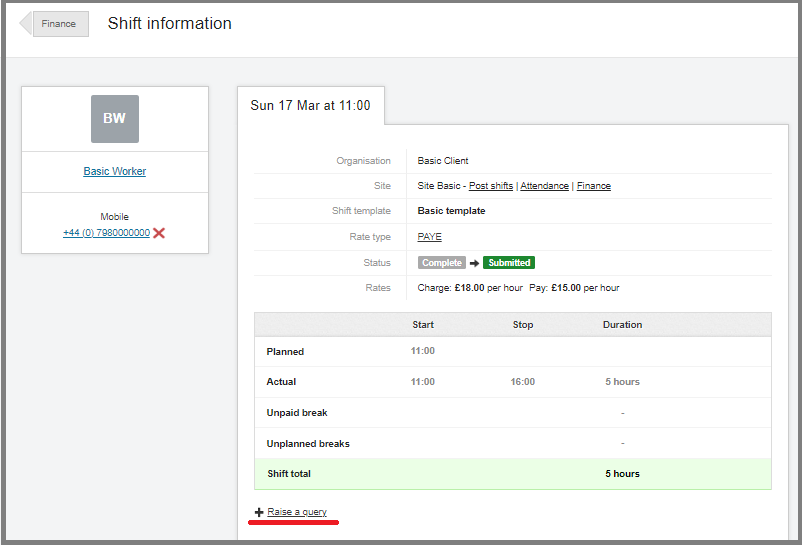
The Shift details screen opens, click the + Raise a query link.
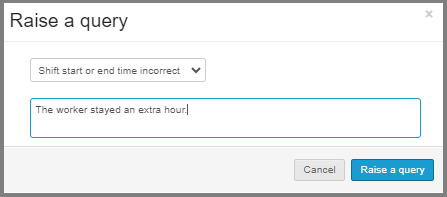
When raising a query you will be asked to select a reason and you can add more information in the comment box
Once the query is raised the shift will be open for editing. You can click the cells with the times to amend them or change the template the shift is booked on.

The shift will instantly recalculate to reflect the changes you made.
| Please remember to close the query after you are finished and the shift will move to Unsubmitted Shifts to be submitted again by reflecting the amendments made to it. |
Approving Shifts
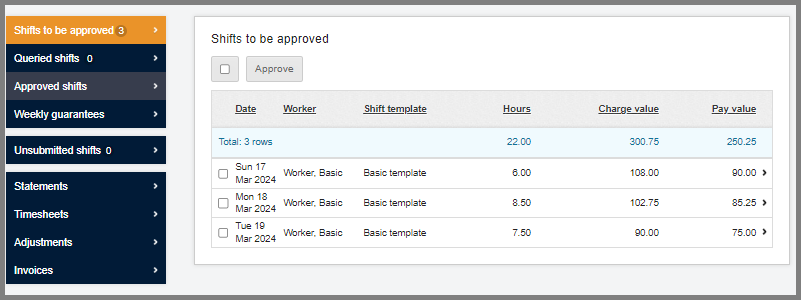
Submitted shifts move to the Shifts to be Approved section awaiting the client’s approval. First the supplier submits the shifts and then the client approves them so that both side get to sign off on the payroll.
If necessary, you will be able to approve the shifts on your client’s behalf.
Locking sites
After all the shifts from the week have been submitted and approved the last step of the payroll process is locking the site for the given week. To lock the site navigate to Finance > Site locks.
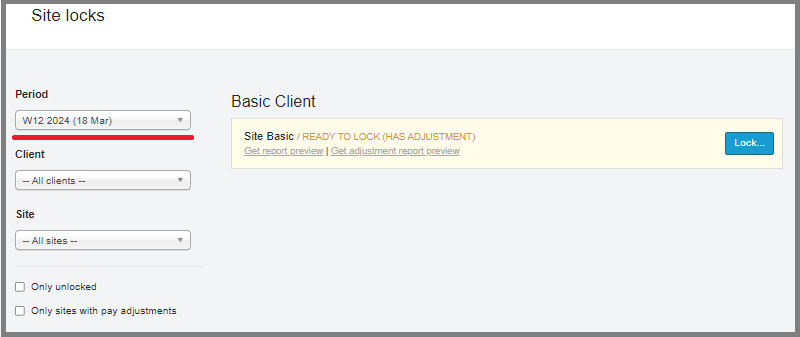
You will see every one of your sites that had shifts booked in the given week. When all the shifts have been submitted and approved, the site will be ready and to lock it simply click the Lock button. Once the site is locked, none of the shifts can be amended anymore and no new ones can be added for the selected week.
| You will be able to re-open the site for 15 minutes after locking it. After that it can no longer be unlocked. |