Time and Attendance
Entering T&A
After the shifts have been worked you will need to confirm their time and attendance by adding actual start and stop times to the shifts that were worked and cancelling the ones that were not.
To do this, navigate to Attendance > Batch edit start / stop times and then select Timesheets in the menu on the left.
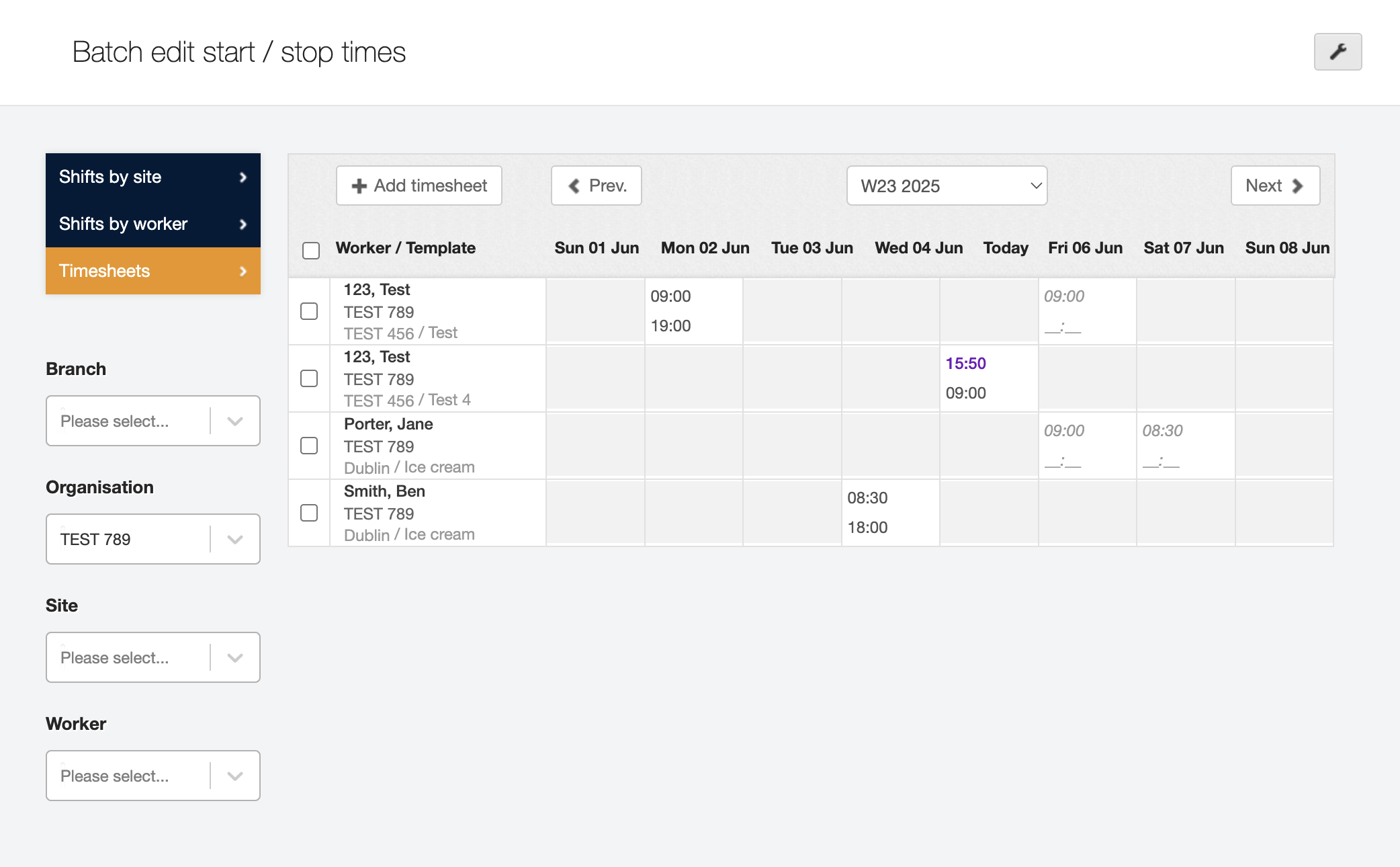
The screen displays a plan grid where each line represents a worker and their shifts throughout the week. The top line is the Start time and the bottom is the Stop time. Some of the shifts in the example shown above already have their times added and others are only showing the planned start time (greyed out).
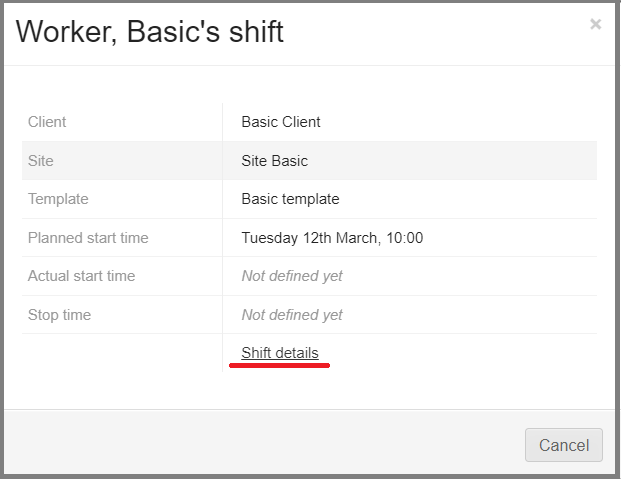
The shifts that didn’t happen as planned need to be cancelled. To do that hover over the upper right corner of the cell representing the shift to cancel and click the small i to open the shift preview.
Click through to Shift details.
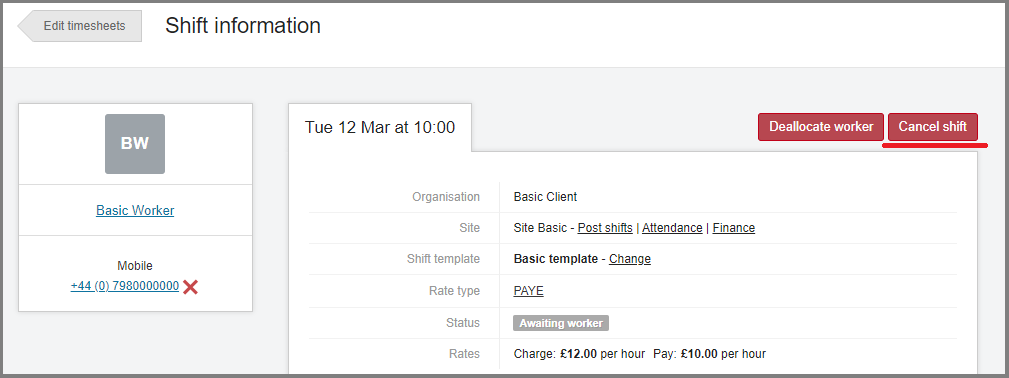
While on the Shift details screen you will see a button to Deallocate worker or Cancel shift.
When cancelling the shift you will be asked to select a reason for the cancellation. You can also provide more information in the text box. If you cancel a shift as a ‘no-show’ then that will also be recorded on the cancelled worker’s profile.
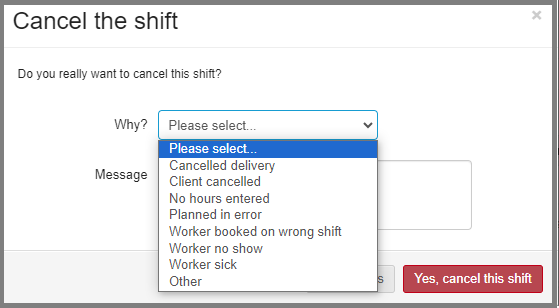
A cancelled shift is cleared from this screen and the remaining ones need to have their times confirmed.
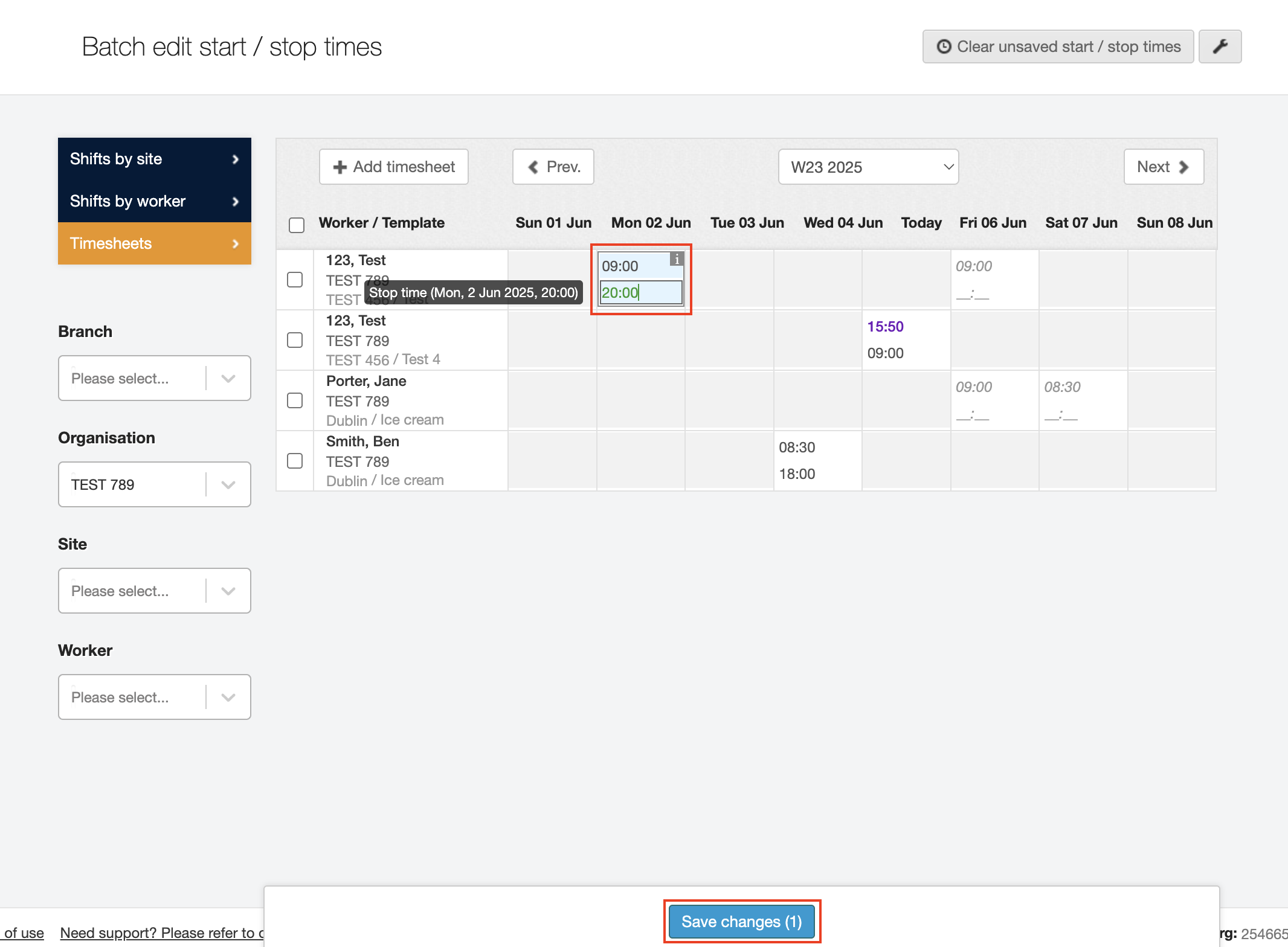
You can key in the times for each shift one by one. Put in the start time in the top line and stop time in the bottom and click Save changes.
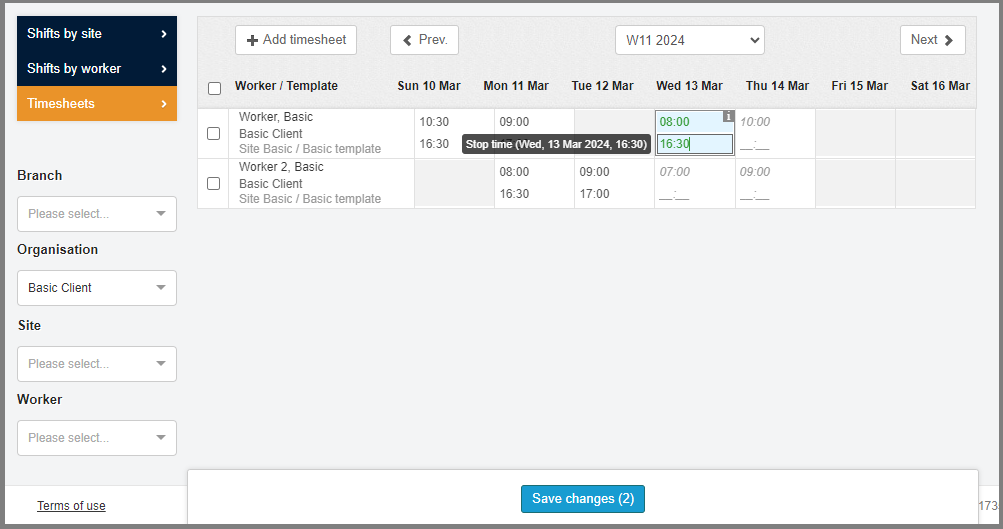
The other option is to add times to multiple shifts in batch mode.
You can:
-
Add a start and stop time for selected workers.
-
Set the shift duration, for example,12 hour shift.
-
Override existing times entered

-
Select the workers you would like to record time and attendance for using the tick boxes.
-
Click the Set start/stop times button.
-
You can choose to add a start time or use the shift planned shift time.
-
Then add the shift end time, or use the average shift length set up in the shift template.
-
If your preferences are set to record hours in duration rather than start and stop times, you can enter the shift duration instead of a stop time.
-
All shifts for the selected workers will have these times/hours applied.
-
You can override existing entered hours using the "change current time" tick box, otherwise existing times will remain as they are.
-
Before changes are saved you can clear the entered times if you have made an error by clicking the Clear unsaved start/stop times button.
| Make sure you save the changes! |