Worker Profiles
Adding a worker profile and completing their registration
Before you can book a worker into shifts, you need to add their profile to JoinedUp. When adding a profile you will need to fill in all the necessary information in order to fully register them for compliance before you start booking them into shifts.
In order to add a single profile through the user interface please navigate to Workers and press the dedicated button in the upper right corner.
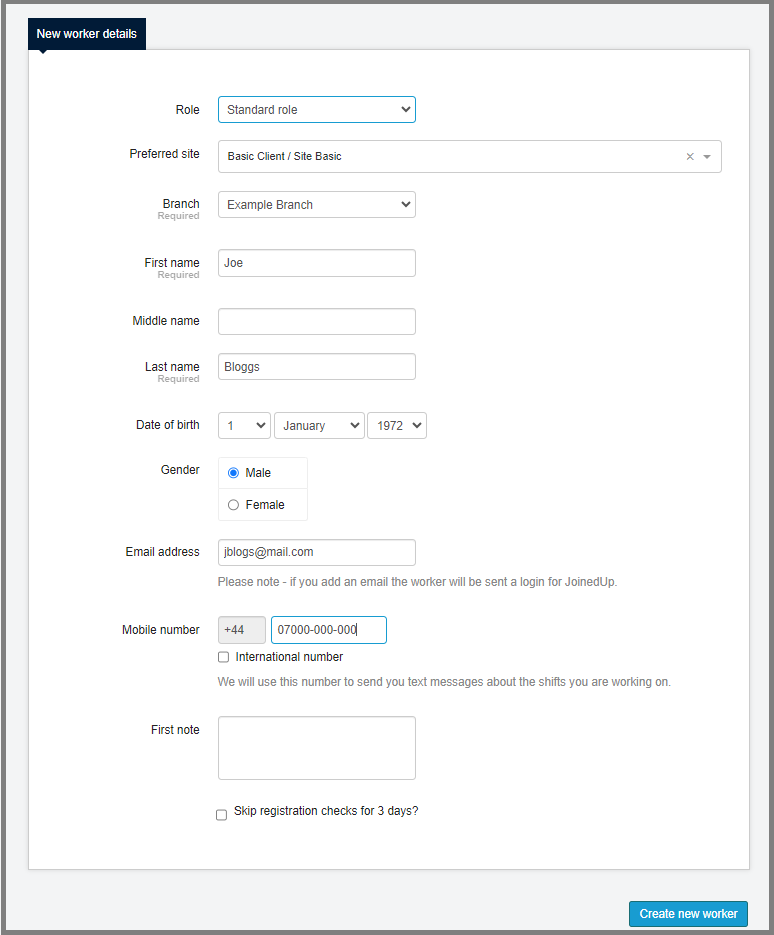
Fill in the first batch of worker details and click Create new worker to create the profile and send out a welcome email to the candidate. The candidate will need to click the link inside the email to confirm their email address and create a password for themselves.
-
Role – Driver/Standard Role – selecting ‘Driving’ will add a section to the profile where driving license details need to be added in order to complete the profile. For jobs that do not involve driving, select ‘Standard’ and the driving license details will not be required.
-
Preferred site – please select the main place of work for the candidate. The workers can be linked and booked to shifts at more than one location. This field indicates the one where they work at the most.
-
Branch – use this drop-down to link the candidate to one of your branches.
Once the profile is created on the left-hand side, under the menu you will see a meter showing the completion percentage for the profile.
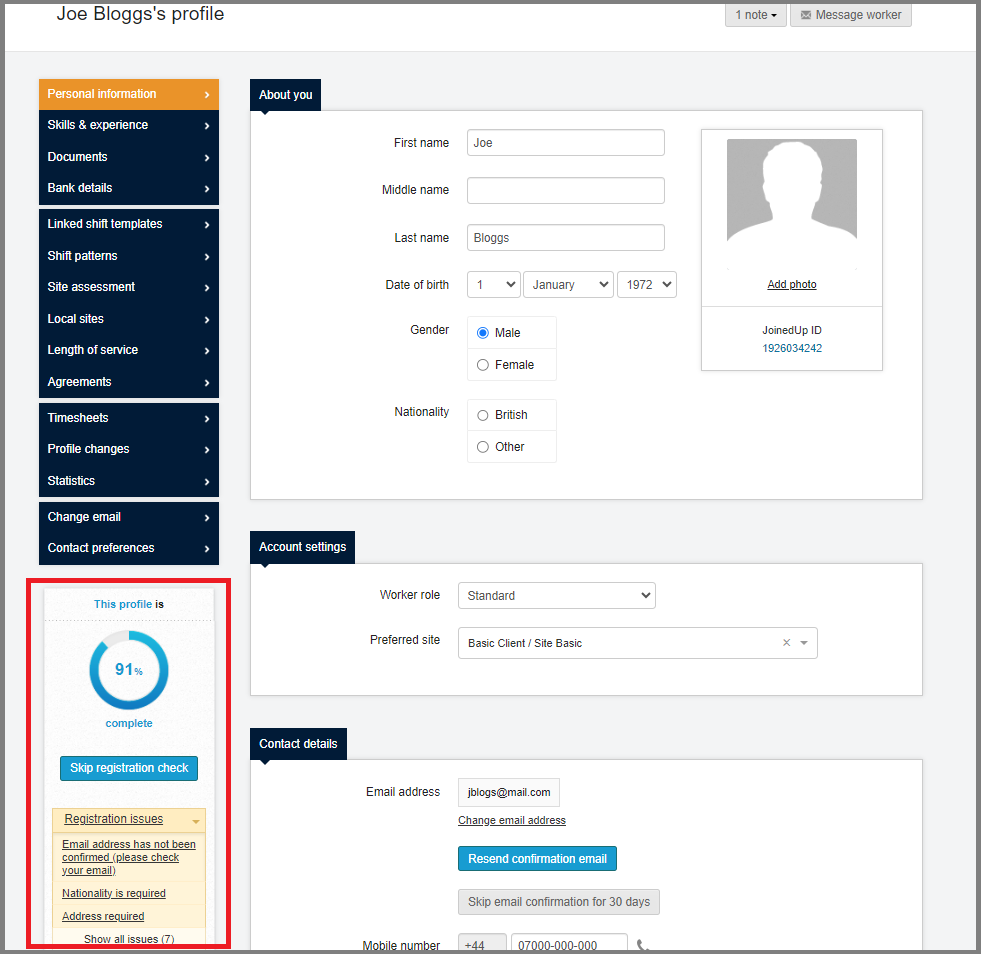
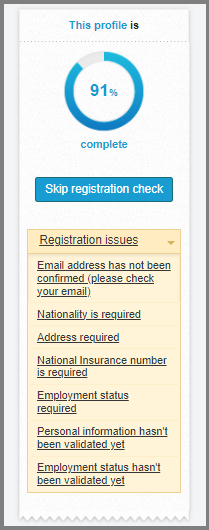
Underneath the meter you will find a list of information that needs to be added in order to get the profile fully registered and ready to book.
Every position on the list is a hotlink. Click it to go to the section of the profile where the missing information needs to be added.
Follow the list until the all the information is added then double check it has been input correctly and sign off on that by validating the profile.
Skipping Registration
JoinedUp will require you to register every worker in full and have their details validated before you can book them into shifts. If you don’t have the time to complete the registration and you need to make a booking to ensure the worker gets notified of their shift in advance, you can skip the registration and temporarily waiver the requirement of being fully registered in order to be booked into a shift.
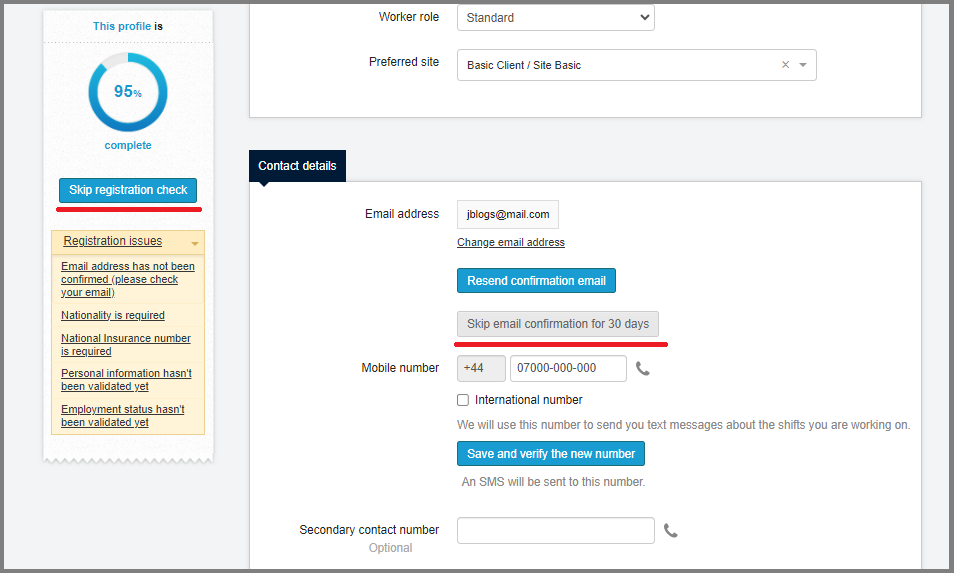
There are two skip options:
-
General skip underneath the profile completion percentage – skips all the registration issues for 3 days.
-
Email confirmation skip – located underneath the worker’s email address. This one will only skip the requirement for the worker’s email address confirmed, but it will be effective for 30 days. The worker confirming their email address is a security feature and a necessary step in the registration that needs to be done by the worker. For the majority of the workers, it is done when they receive the welcome email and click the link inside the email to create a password for themselves. When all other information has been added but the candidate is having issues receiving the email, this is the skip to use.
Once the skip expires you will either need complete the profile or skip the registration again in order to be able to book them into shifts. We would recommend registering all workers with all their details for compliance.