Adjustment and Expense Approvals
Suppliers can now submit adjustments and expenses for approval. These submissions follow the same established workflow used for the submission and approval of shifts.
To support this enhanced workflow:
-

The navigation menu includes new Unsubmitted and To Be Approved sections
-
Dedicated screens for Shifts and Adjustments & Expenses are available under each section.
| If you would like this feature enabled. Please contact your Customer Operations Specialist. |
Adjustments and Expenses Overview
-
Manual/Timesheet Adjustments - This refers to time or rate changes applied to a timesheet when the site is still unlocked.
-
Shift Adjustment - This refers to time or rate changes applied on a single shift.
-
Historical Adjustments - This refers to time or rate changes applied to a timesheet after the site has been locked for the week.
-
Expenses - This refers to additional charges incurred by the worker during a shift that are eligible for reimbursement.
New Shift Template Settings
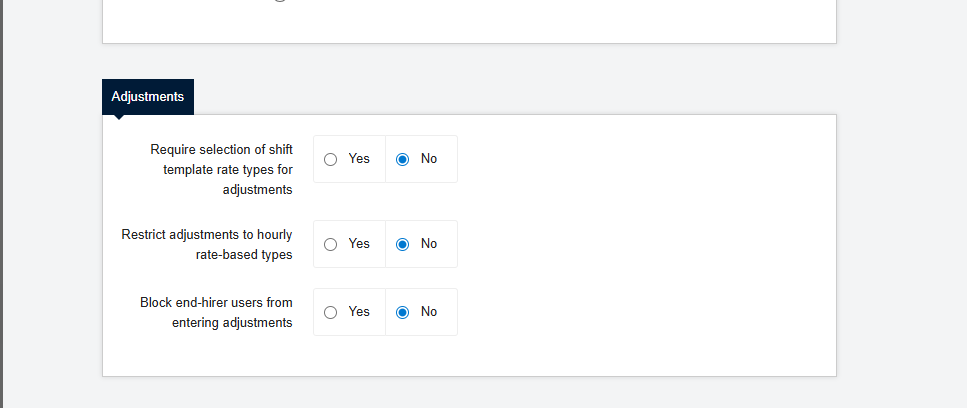
When this feature is enabled the following settings will be accessible. This can be confirmed by navigating to the Advanced Settings section of the Shift Template.
-
Require selection of shift template rate types for adjustments - This option requires you to select a rate type in your shift template you would like adjust.
-
Restrict adjustments to hourly rate-based types - This option restricts the entering of cash values, you will be limited to only selecting hourly adjustments.
-
Block end-hirer users from entering adjustments - This option restricts End-Hirers from creating adjustments & expenses.
Adding Adjustment Managers
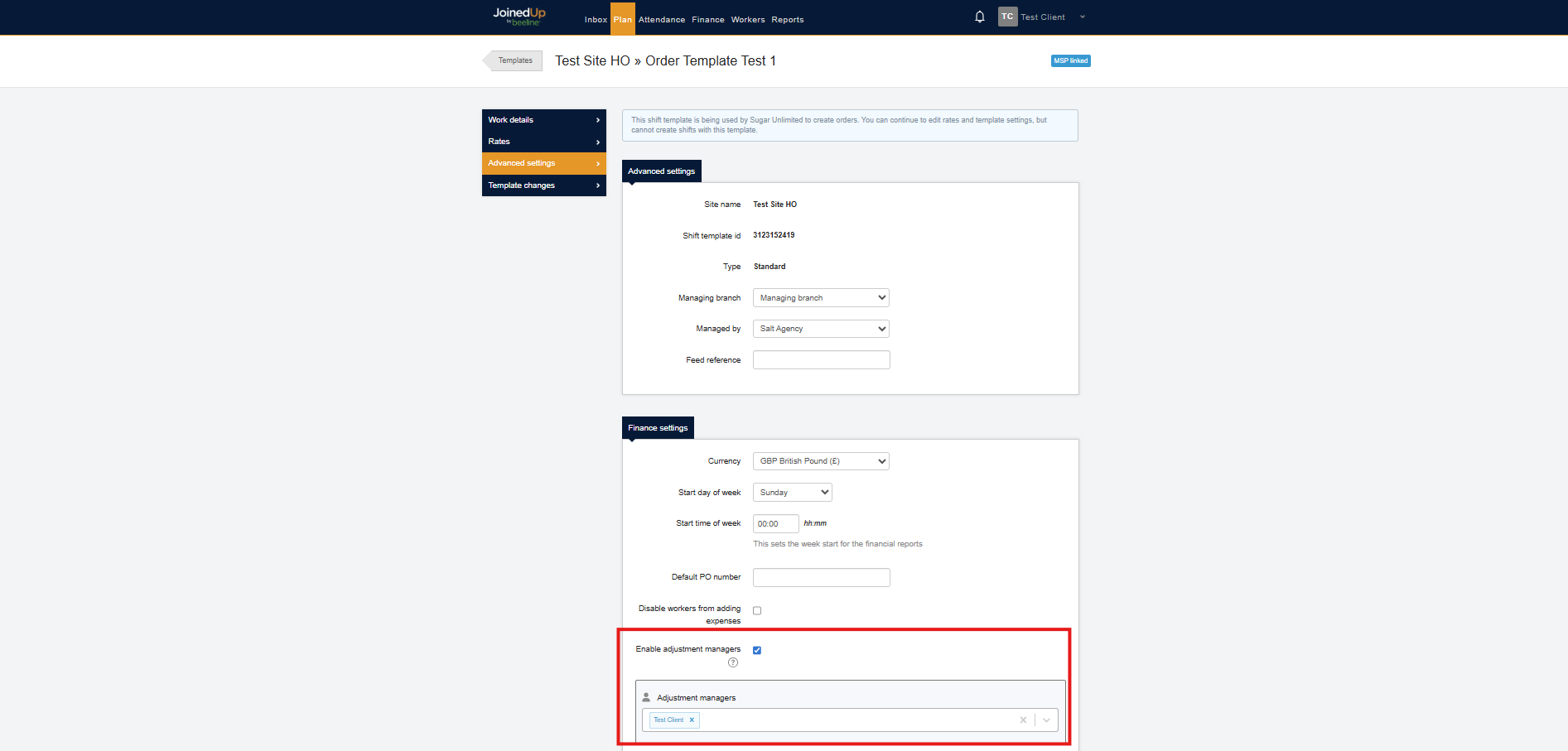
Adjustment Managers can also be assigned within the template. These individuals are authorized to oversee the approval or rejection of adjustments and expenses.
To add adjustment managers, navigate to the Shift Template and open the Advanced Settings. Under Finance Settings, select the Adjustment Managers option.
Accessing Adjustments and Expenses
Once an expense or adjustment has been submitted, it will be displayed in the Finance tab.
To proceed, navigate to the To Be Approved section.
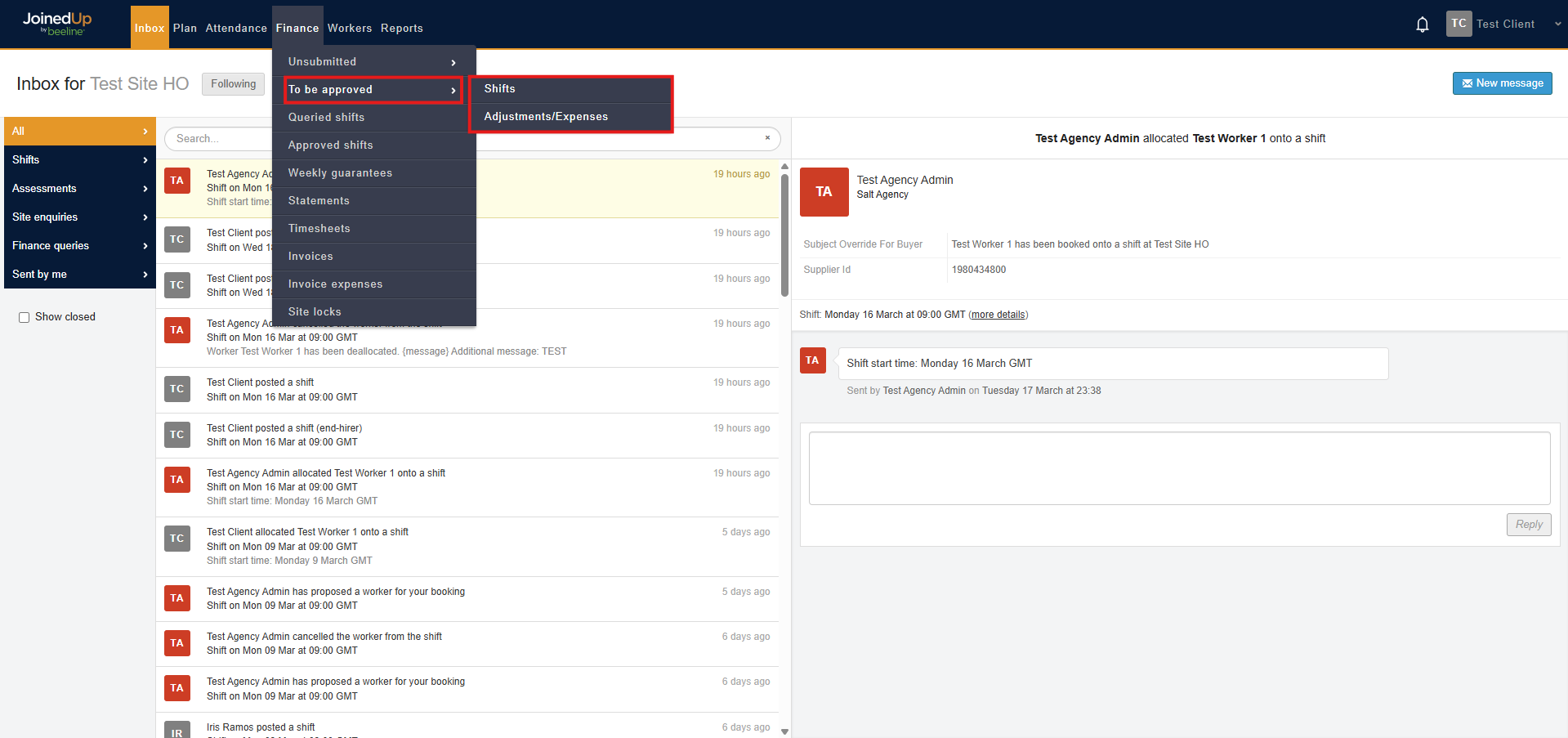
Here you can manage all the adjustments, expenses, and shifts.
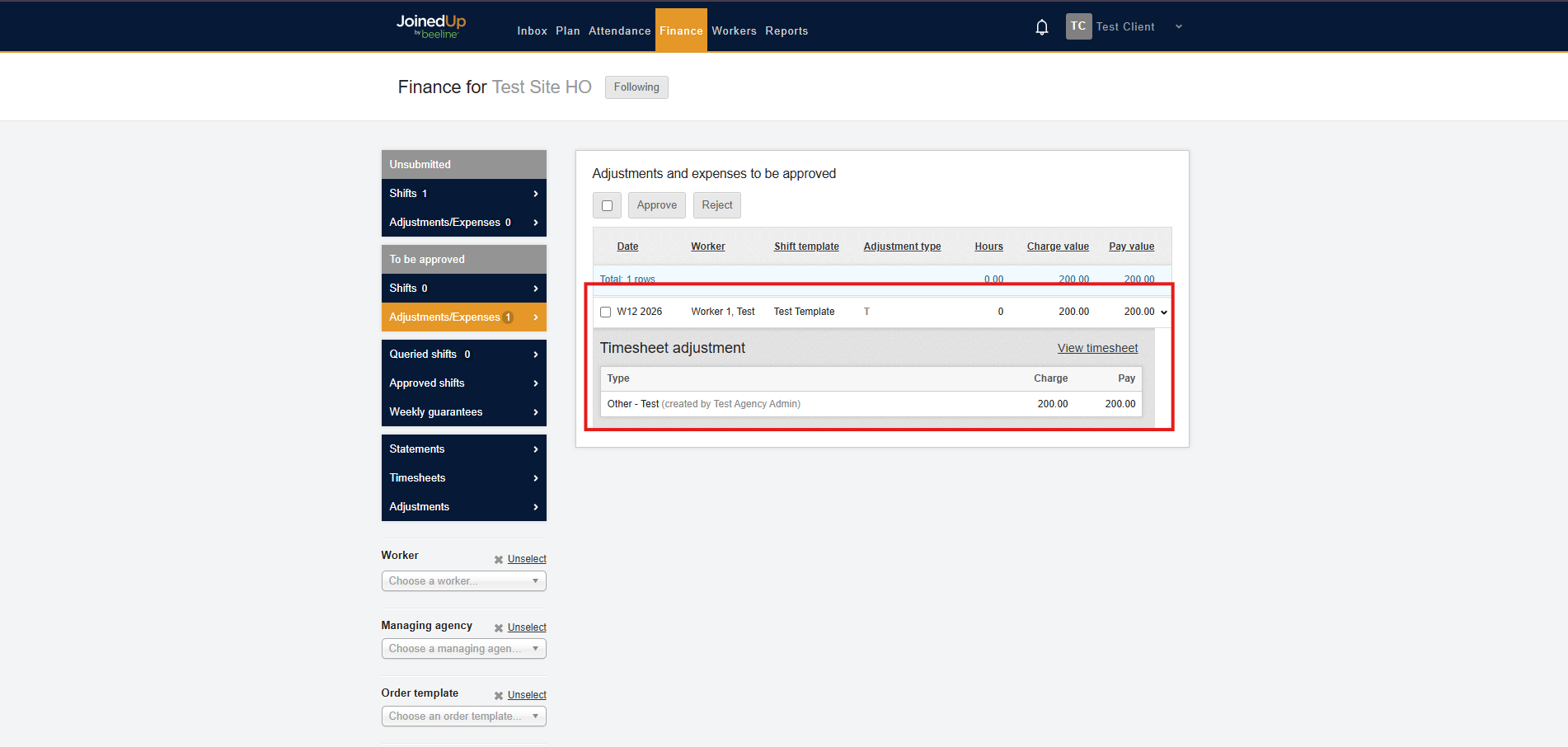
Approving and Rejecting an Adjustment
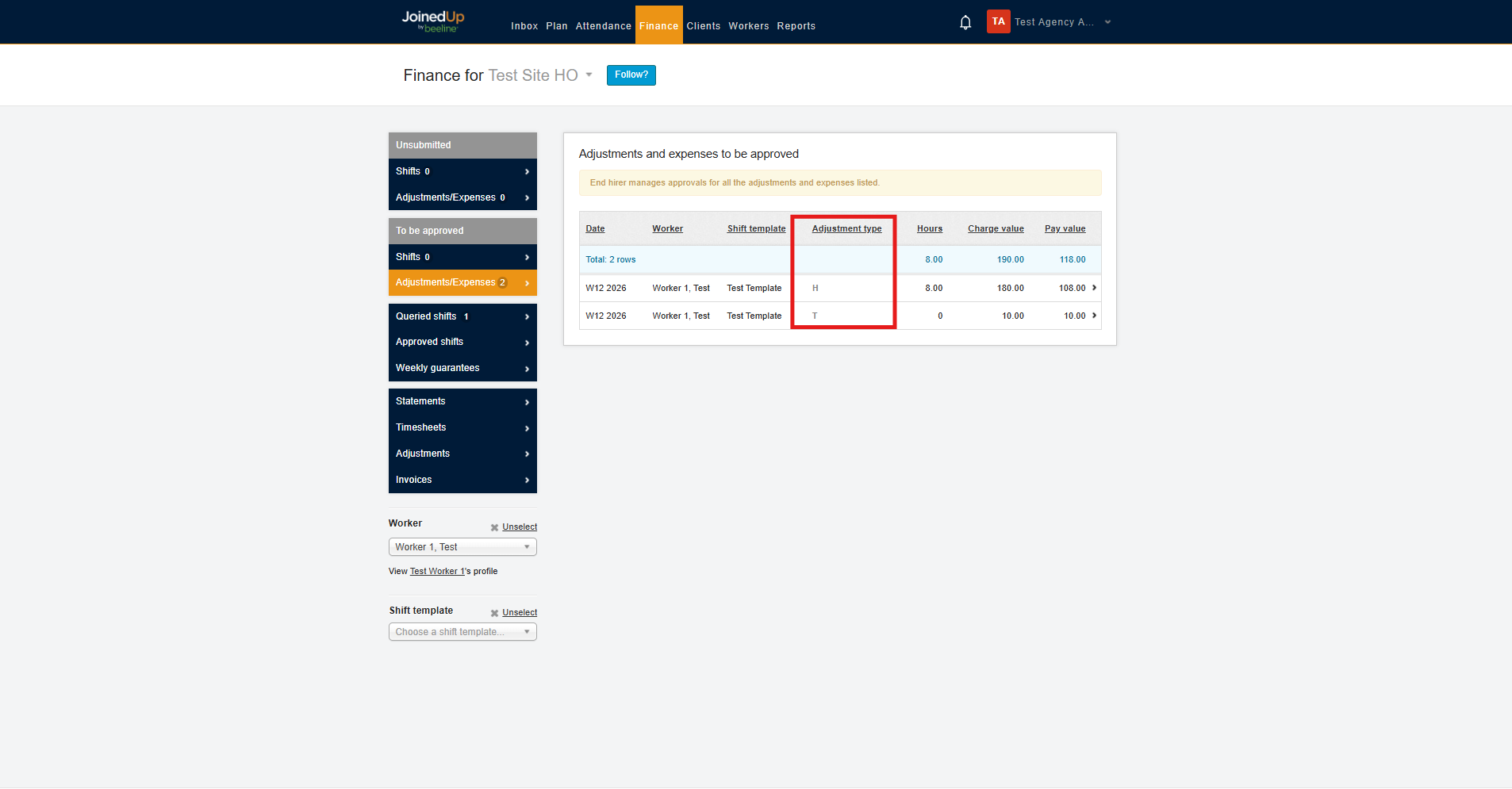
Adjustments are categorized into Shift, Timesheet or Historical.
Historical Adjustments are indicated by a "H", Timesheet Adjustments (Manual Adjustment made on a timesheet) are indicated "T" and Shift Adjustments are indicated by the 'S'.
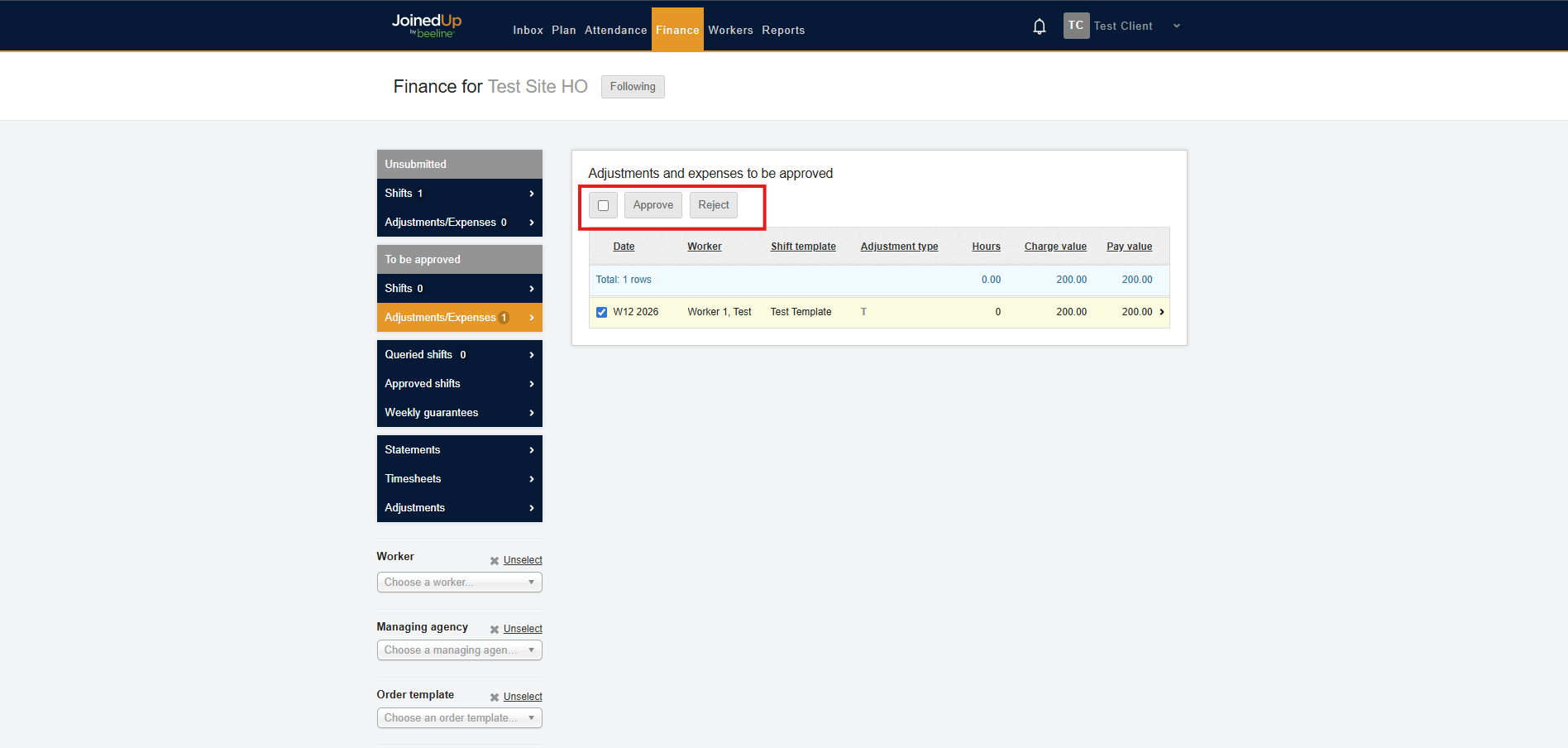
Once you have selected the Adjustments you want to manage, select the Approve button or the Reject button.
You may also manage submitted adjustments in bulk by using the checkbox at the top to select all entries.
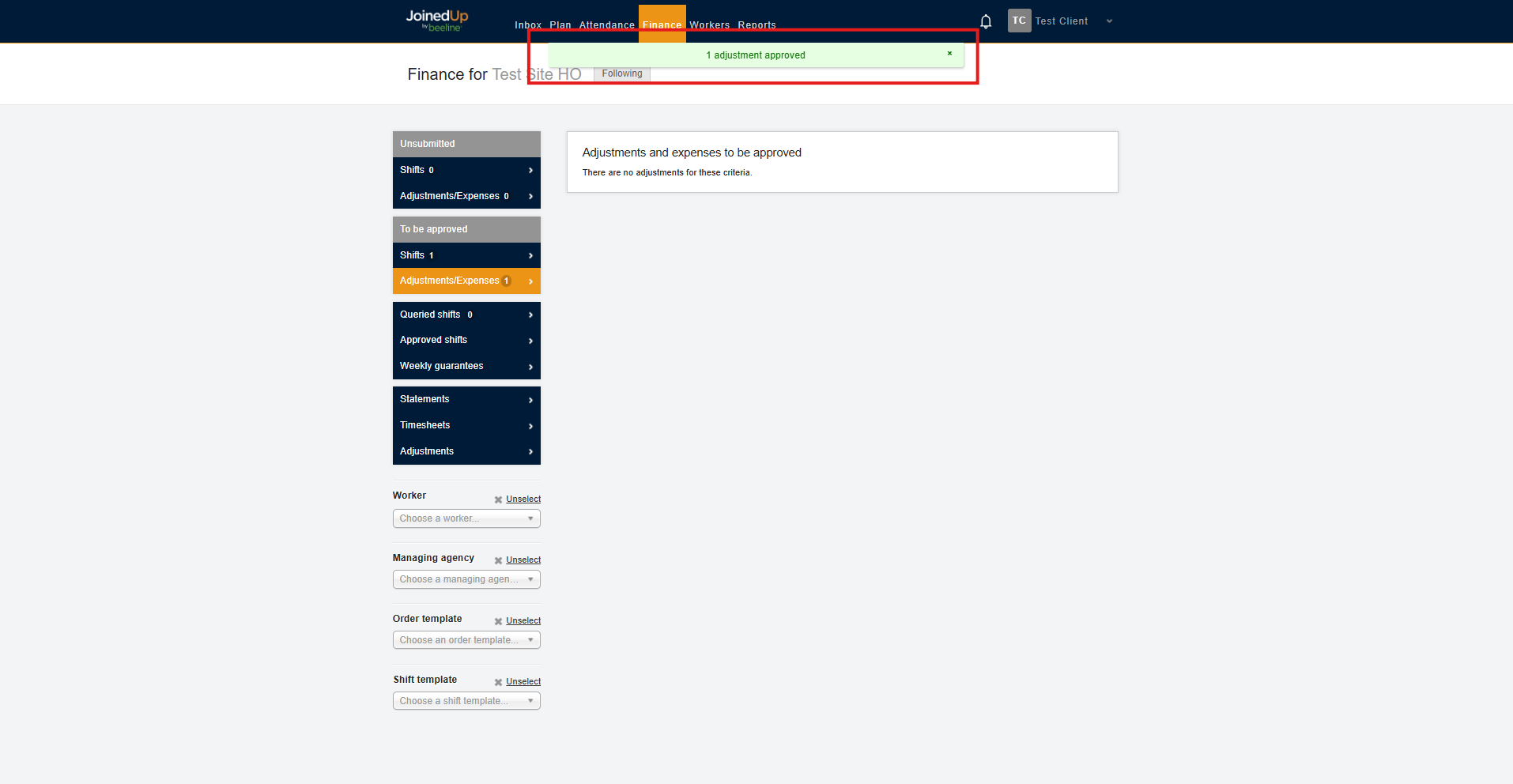
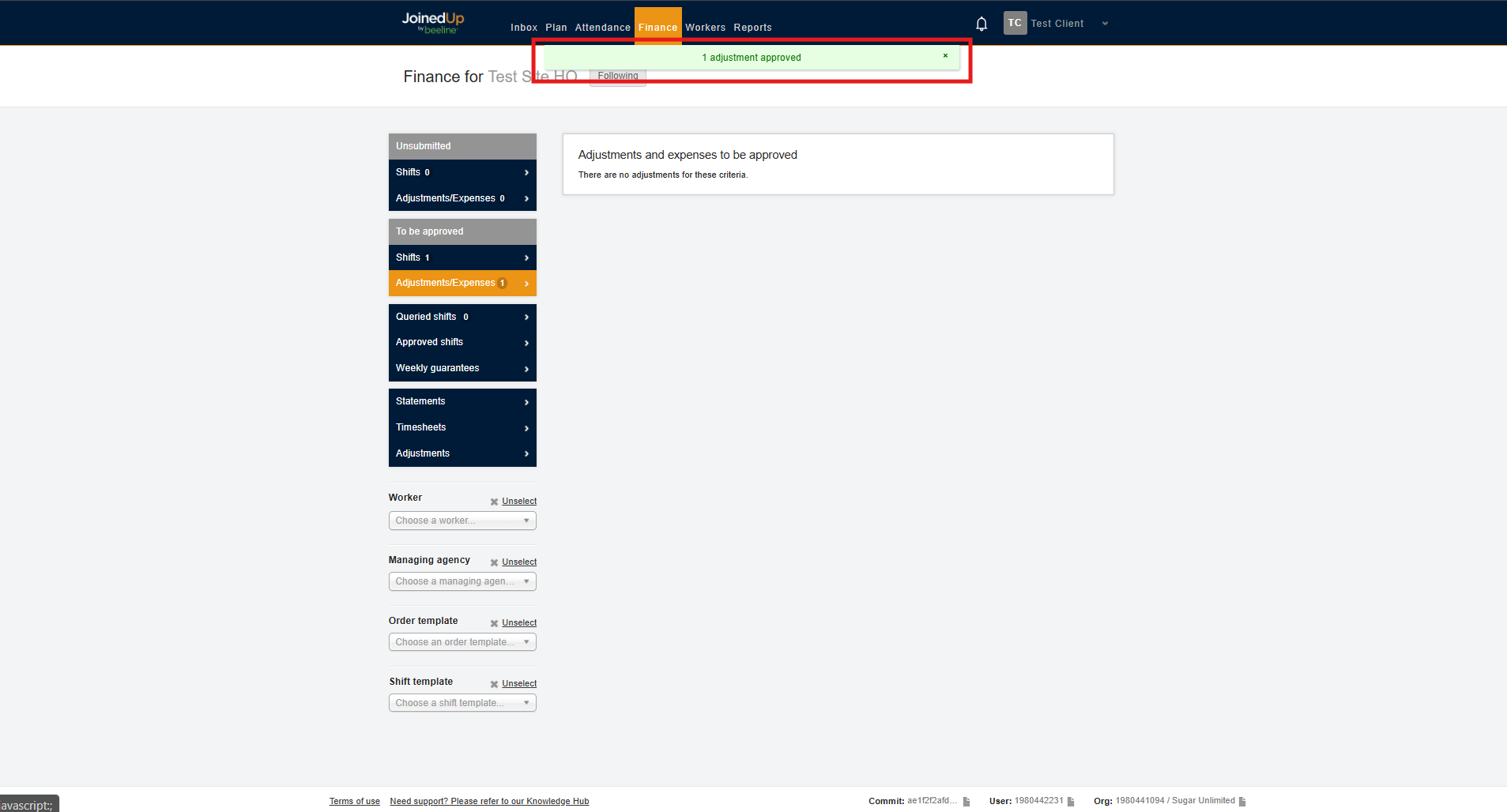
Once approved, a green confirmation message will appear.
A Rejected Adjustment can be viewed in the Adjustments Tab with a status showing as Rejected.
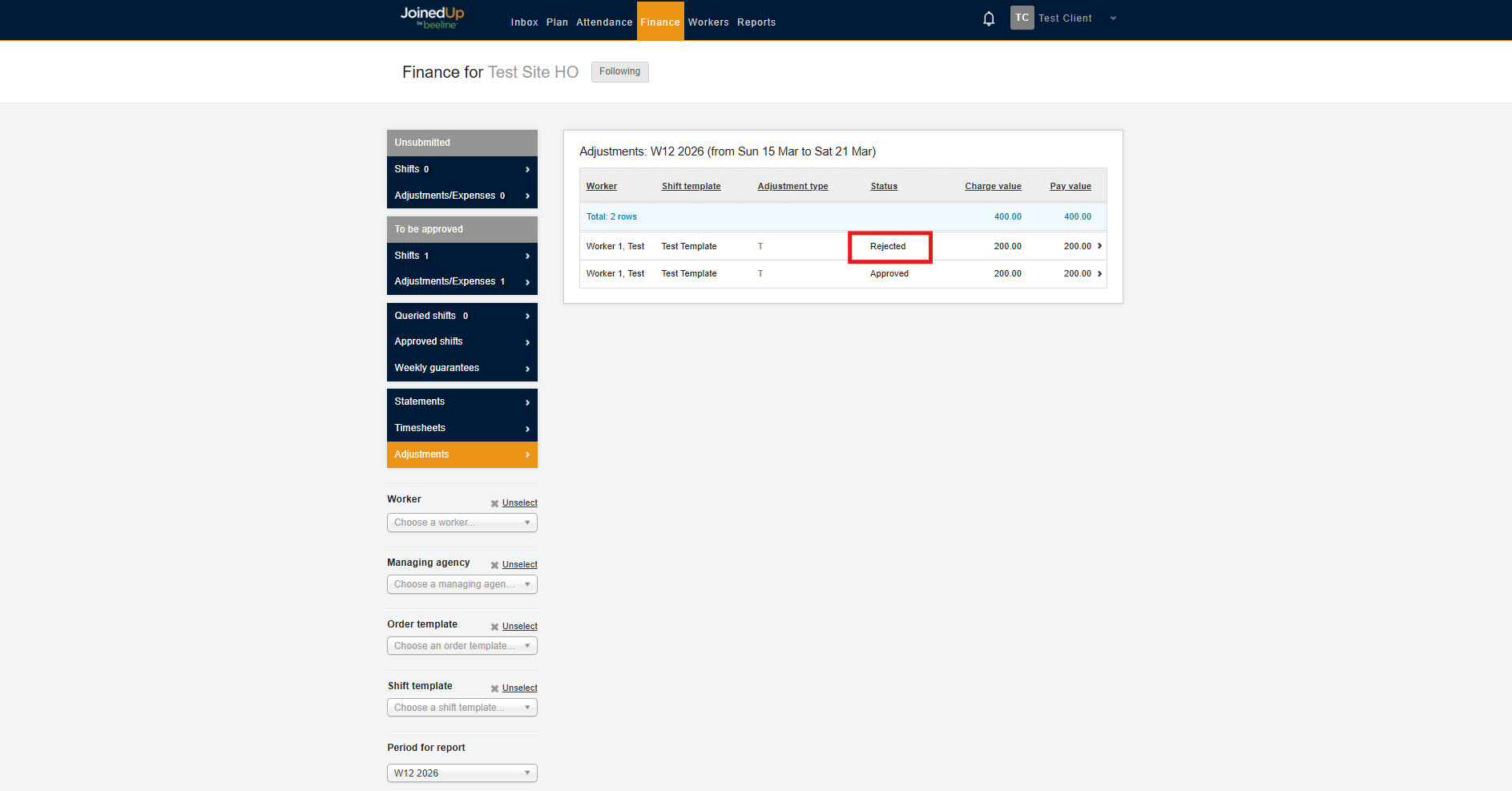
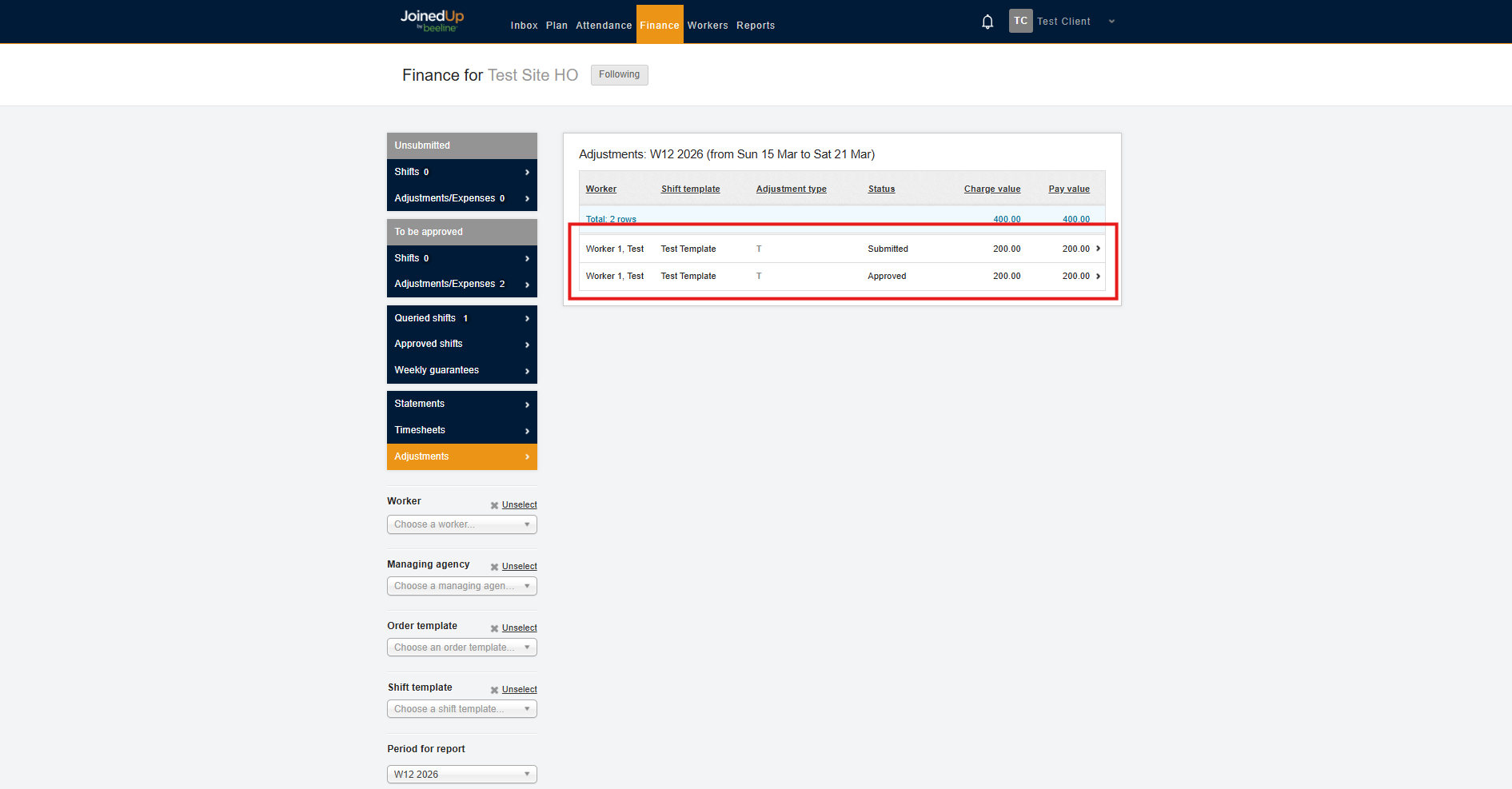
All adjustments can be viewed in this tab, along with their corresponding status.
Approving and Rejecting an Expense
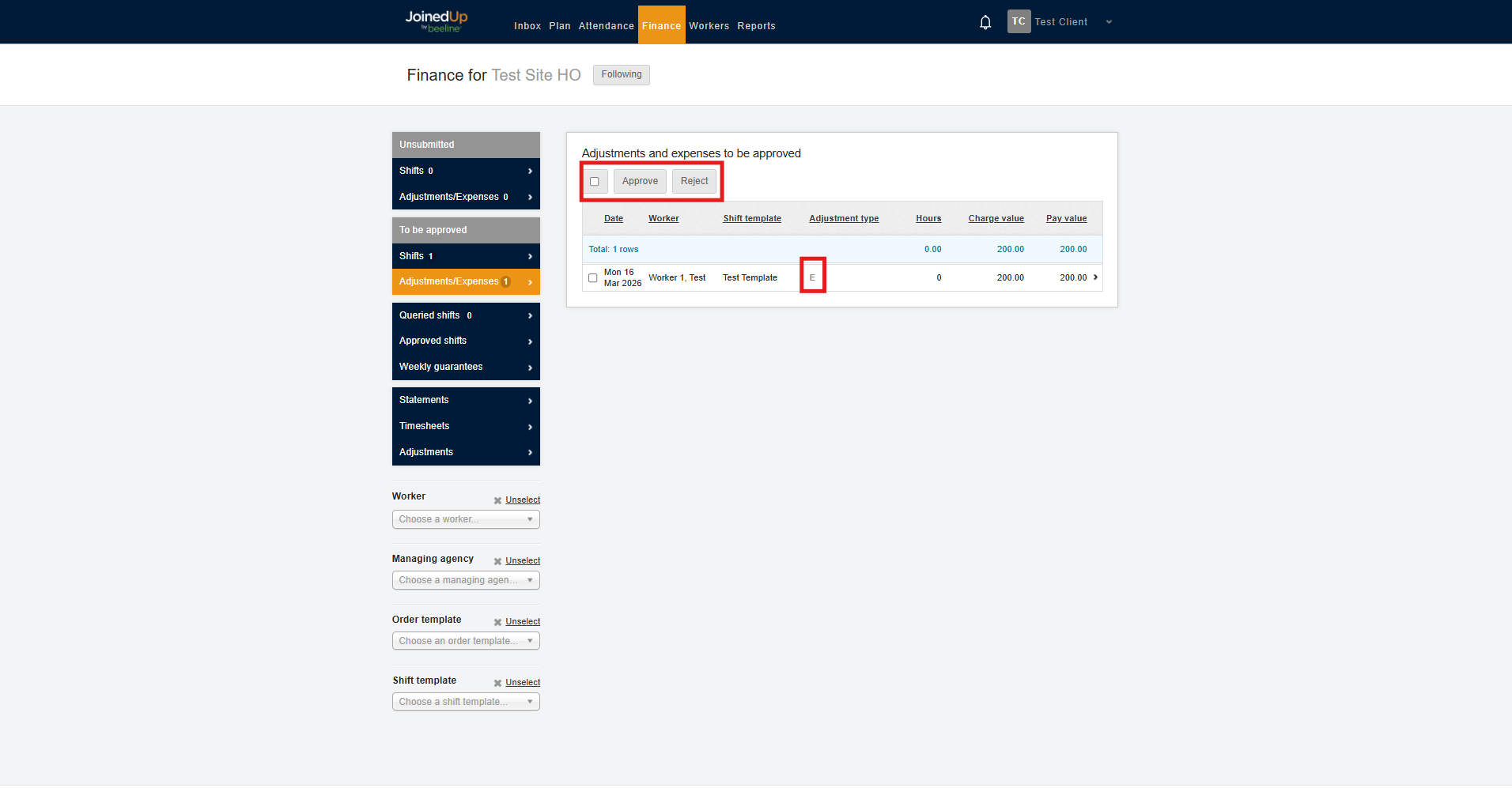
An Expense is represented by the letter 'E' in the Adjustment Type field.
Once you have selected the Expense you want to manage, select the Approve button or the Reject button.
You may also manage submitted expenses in bulk by using the checkbox at the top to select all entries.
Once approved, a green confirmation message will appear.
See More: