Worker Assessments: Interviews & Evaluations

Interviews and Evaluations are optional features that must be enabled within the Shift Template settings.
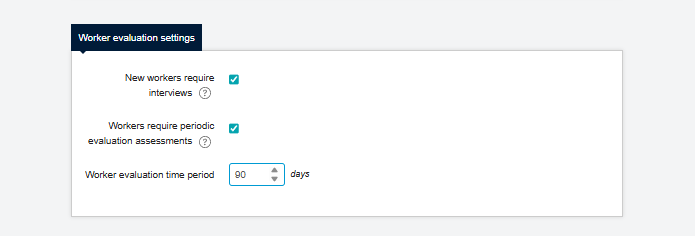
To enable this feature, access the shift template and open Advanced Settings. Scroll down to the section titled Worker Evaluation Settings, and configure the options as required to activate the functionality.
| To activate these features for your organization, please contact your COS. |
Workers are required to complete a screening process prior to being allocated to a shift. This process includes the successful completion of an interview. Following the completion of a worker’s final scheduled shift within the designated evaluation period, an assessment may be conducted to formally review and document the individual’s performance.
Overview of Worker Assessments
This guide outlines the enhanced Worker Assessments feature, which provides greater control and visibility into worker suitability and performance throughout their engagement lifecycle. Assessment Types
The system supports two primary assessment methods to ensure quality and compliance:
-
Interviews – Conducted to verify a candidate’s suitability prior to a shift.
-
Evaluations – Conducted to review performance after a shift is completed or at designated intervals.
Concluded Reasons
Both assessment types include associated concluded reasons, ensuring that outcomes are documented with clear and standardized data.
| Interviews and Evaluations will be automatically generated. |
When a worker is linked to a template by their supplier an interview will be generated. You will receive a notification once a candidate has been booked for an interview.
Suppliers will have the opportunity to adjust dates and times if needed.
| End hirers will only have access to view worker profiles if the worker has a pending proposal or has previously completed a shift. |
Accessing and Reviewing Interviews & Evaluations
To view a candidate that has been booked for an interview, you can check either by:
-
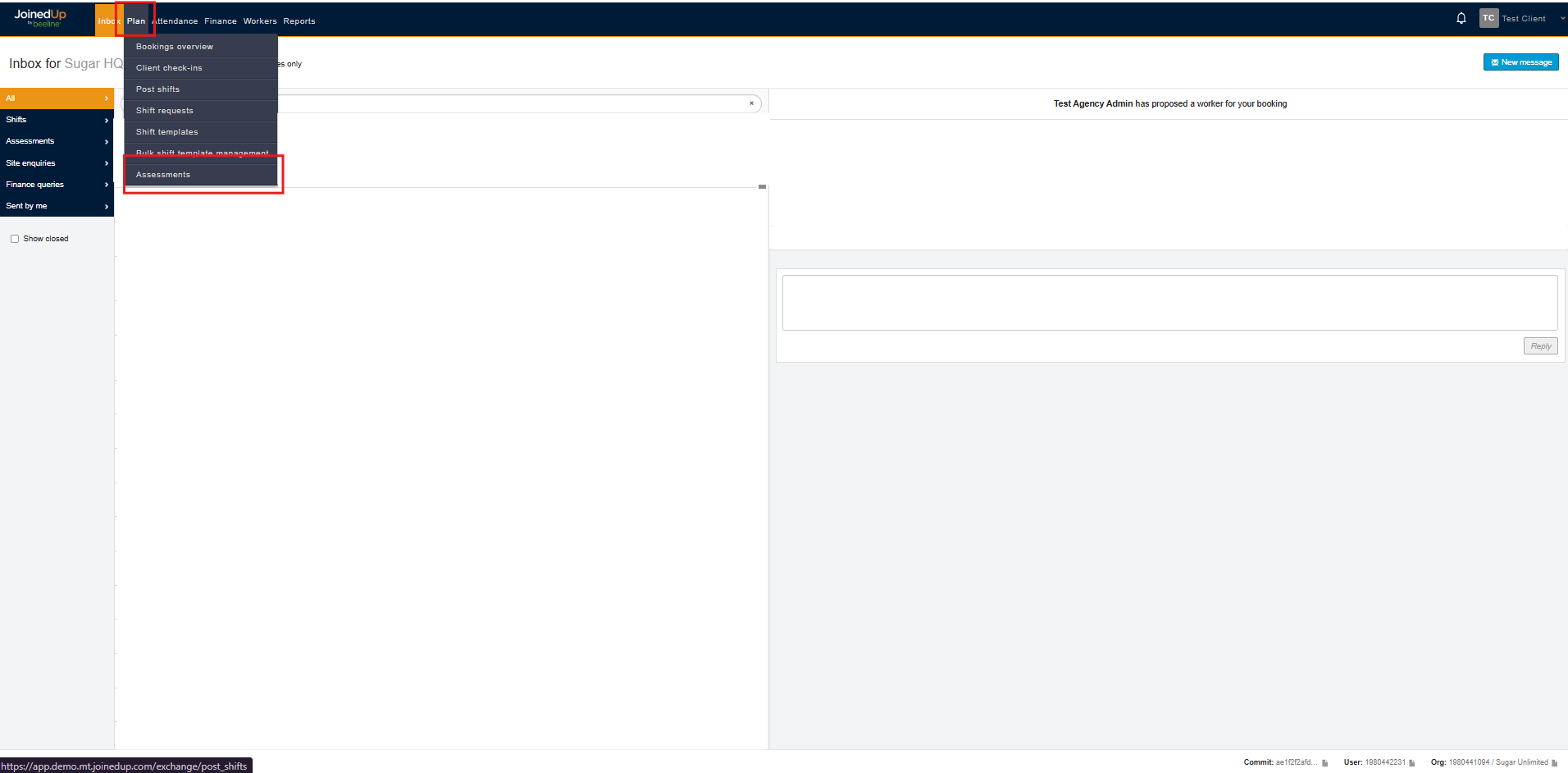
Selecting Plan, then Assessments.

Here, a calendar of booked interviews will be shown. You can click the colored tiles to start updating the interview.
-
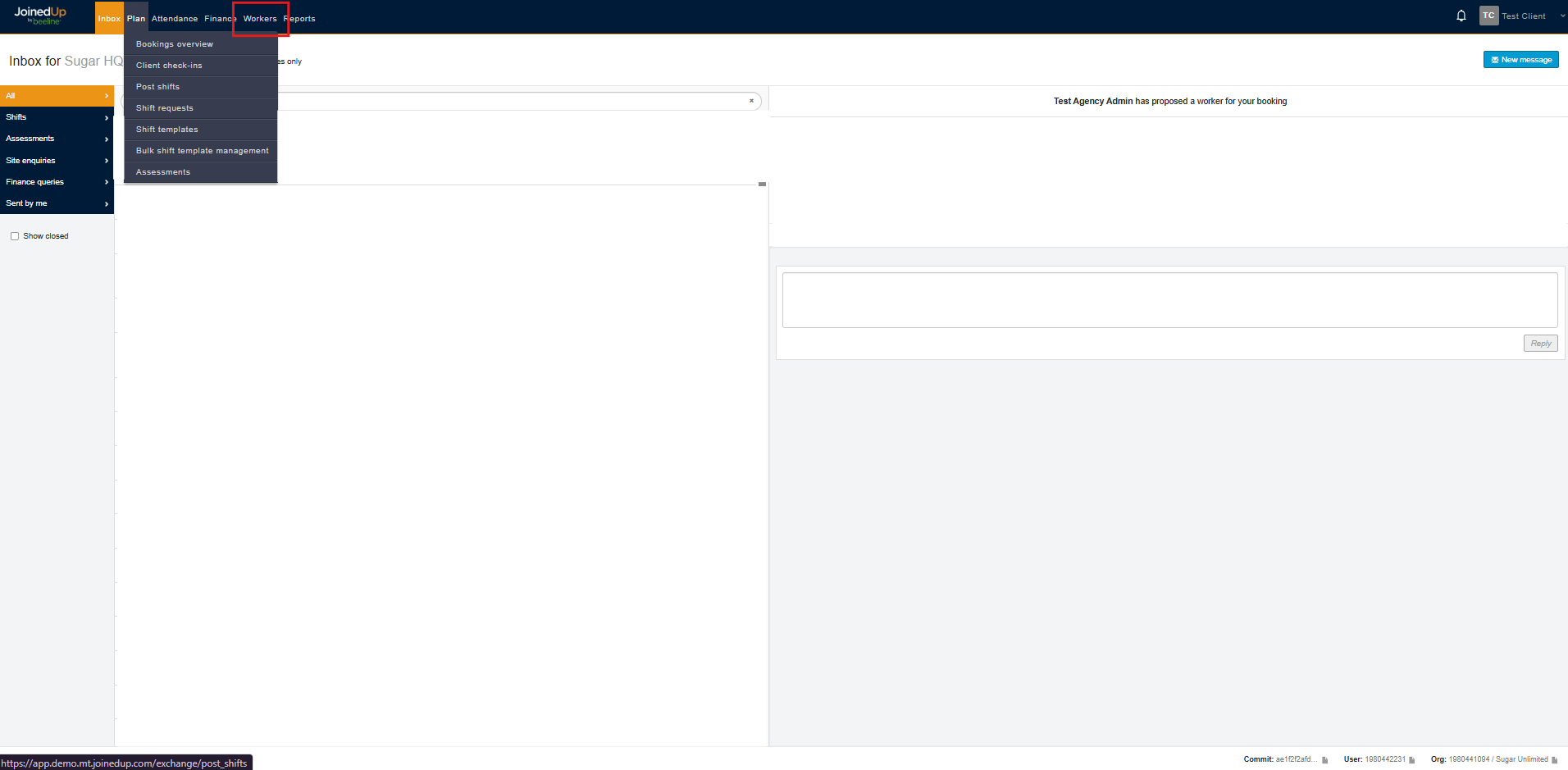
OR, if you already know the worker’s name, you can navigate by selecting Workers Tab then search for the worker.
Once you are in the worker’s profile, select the ‘Worker Assessments’ tab.
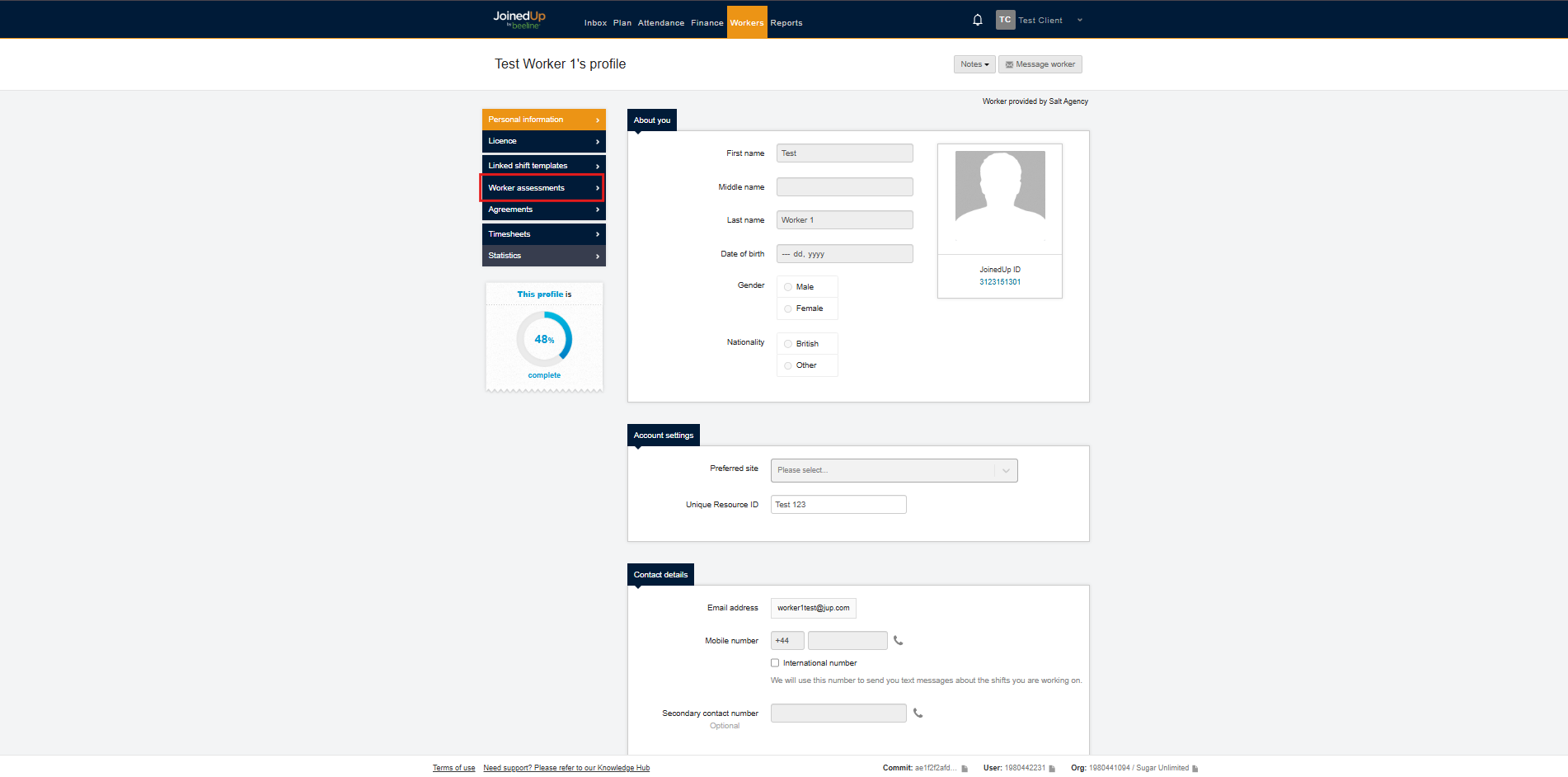
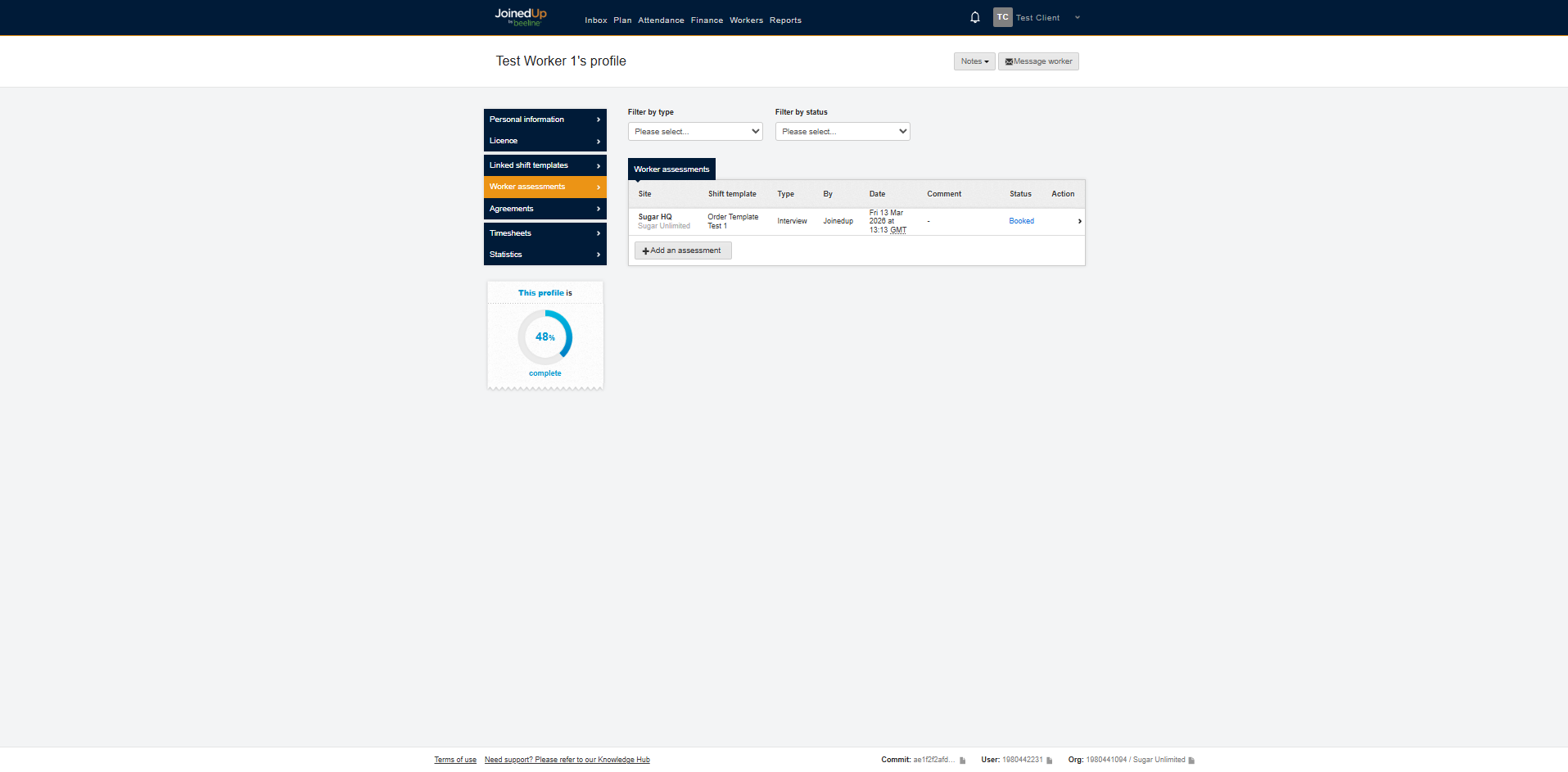
Here you can view Interviews and Evaluations.
| End hirers will only have access to view worker profiles if the worker has a pending proposal or has previously completed a shift. |
Worker Assessments: Interviews
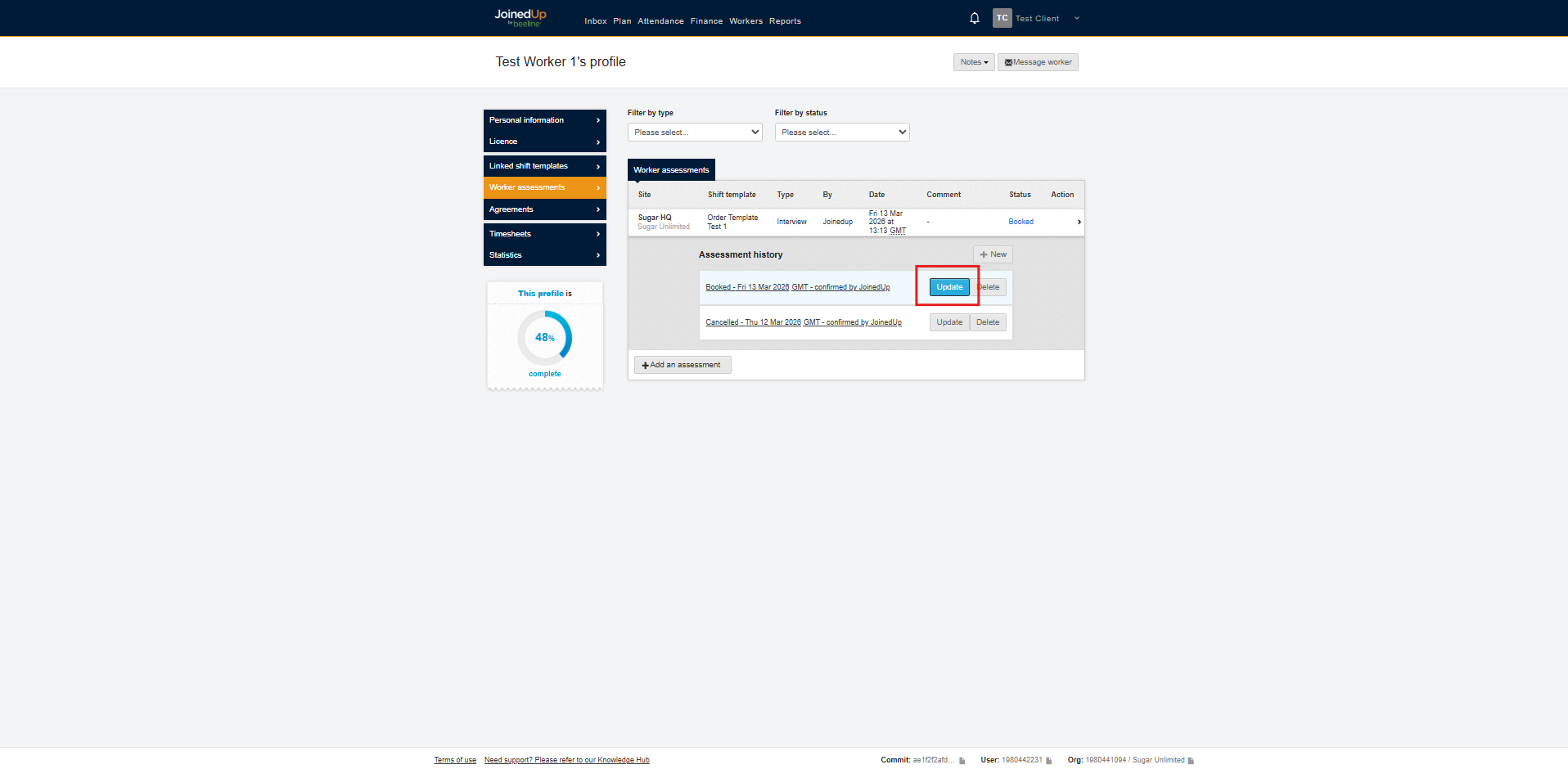
To update the status of an Interview, click into the relevant interview and select the Update button.
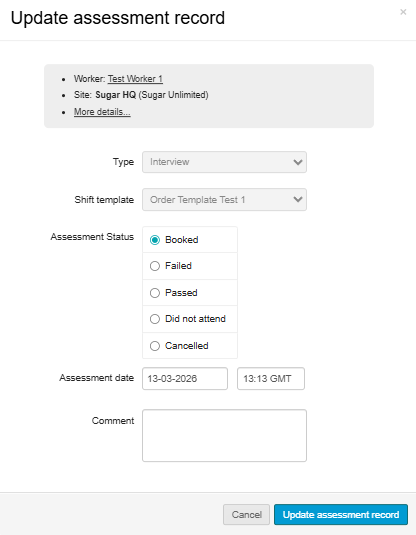
Here you can update the interview status, the interview time and date and add comments if necessary.
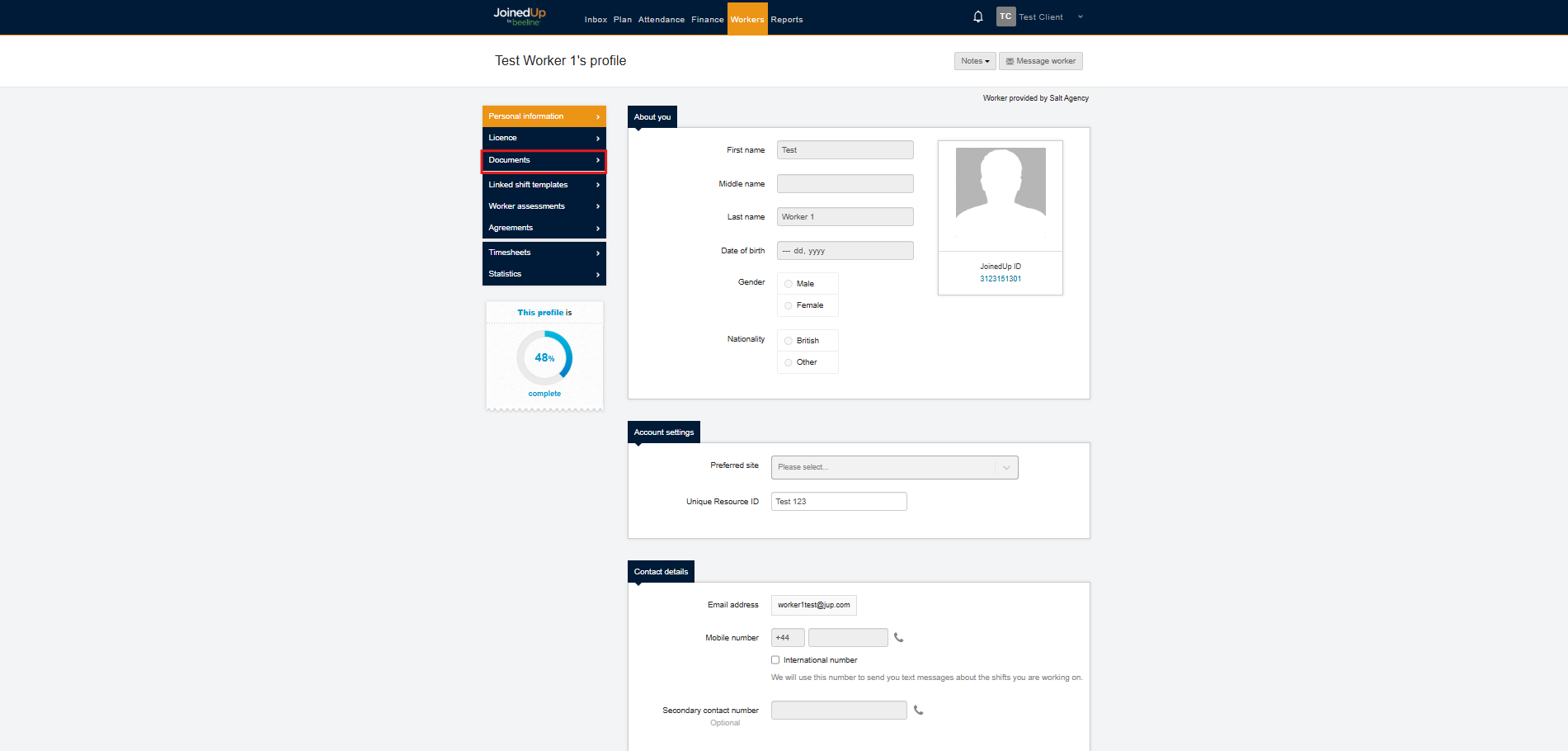
You can review worker’s relevant documents in their profile before choosing to update their status. To do this, navigate to the worker profile and select the Documents tab here:
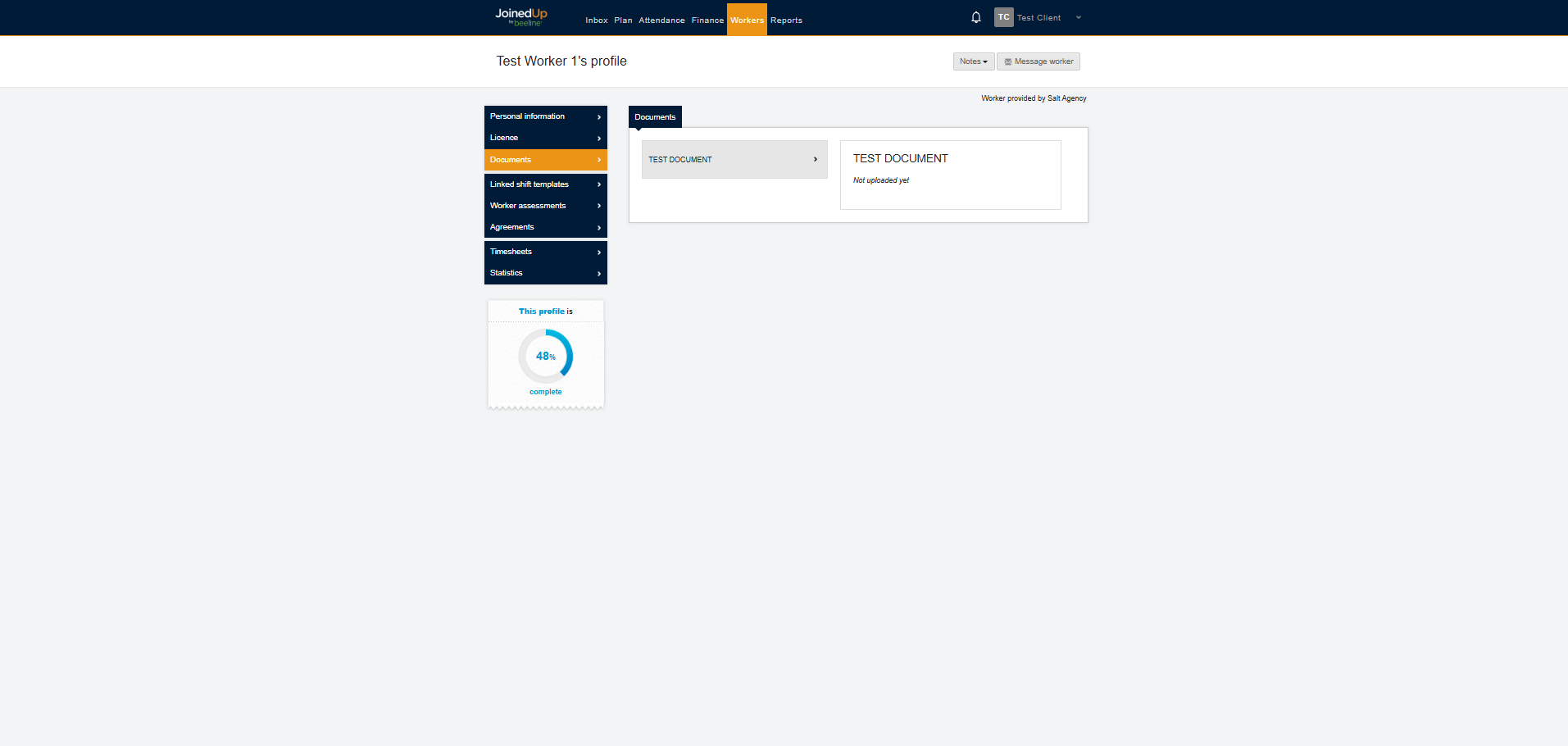
Here you can view all documents uploaded. Once uploaded it’ll appear in the list below.
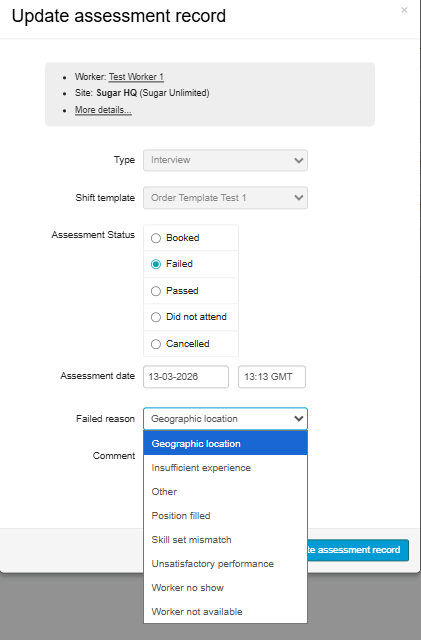
Selecting the ‘Failed’ status will introduce a reason field that is required, with a dropdown list that can be selected.
Worker Assessments: Evaluations
To view and update Evaluations it works the same way, select the relevant Evaluation and click the Update button.
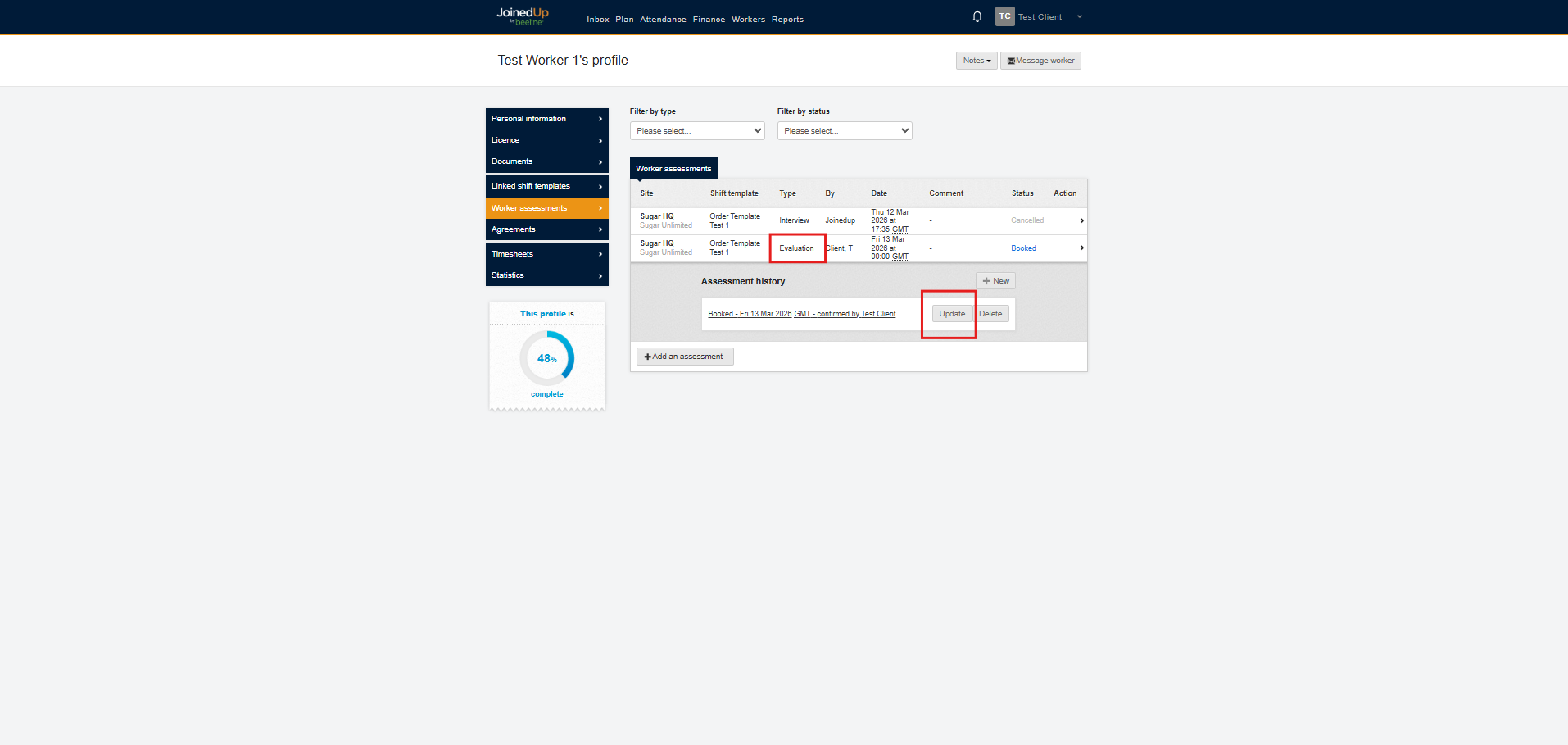
Here you can update the evaluation status, the time and date and add comments if necessary.
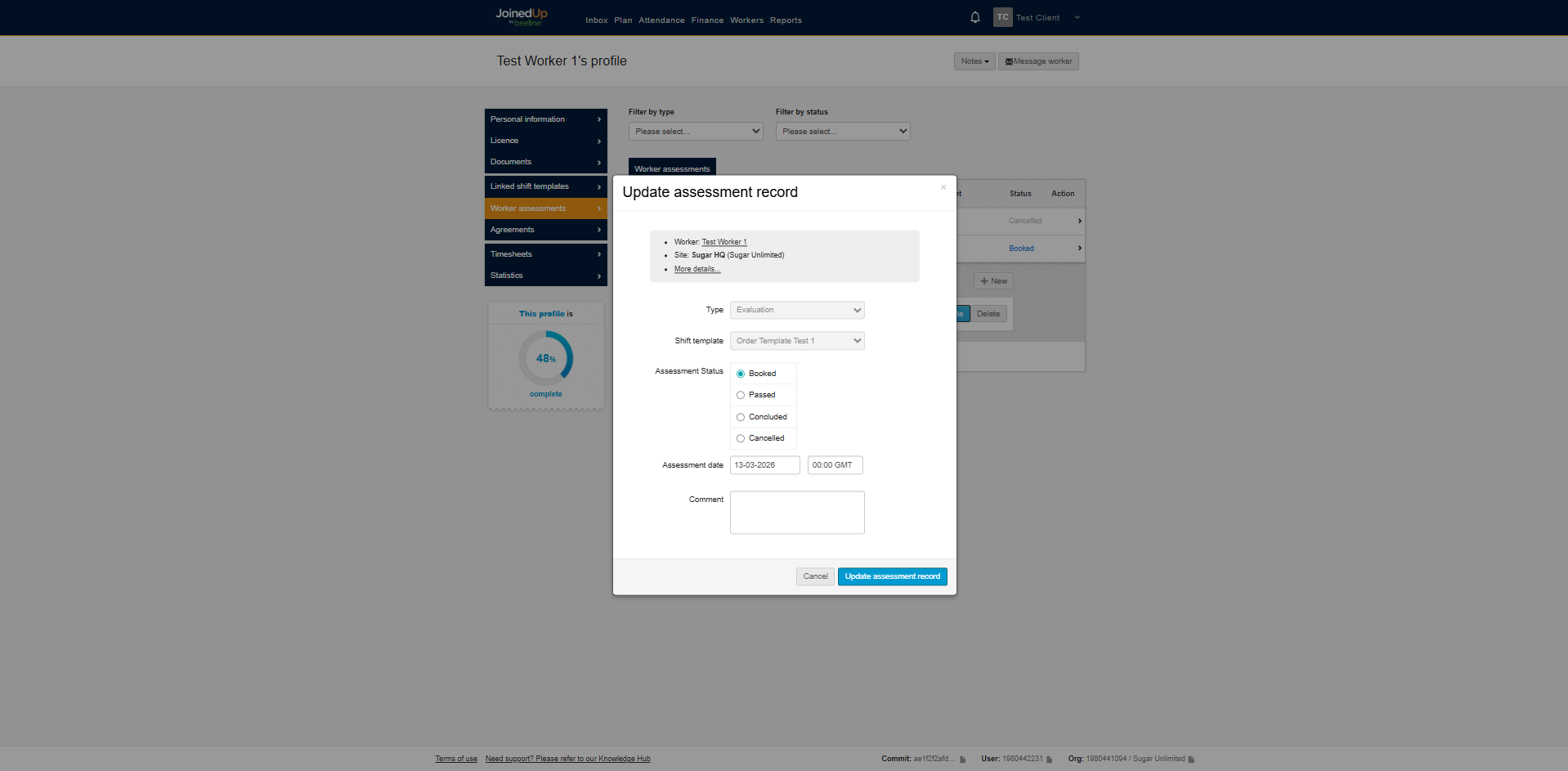
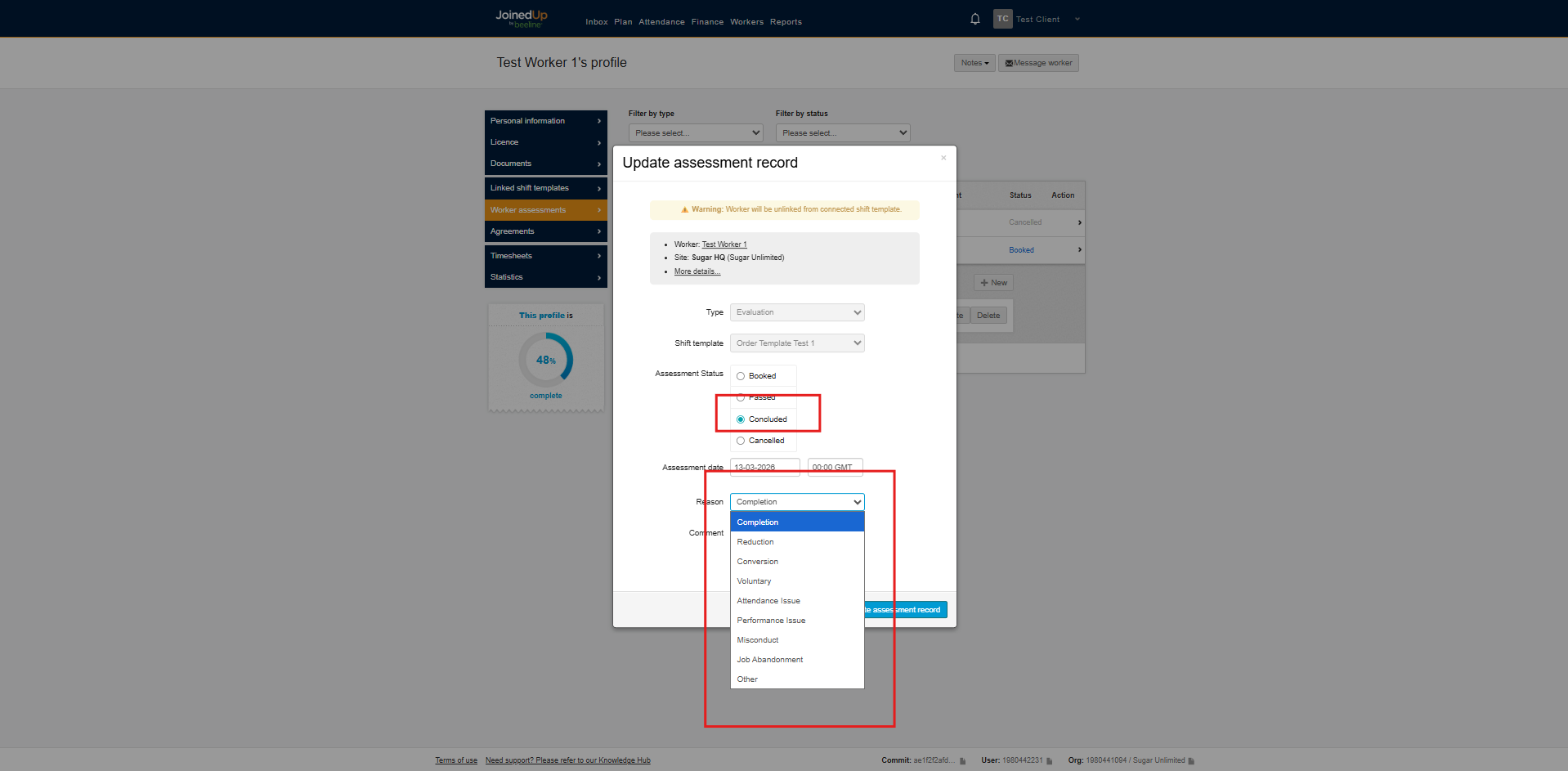
When you select the Concluded status, a mandatory reason field will appear. You’ll need to choose from the dropdown list of turnover reasons to complete this step. The candidate will also be automatically unlinked from the shift template.
Evaluations are automatically generated.
An evaluation will automatically be created on the last day of the shift, depending on the period set in the shift template.
You will also be notified once an evaluation has been created.
See More: