Attendance
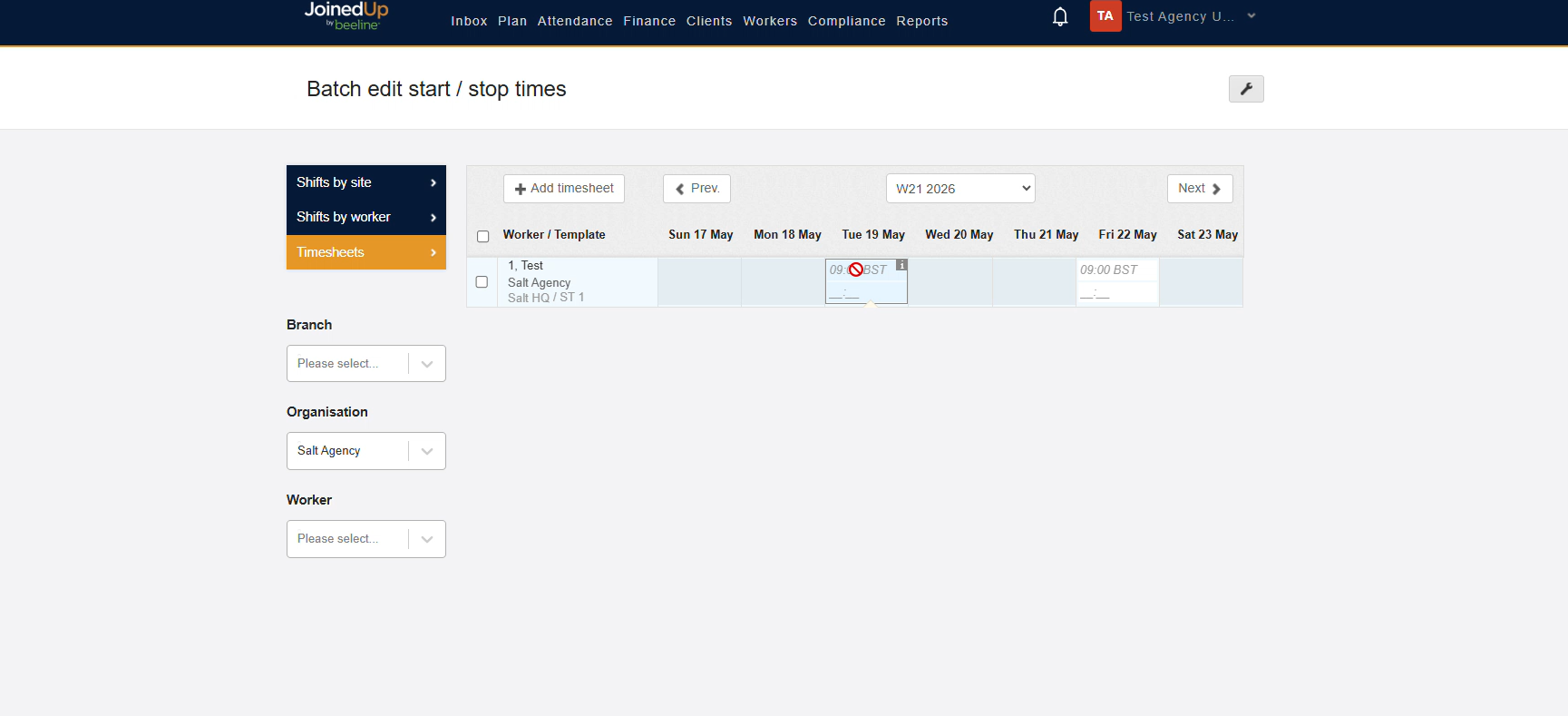
The Attendance tab includes the Attendance Screen screen and the Batch Edit Start/Stop Time Screen. You can use these screens to manage worker clock-ins and clock-outs.
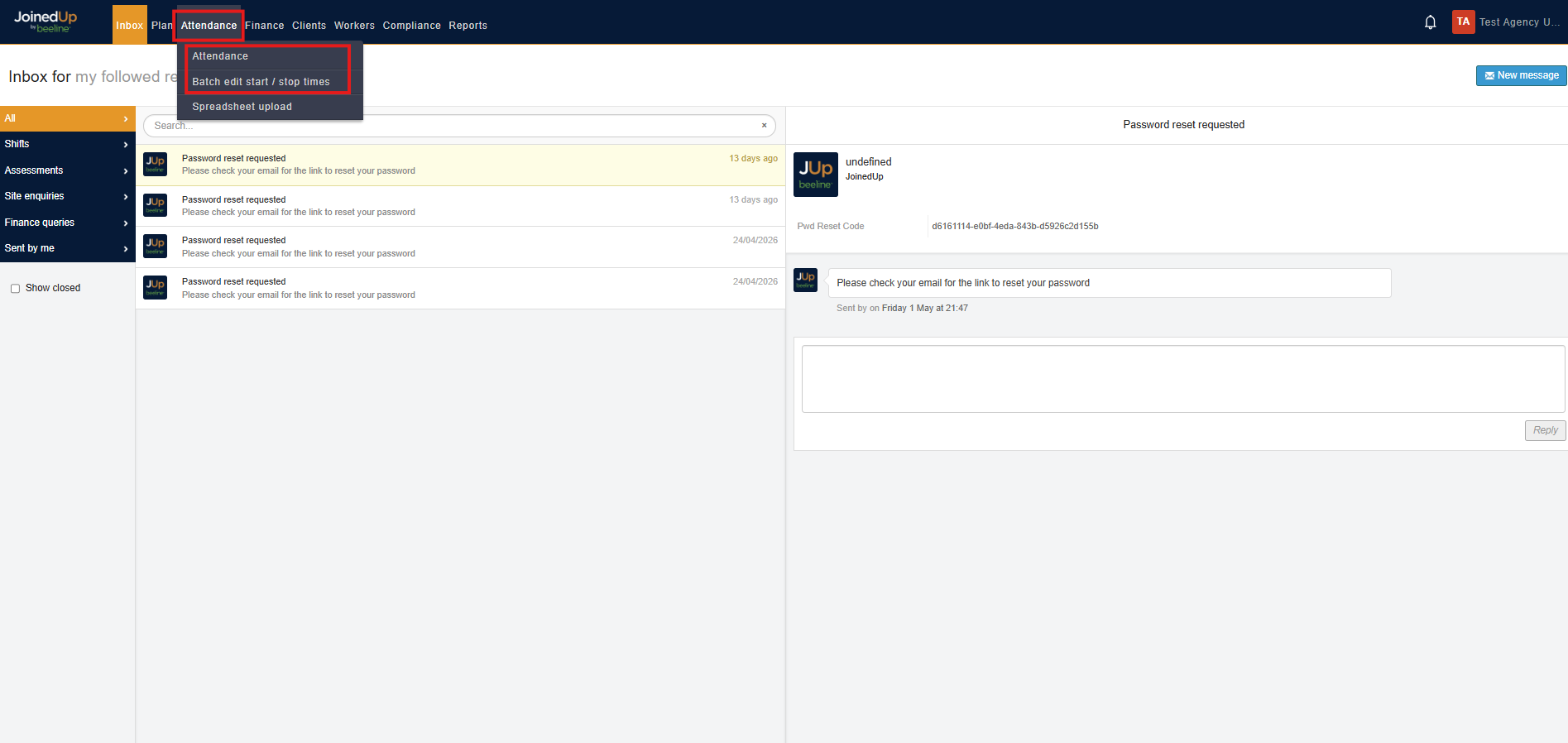
Attendance screen
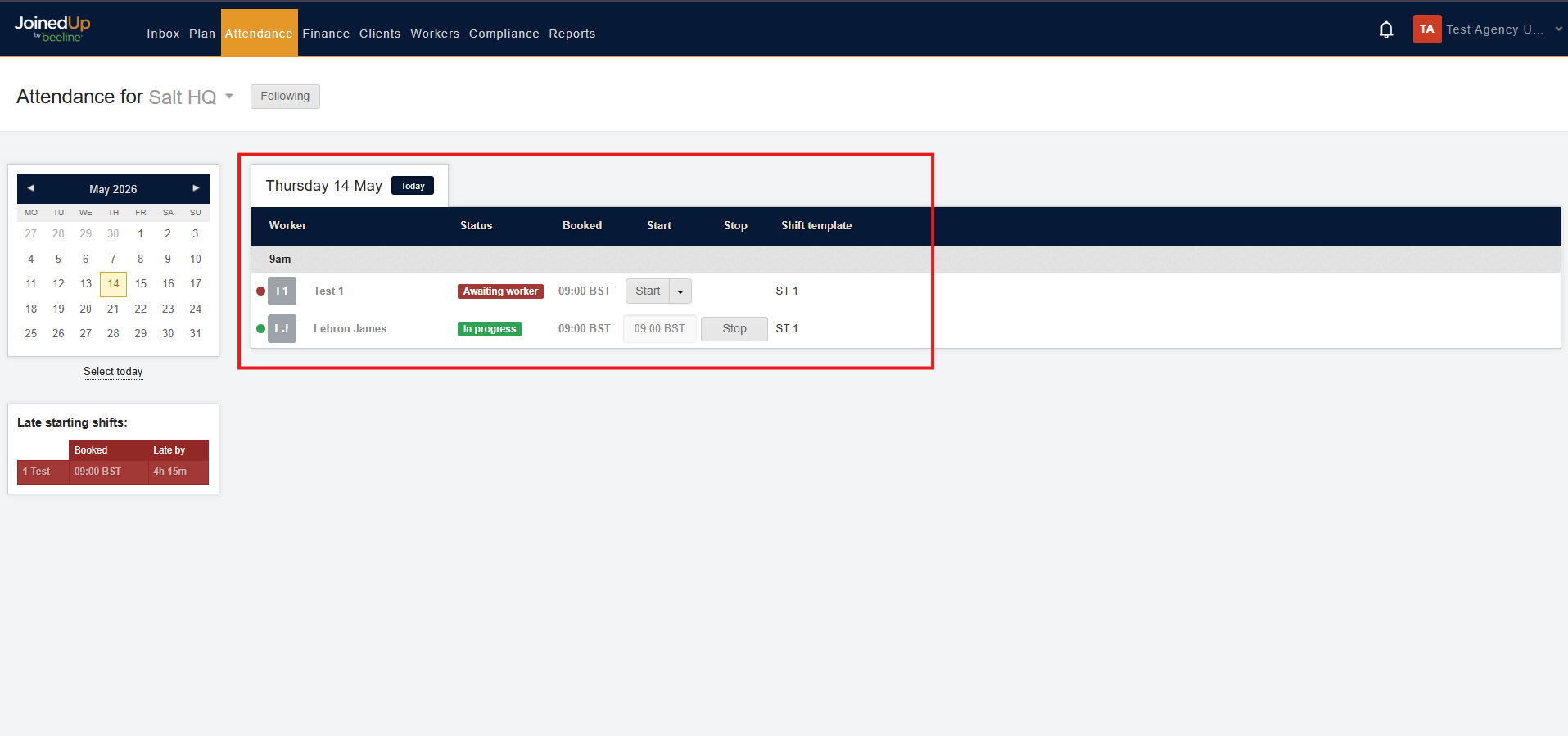
The Attendance screen shows a summary of the shifts being worked for the day.
You can change the date using the calendar on the left side of the screen.
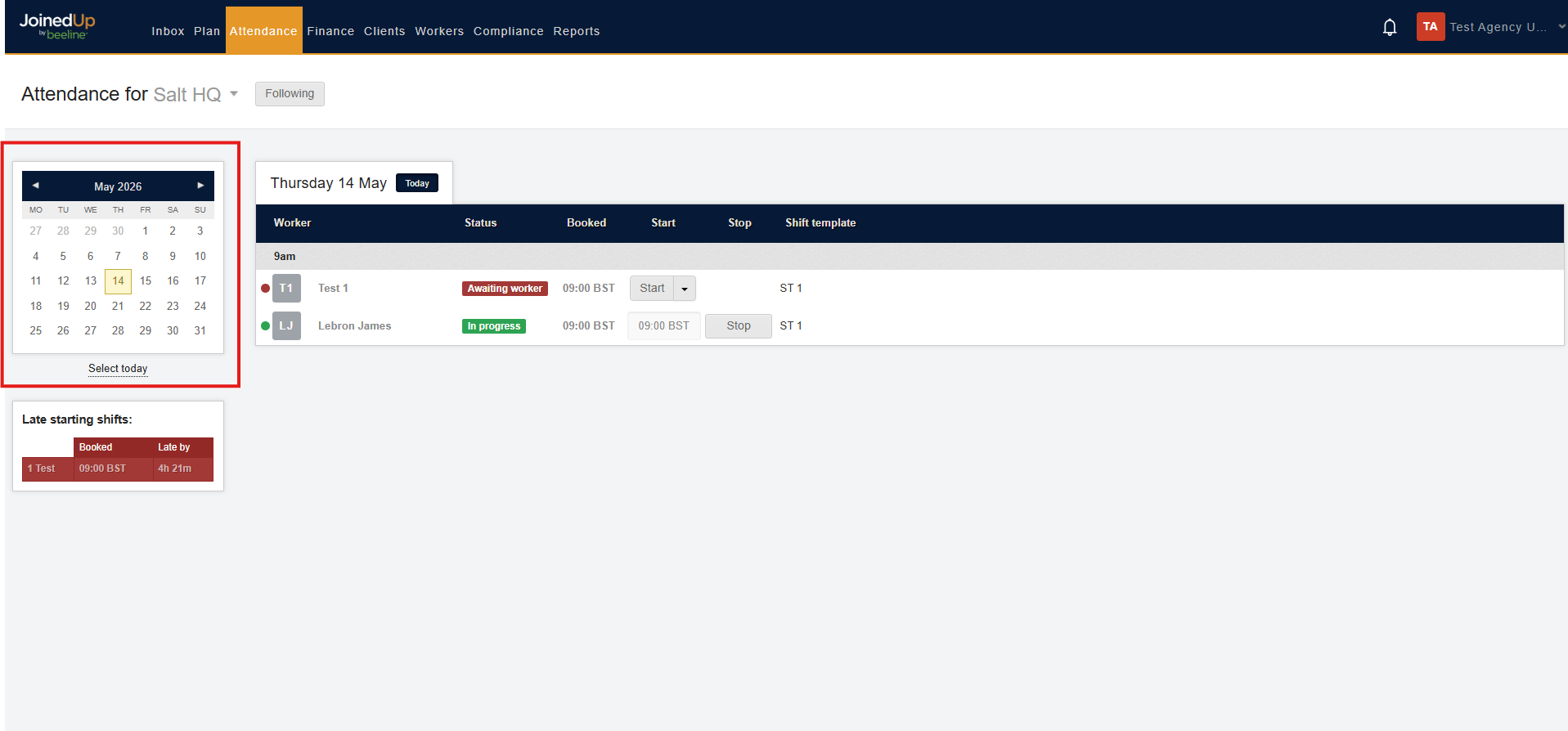
You can also review Late Starting Shifts below the calendar and select a shift to open it.
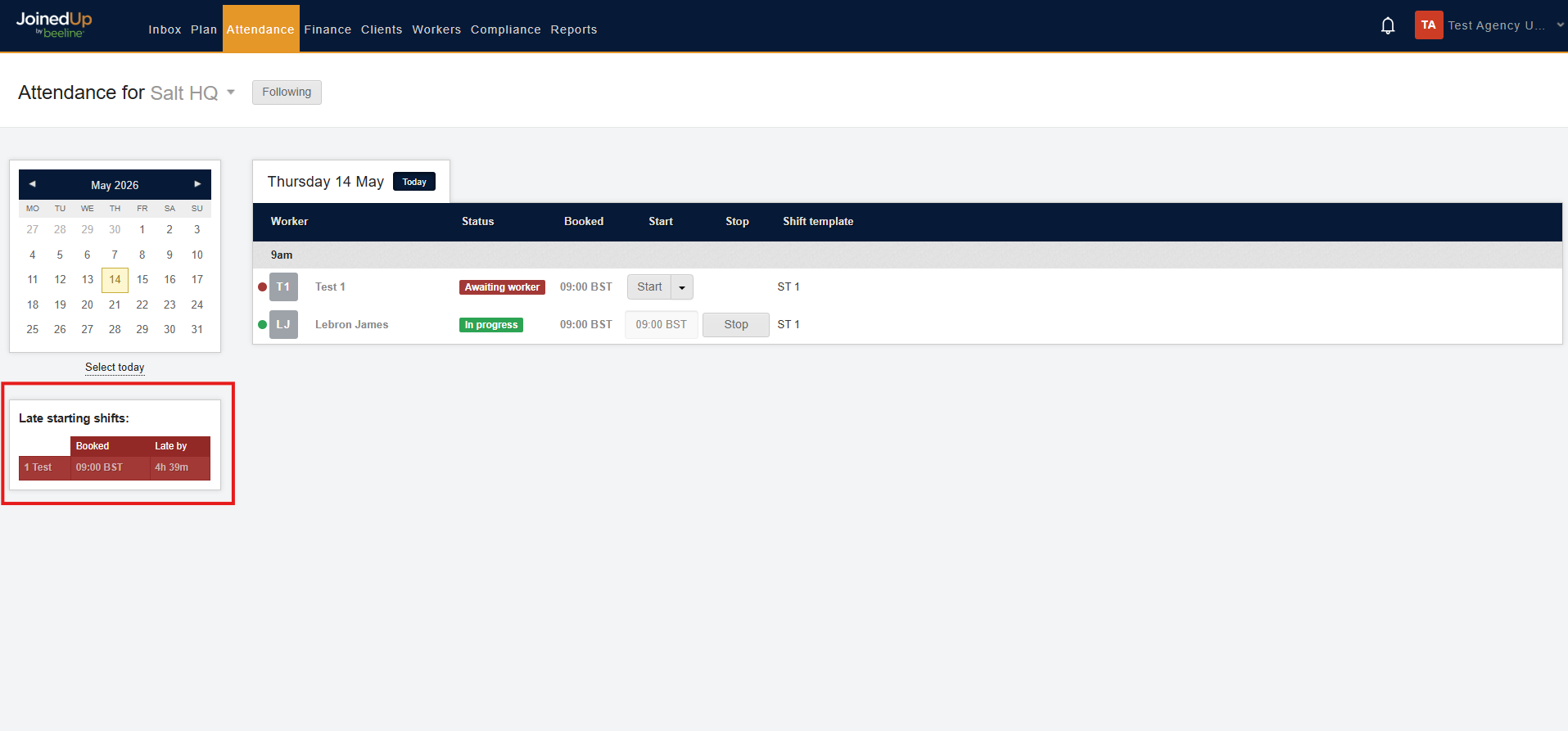
Start or stop shifts from the Attendance screen
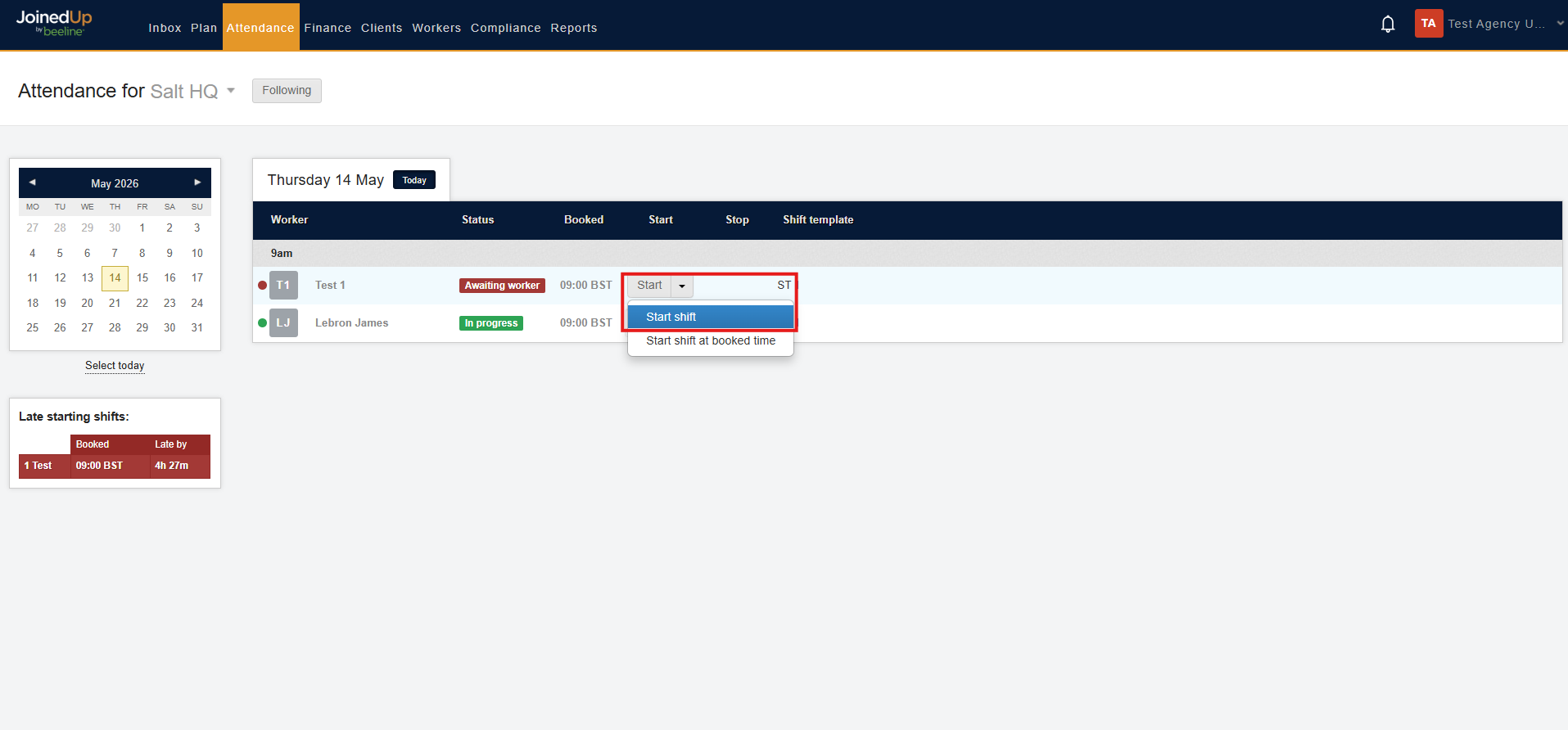
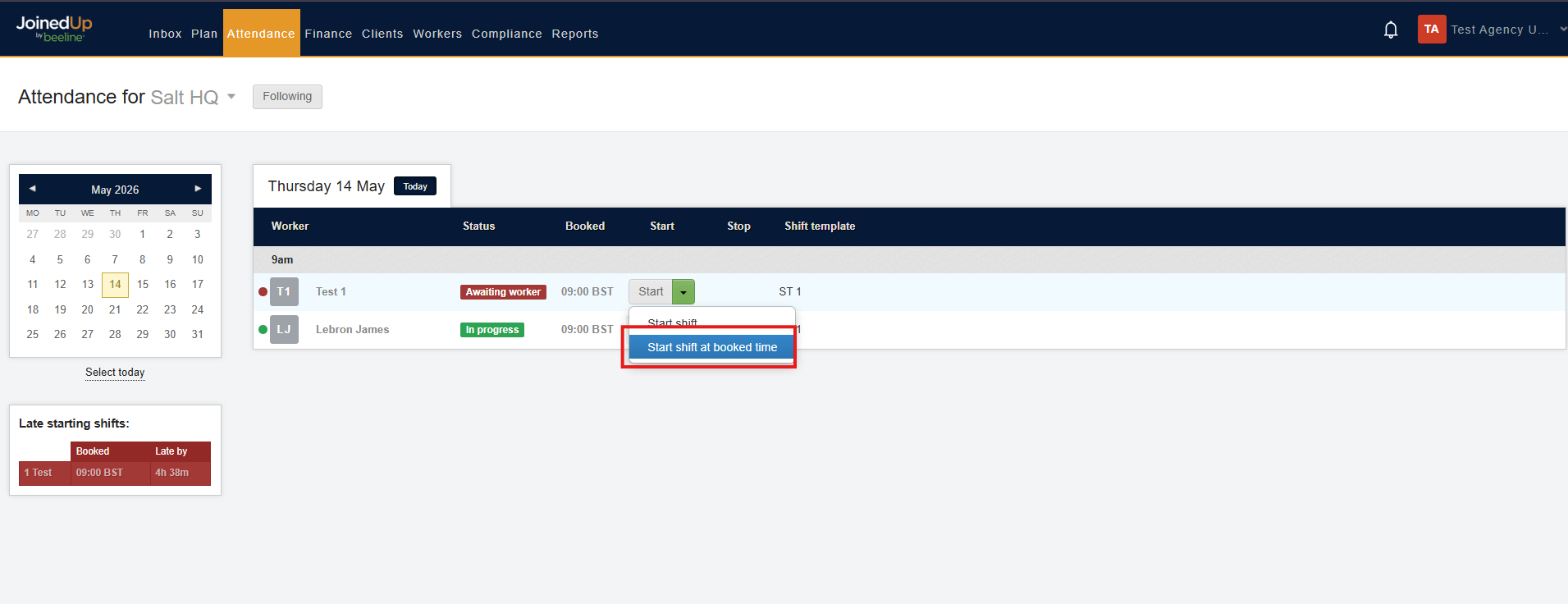
To start a missed shift, select Start shift. This sets the shift start to the current time.
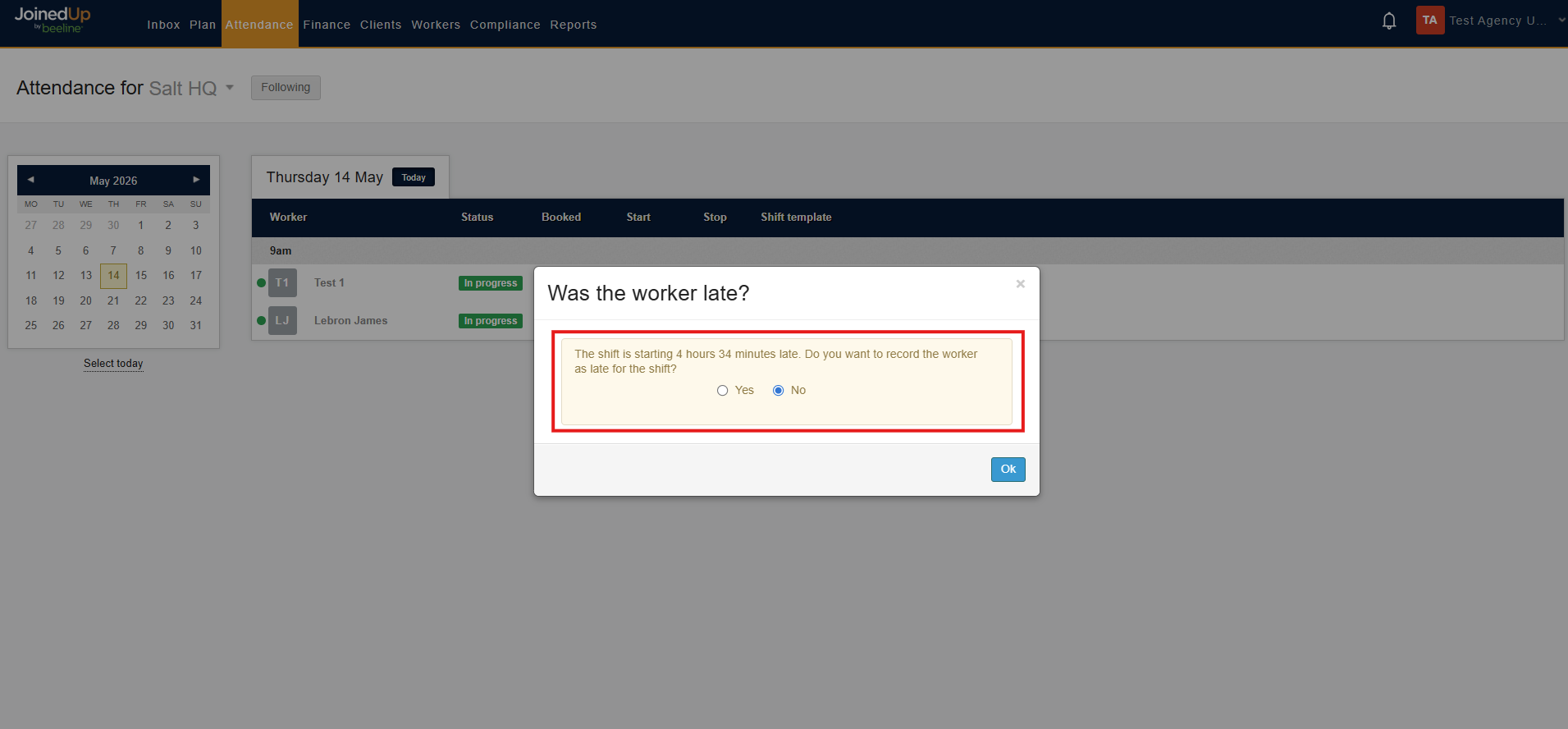
A confirmation pop-up appears so you can confirm recording the worker as late.
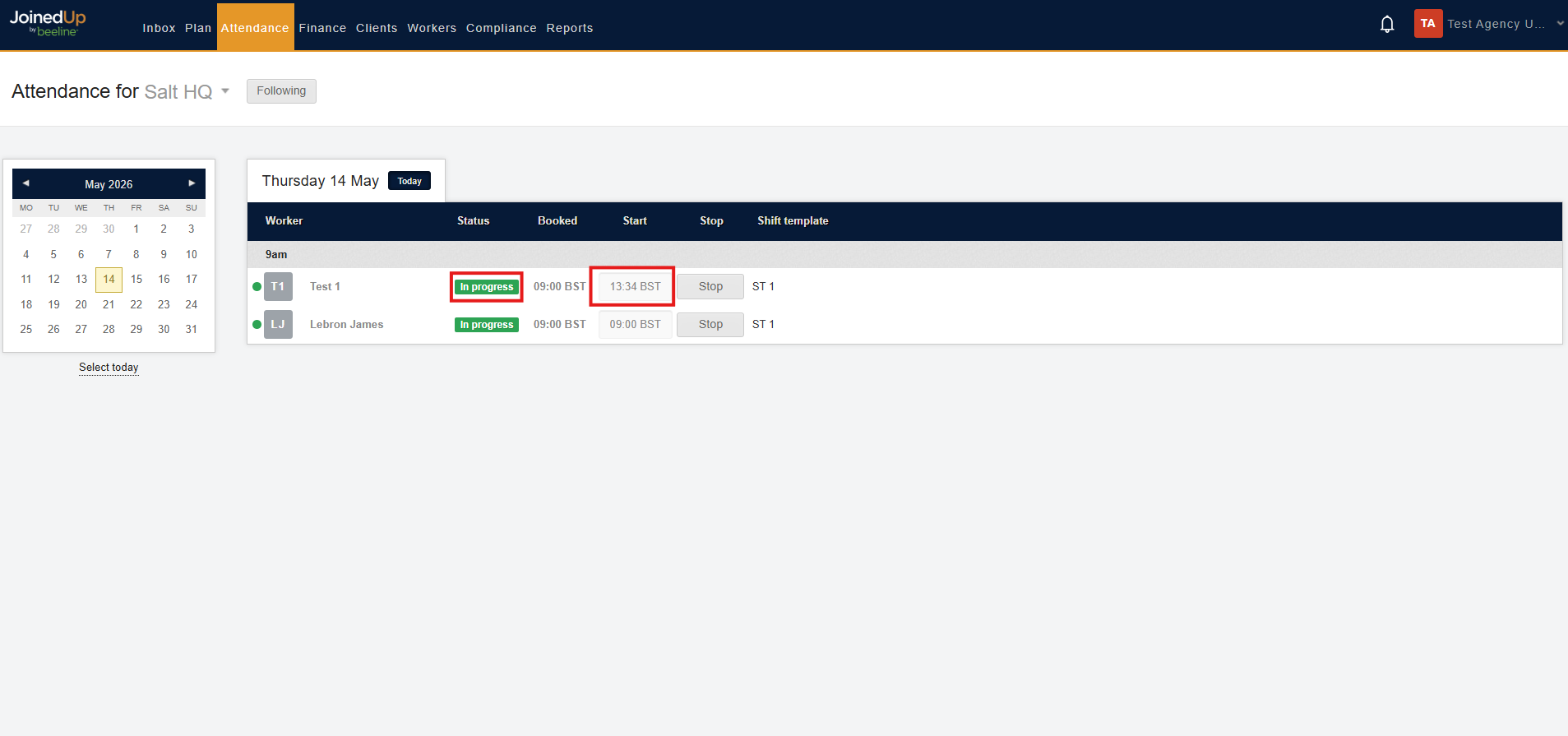
After you confirm, the actual start time is shown and the status updates to In Progress.
If needed, select Start shift at booked time to set the start to the booked time.
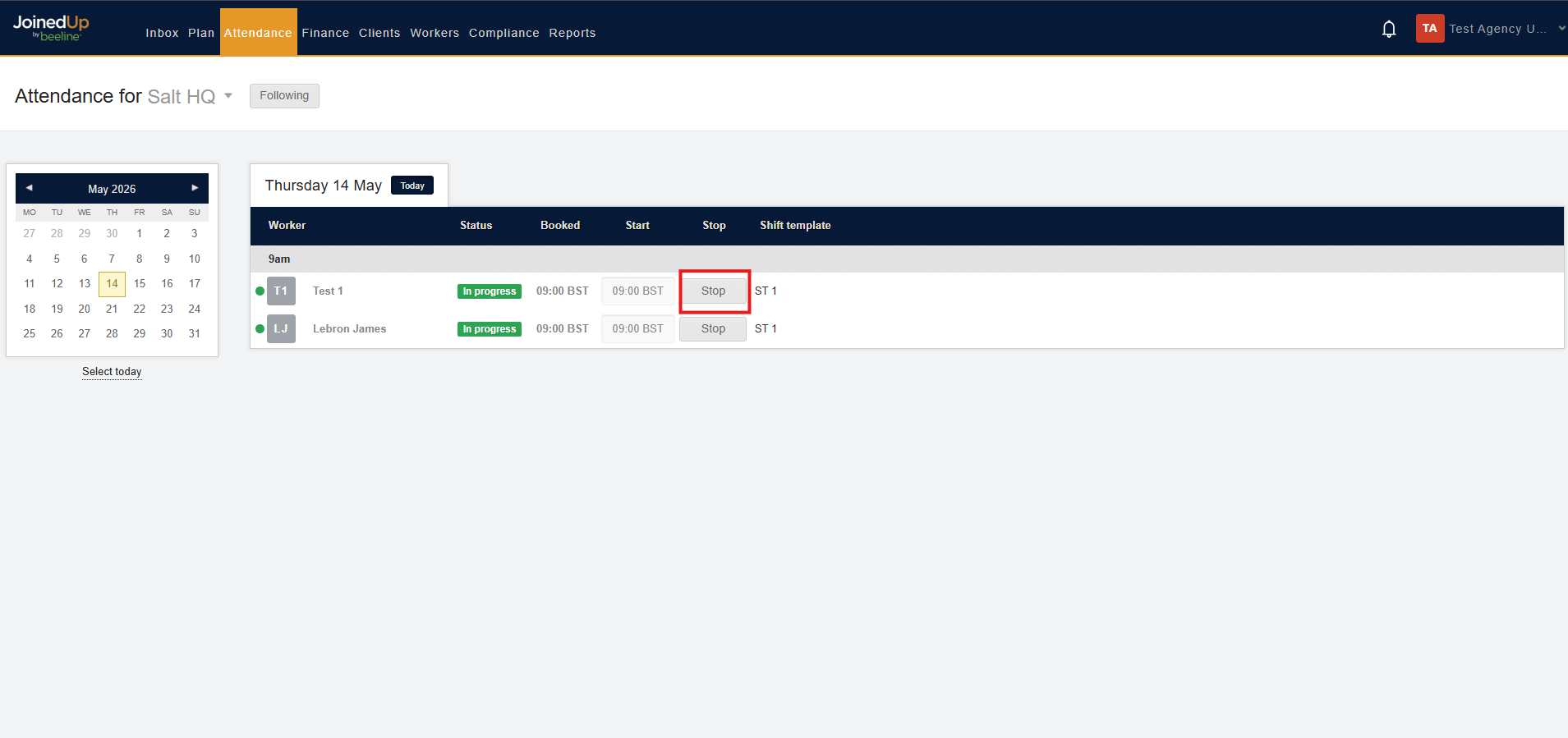
When the shift is complete, select Stop.
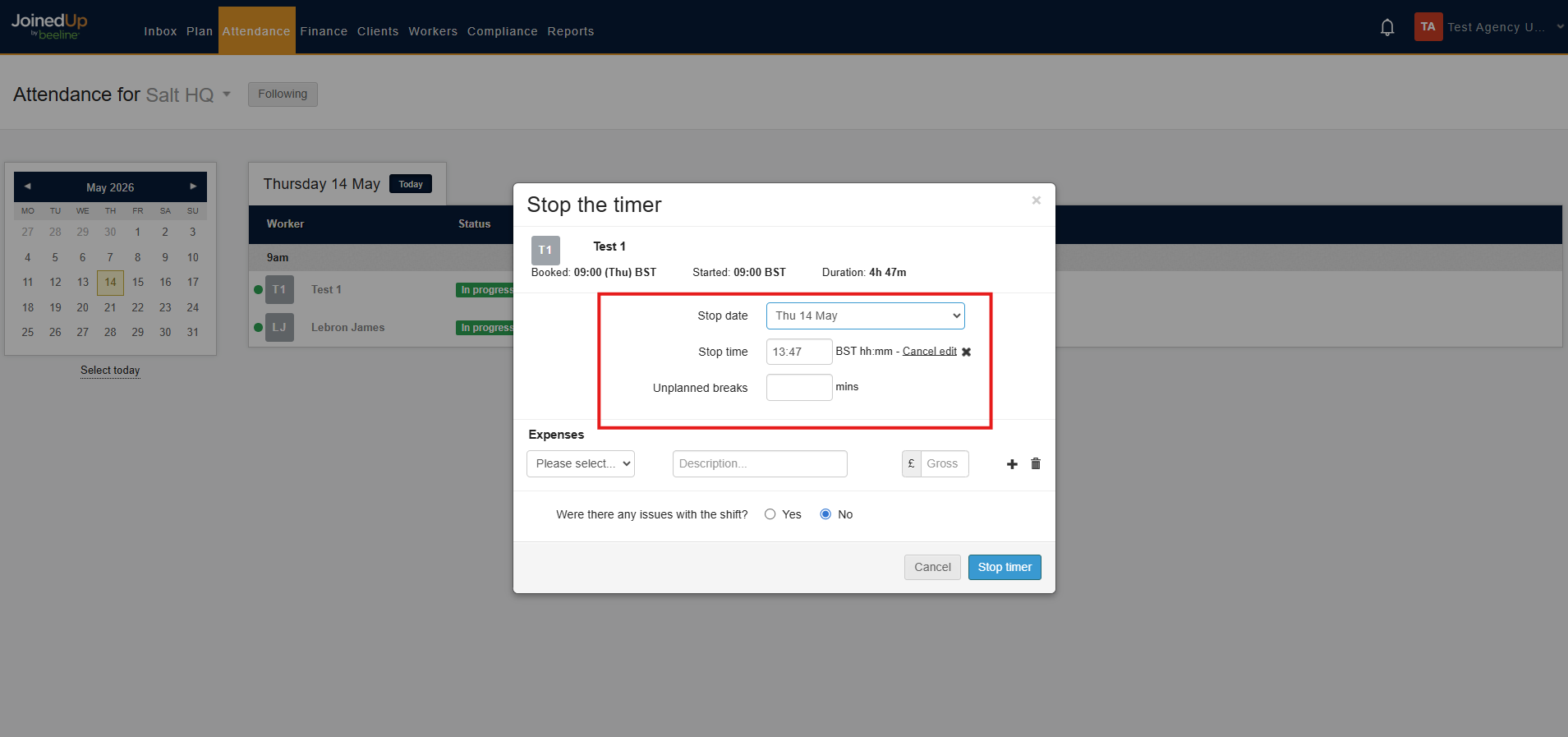
A modal appears where you can edit the date and actual stop time, and add unplanned breaks and expenses.
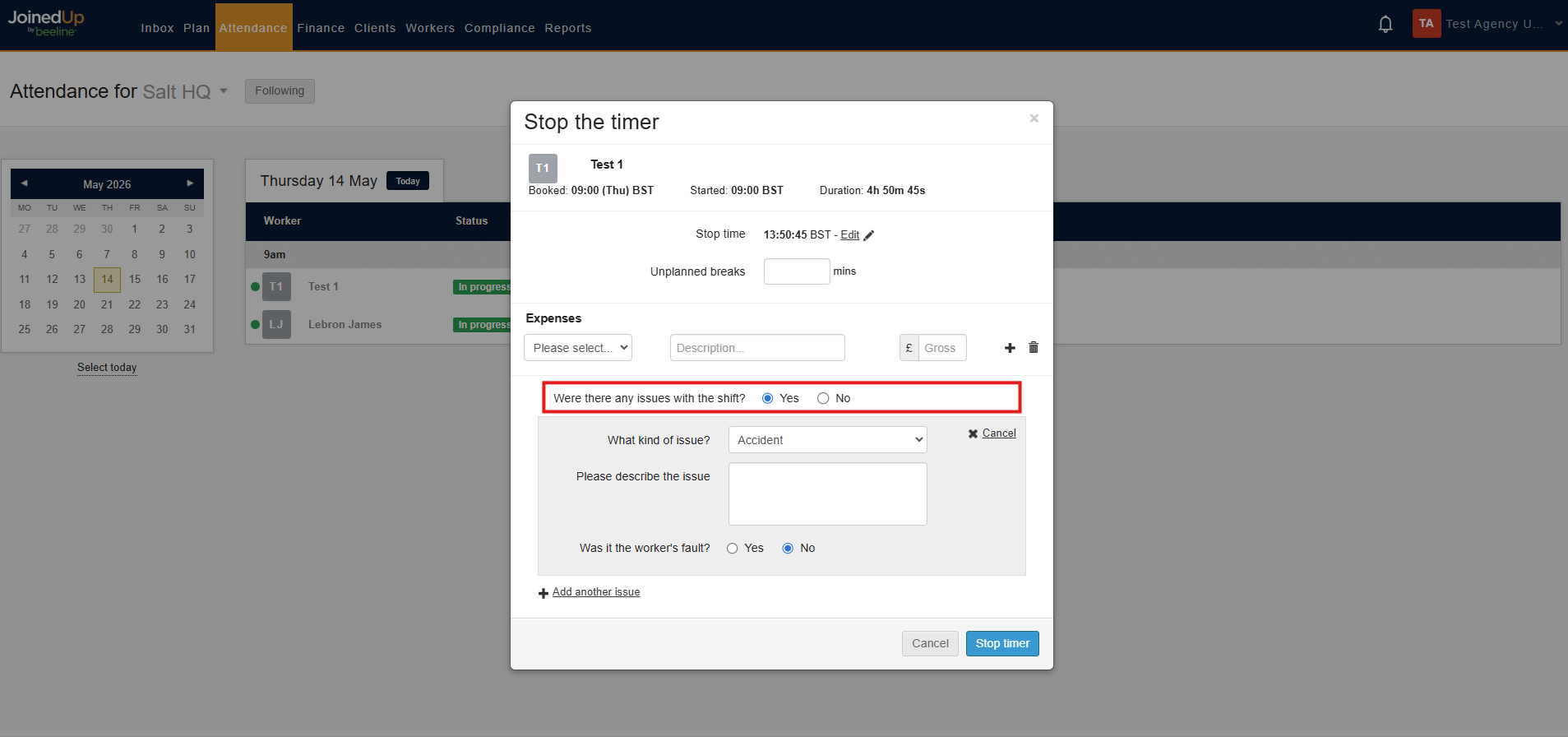
If there were shift issues, select Yes for Were there any issues with the shift?
Batch edit start/stop time screen
The Batch edit start/stop times screen gives you three ways to manage shifts:
-
Shifts by Site
-
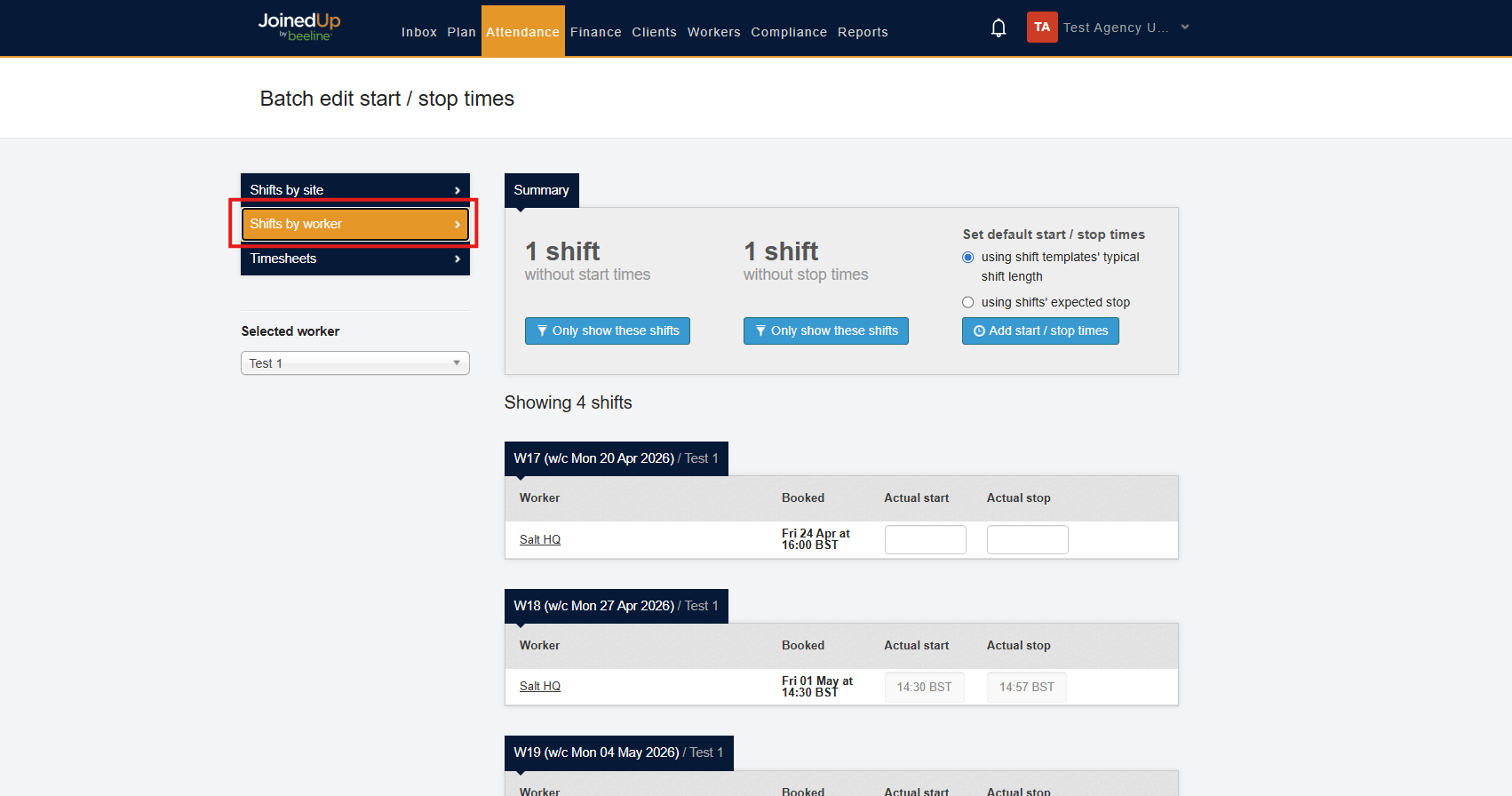
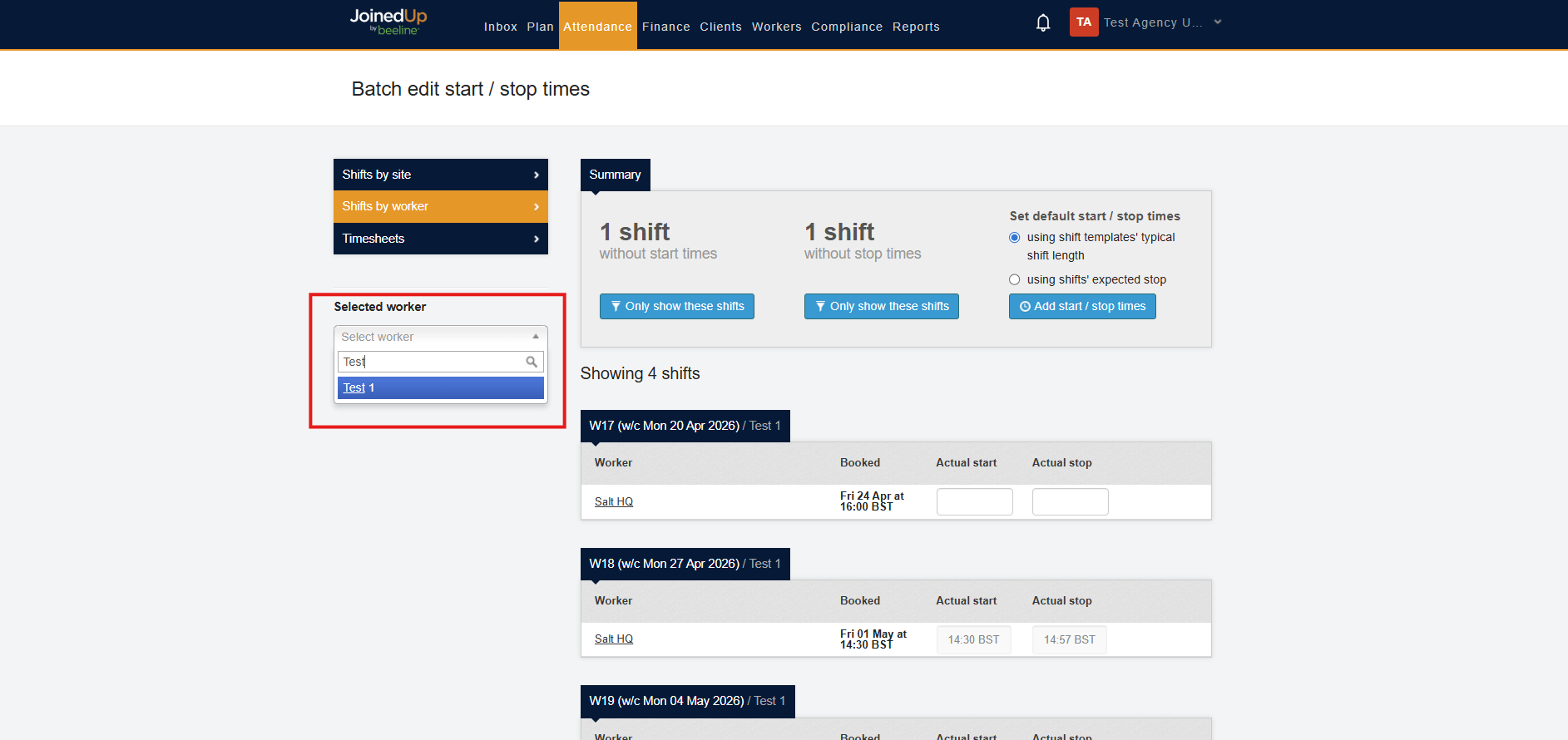
Shifts by Worker
-
Timesheets
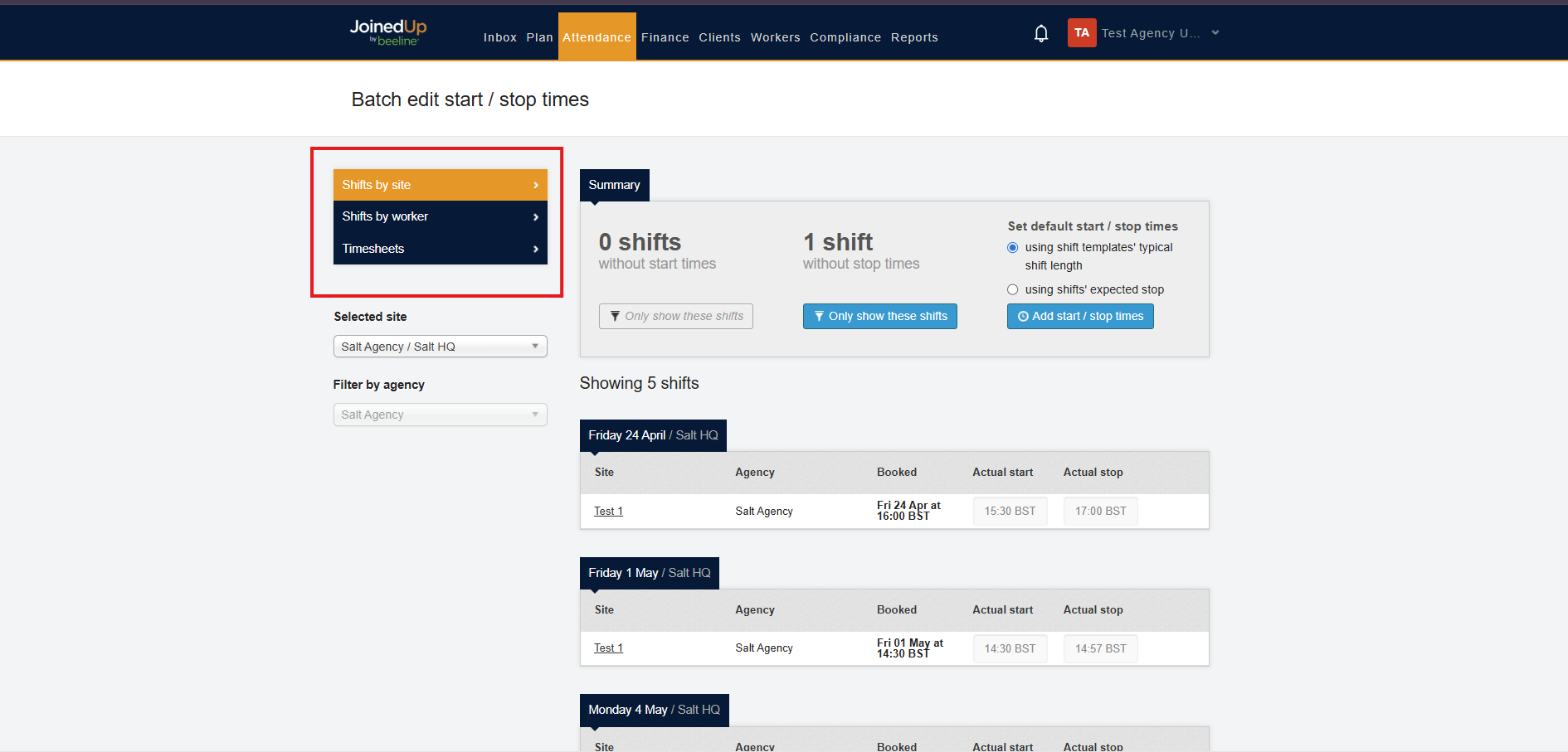
Shifts by Site
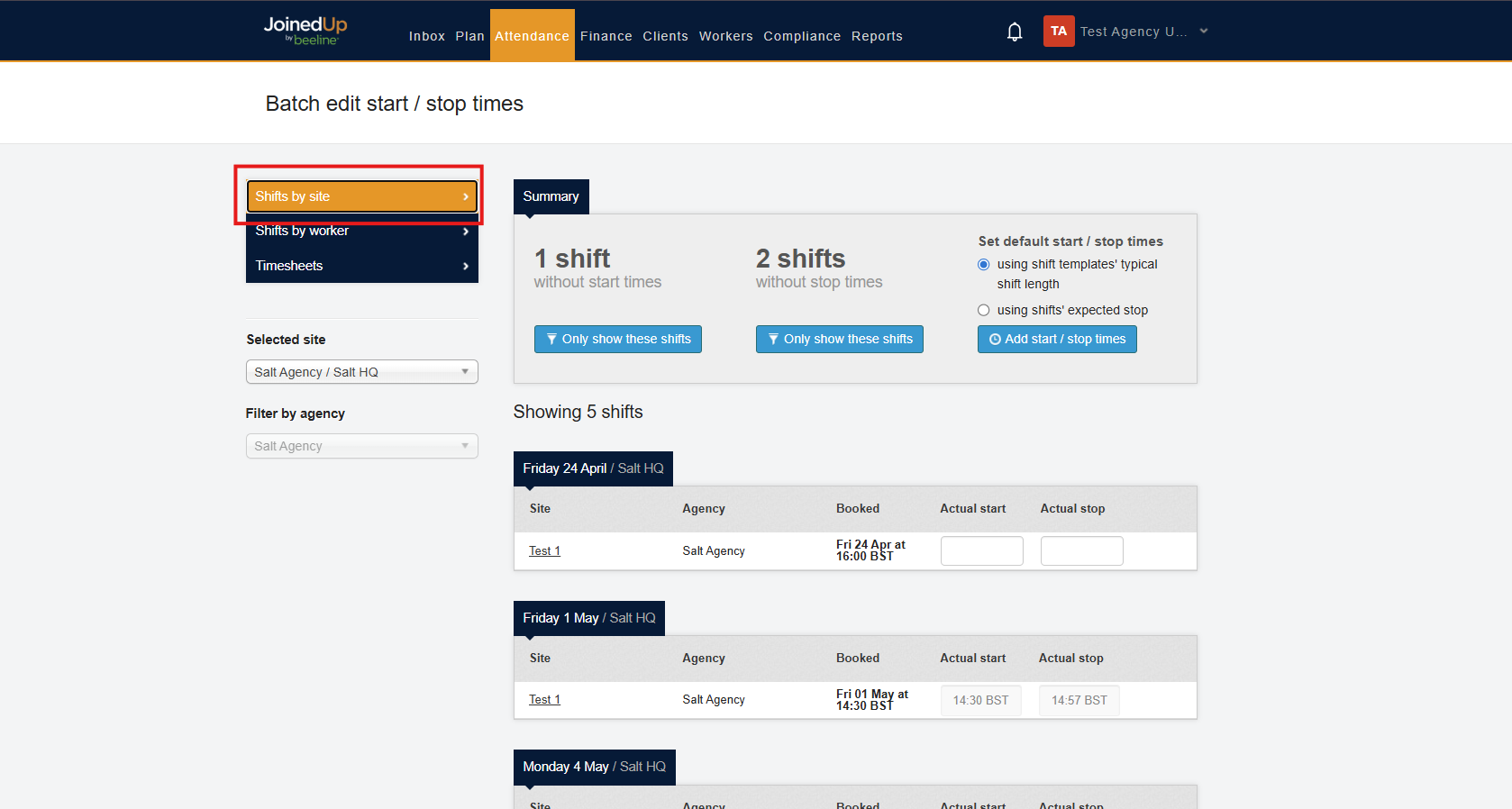
Filter shifts
You can filter shifts by site and agency.
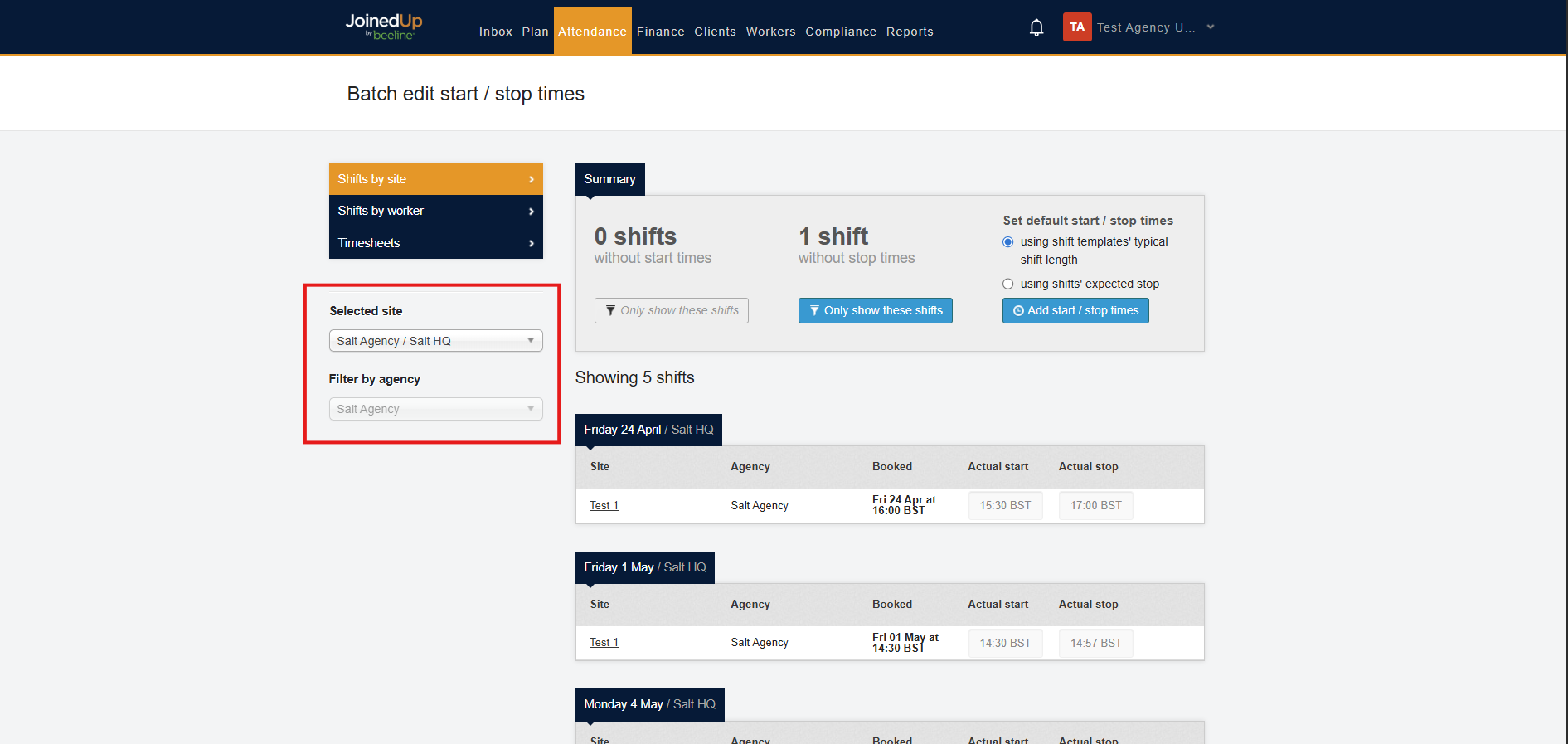
You can also filter to shifts without a start time or without a stop time.
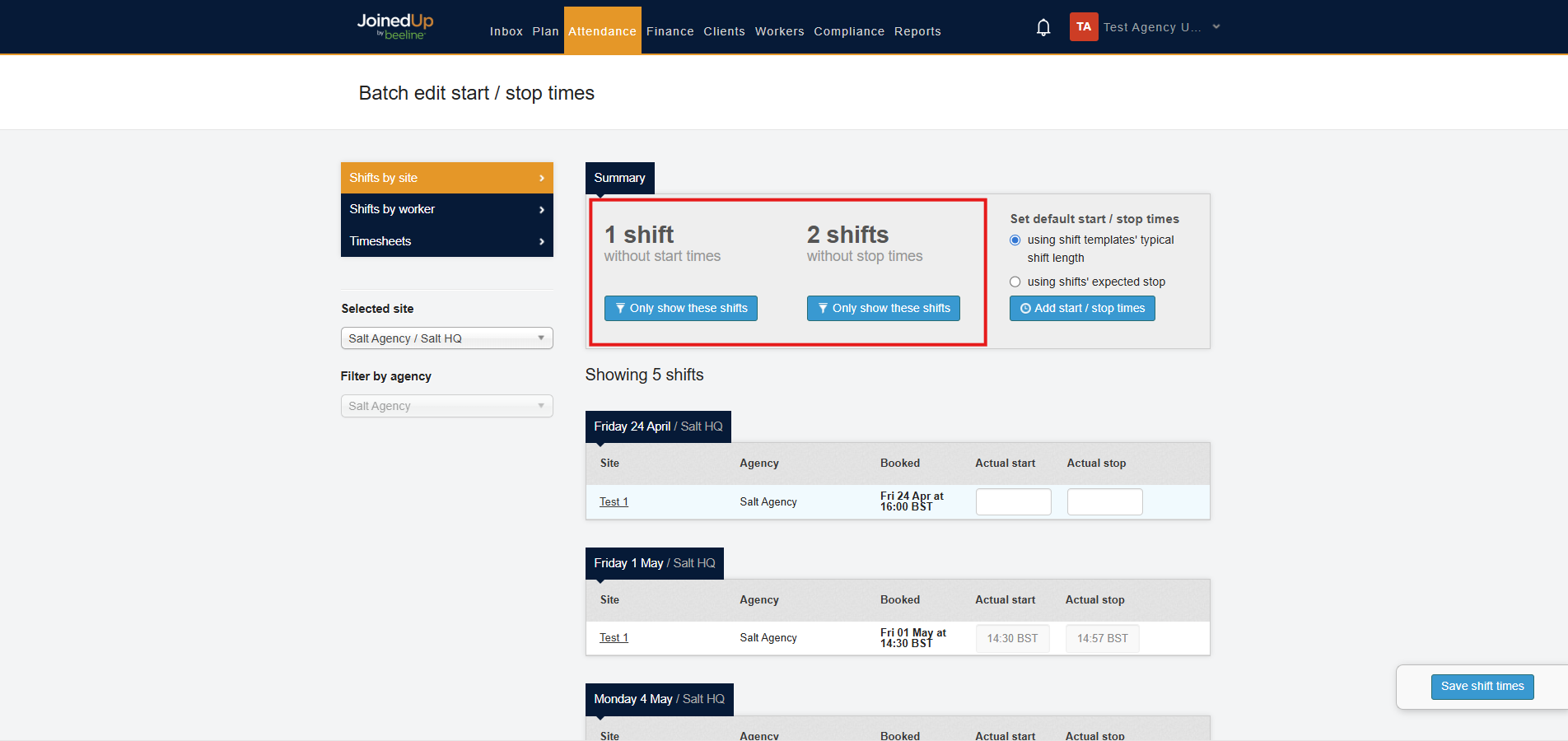
Add start and stop times
After filtering, select the blank time cells and enter the correct start and stop times. When you finish, select Save.
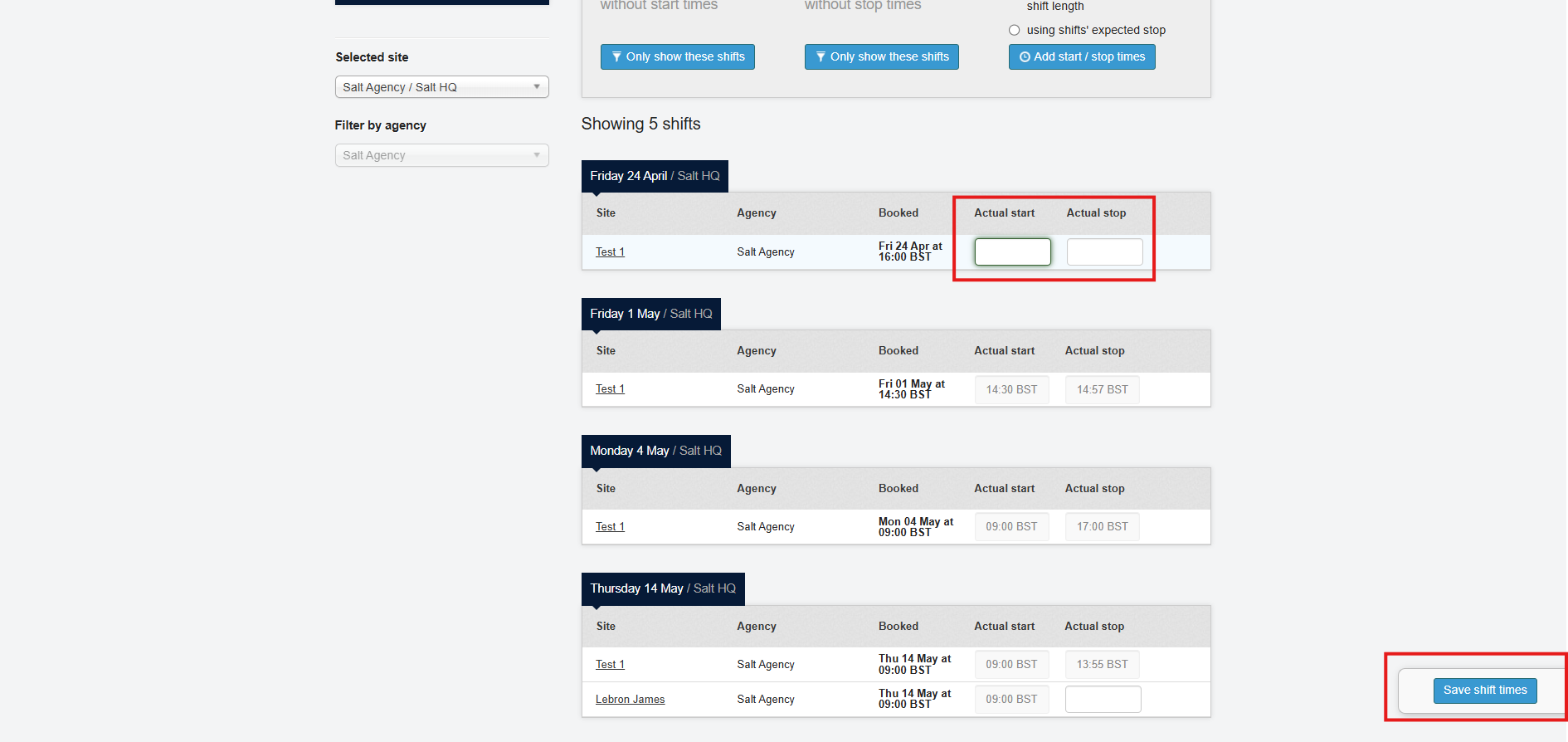
You can also edit shifts that already have start and stop times.
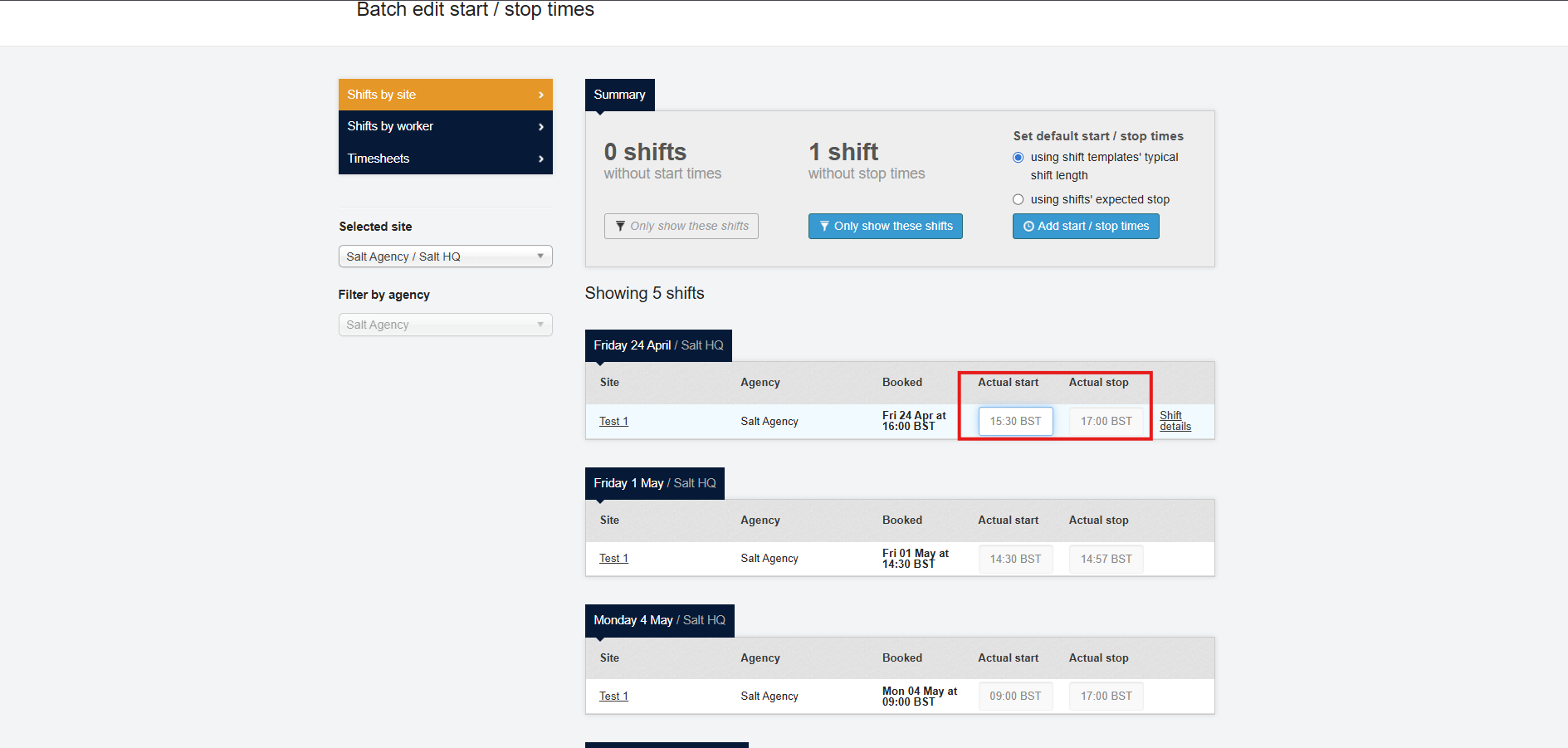
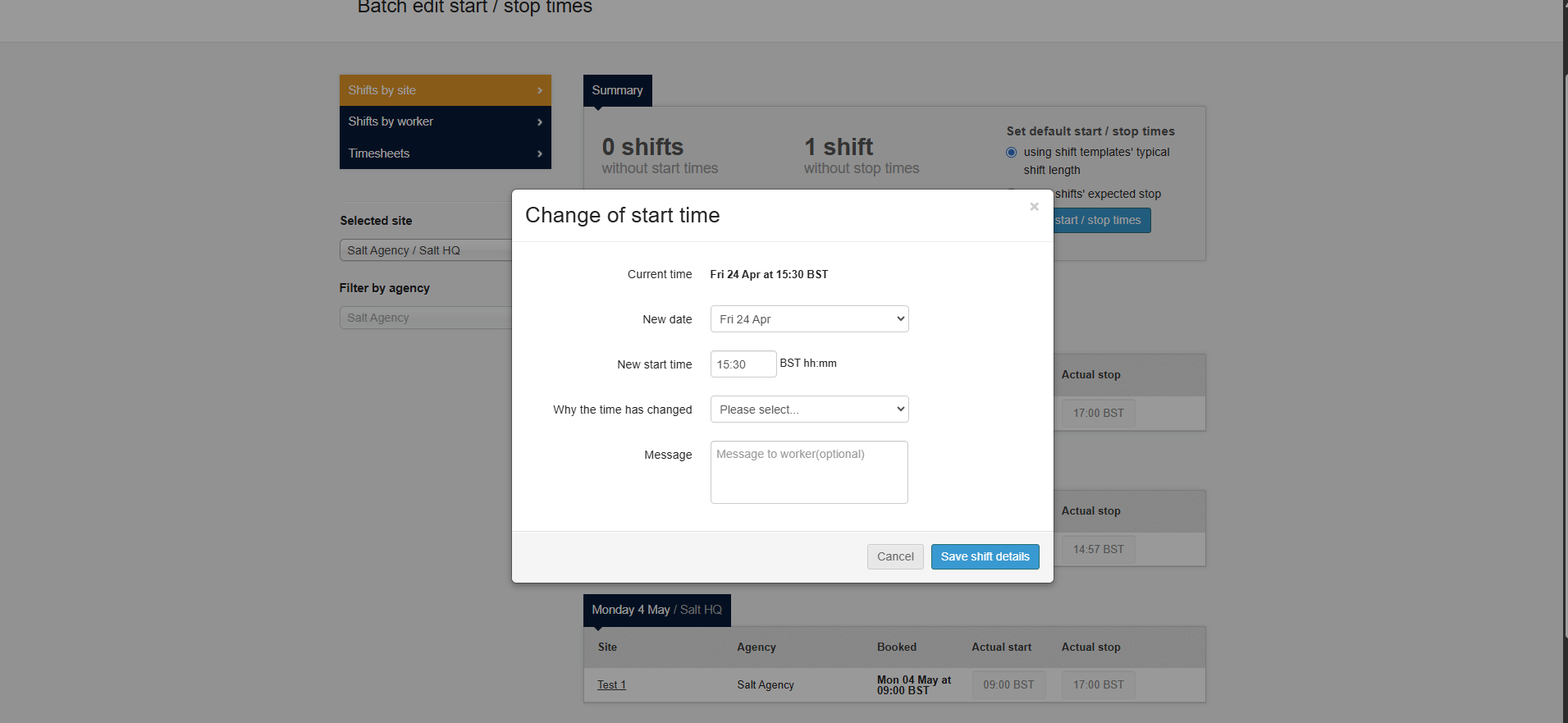
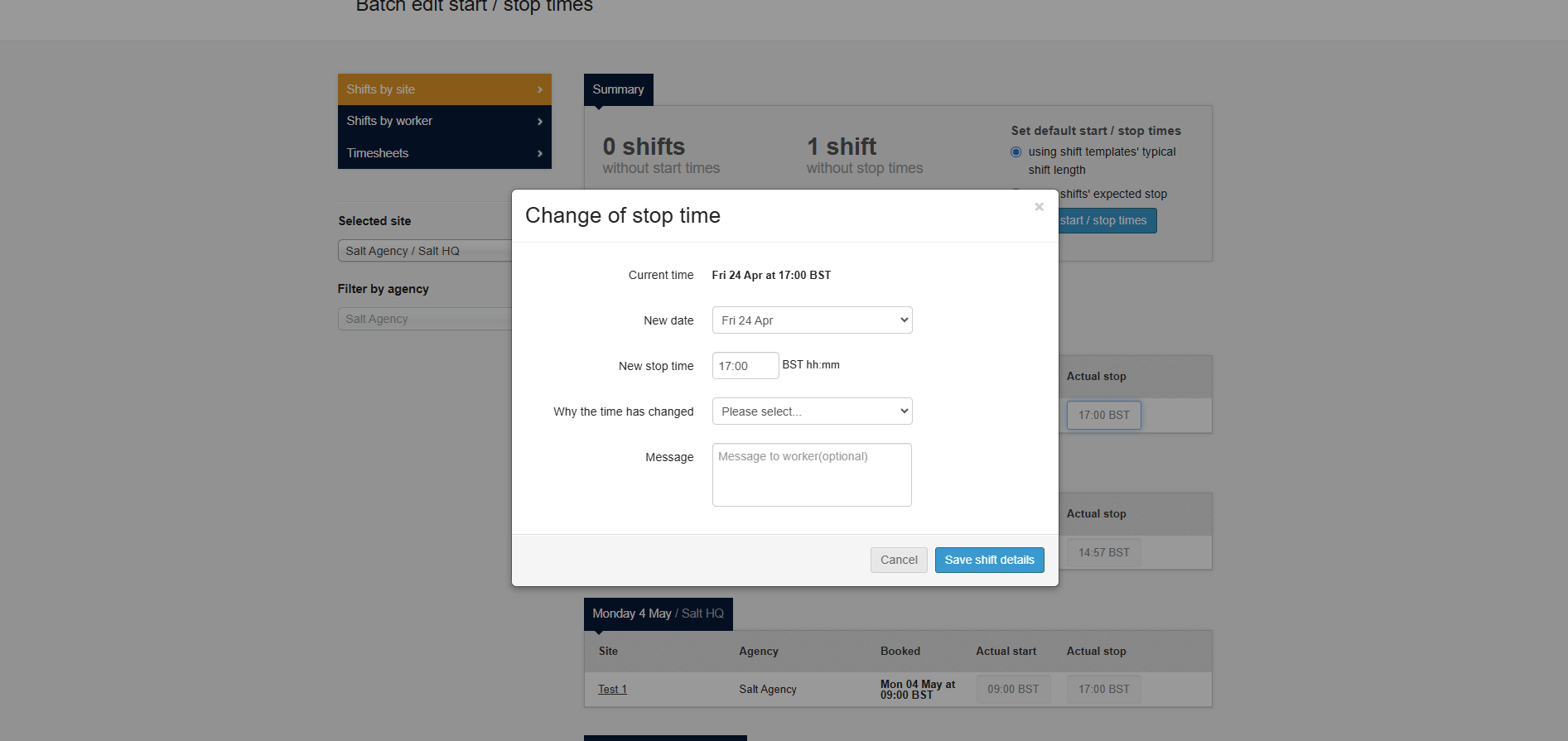
When editing an existing time, a modal appears so you can edit additional details.
The same process applies when updating stop time fields.
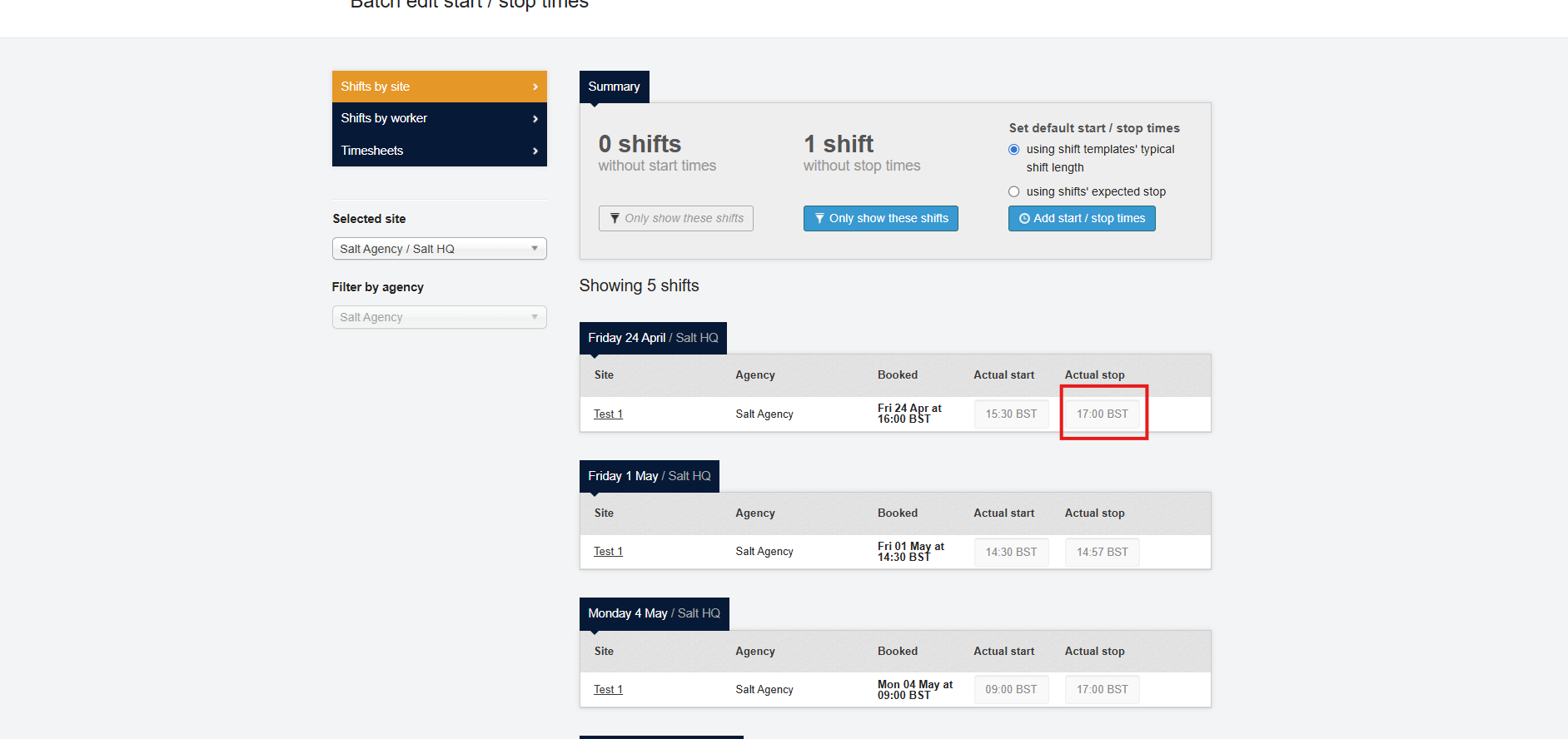
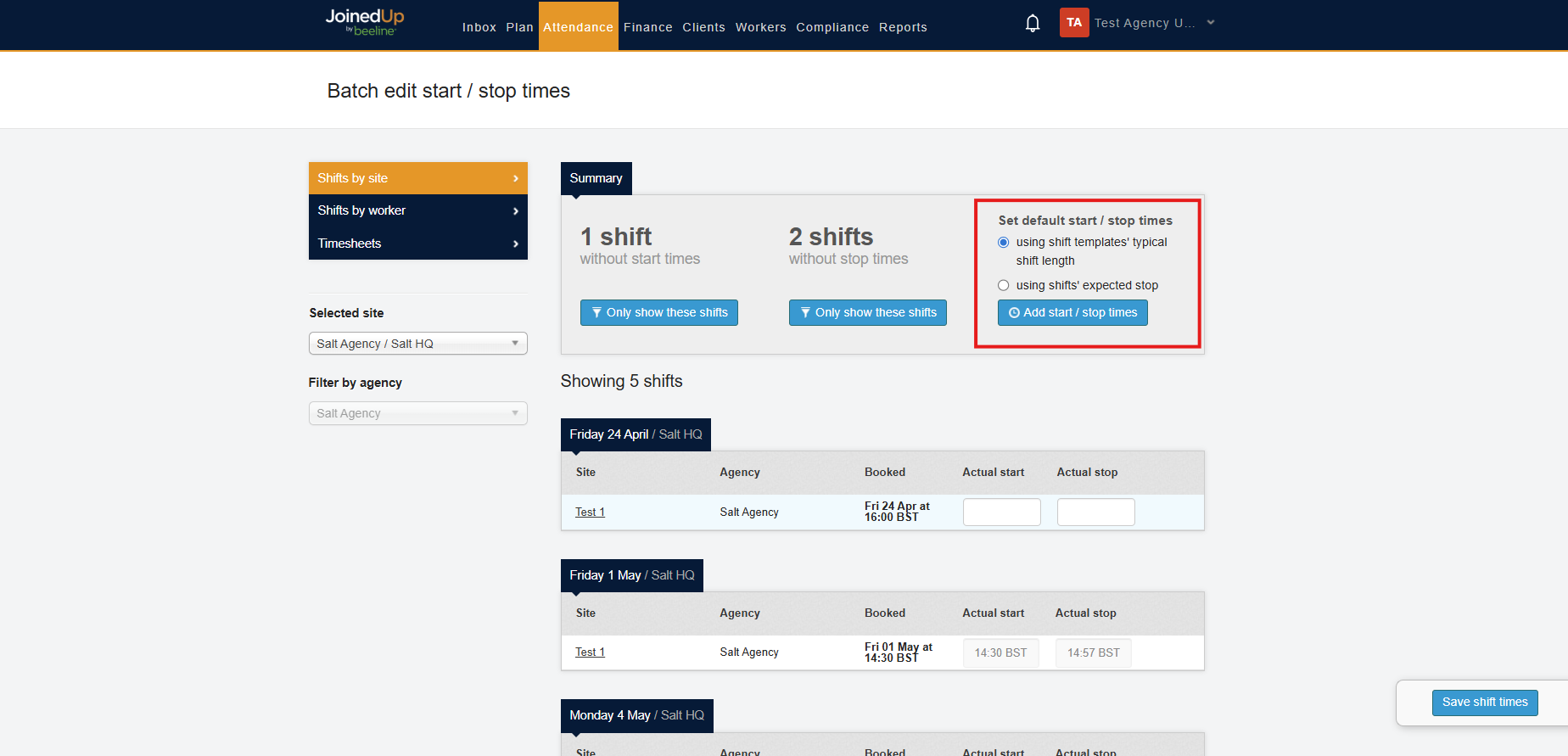
You can also add start and stop times based on typical shift length or expected stop time.
Timesheets
Filter shifts
Use the filters on the left to filter by branch, organization, site, or worker.
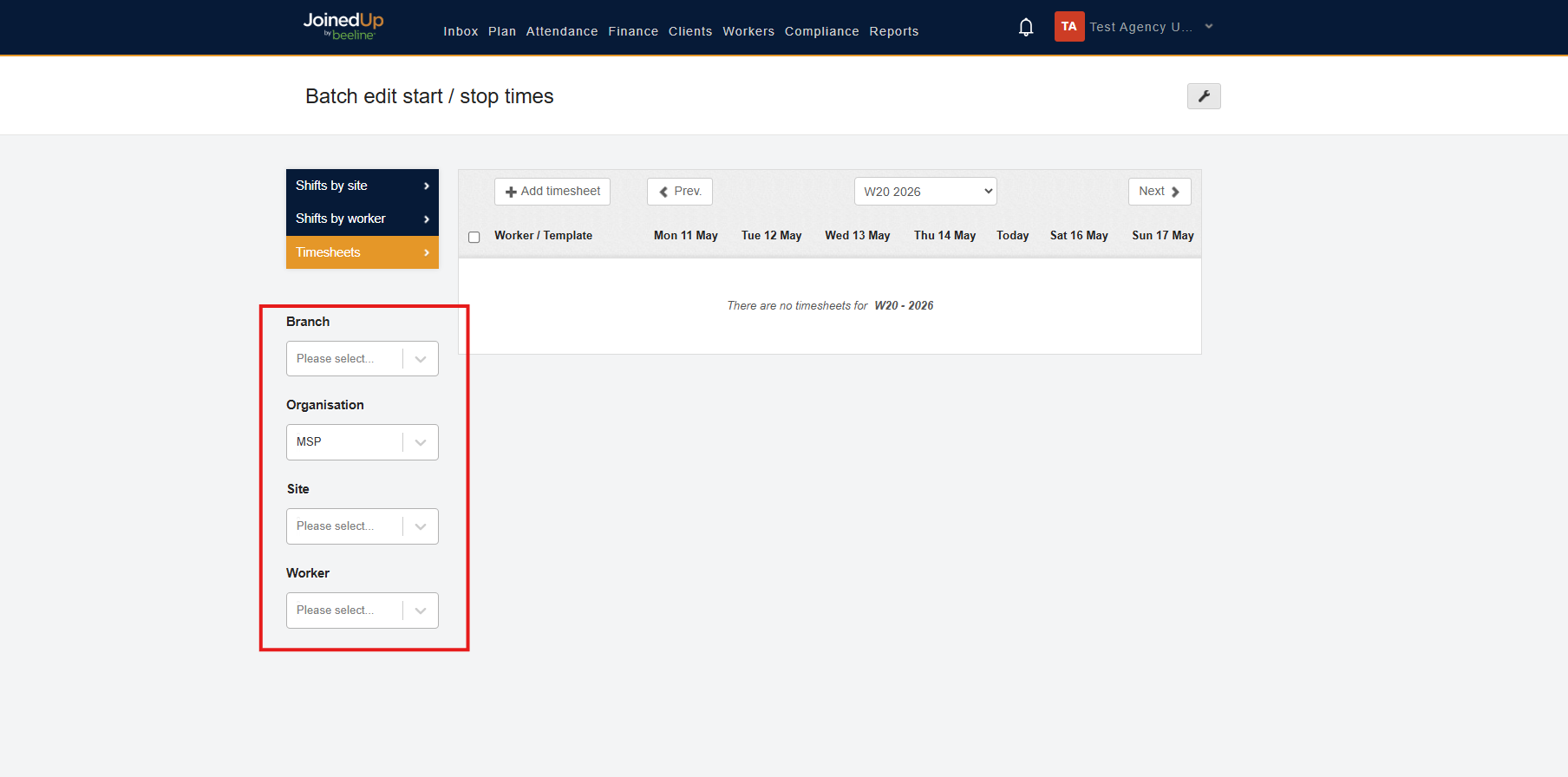
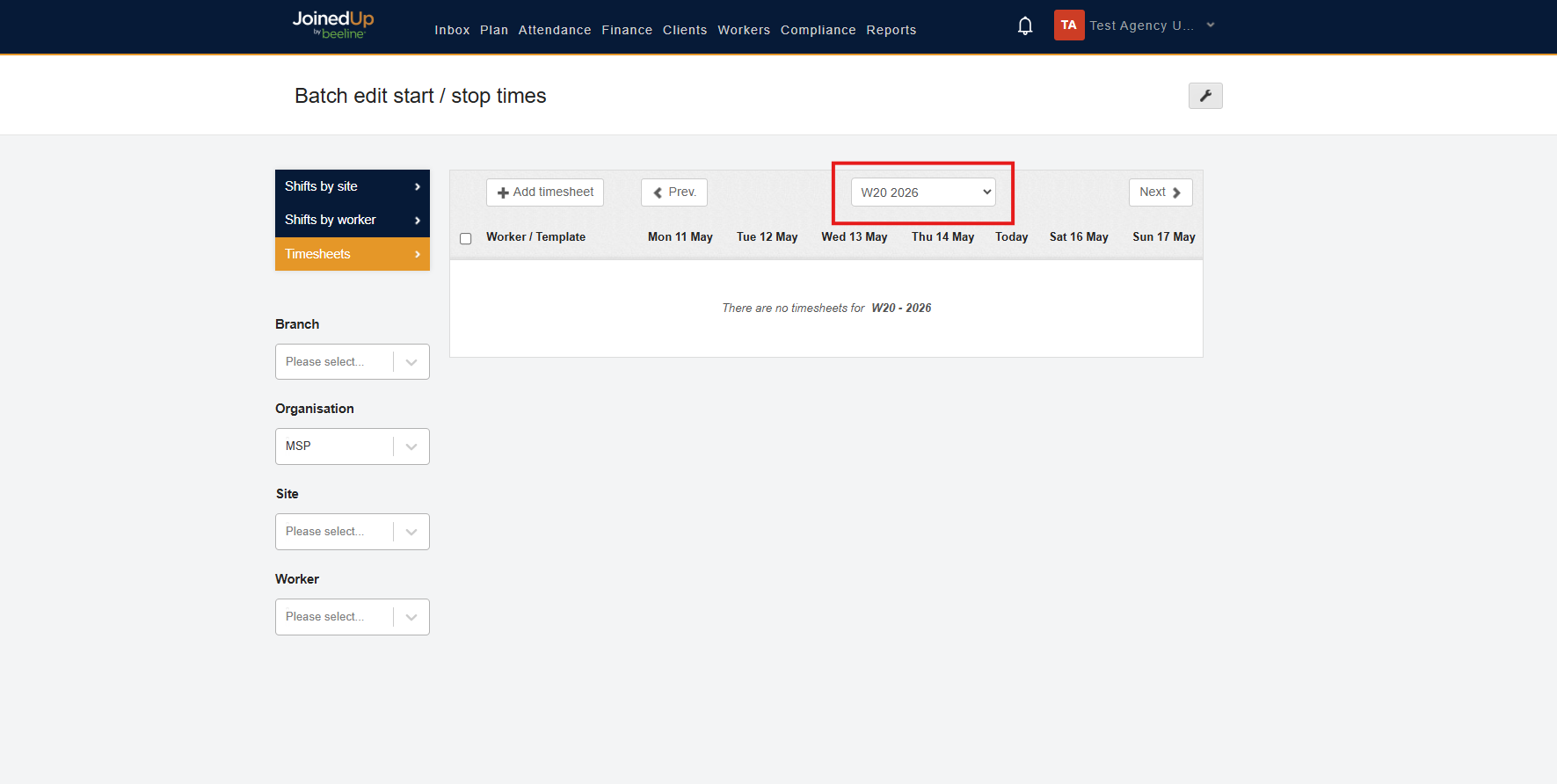
You can also filter by week number.
Add start and stop times
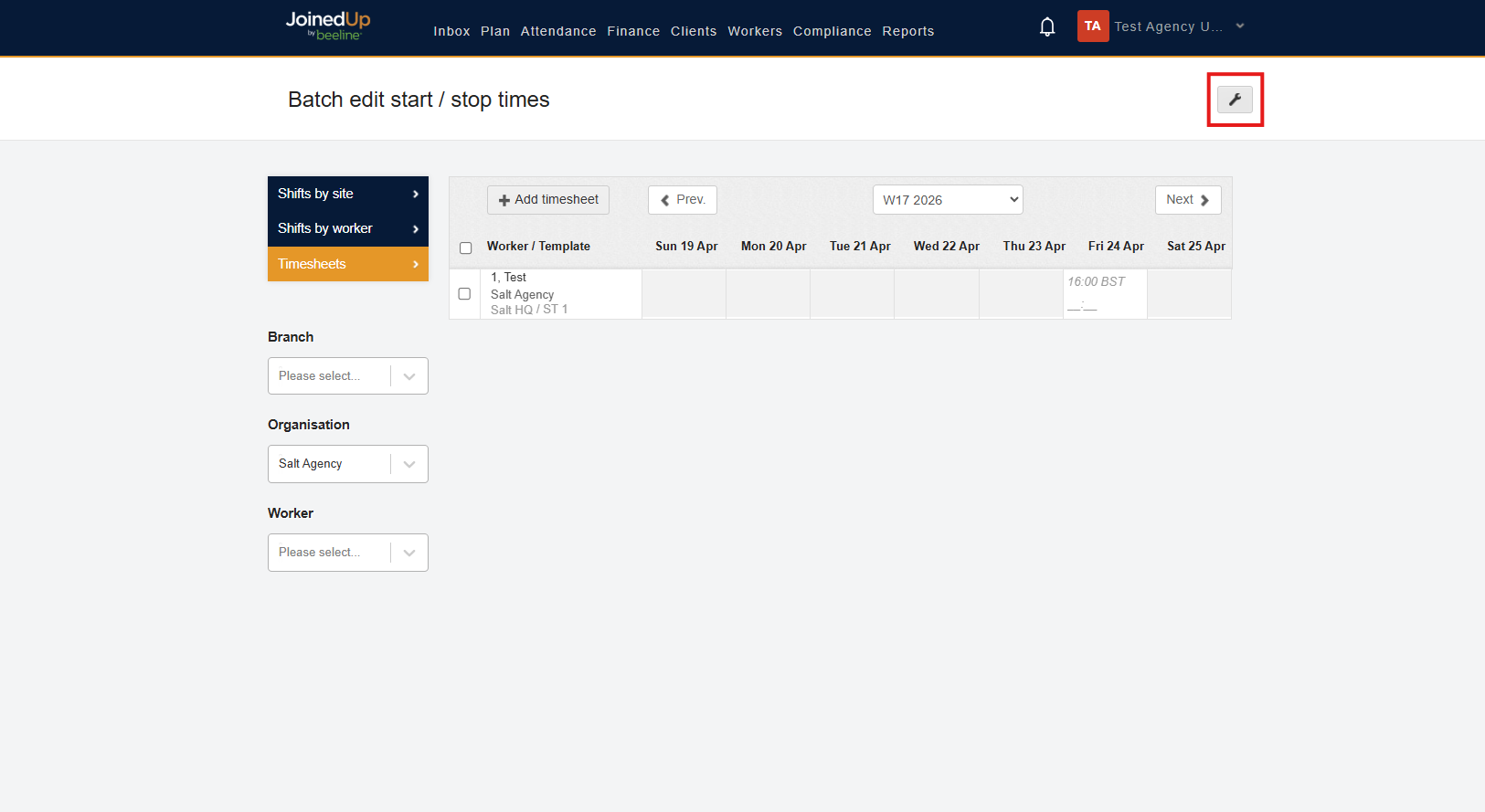
On this screen, select the tools icon in the upper-right corner to choose how you want to update times.
Select the edit mode as either Stop Time or Duration in hours.
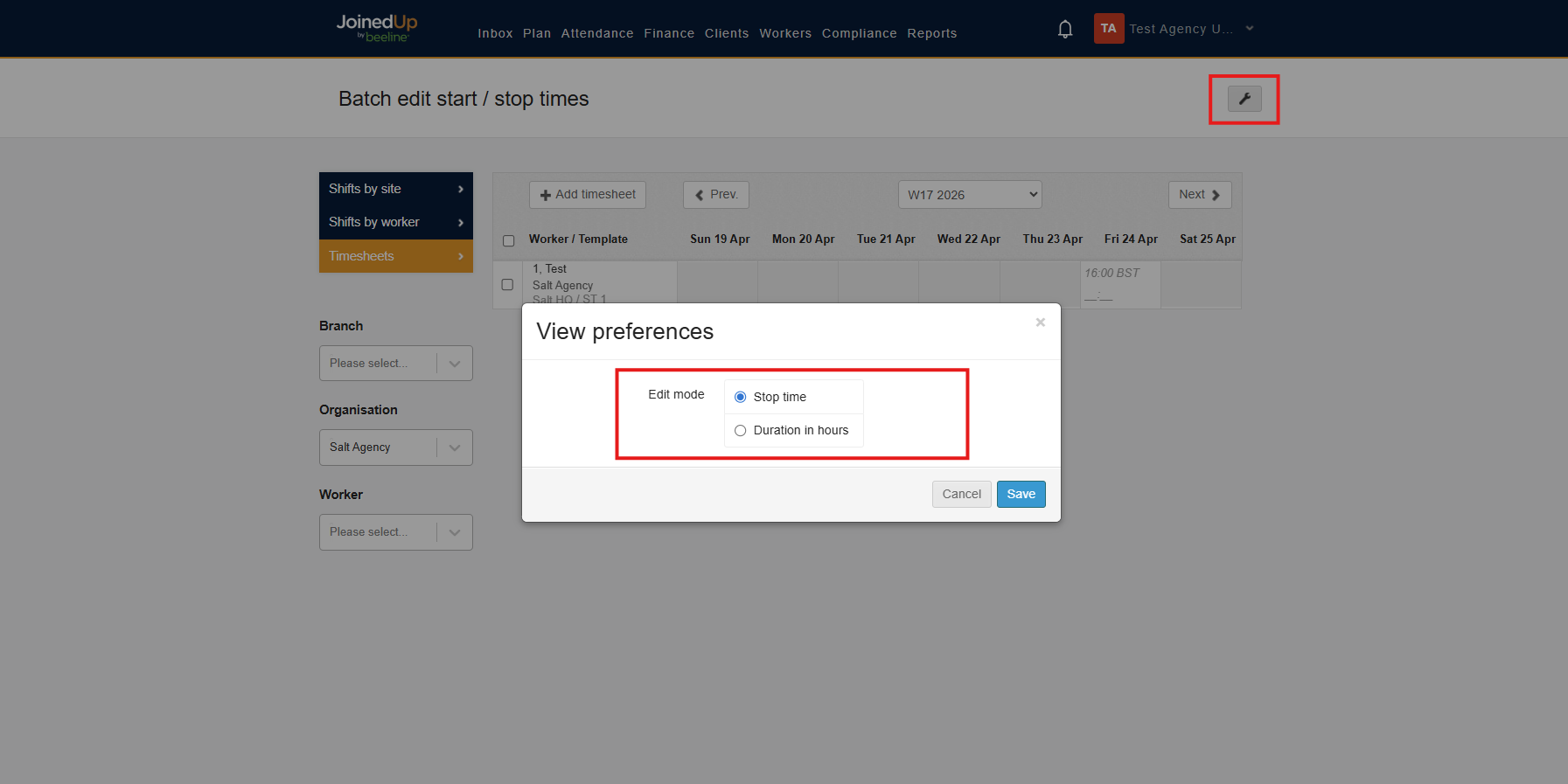
Stop Time mode
In this mode, you enter a stop time. The start time field is greyed out when there is no actual start time.
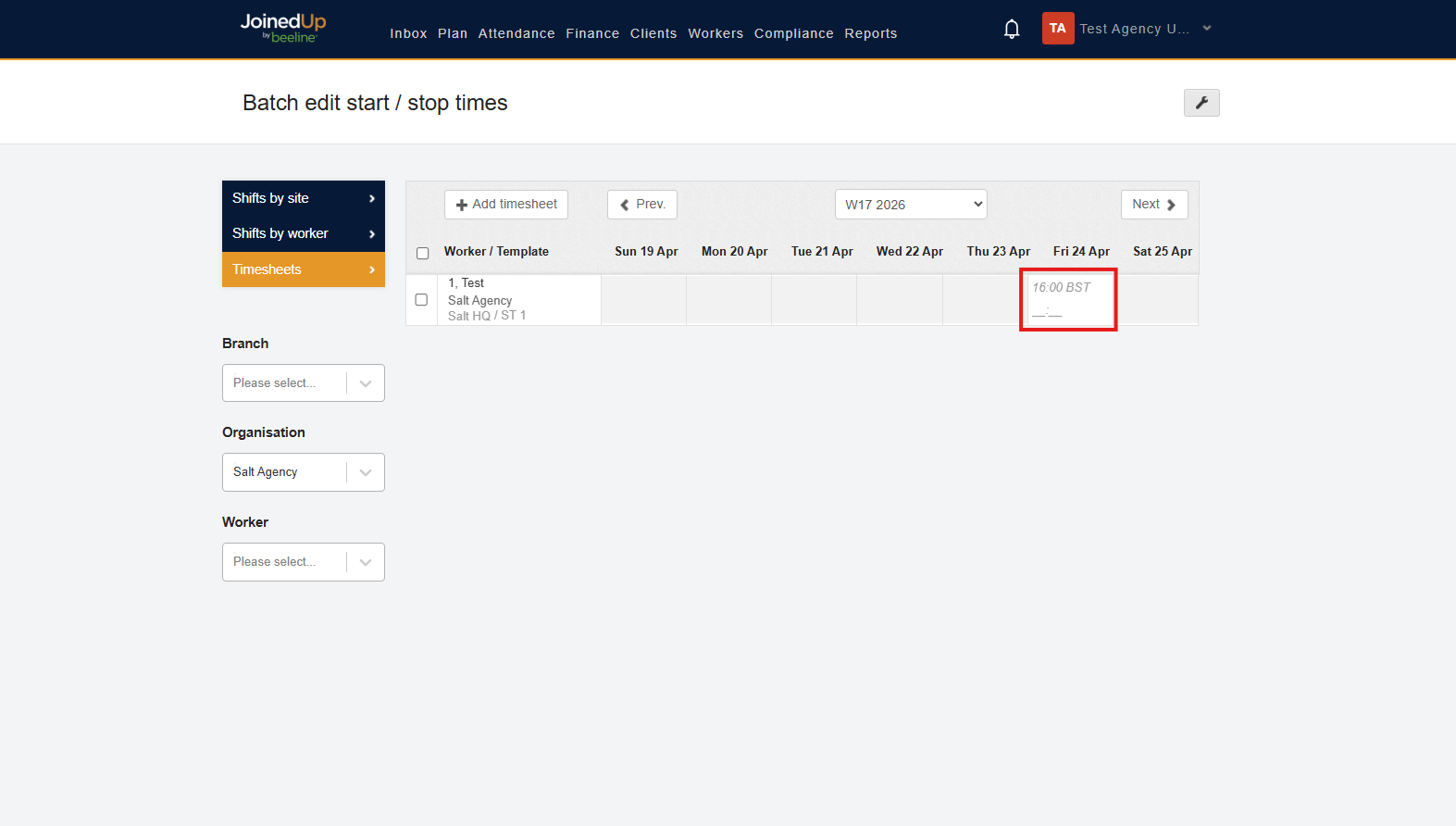
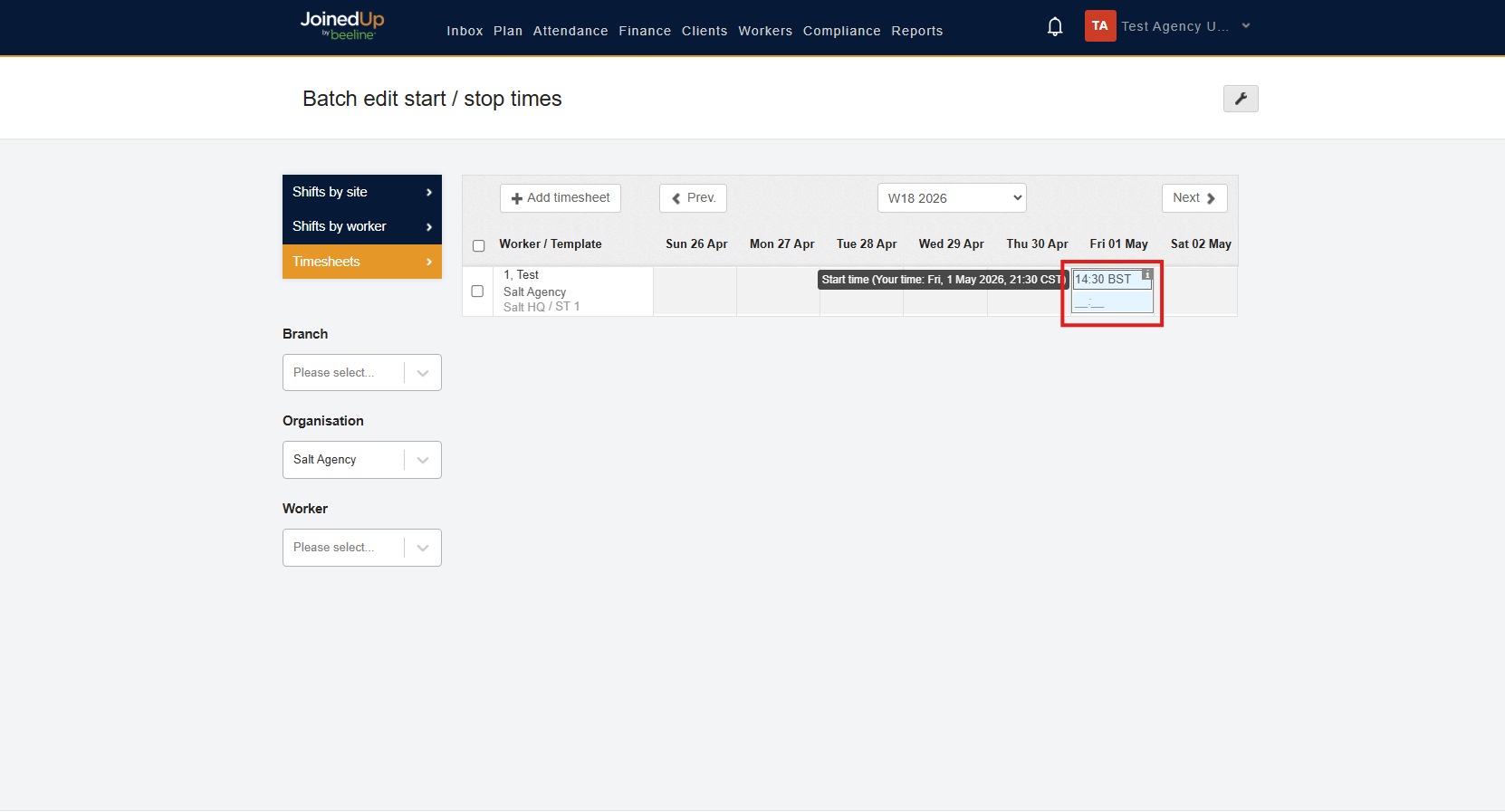
If an actual start time exists, the start time field becomes editable.
Duration in hours
In this mode, enter the number of hours the worker worked for the day.
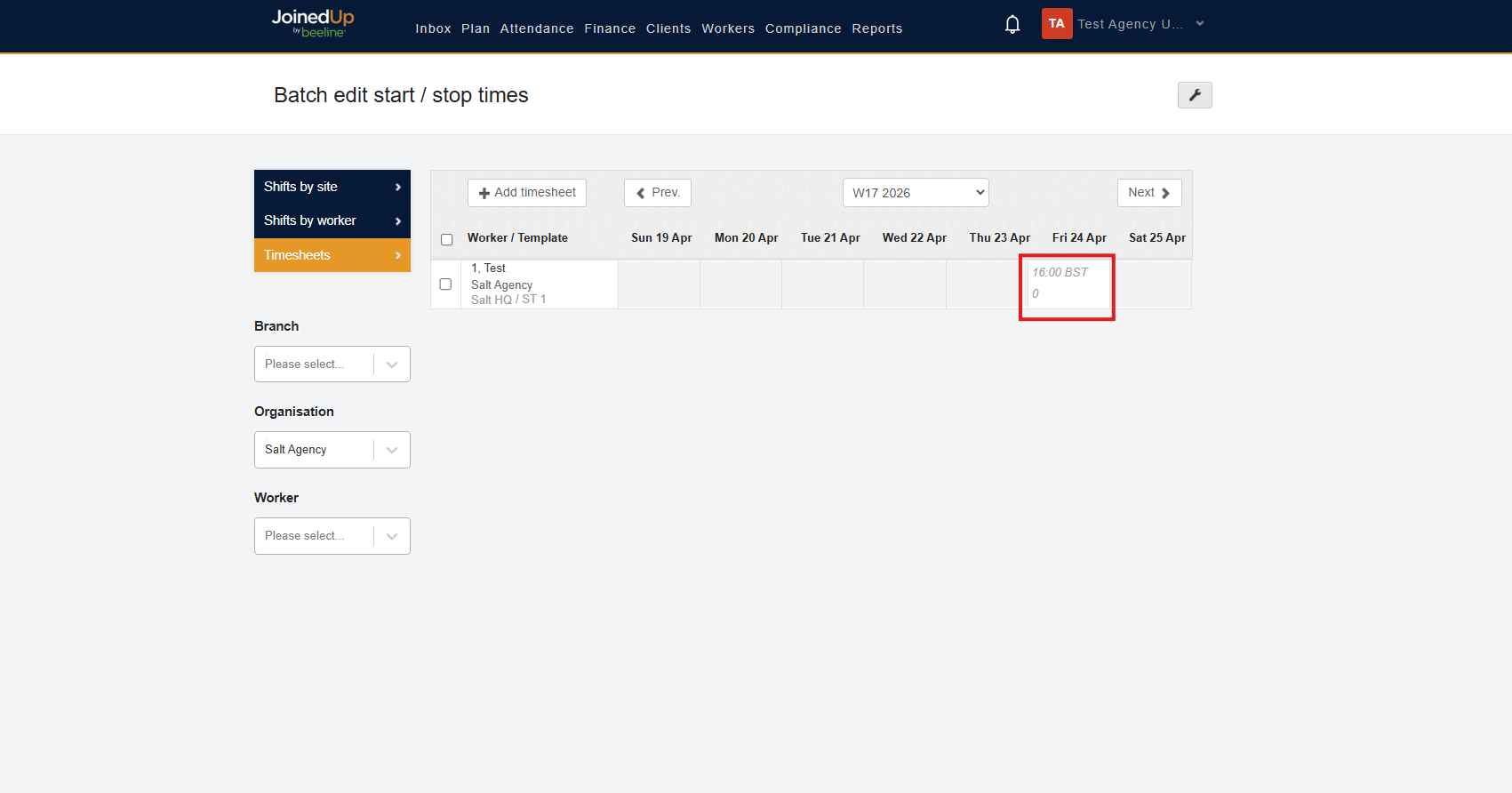
You may also enter hours in decimal format to account for minutes worked. For example, if a worker completed a 9 hour and 30 minute shift, this can be entered as 9.5.
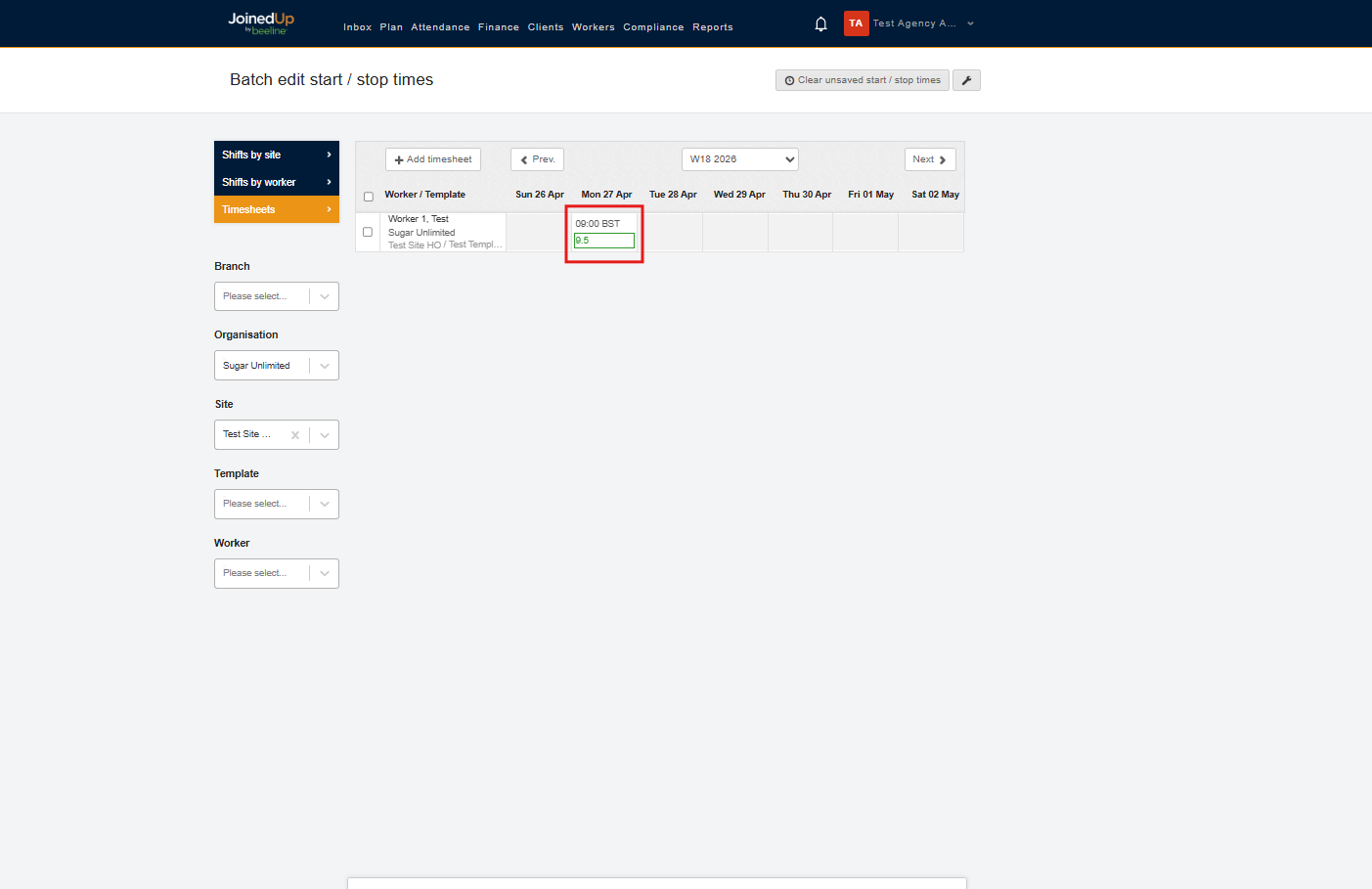
A green highlight will also appear for a valid input.
| Workers only appear on this screen when they already have a booked shift for that week. You cannot edit future shifts on this screen. |