Time Approver
Overview
The Time Approver role is designed for organizations that separate the responsibility for approving hours from full financial management. The feature allows a user to validate and approve workers’ shift hours without exposing sensitive financial data or giving them access to the broader finance functions.
| The time approver role is limited to Order Templates. If you would like to enable this role, please Contact your Customer Operations Specialist. |
Setting up the Time Approver role
-
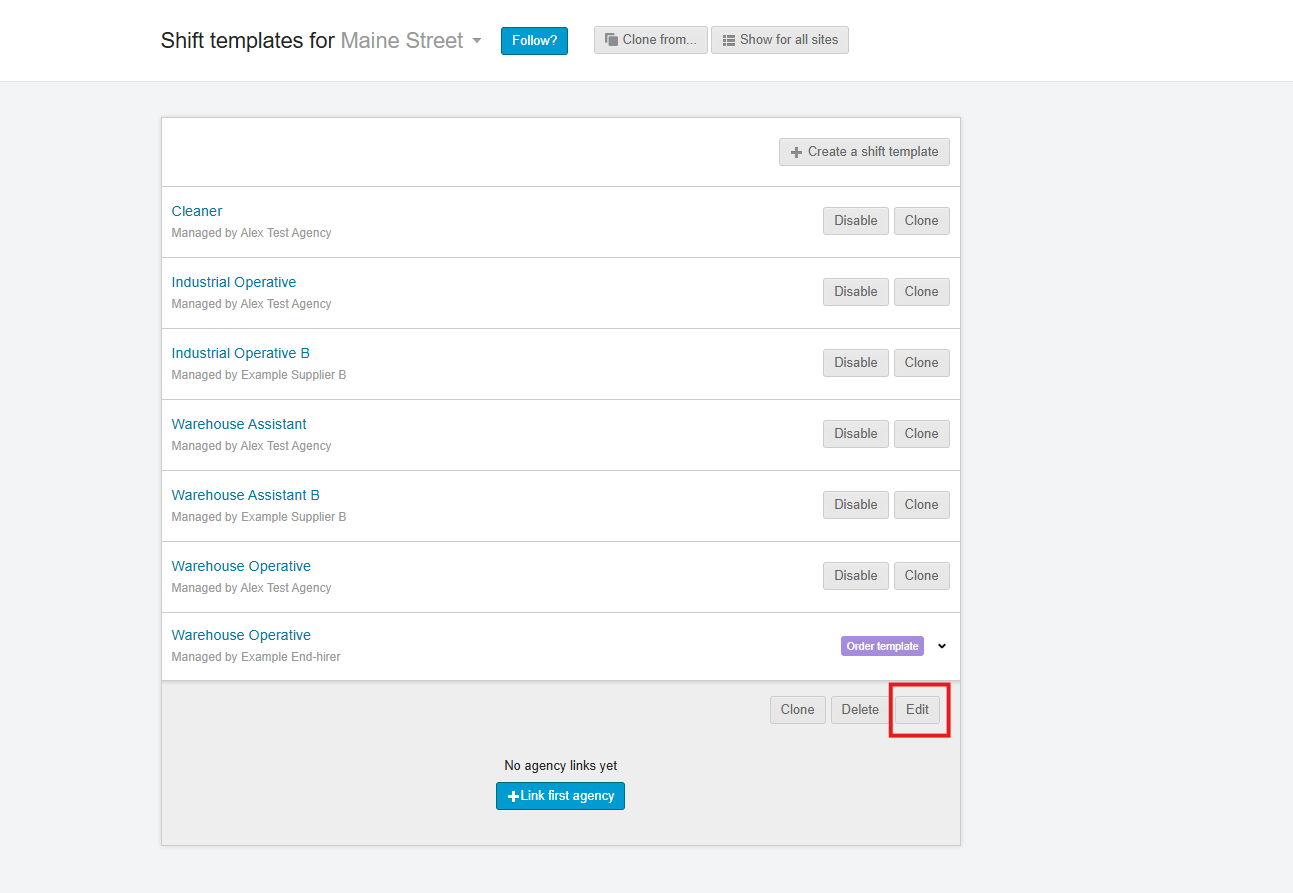
Enable “Time Approver”. Go to your Plan, Shift Templates screen for your selected site. Click on the order template and select the Edit button.
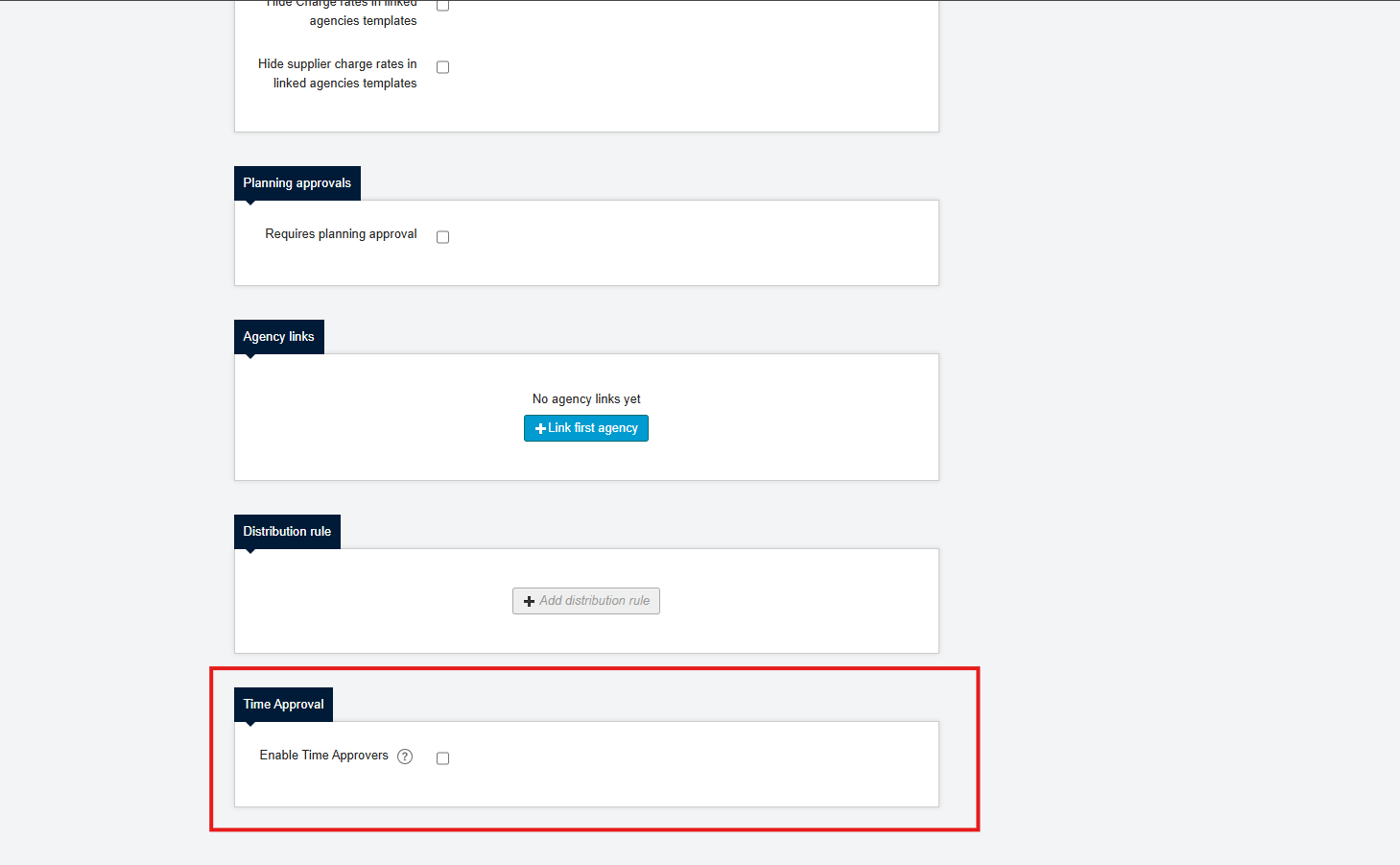
Scroll down to the Time Approval section and enable the Time Approver by checking the box.
-
Assign a Time Approver. Once enabled, a dropdown will appear where you can select users from your organization. Users will only gain time‑approval permissions on the sites they’re given access to.
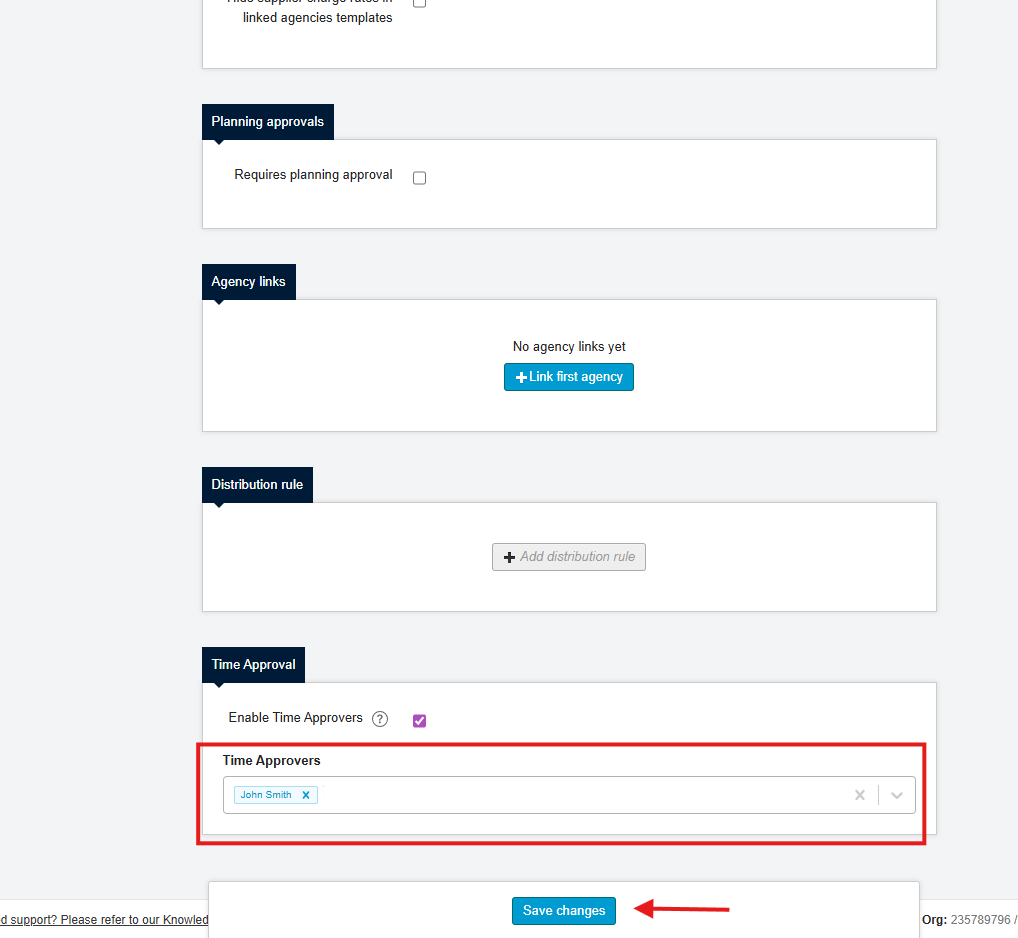
Once assigned, they will be able to access the time‑approval screens but not the full finance suite.
| Users only see shifts for the sites they are allowed to approve. Ensure the user has the correct site permissions before assigning them as a time approver. |
Navigating the time‑approval screens
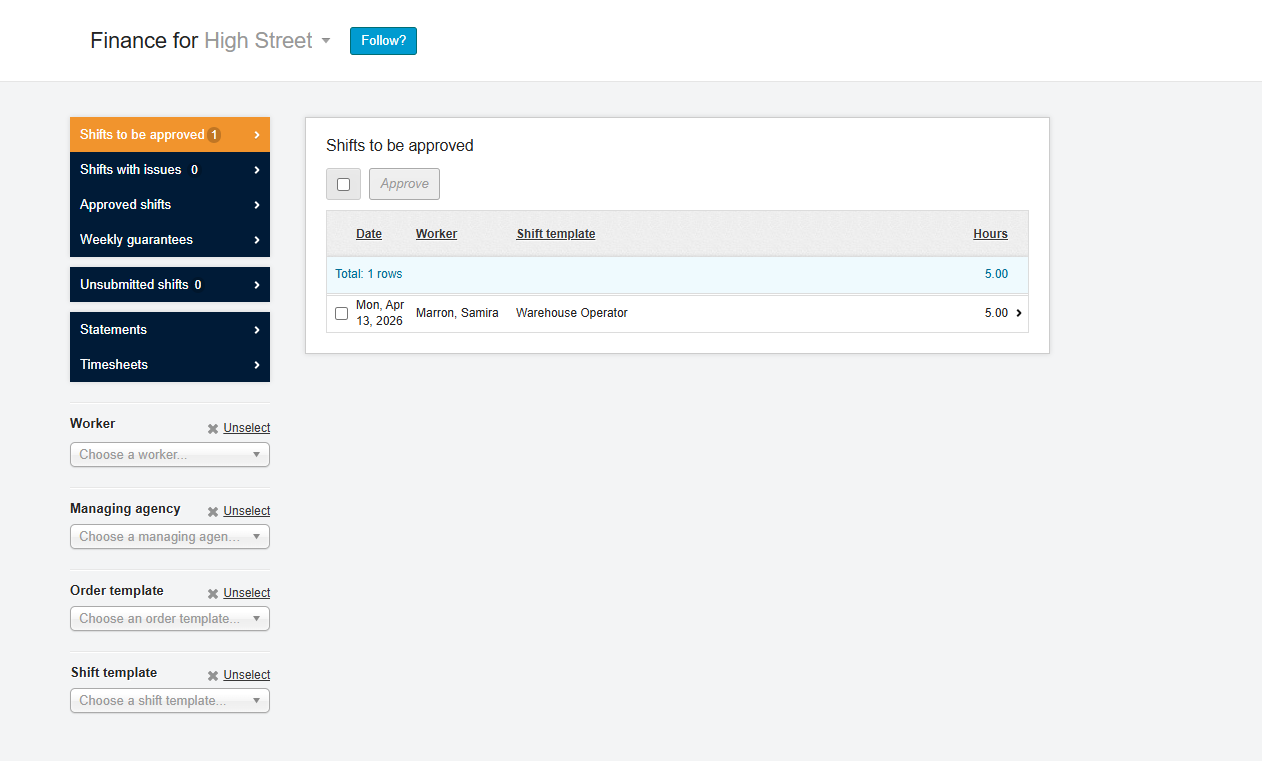
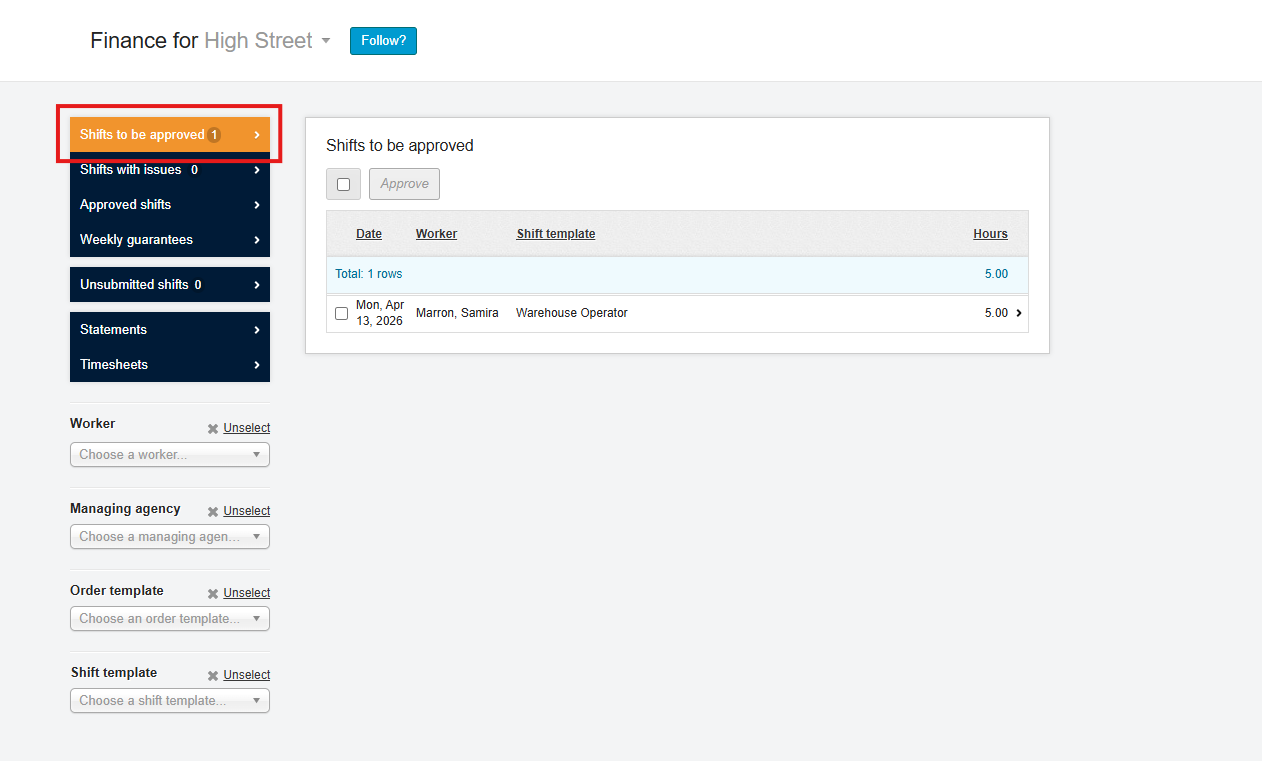
A Time Approver will see a streamlined set of screens listed below, under the Finance tab.
| Available screens | Description |
|---|---|
To be approved → Shifts |
List of submitted shifts requiring approval. Users can view shift details and hours, then approve or query the shift. |
Shifts with issues |
Shows shifts that have been queried and require action from the supplier or worker. |
Approved shifts |
Displays shifts that have been approved. |
Weekly guarantees |
Lists guarantee periods where workers’ guaranteed hours must be verified. |
Unsubmitted → Shifts |
Shows drafted but not yet submitted shifts that may need attention. |
Statements |
Displays shift statements summarizing approved hours. |
Timesheets |
Provides access to traditional timesheet approvals where applicable. |
The system hides all non‑shift‑related screens – such as Adjustments & Expenses, Self‑billing, Invoices, Invoice Expenses and Site Locks – when a user is only a Time Approver.
Differences from full finance users
-
Financial rates hidden: Charge rates, bill rates and salary information are not displayed on the time‑approval screens. Time approvers approve hours only; the cost and revenue values remain confidential.
-
No invoice actions: Because invoice creation is outside their remit, time approvers cannot generate invoices, self‑billing documents or view invoice expenses.
-
Simplified filters: Order‑template and shift‑template filters are removed from the time‑approval views so that users focus on actual shifts and timesheets.
Approving shifts as a Time Approver
-
Go to Finance → Shifts to be approved A list of submitted shifts awaiting approval will appear.
-
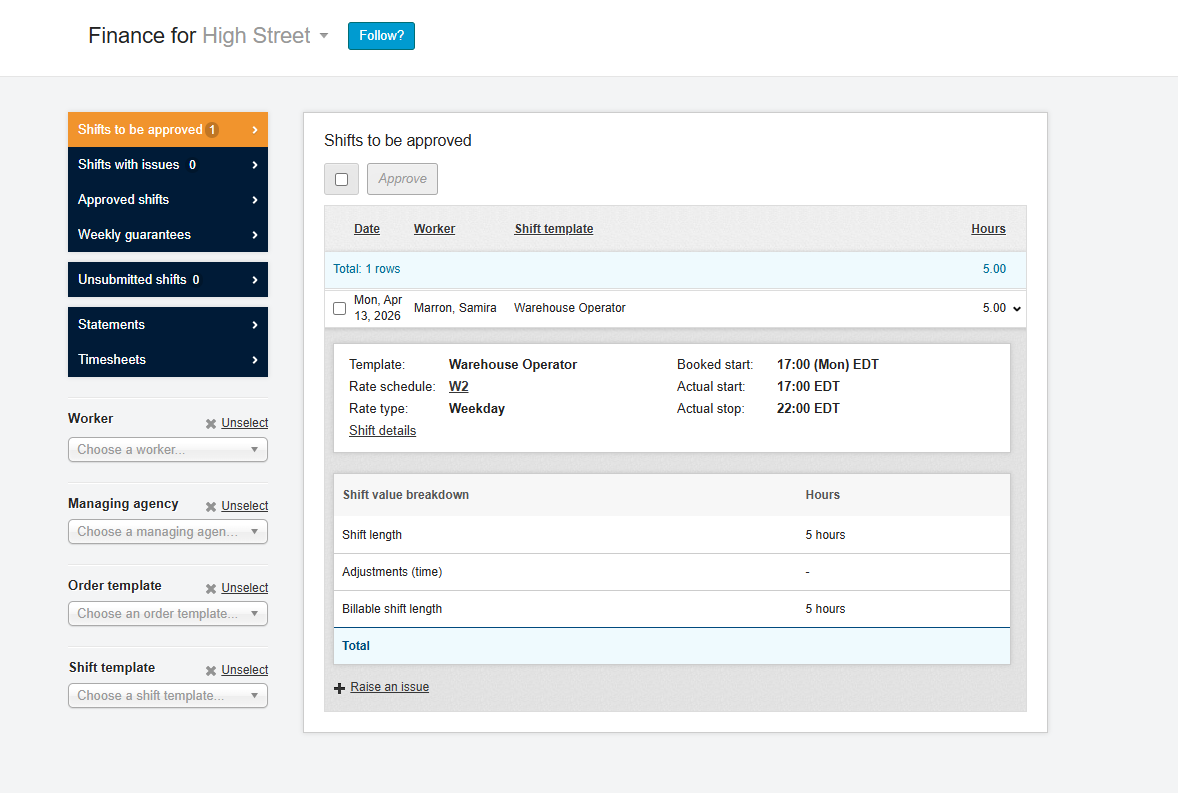
Select a shift. Click a shift to view its details. You can review the worker’s start and stop times as well as breaks.
-
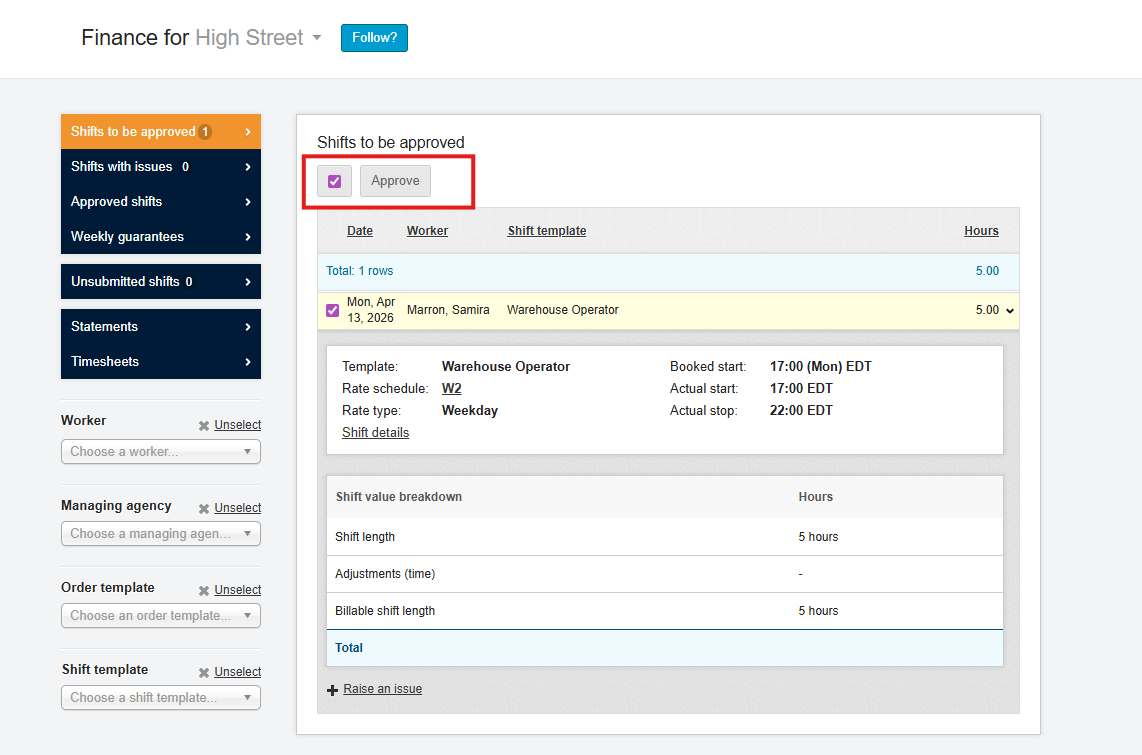
Review and verify hours. Compare the reported hours with the actual hours worked. If everything is correct, click Approve.
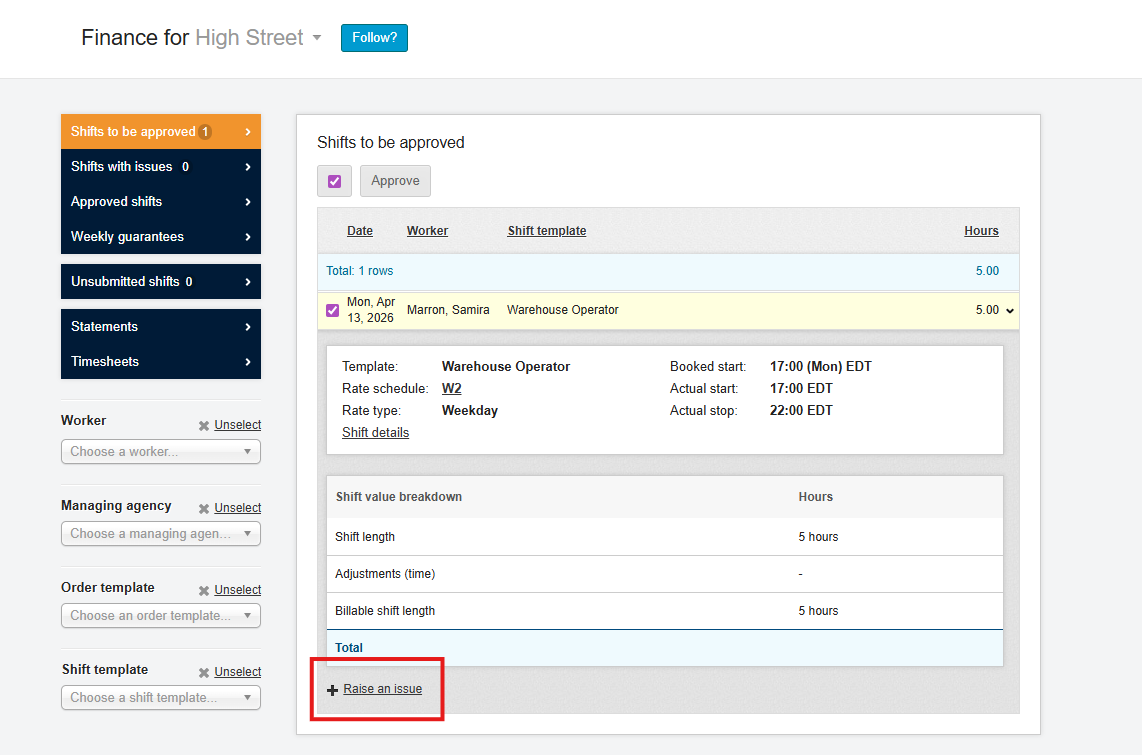
If there is an issue (incorrect hours or missing information), click Raise an issue to return the shift to the supplier/worker for clarification.
You can monitor your past actions via Shifts with Issues, Approved shifts or Statements. This helps ensure all shifts have been processed and provides an audit trail.
Limitations and restrictions
-
Limited to hours approval: Time approvers cannot create or manage shifts. They only approve hours on shifts that have already been posted by planners.
-
No access to financial adjustments: They cannot raise manual adjustments, expenses or perform historical adjustments because those functions relate to pay and bill values.
-
Cannot view sensitive rates: Charge and bill rates, invoice totals and other financial values are hidden on all screens.
-
Site‑specific access: A user’s access is controlled by site permissions. If they do not have access to a site, they will not see shifts for that site.
Frequently asked questions
What happens if a user needs both time‑approval and financial permissions? Assign both the Time Approver role and a finance role. The user will then see the full finance suite (including invoices and adjustments) alongside time approvals. The role separation is only enforced when a user is solely a Time Approver.
Can Time Approvers create or edit shifts? No. Time Approvers can only review and approve or query shifts that have been submitted by planners or suppliers. They cannot create or modify shifts.
How do I remove Time Approver permissions? Go to the user’s profile and remove the Time Approver role. Their interface will revert to their remaining roles (e.g., planner or standard user).