Shifts Requests Overview
Shift Requests Tab
| The Shift Request feature is exclusive to Order Templates. If you would like this feature to be enabled, please contact your Customer Operations Specialist. |
To access your shift requests, navigate to Plan > Shift Requests. This dashboard provides a comprehensive overview of all existing requests and their current progress.
| To maintain privacy, only the specified Shift/Operations Managers and users with Finance or Admin roles can view these shifts. Any other users without these permissions, these shifts and templates won’t appear in their filters, Post Shifts screen, or when creating new shifts. |
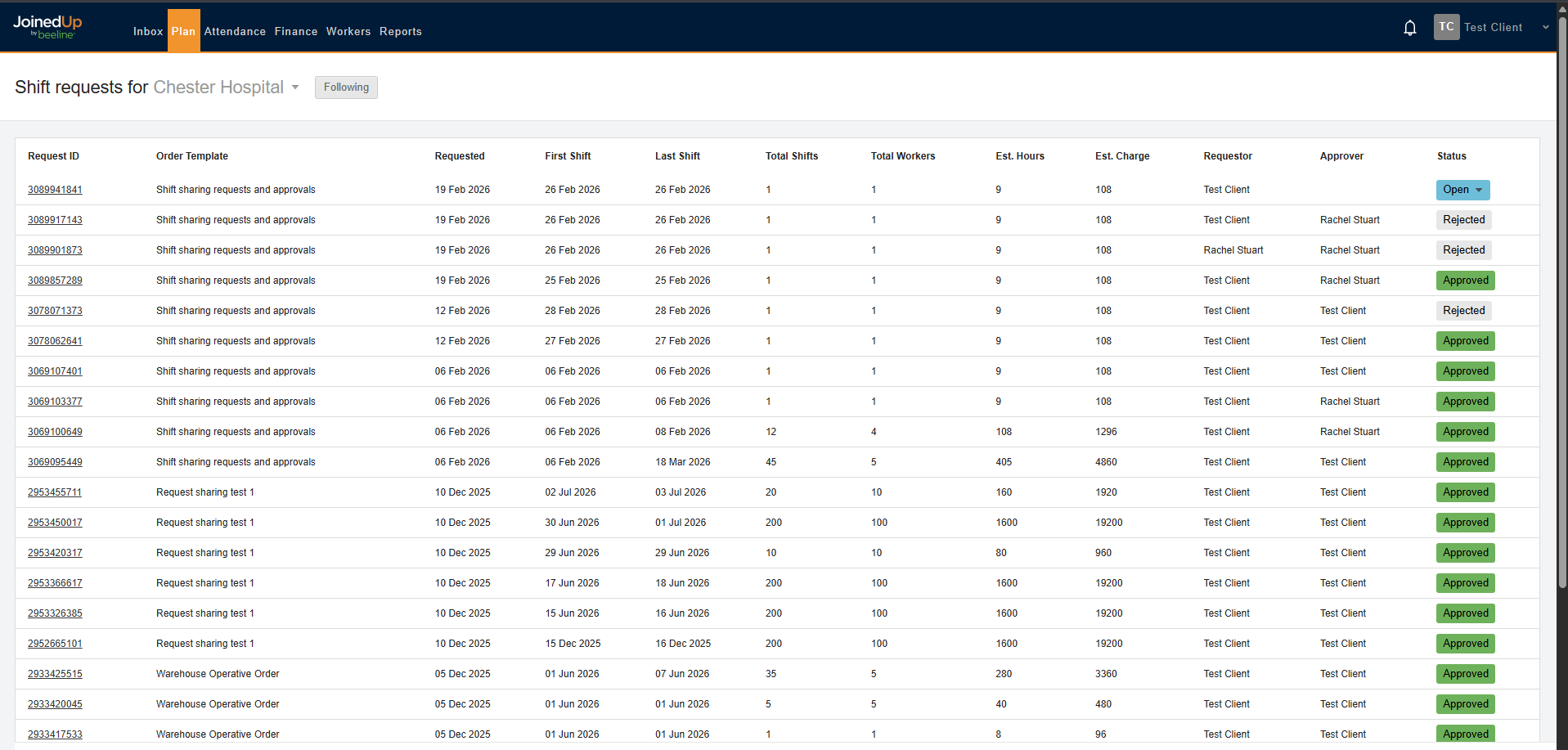
| The ability to create shift requests is restricted to Admins, Shift Managers, and Operations Managers. |
Configuring Shift and Operations Managers in Templates
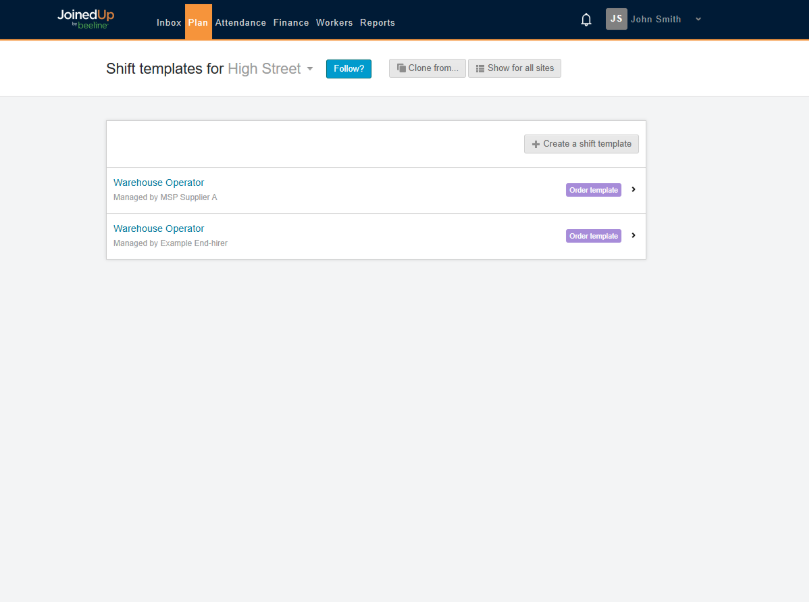
Navigate to your Plan, Shift Templates screen.
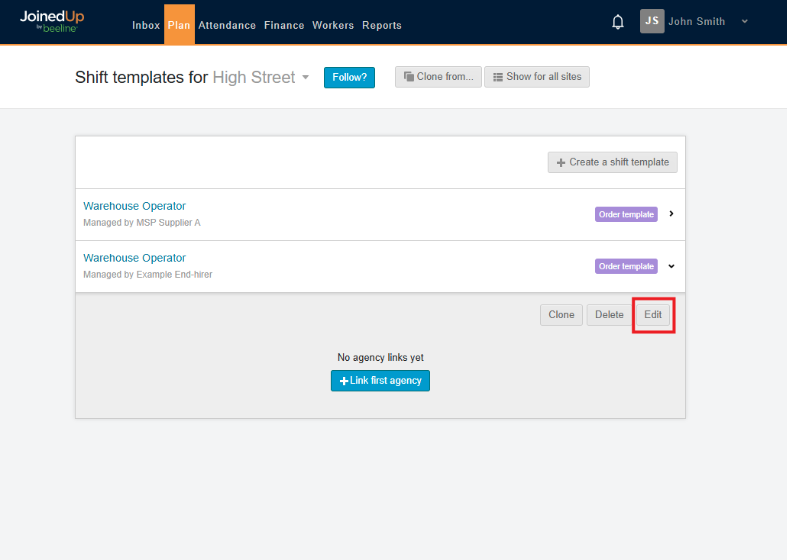
Select an Order Template and click Edit.
Below, you’ll find the newly added 'Requires planning approval' setting.
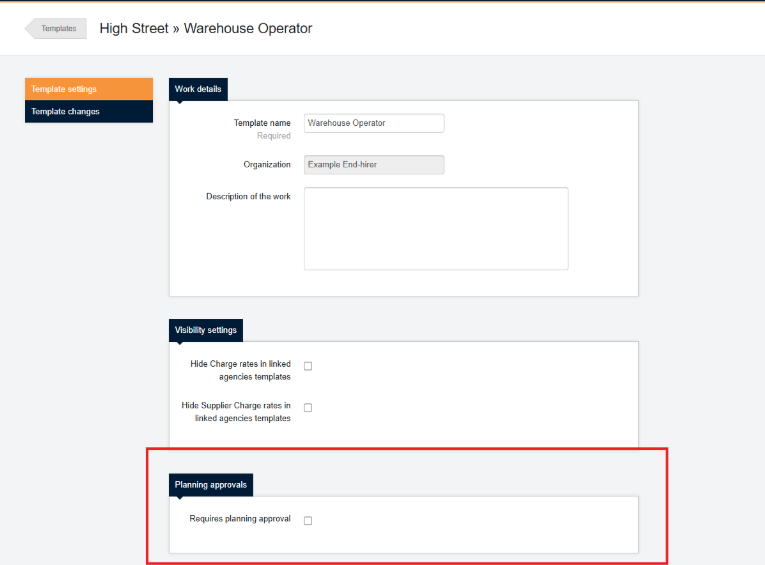
Check the box to enable. You can then select Shift Managers or Operations Managers from the dropdown list of your organization’s users.
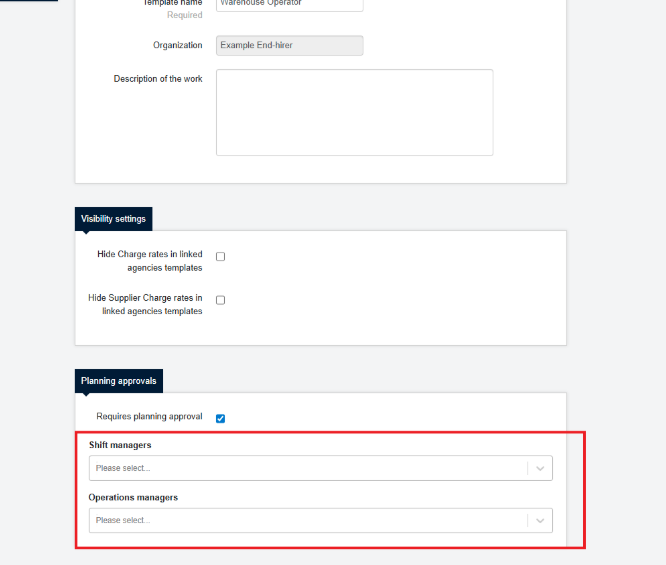
| You can add as many Shift and Operations managers as you need. |
Once you have selected your users, click Save changes.
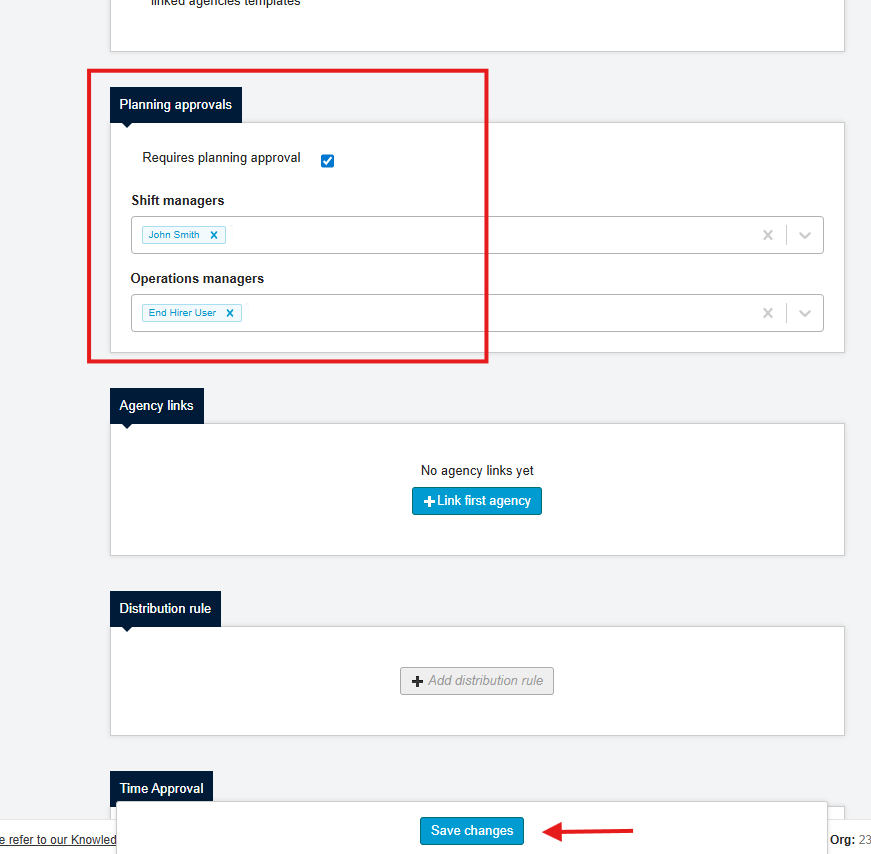
Viewing/Editing a request
To view the specific details of a request, simply click on the Request ID link:
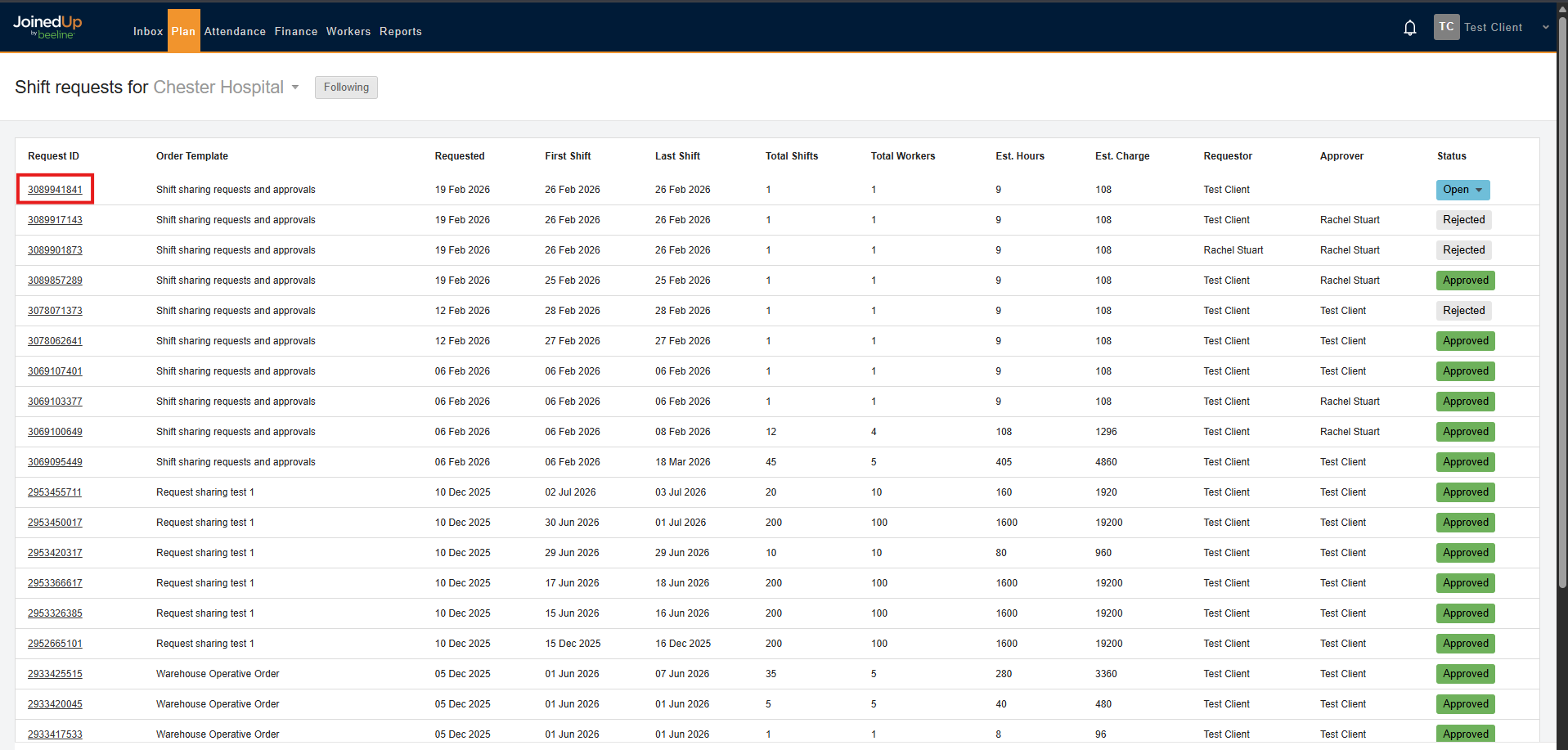
From this main view, you can also quickly update the status of a request without opening it.
Once you select a Request ID, a new window will open displaying all information associated with that specific request.
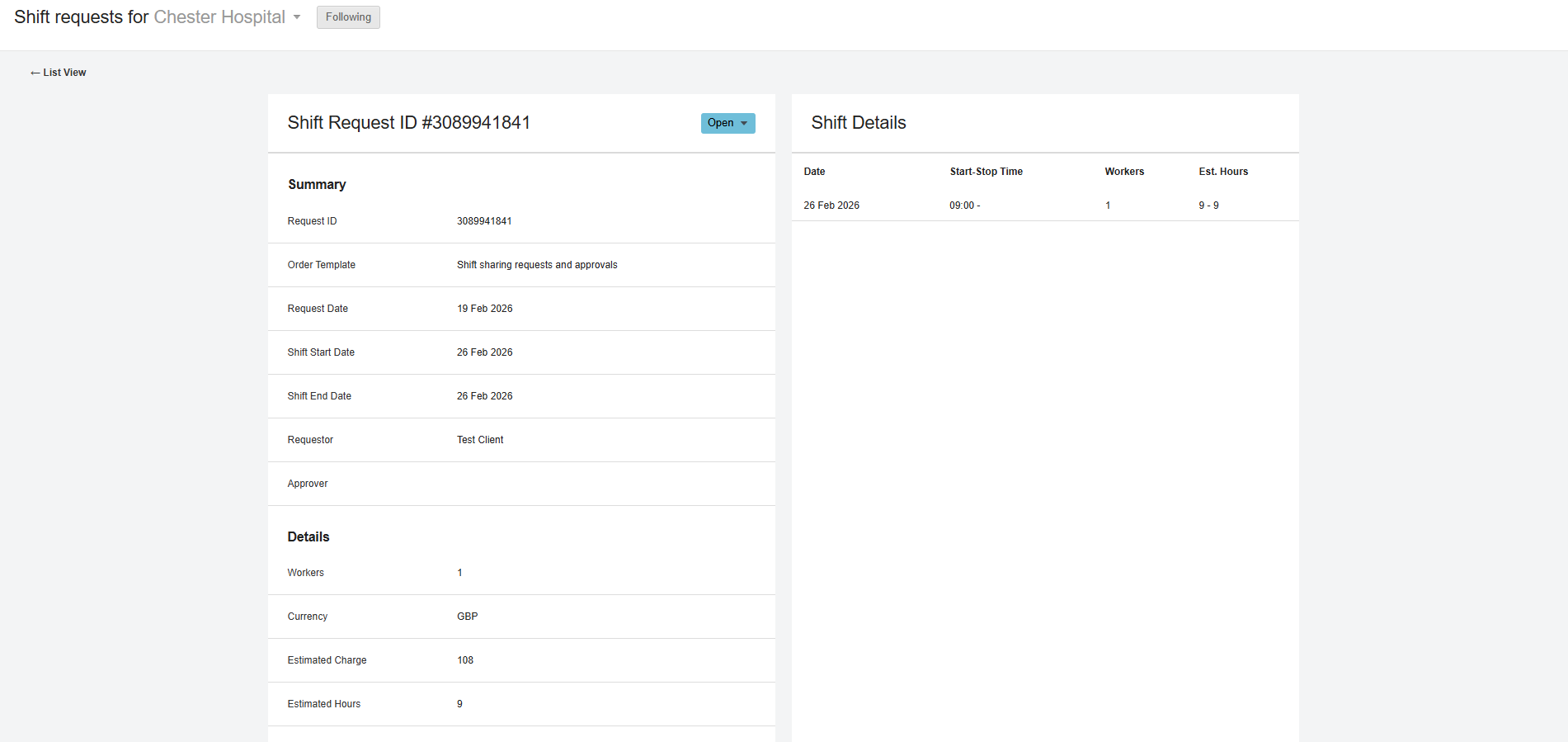
In this detailed view, you can review the request specifics or modify its status as needed.
See more: