Worker Compliance
The Compliance feature provides agency users with an additional layer of worker compliance verification. This feature can be enabled for Agency organisations and applies only to the agency’s direct workers.
| Please reach out to your COS to enable this feature. |
Accessing the Compliance Feature
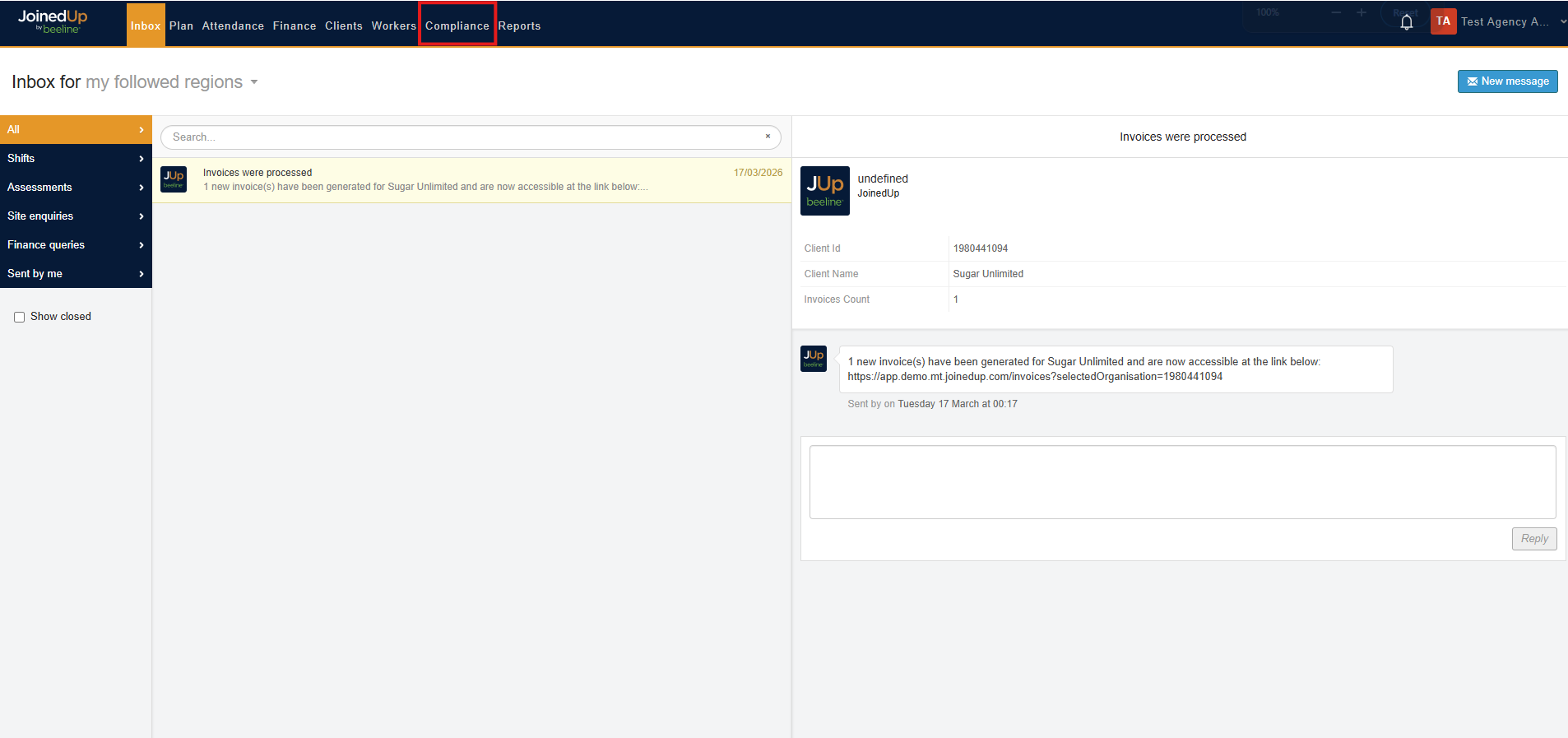
Once this feature is enabled for your organisation, an additional tab named Compliance will be available when you log in.
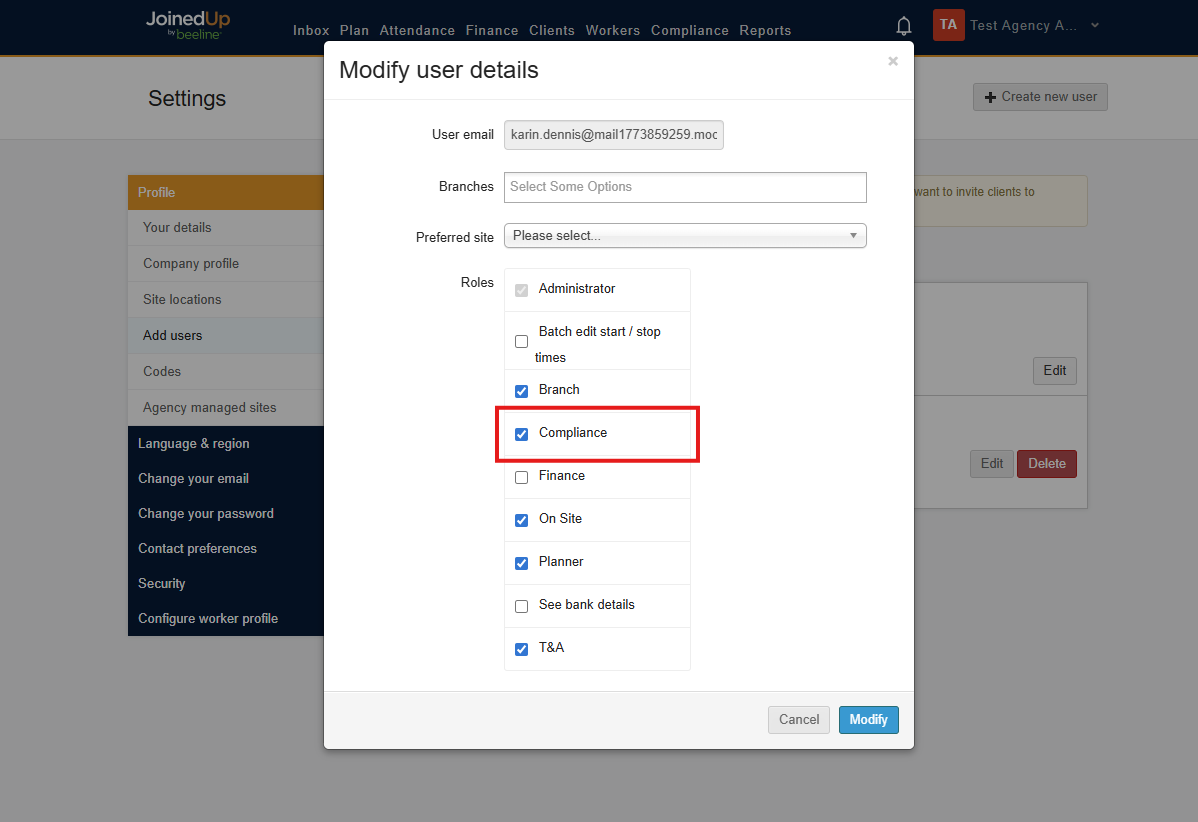
| The Compliance role must be assigned to use this feature. This can be added by an Admin user in your organisation via the Add Users tab in Settings. |
Worker Compliance
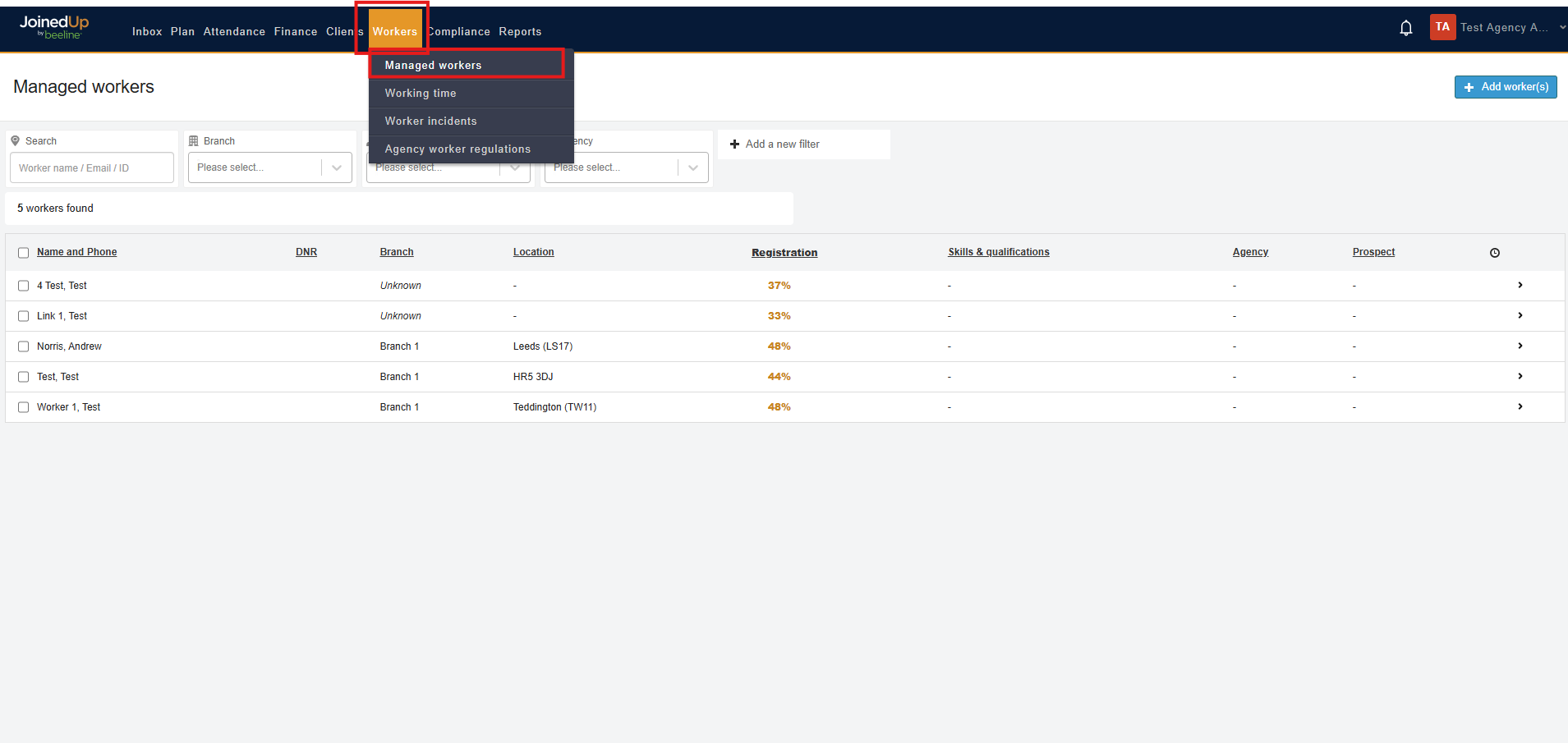
To use this feature, go to the Managed Workers screen and search for the worker that needs compliance validation.
Once a worker without a valid compliance record is selected, the compliance status is indicated in the lower left part of their profile, alongside the registration completion.
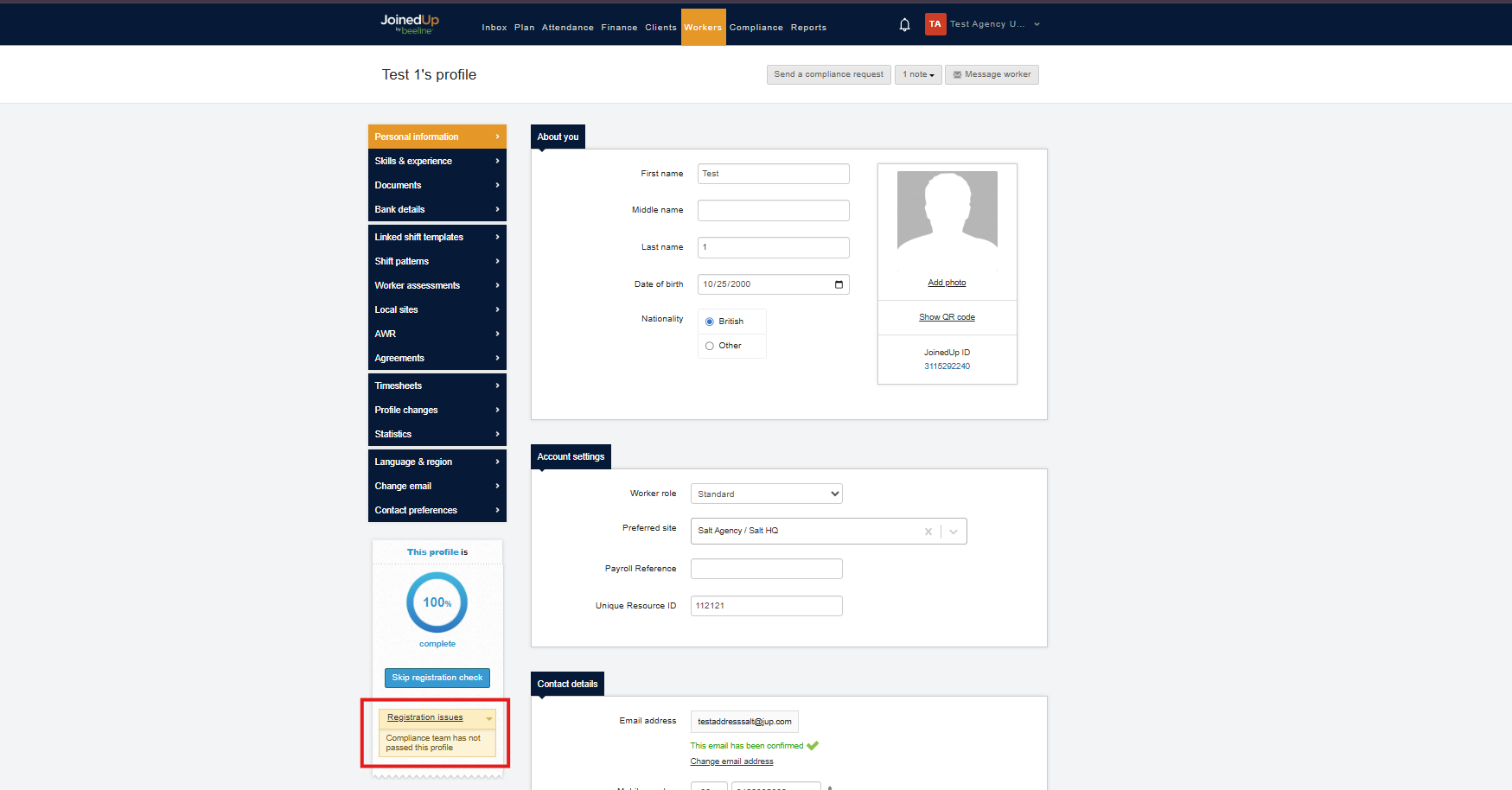
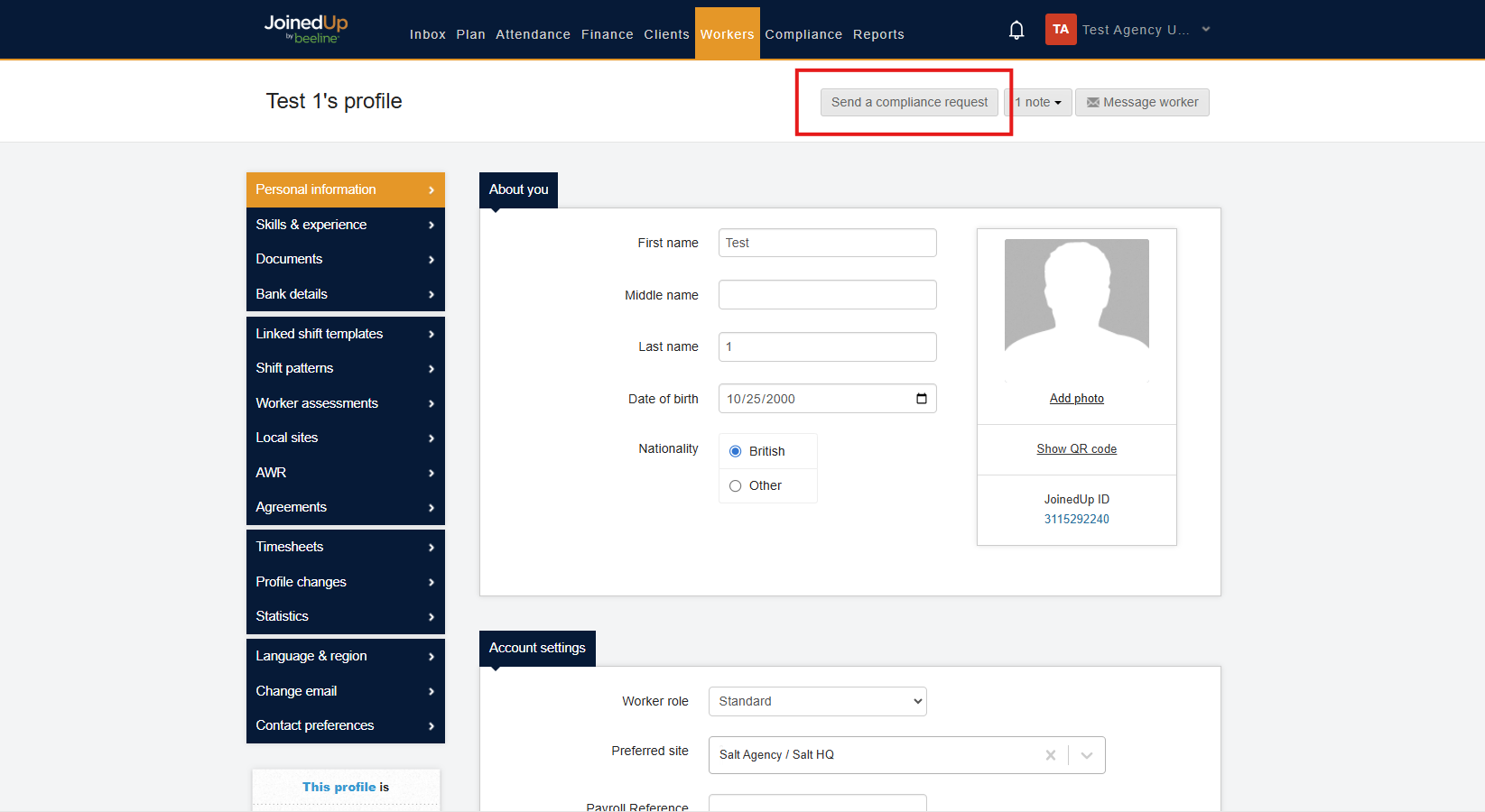
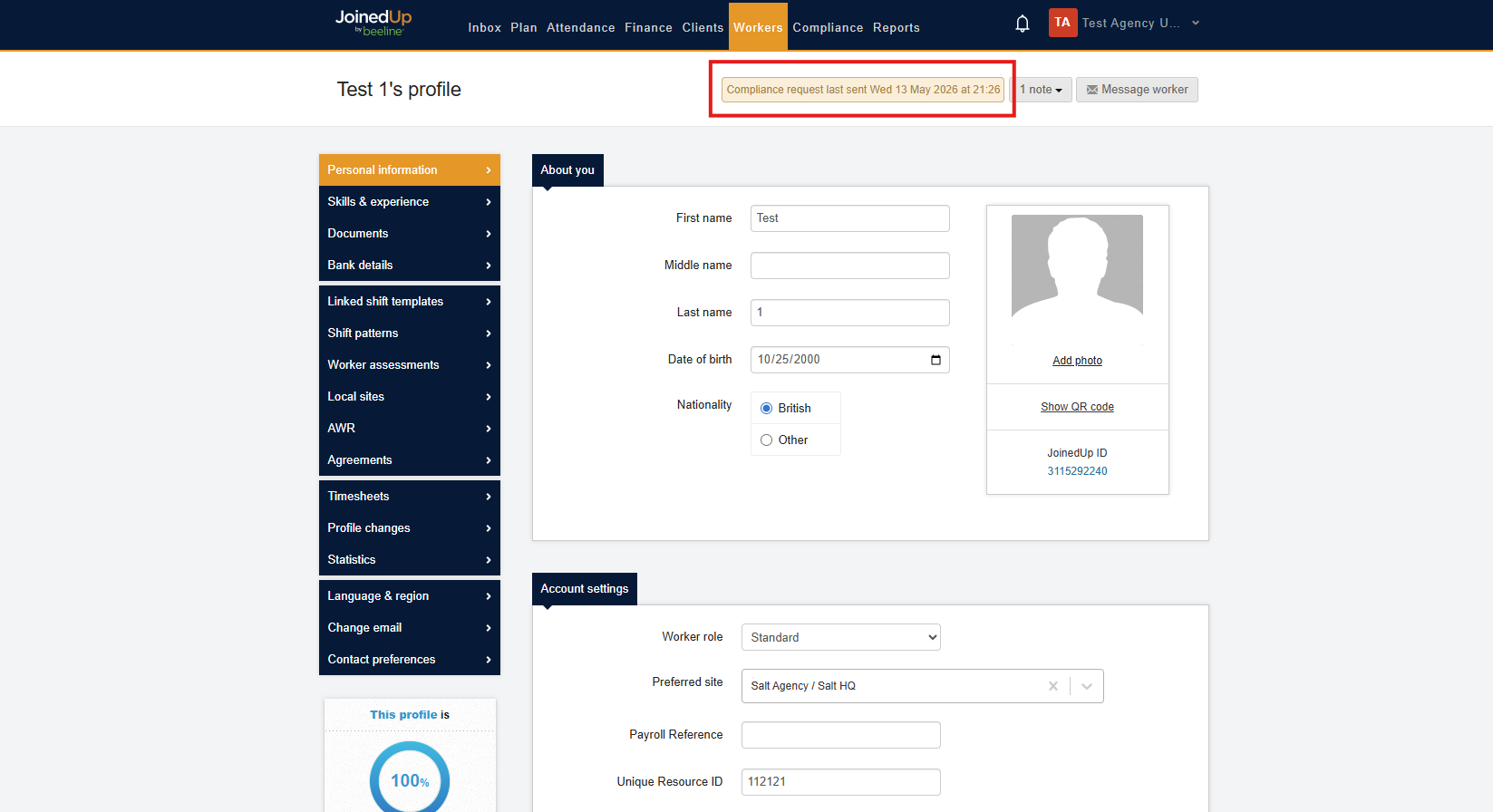
To pass or fail the worker, select Compliance Request at the top of the profile.
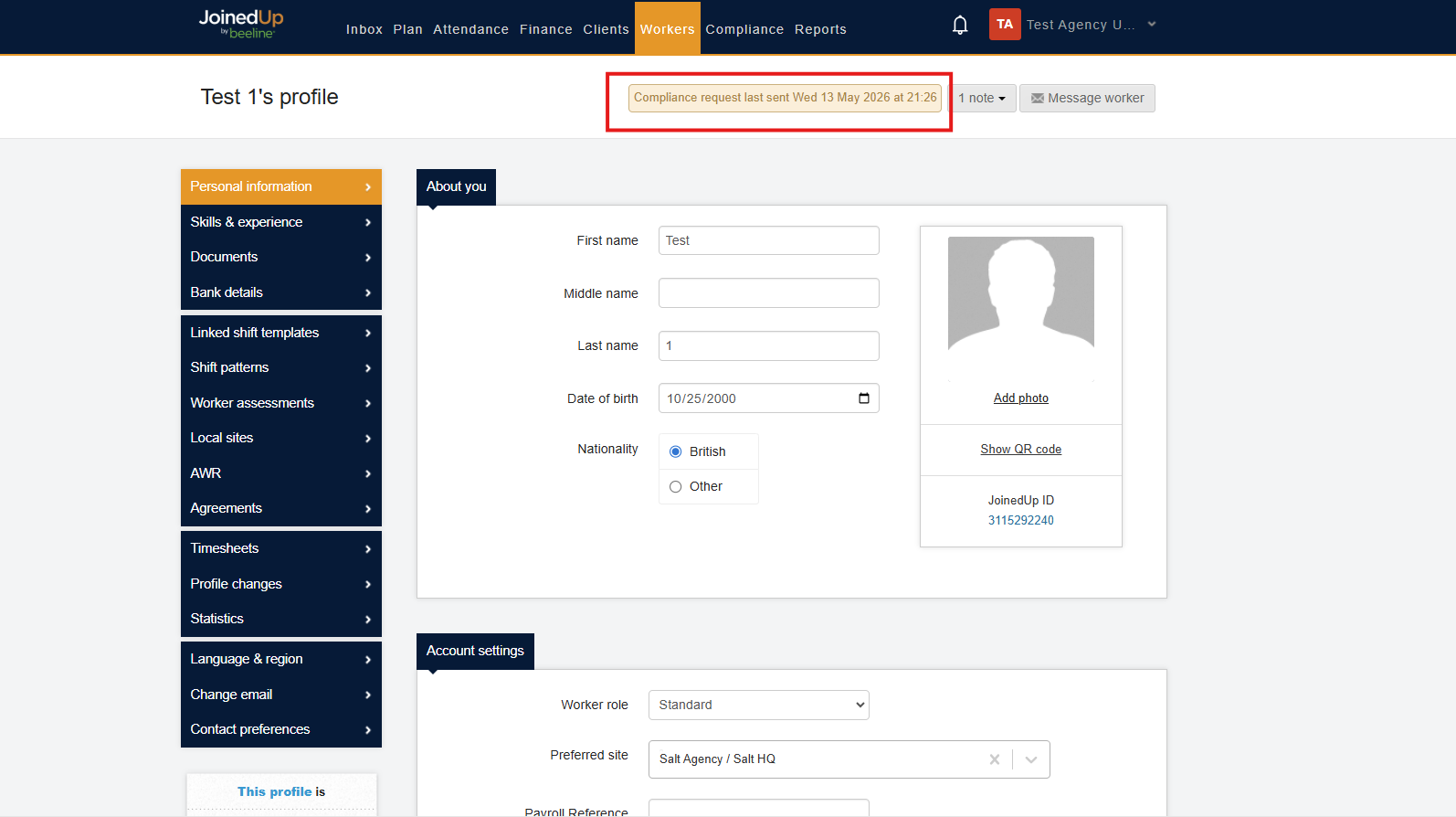
The profile will then display the date when the compliance request was sent.
Managing Compliance in the Compliance Tab
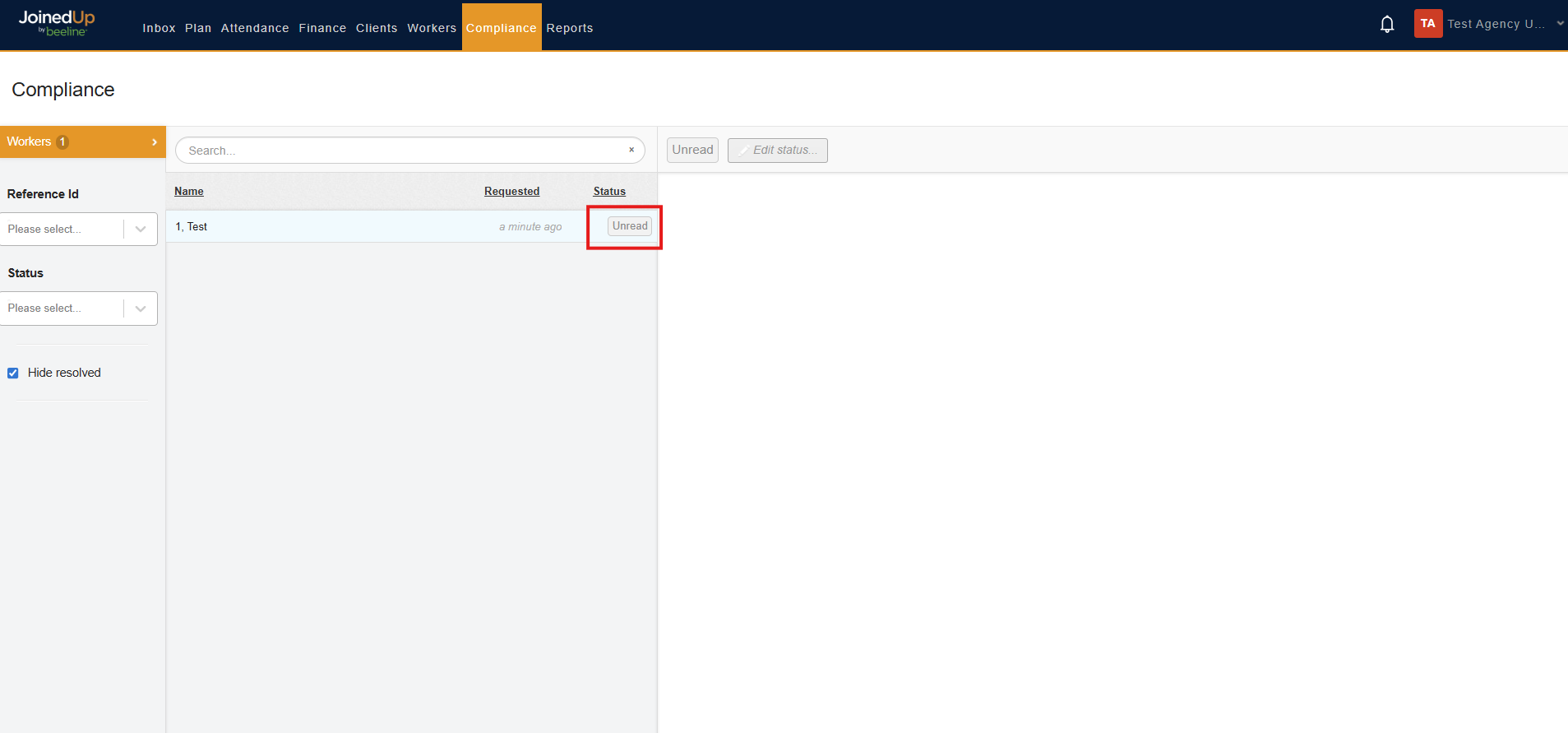
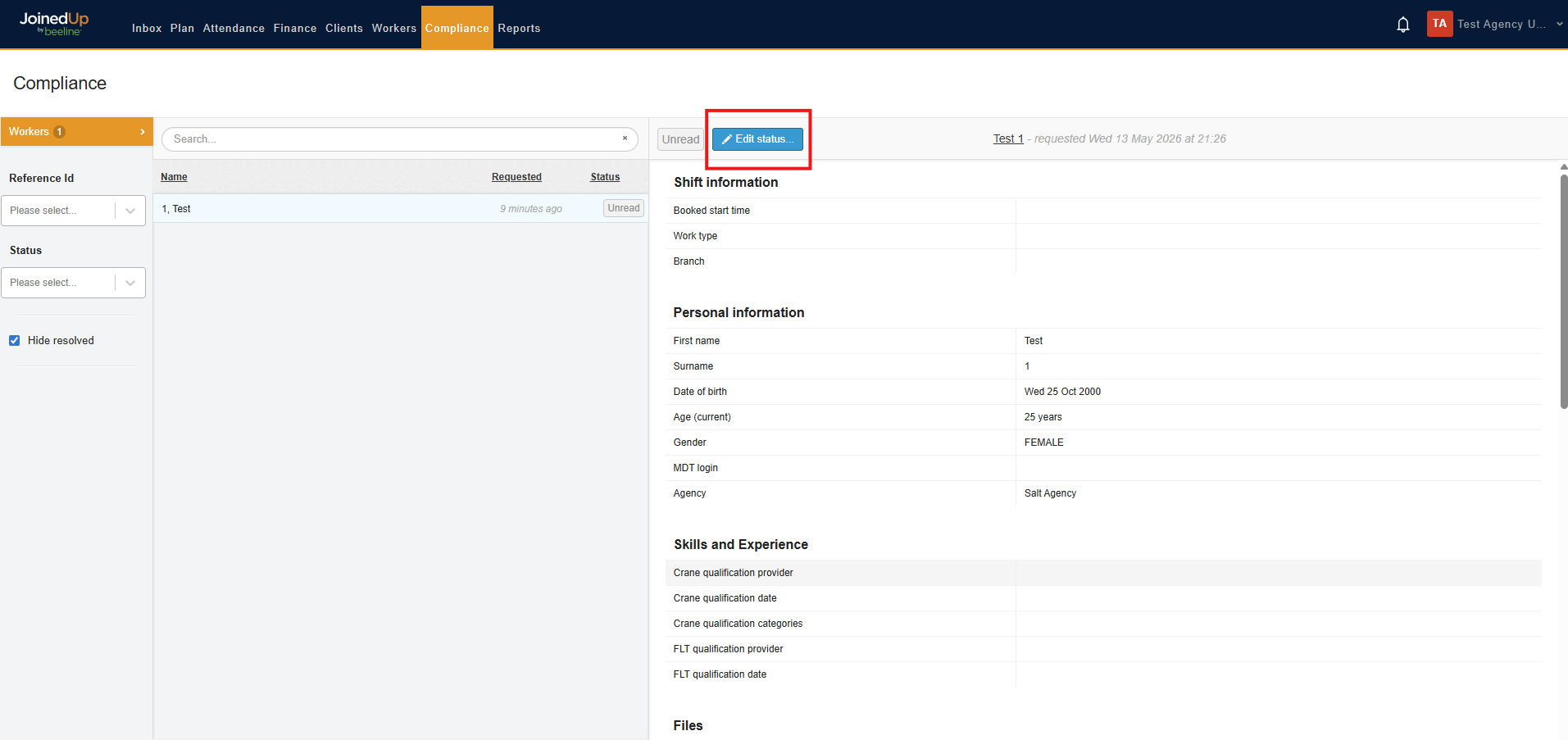
Go to the Compliance tab to manage compliance actions. Workers that require a compliance decision will have an Unread status.
Upon selecting a worker, the status changes to In Progress and the worker’s details are displayed, including uploaded and unuploaded documents.
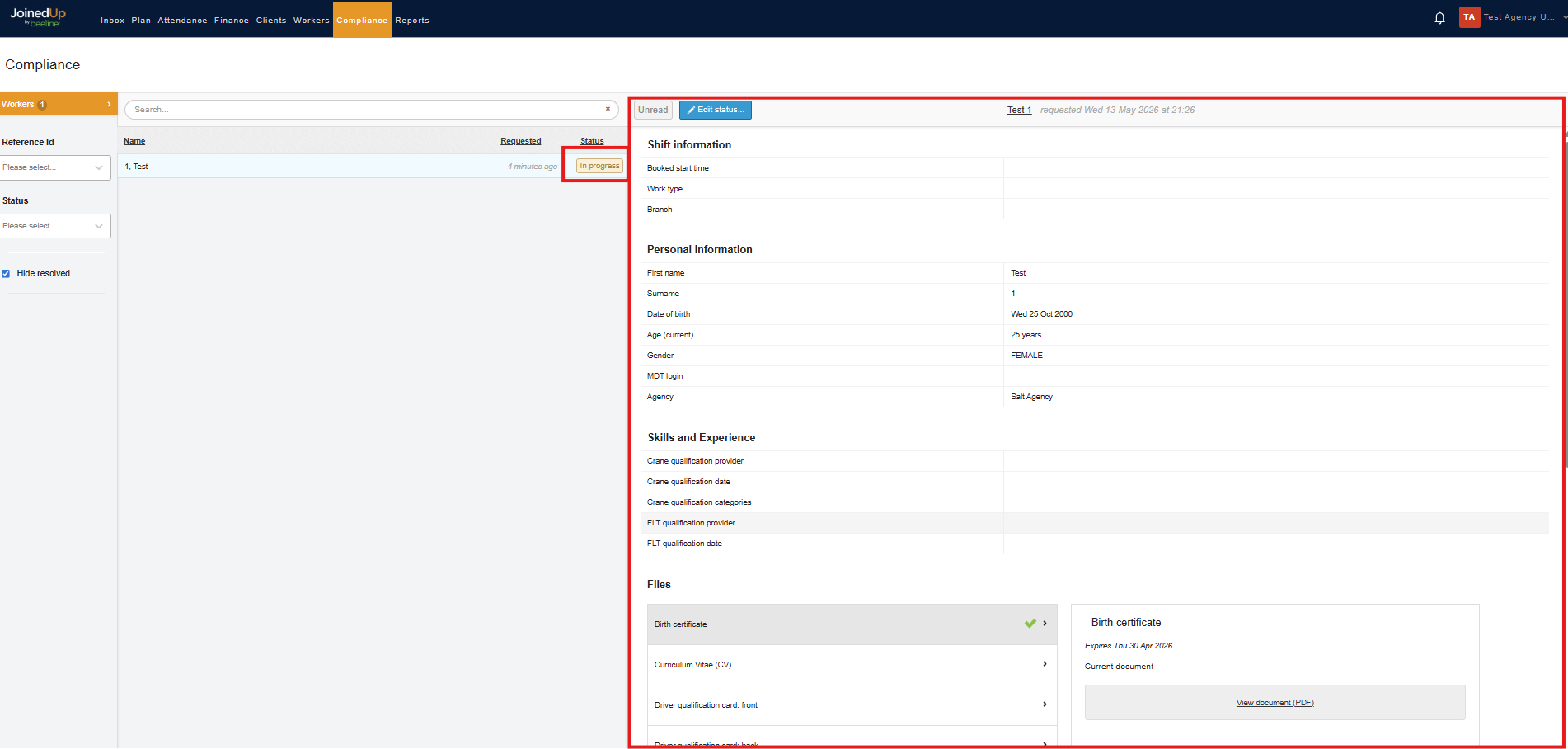
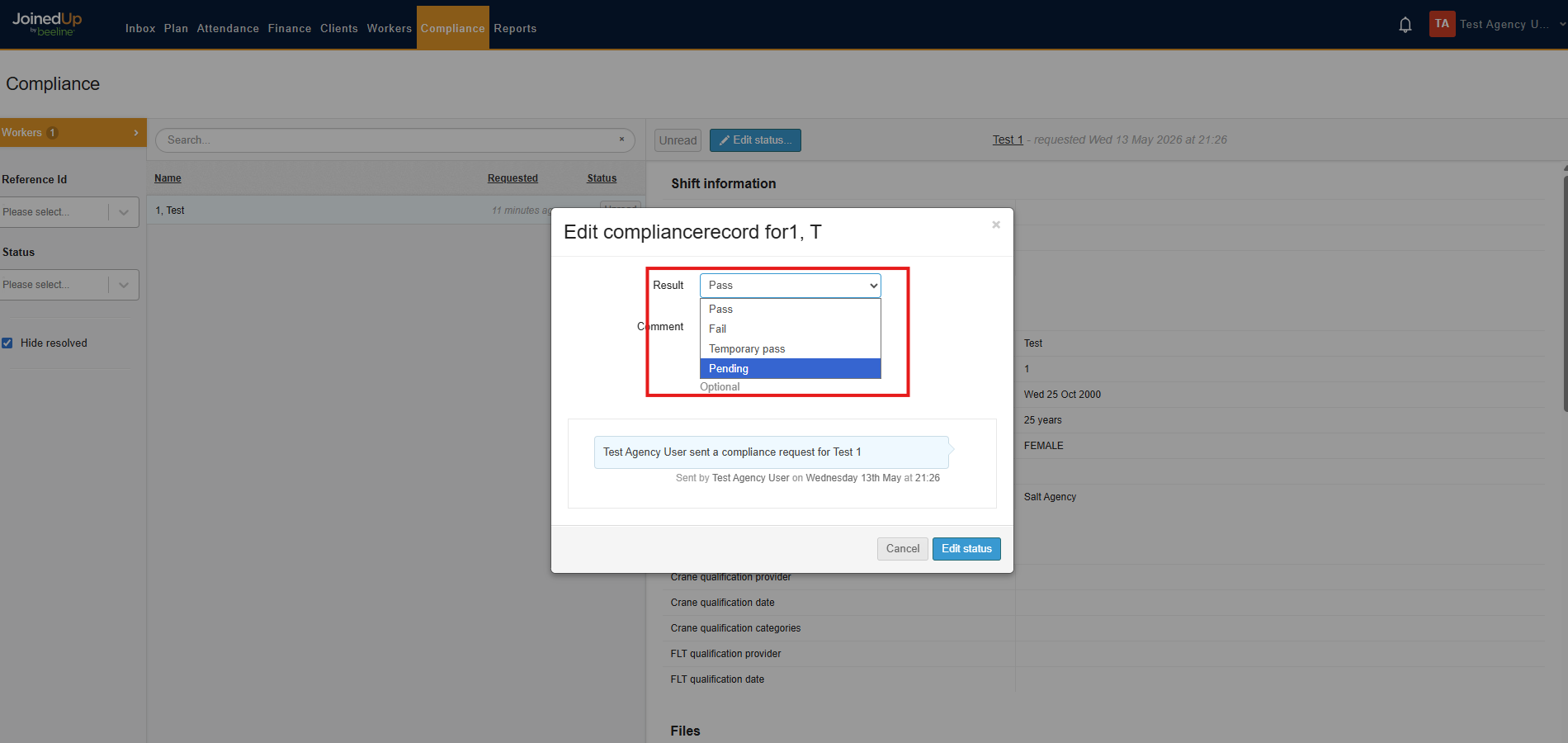
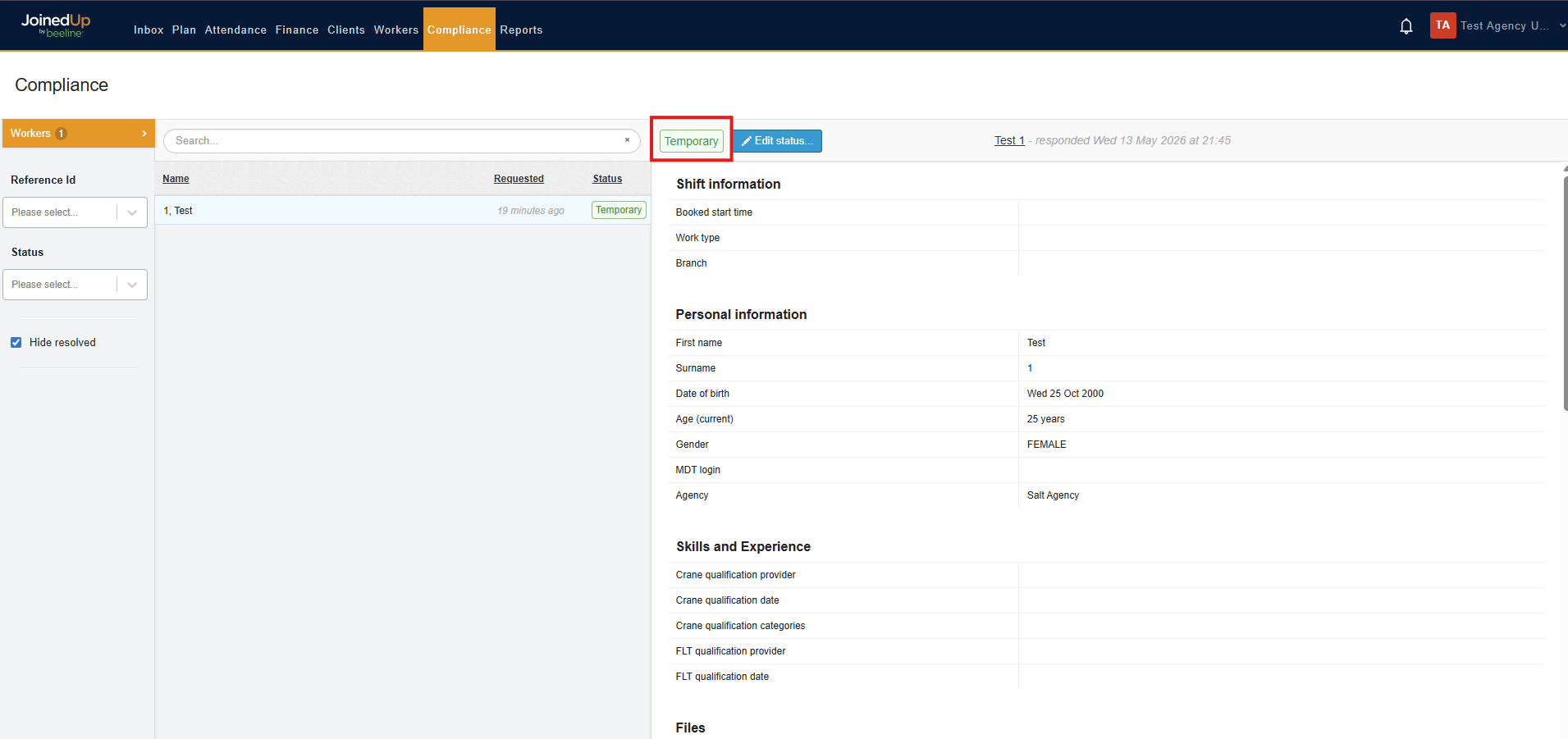
Once you have reviewed the details, you can set the compliance status to Pass, Fail, Temporary Pass, or Pending by selecting Edit Status.
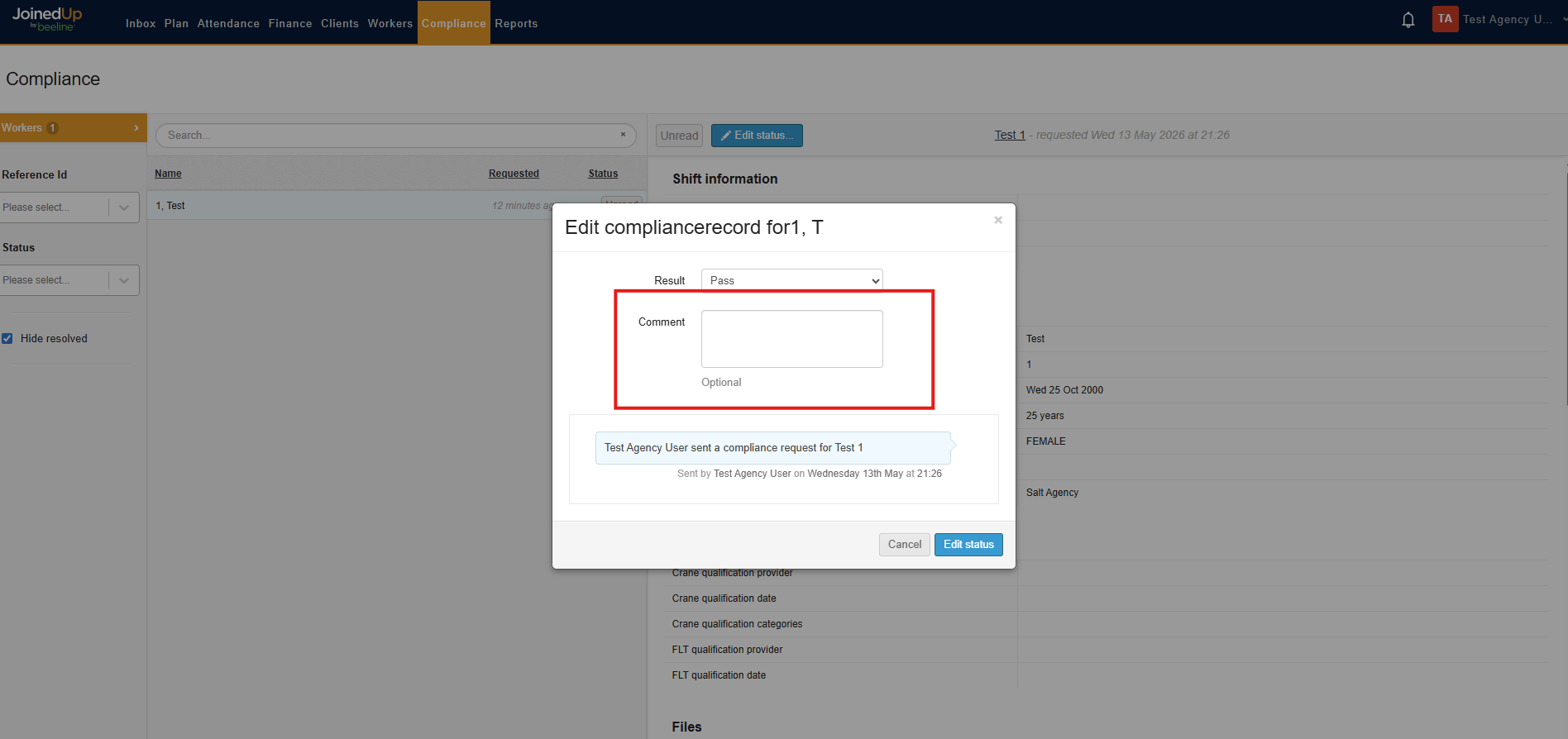
You can also add a comment if necessary.
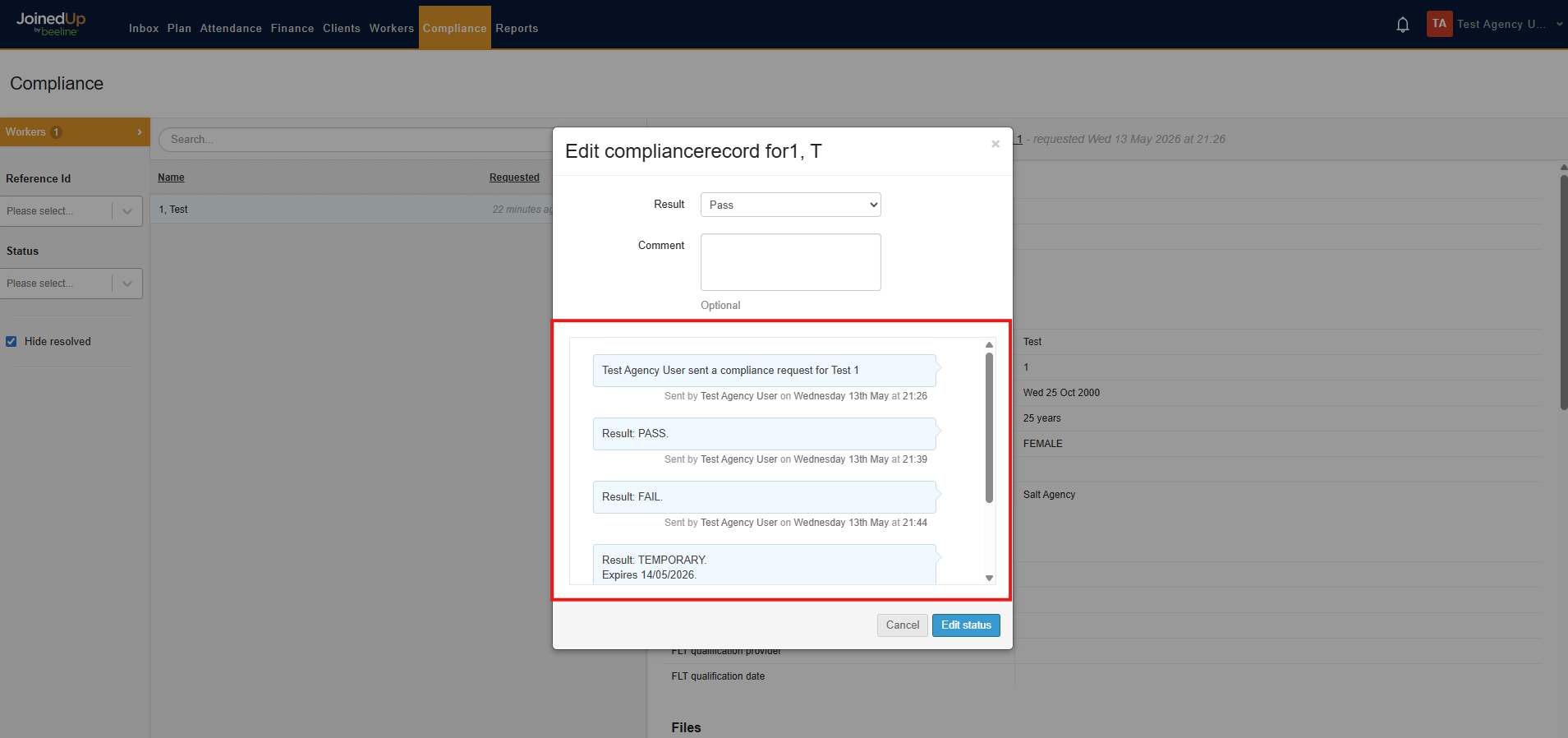
A track record of all compliance validations is also visible in the panel below.
Compliance Status Reference
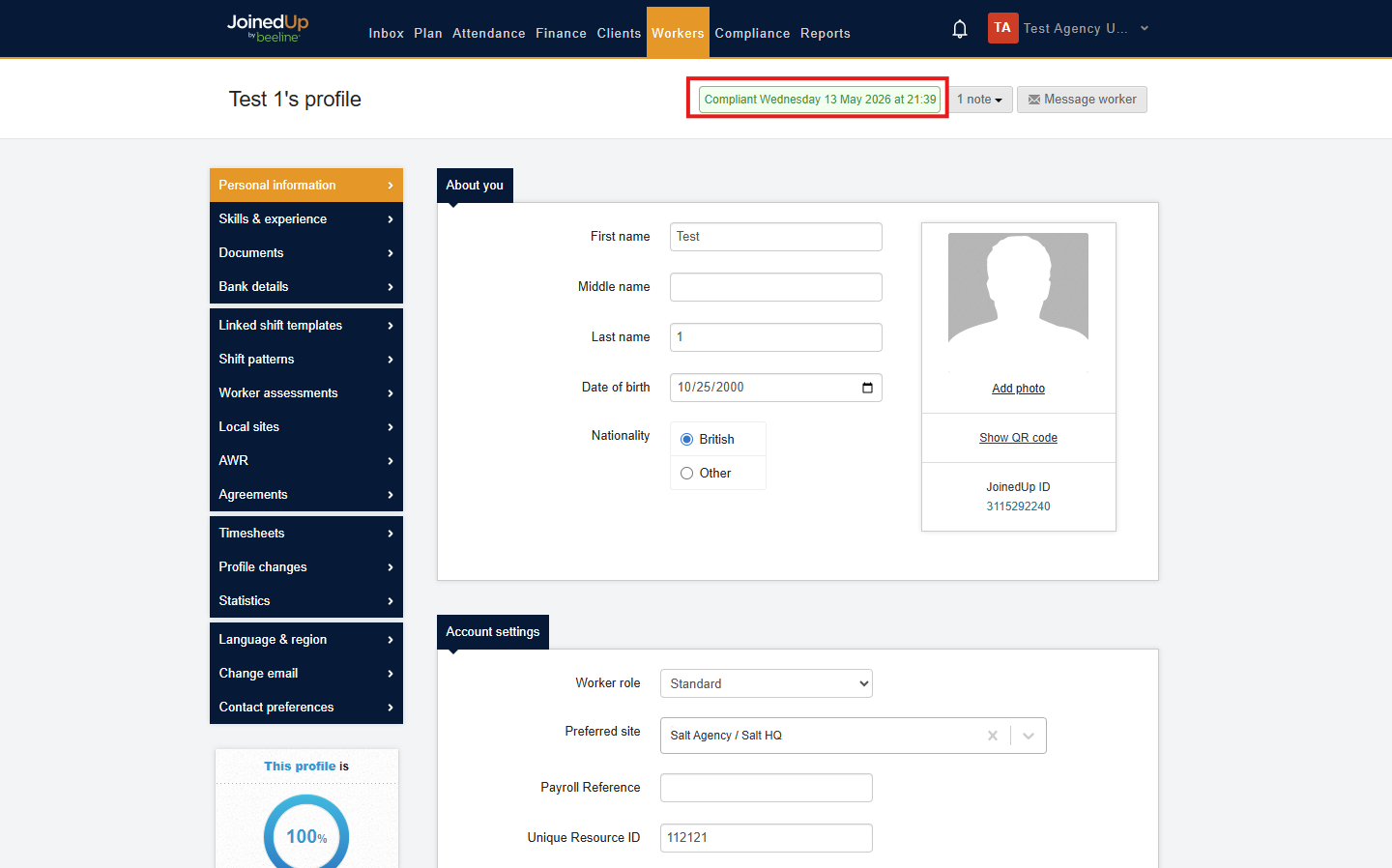
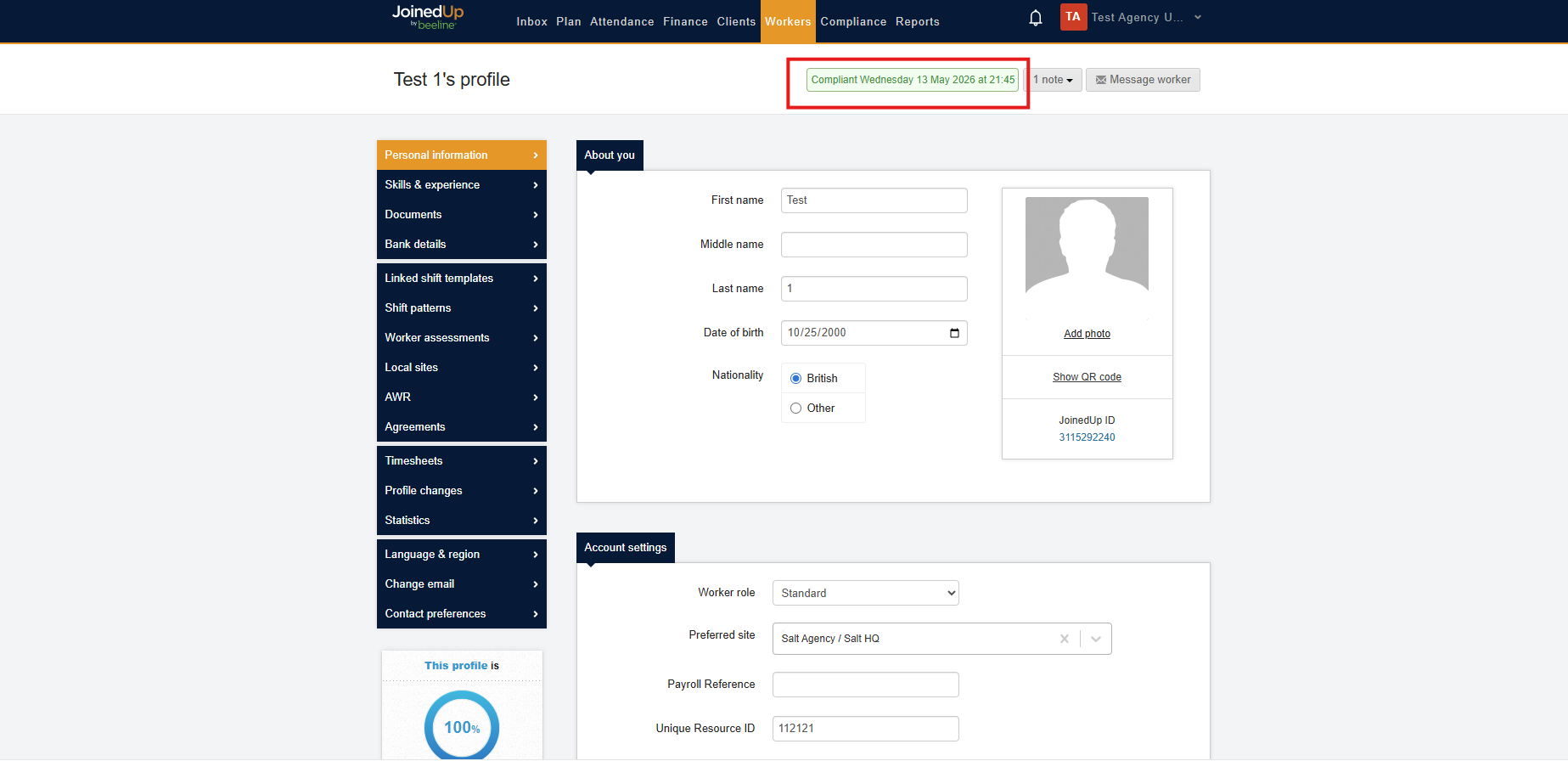
Status: Pass
On the worker’s profile, the worker will show as Compliant along with the date the status was set.
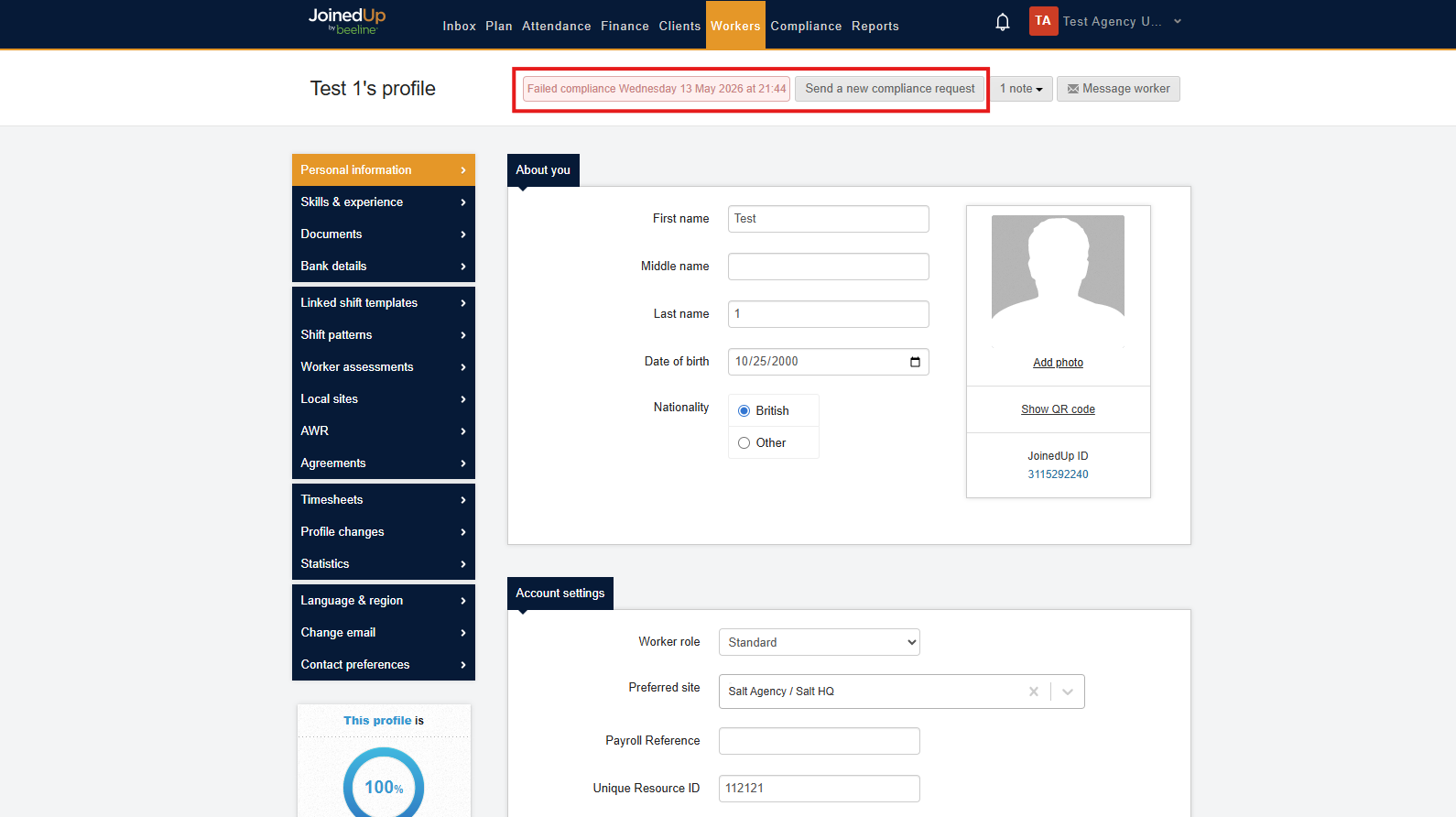
Status: Fail
On the worker’s profile, the Failed status is shown along with the date. The Send a new compliance request button will also be visible.
Compliance Implications
The following table describes how compliance status affects a worker’s ability to be allocated to shifts.
| Compliance Status | Allocation |
|---|---|
No compliance request sent |
Cannot allocate — outstanding registration issue. |
Compliance request sent, not passed / Pending |
Cannot allocate — outstanding registration issue. |
Failed |
Cannot allocate — outstanding registration issue. |
Skipped registration checks |
Can allocate — validation is bypassed. |