Manual CPS (Custom Rate Override)
A Manual CPS (Charge Pay Schedule) allows you to link a worker to a custom Charge and Pay Rate under a defined worker type.
This eliminates the need to create a separate shift template for a small number of workers who require a different rate but share the same job title.
Creating a Manual CPS (Charge Pay Schedule)
To Create a Manual CPS, navigate to Plan then Select Shift Templates.
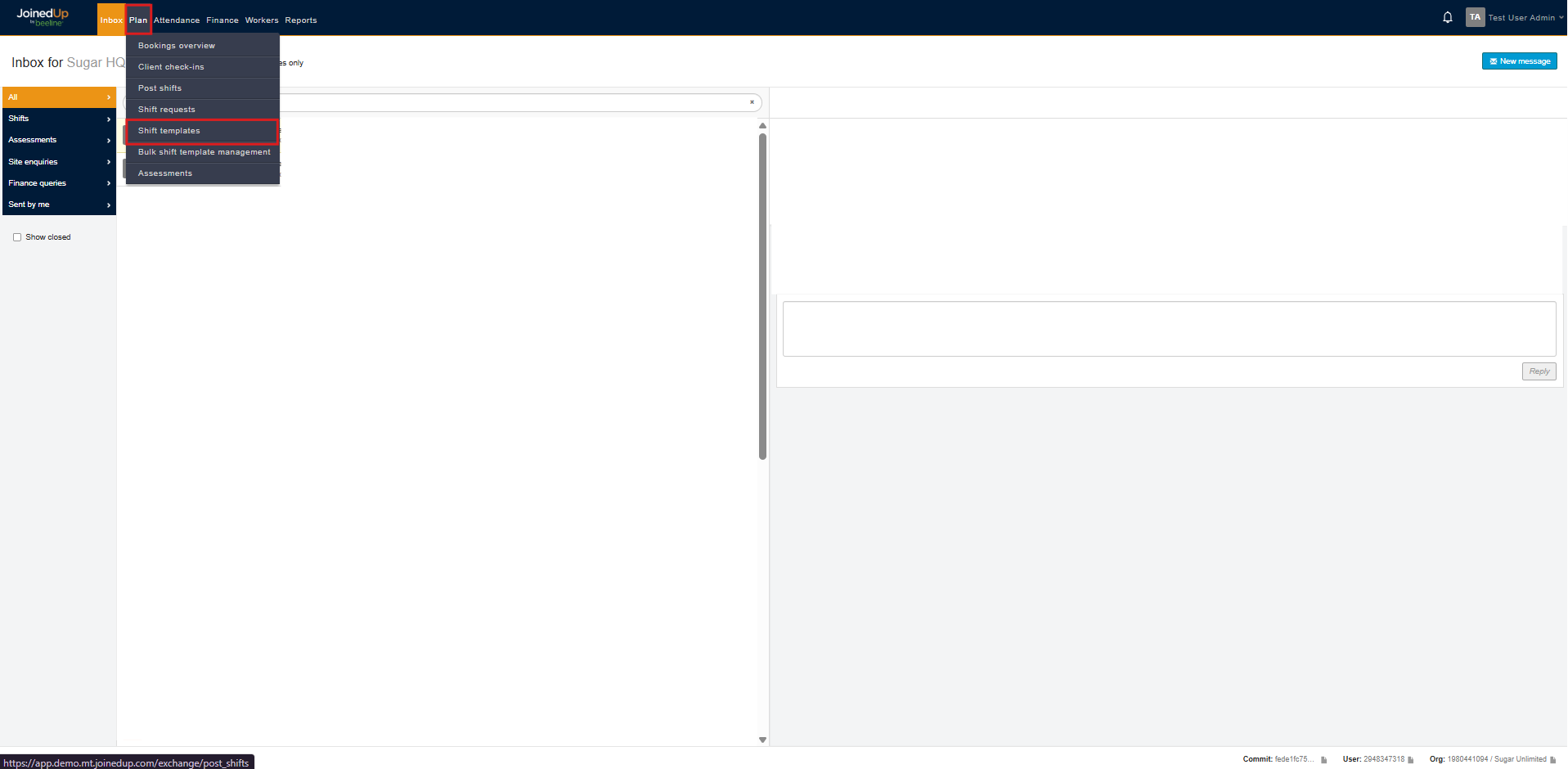
Once you are in the Shift Template Screen, choose the correct site then select the shift template or the correct supplier if selecting from an Order Template.
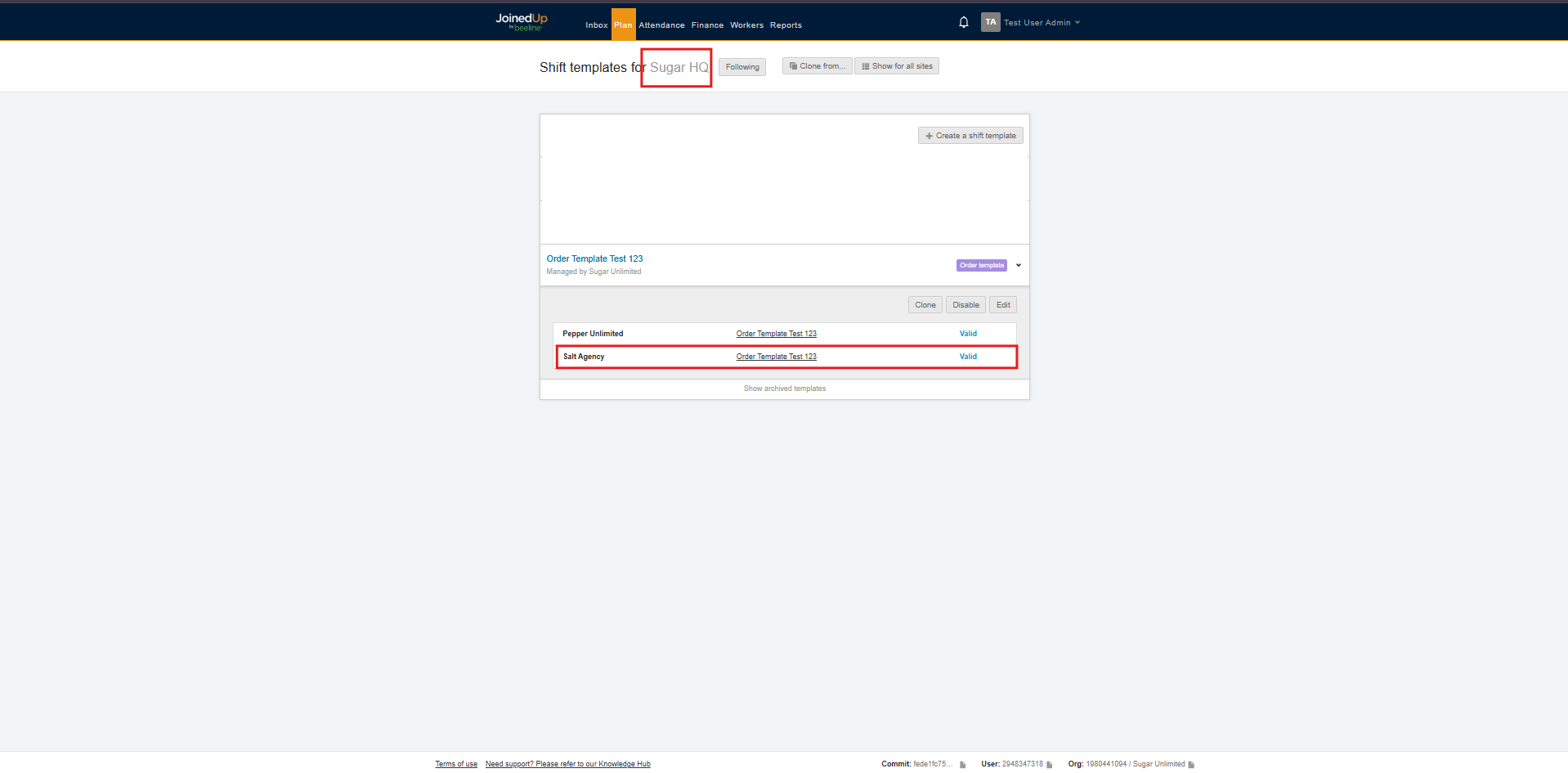
In the Shift Template, select the rates tab on the left which will lead you to the screen below.
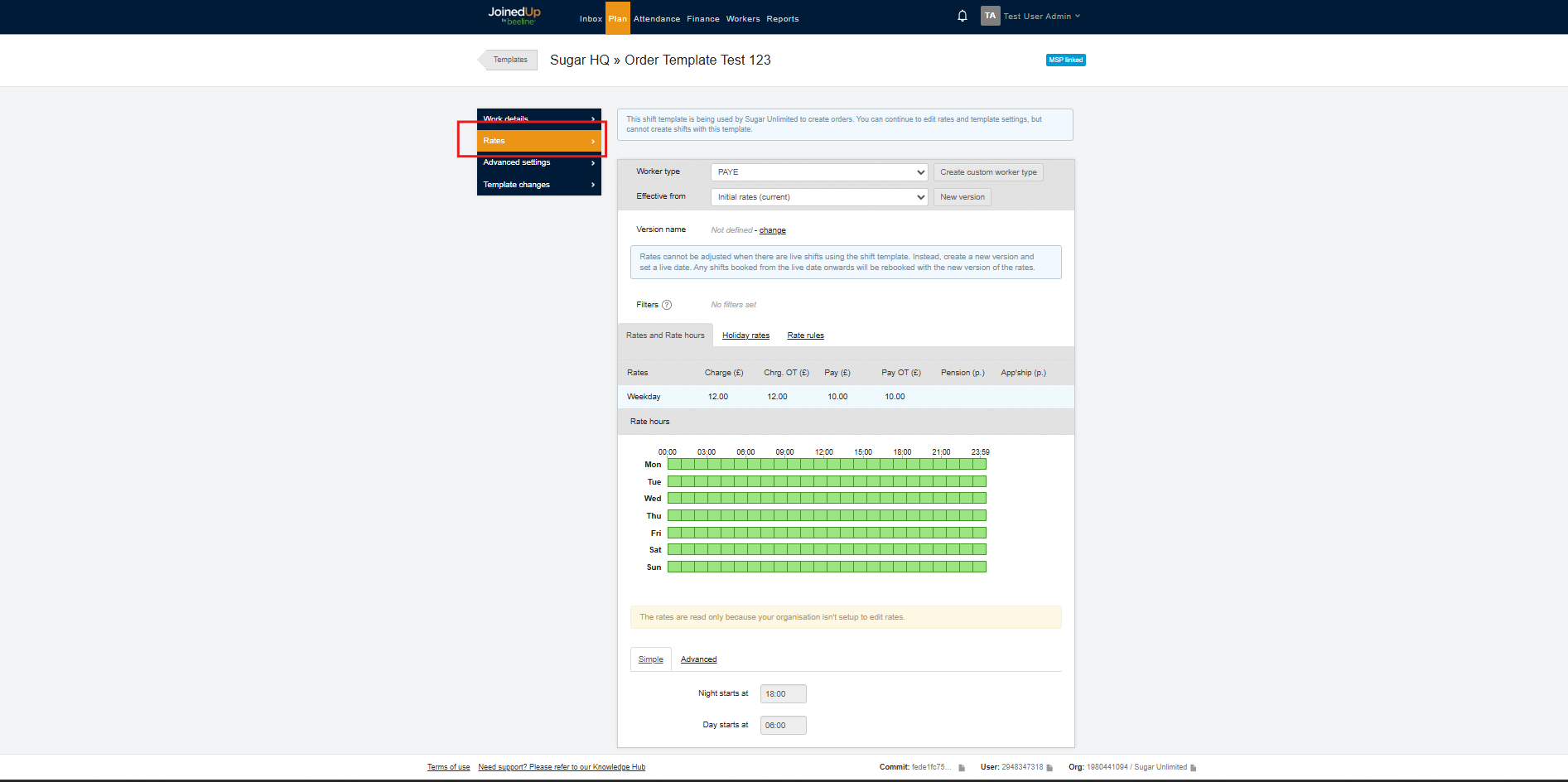
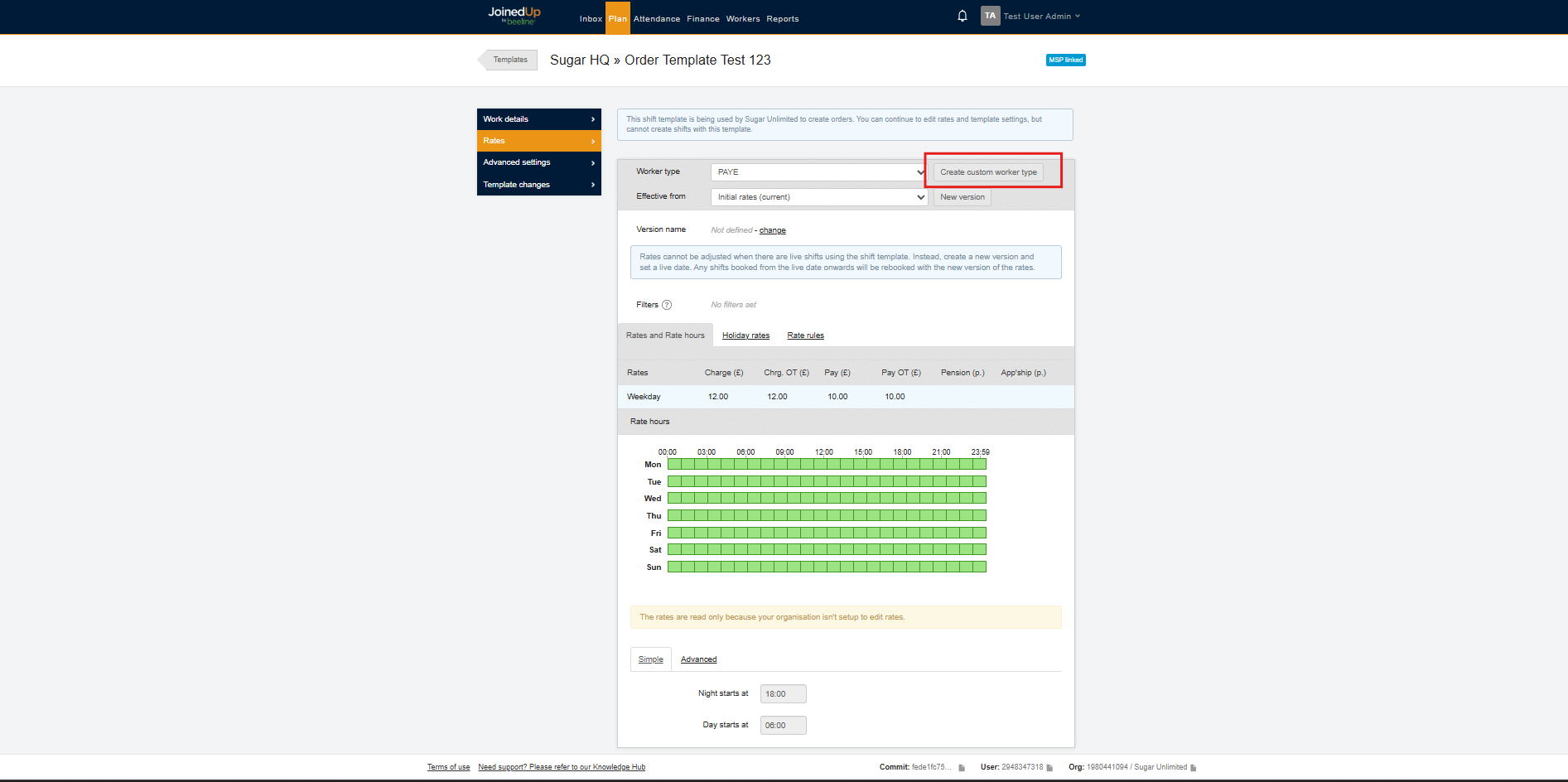
Select the Create custom worker type beside the worker type drop-down.

Once selected, create a name as a unique identifier for the custom worker type then click create. A green confirmation message will be displayed once the action has been completed successfully.

Defining Rates
You can now define the rates either by:
-
Creating a new rate plan

This allows you to define the charge and pay rates. To proceed, select Create a New Rate Plan. You may optionally assign a name to the rate plan, then click Create to start defining the rates.

You may now enter the Charge and Pay Rates. Additionally, you can add a rate band under a different category to better align with your requirements.
Select save after you put all the Charge and Pay rates. A green confirmation message will be displayed once the action has been completed successfully.
Now, you must also define the rate rules. This includes the configuration for breaks, overtime, and holidays.
To configure this, click the Rate Rules tab. Fill out the required fields then hit save once you are done.
-
or Cloning a rate plan
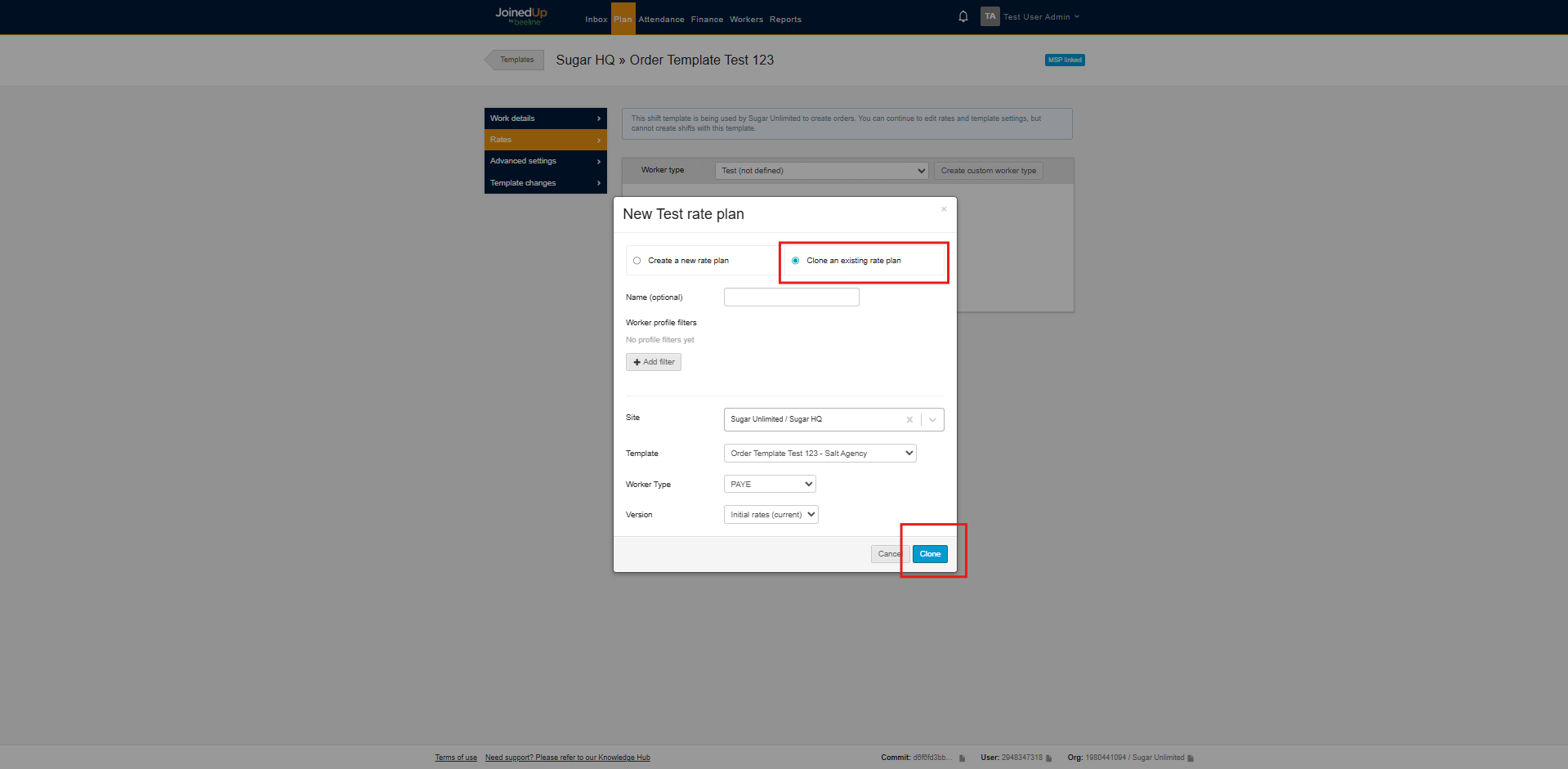
To do this, select Define Rates, then, click Clone an existing rate plan. This allows you to copy rates from other sites, templates, and worker types. After selecting, click Clone to proceed.
Linking a Candidate to a Manual CPS (Charge Pay Schedule)


To link a worker to the custom Charge and Pay Rate that you have created, select the worker profile via the Managed Worker Screen then select linked Shift Templates.
| As an End Hirer, workers only appear on Managed Worker Screen if they have already worked a shift under your organization. |
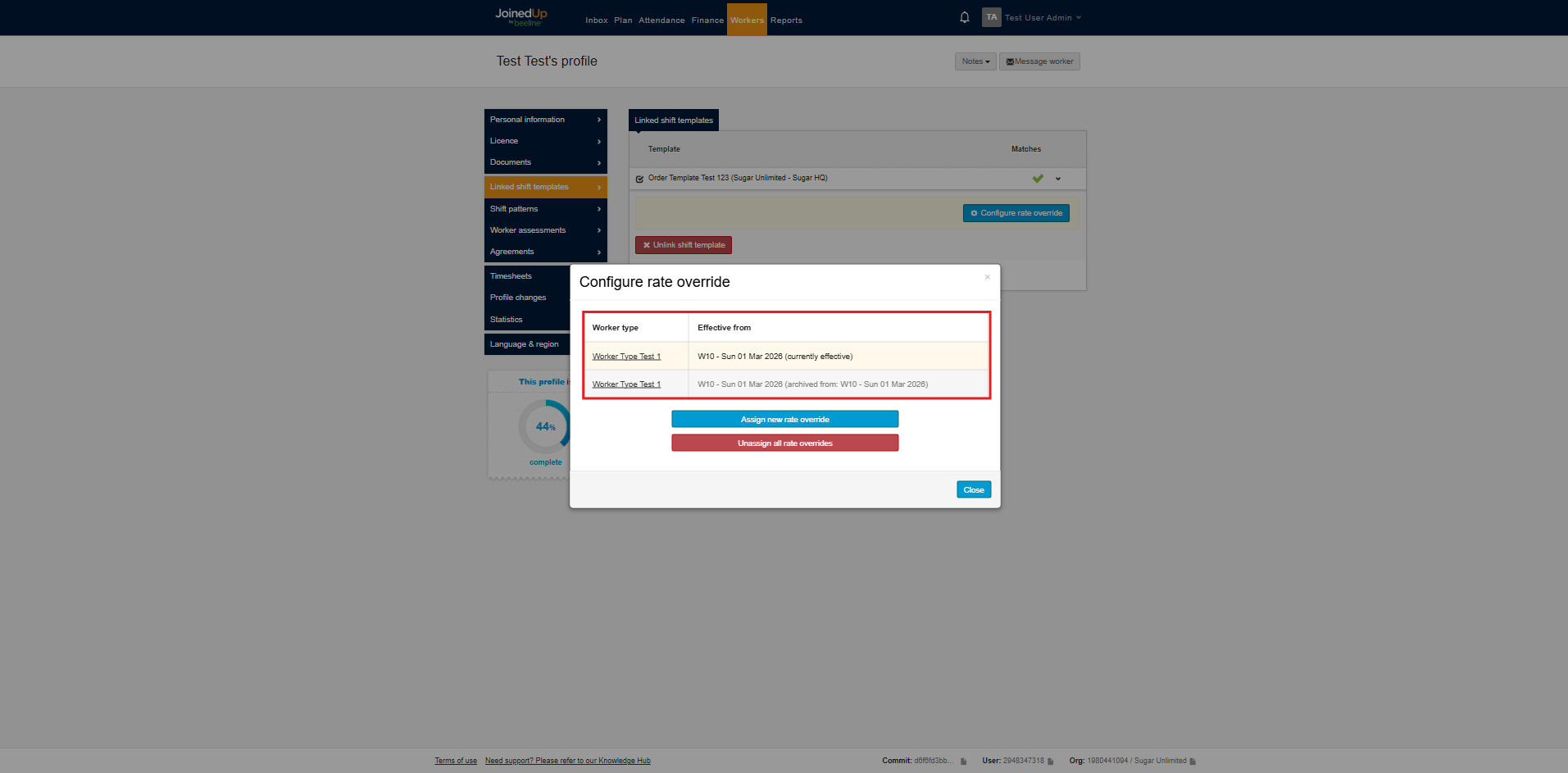
In this screen, you must link the worker to the Shift Template first. Once successful, click Configure rate override.
A modal will appear wherein you can select the custom worker type and specify the effective date.
After completing the process, you can view the summary of all the custom worker types that have been linked to the worker. The one that is currently active is indicated by currently effective
Unlinking a Candidate to a Manual CPS
To unlink the worker, click the Configure rate override, then select Unassign all rate overrides.
You may then select, from the drop-down menu, the week in which the custom worker type will begin to be unlinked.
After making your selection, click Save to apply the changes.