RSI Importer (Bulk Management of Shift and Order Templates)
This new feature enables the bulk management of rates and configuration of settings for shift templates and order templates, thereby reducing the time required for manual, individual updates.
| Please contact your COS if you want this feature enabled. |
Accessing the Importer
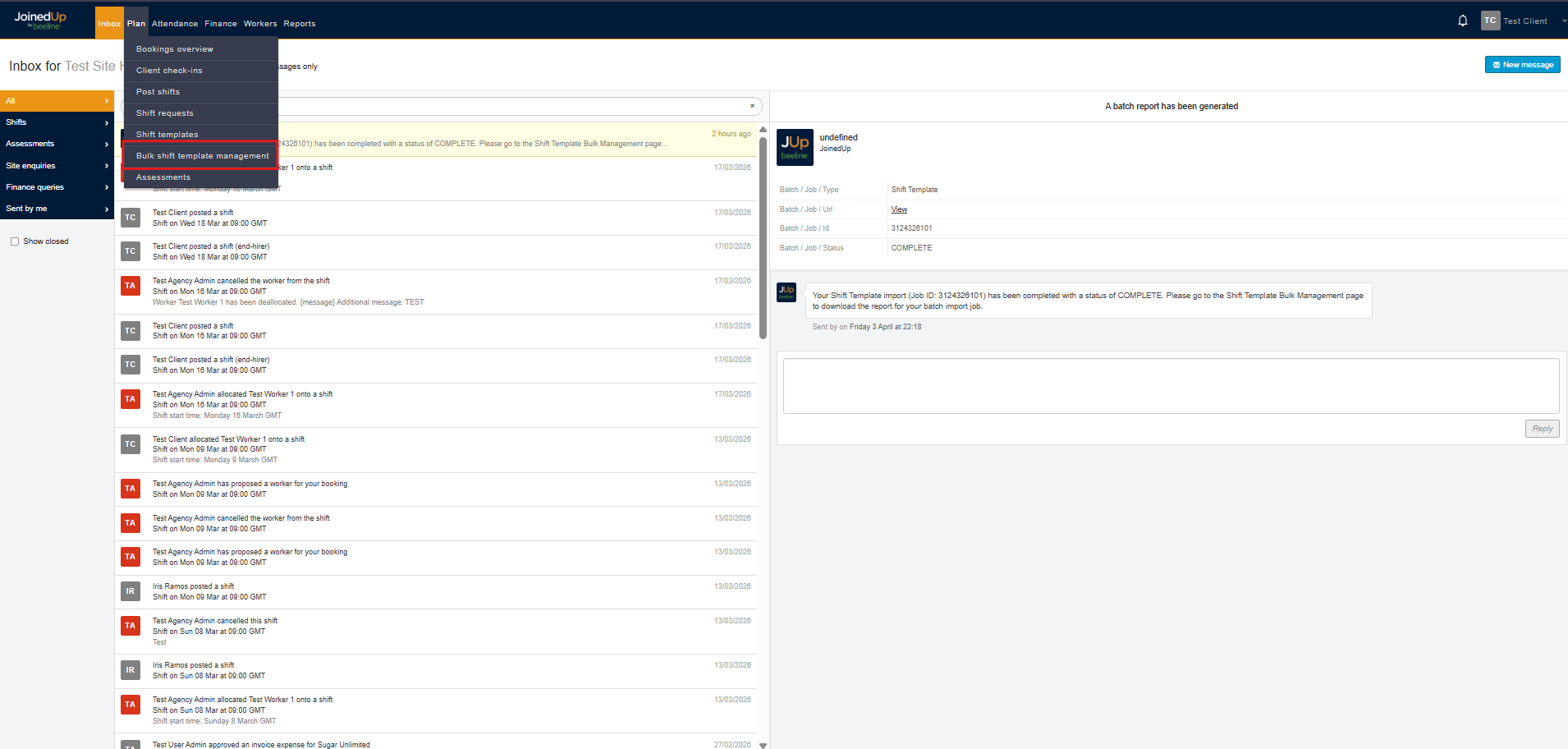
You can access this feature by going to Plan then selecting Bulk Shift Template management.
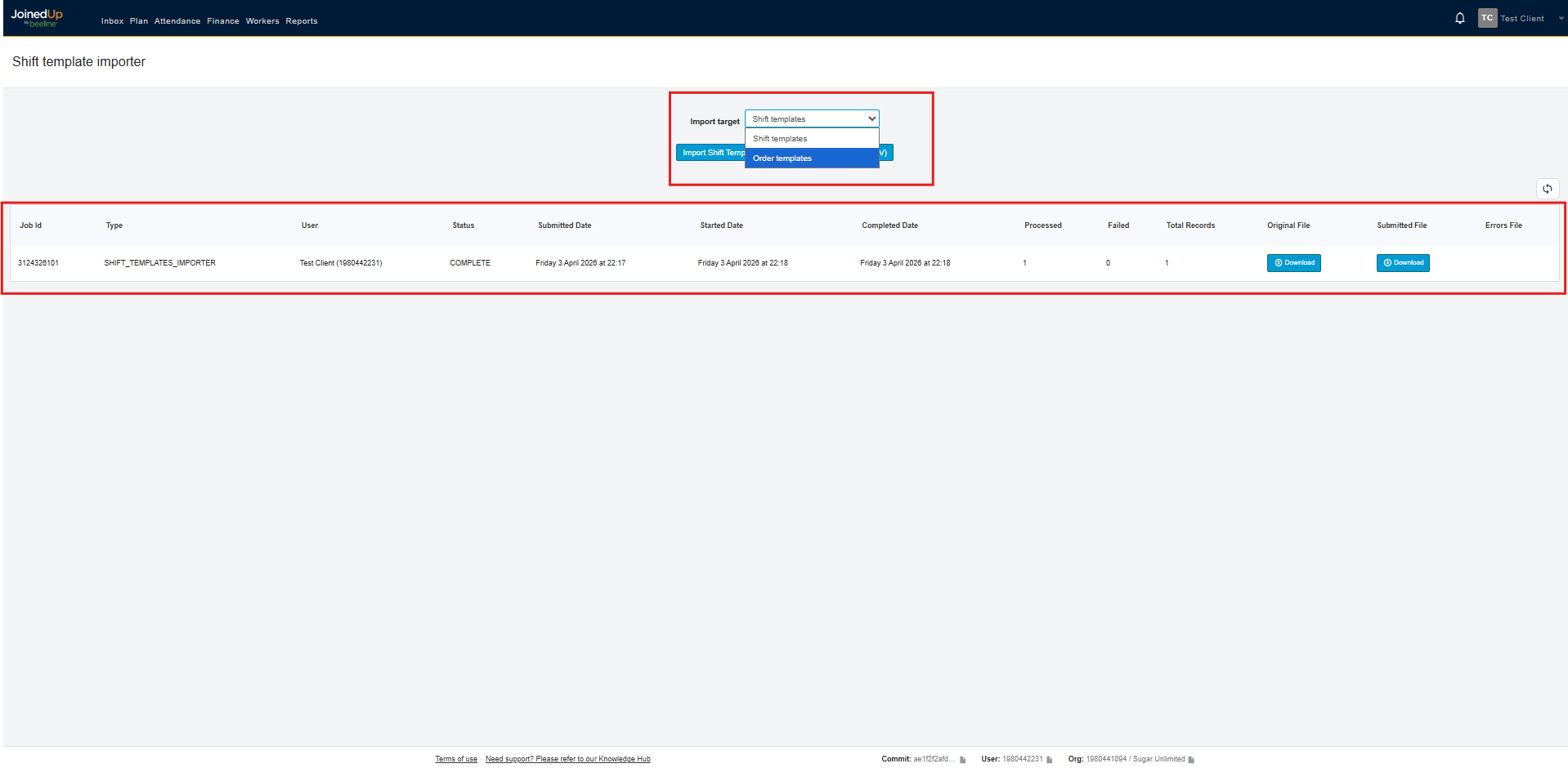
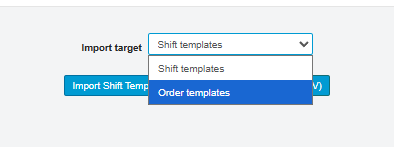
The following screen will display a summary of previous imports. Use the drop-down menu to view either Shift Templates or Order Templates.
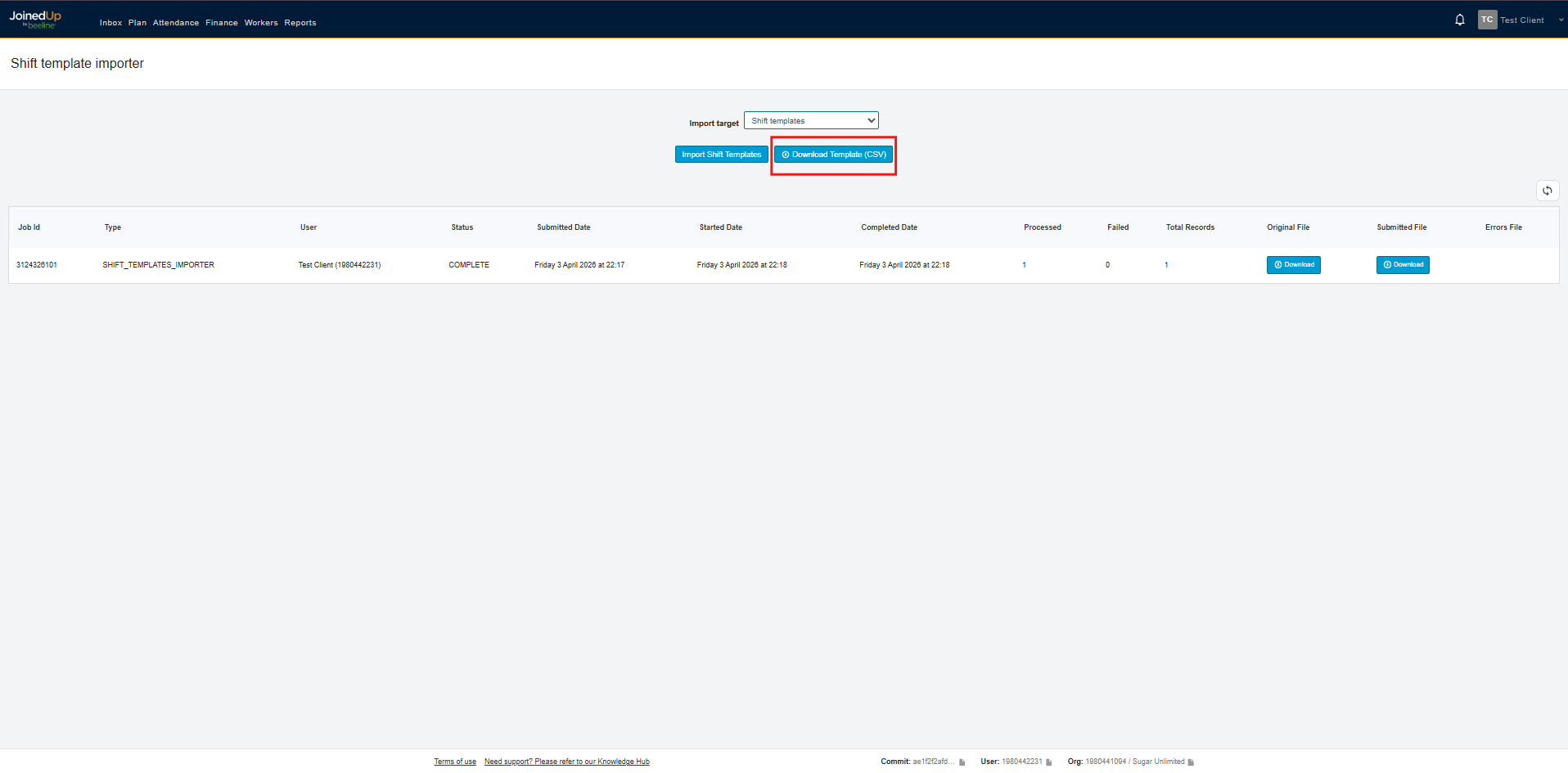
Once selected, you can download the CSV template for use in the import process.
Shift Templates Import Fields
| Field Name | Input | Is Required? |
|---|---|---|
Name |
Name of the Shift Template |
Yes |
Site |
Site ID |
Yes |
Order Template ID |
Order the Template ID that the Shift Template belongs to |
No |
Supplier ID |
Supplier ID. Only populated if you will update the ones under an Order Template |
No |
Managed by Agency ID |
Agency ID who is managing the template |
No |
Work Type |
The type of work defined in the work details of the template |
Yes |
Typical Shift Length (minutes) |
Workday duration in minutes |
Yes |
Description |
Description of the Shift Template |
No |
Health and safety information |
No |
|
Currency Code |
Currency set in the template. Example: USD, CAD |
Yes |
Worker type |
Employment Status. Example: PAYE, Umbrella for UK clients and W2 or 1099 for US Clients |
Yes |
How rates are applied to shifts |
BOOKED_TIME_RATE - Rate determined by shift’s booked start time RATE_BY_MINUTE_WORKED - Rate can vary according to Rate Hours RATE_BY_MINUTE_WORKED_LOOP_IN_DAY - Rate can vary, according to Rate Hours, but loops within the booked day |
Yes |
Break duration (minutes) |
Break duration in minutes |
Yes |
Breaks apply to shifts longer than (minutes) |
Breaks apply after exceeding this work value minutes |
Yes |
Breaks are paid? |
TRUE or FALSE |
No |
Charge |
Charge Rate |
Yes |
Charge OT |
Charge OT rate |
Yes |
Pay |
Pay Rate |
Yes |
Pay OT |
Pay OT rate |
Yes |
Allow rate section to save 0 Charge and Pay |
TRUE or FALSE |
No |
Allow worker to cancel shift |
TRUE or FALSE |
No |
Prompt worker to confirm shift |
TRUE or FALSE |
No |
JU Internal Mapping |
A list in which a value can be selected. It depends on how it is configured for your organization |
No |
Cost Center |
A list in which a value can be selected. It depends on how it is configured for your organization |
No |
2nd Remit Address |
A list in which a value can be selected. It depends on how it is configured for your organization |
No |
AAM Numbers |
A list in which a value can be selected. It depends on how it is configured for your organization |
No |
GL Account |
A list in which a value can be selected. It depends on how it is configured for your organization |
No |
Default shift start time (HH:MM) |
Default shift start time (HH:MM) |
No |
Remove the worker confirmation when shift times are changed |
TRUE or FALSE |
No |
Default PO number |
PO Number |
No |
Disable workers from adding expenses |
TRUE or FALSE |
No |
Start day of week |
Day |
Yes |
Start time of week (HH:MM) |
Start time of the week in the format of (HH:MM) |
No |
Auto-create shifts |
TRUE or FALSE |
No |
Create shifts in advance |
TRUE or FALSE |
No |
Create shifts that can’t be allocated |
TRUE or FALSE |
No |
Feed reference (Legacy) |
Value |
No |
Allow worker to enter attendance via JoinedUp on-site tablet app |
TRUE or FALSE |
No |
[DM] Allow worker to enter attendance via JoinedUp desktop and mobile |
TRUE or FALSE |
No |
Round hours when capturing time & attendance |
No |
|
Set shift booked time to the same time as worker’s shift start time |
TRUE or FALSE |
No |
Set time limits |
No |
|
Maximum minutes worker can move booked start time |
Value in number |
No |
Set the checkout threshold to allow a worker to check out from their shift before and after the expected stop time |
TRUE or FALSE |
No |
Checkout threshold (in minutes) |
Value in number |
No |
Set attestation notice for workers to confirm whether they have taken legislative breaks |
No |
|
Prevent clock-out of breaks under 30 minutes |
No |
|
Capture breaks |
No |
|
Block supplier shift creation |
TRUE or FALSE |
No |
Block supplier shift cancellation |
TRUE or FALSE |
No |
* Enable automatic acceptance of proposed valid workers |
TRUE or FALSE |
No |
* Restrict adjustments to hourly rate-based types |
TRUE or FALSE |
No |
* Require selection of shift template rate type for adjustments |
TRUE or FALSE |
No |
Block end-hirer users from entering adjustments |
TRUE or FALSE |
No |
*New workers require interviews |
TRUE or FALSE |
No |
* Enable Adjustment managers |
TRUE or FALSE |
No |
Adjustment managers |
No |
|
* Workers require periodic evaluation assessments |
TRUE or FALSE |
No |
* Worker evaluation time period |
Set the value in number of days |
No |
Block end-hirer T&A entry |
TRUE or FALSE |
No |
| The ones with asterisk are optional Shift Template settings that can be enabled through a Feature Switch. Please reach out to your COS for more information. |
Order Template Import Fields
Field Name |
Input |
Is Required? |
Order Template Name |
Name of the Order Template |
Yes |
Description of the work |
Description of the work |
No |
Site ID |
Site ID |
Yes |
Requires planning approval |
TRUE or FALSE |
No |
Shift Managers |
Shift Manager IDs registered in JoinedUp or Manager’s first or last name (to be matched during the import process by selecting the correct entry) |
No |
Operations Managers |
Operations Managers IDs registered in JoinedUp or Manager’s first or last name (to be matched during the import process by selecting the correct entry) |
No |
Enable Time Approvers |
TRUE or FALSE |
No |
Time Approvers |
Time Approvers IDs registered in JoinedUp or Manager’s first or last name (to be matched during the import process by selecting the correct entry) |
No |
* Hide charge rates in linked agencies templates |
Enabled or DISABLED; Default Value is Disabled |
No |
* Hide supplier charge rates in linked agencies templates |
Enabled or DISABLED; Default Value is Disabled |
No |
| The ones with asterisk are optional Shift Template settings that can be enabled through a Feature Switch. Please reach out to your COS for more information. |
Importing Shift and Order Templates
After completing all fields in the template, specify the Import Target type from the drop-down menu, selecting either Shift Template or Order Template.
Proceed by selecting the Import Shift Template or Import Order Template button.
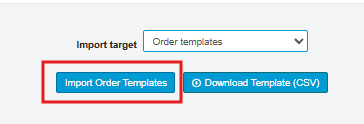
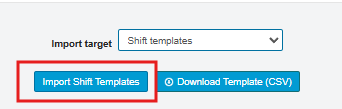
A pop-up will appear that allows you to drag or select the import file.
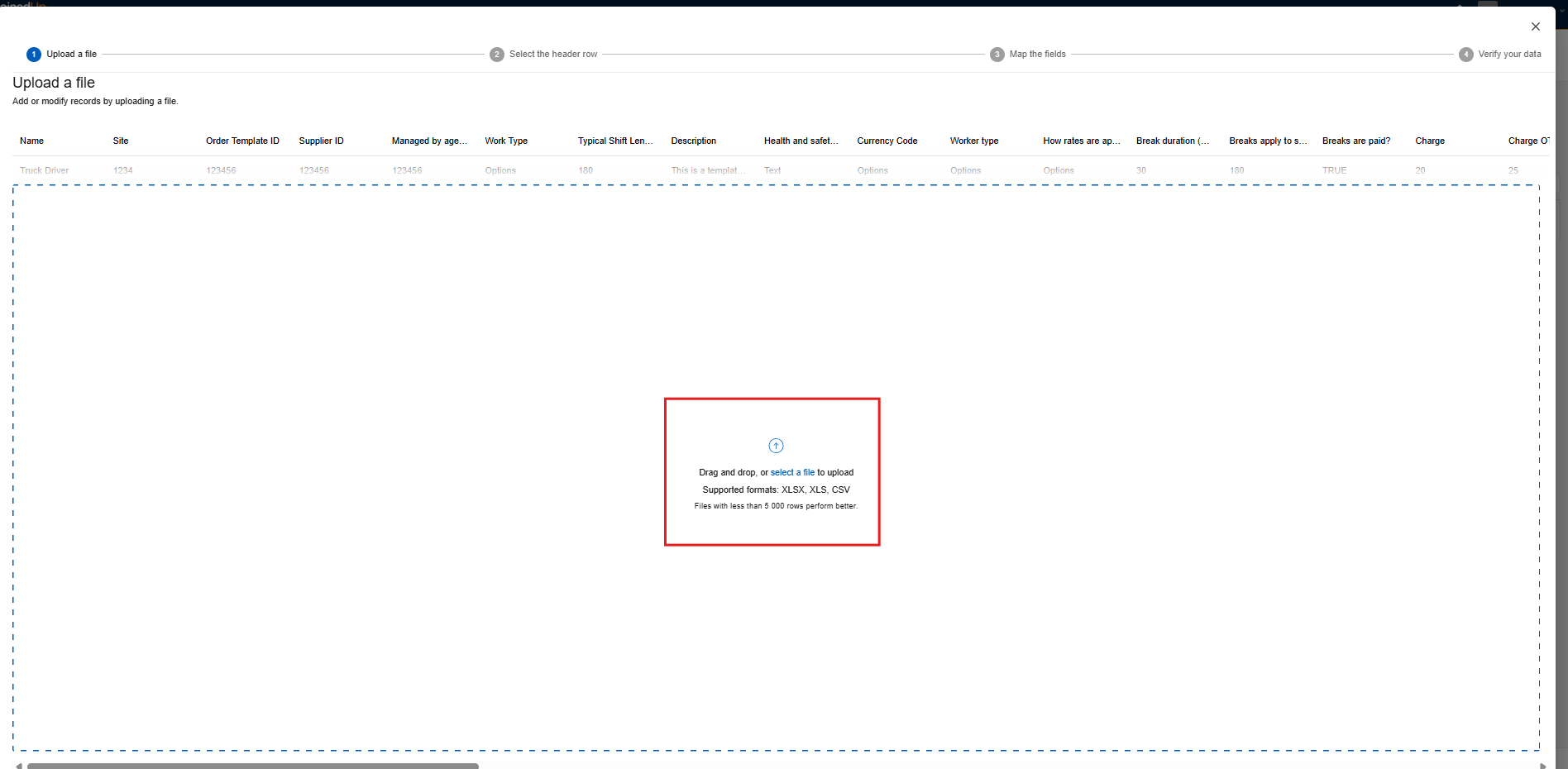
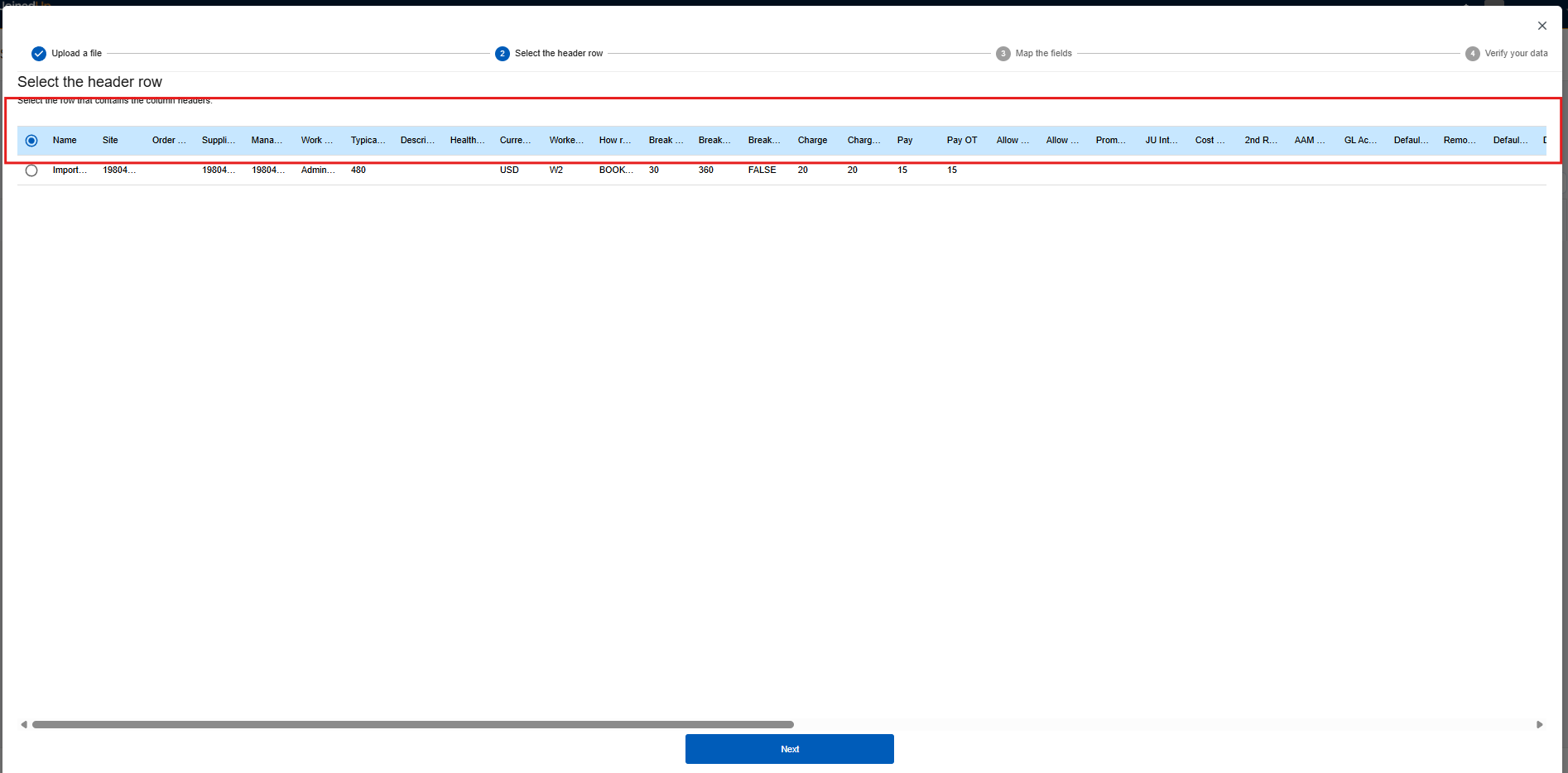
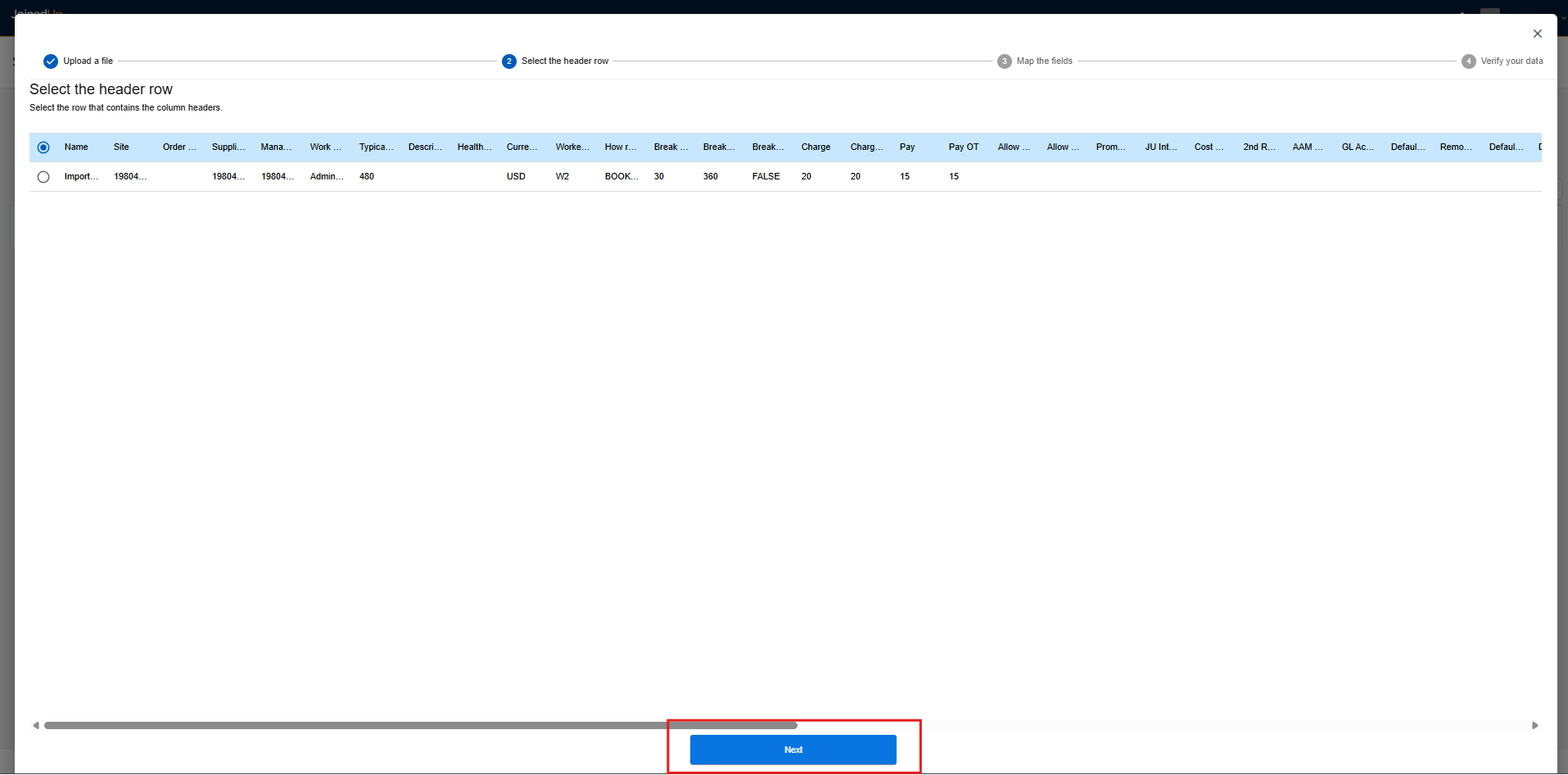
Once a file is selected, it will show you a summary of the file. It is important that you select the one with header names before clicking Next.
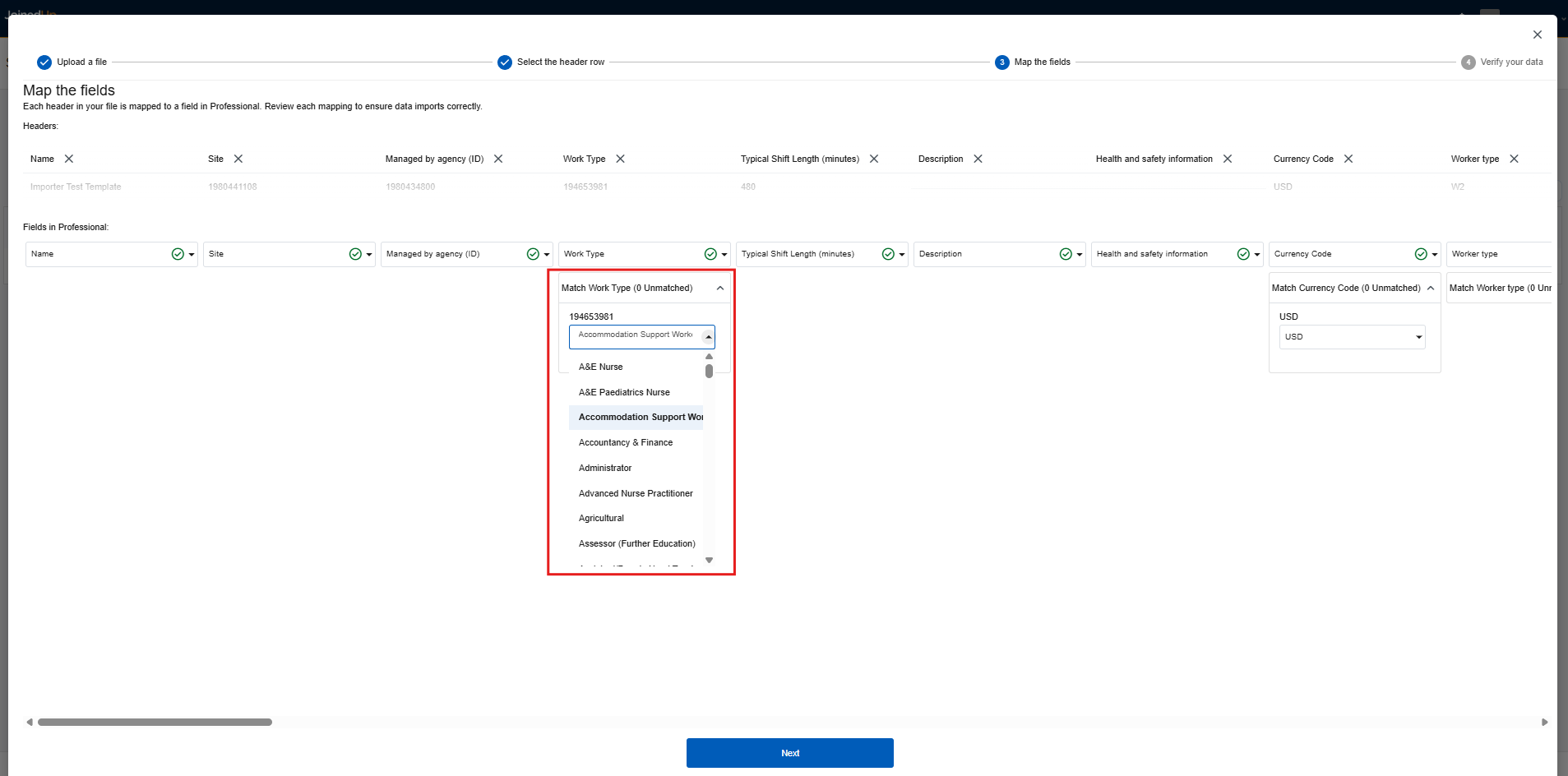
In the next phase, you can review the fields and modify data using the available drop-down options if available.
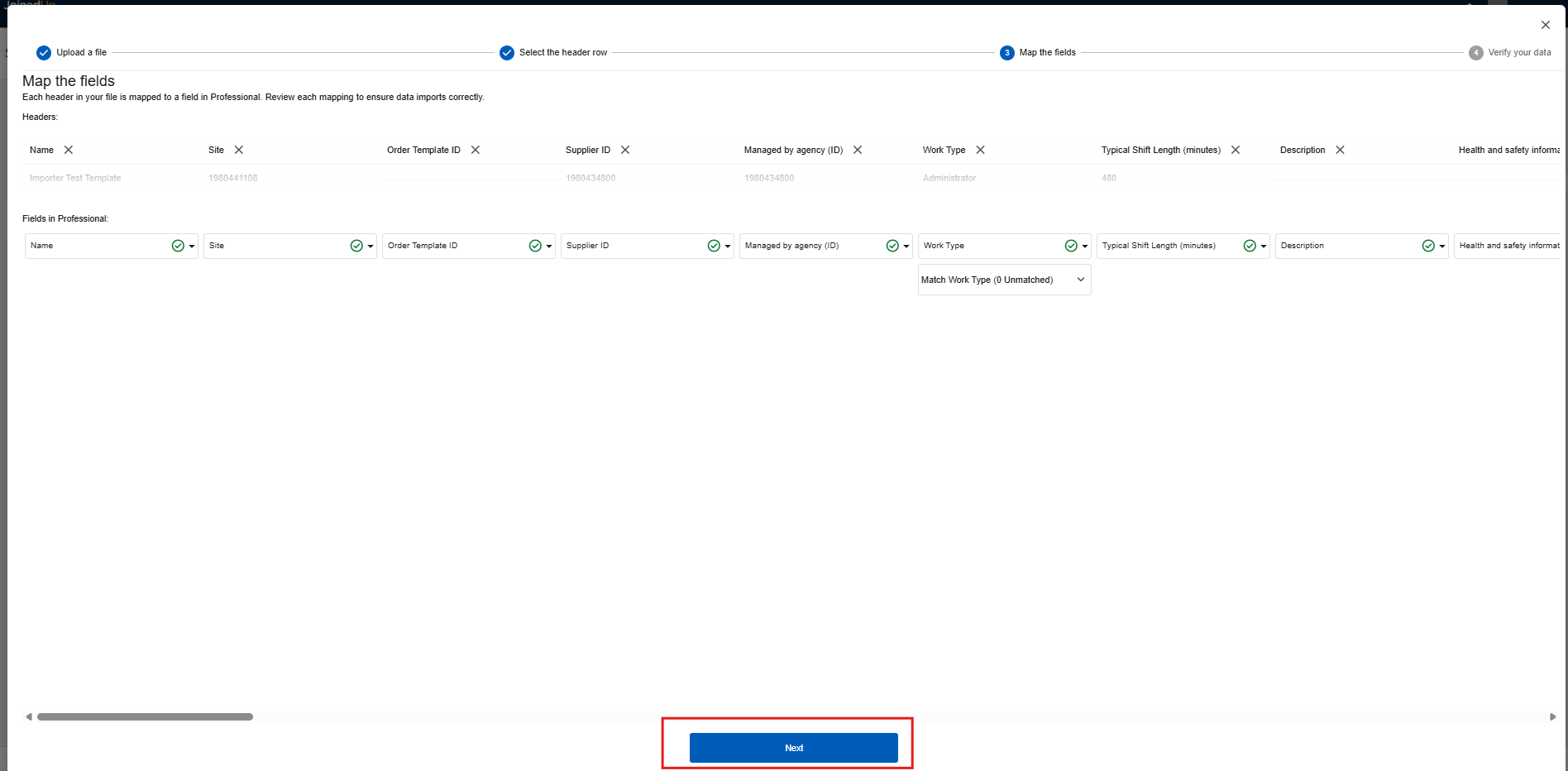
You can now select the next button to proceed to the last step.
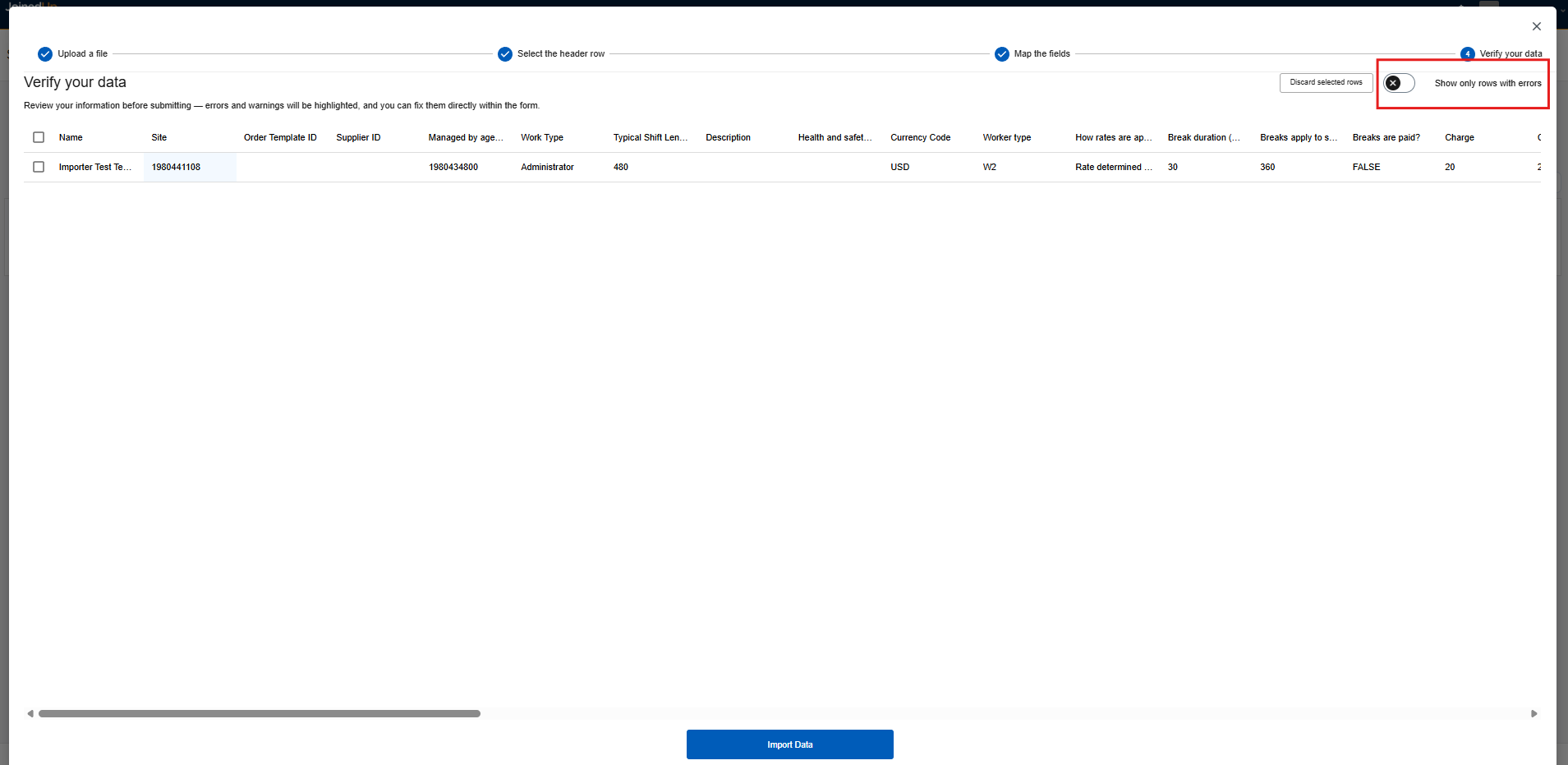
You will be required to perform a final verification of the data. Rows with errors can be reviewed by selecting the highlighted button below.
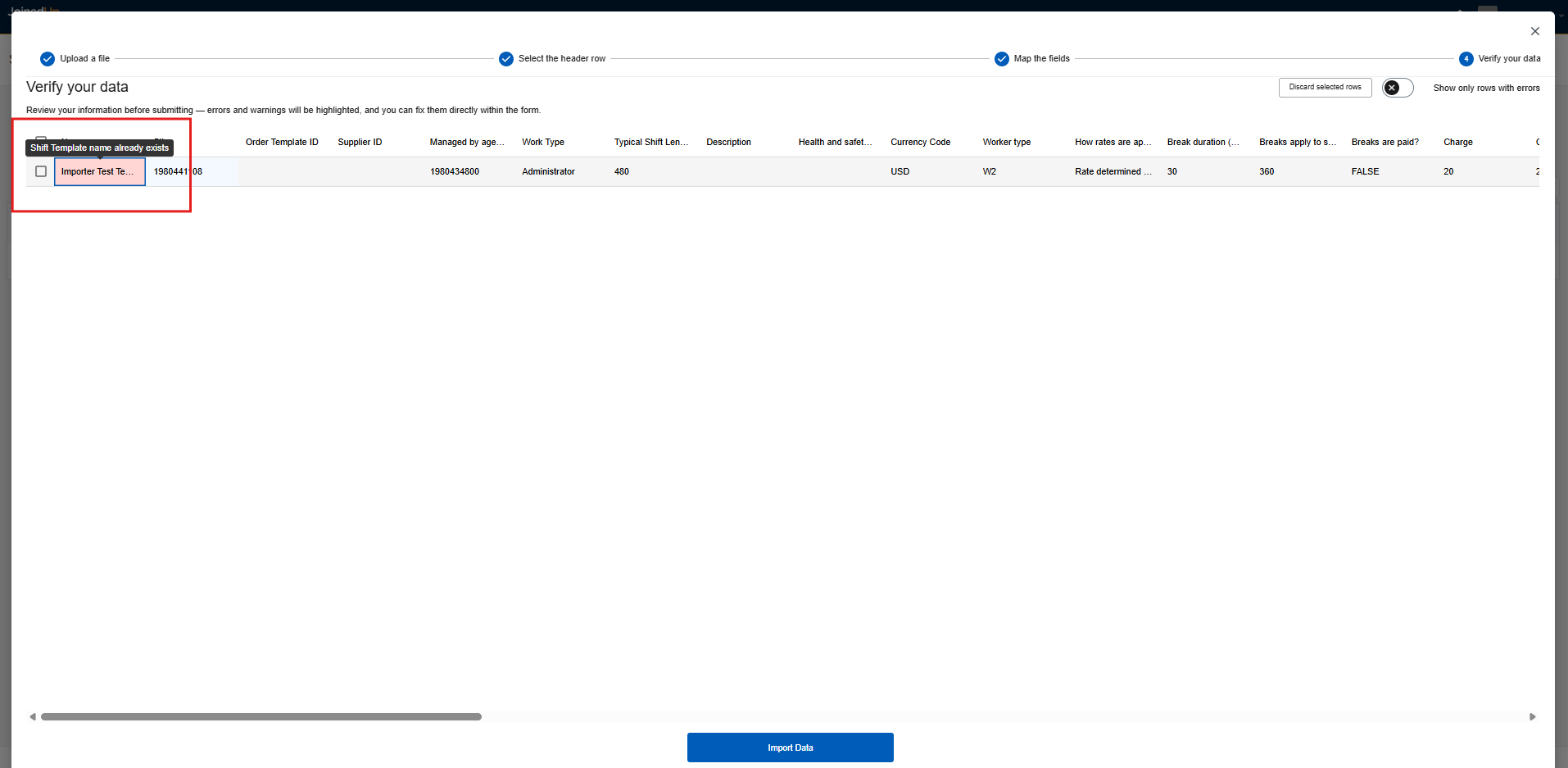
The fields highlighted in red indicate a data error. Details of the issue will be displayed when hovered over.
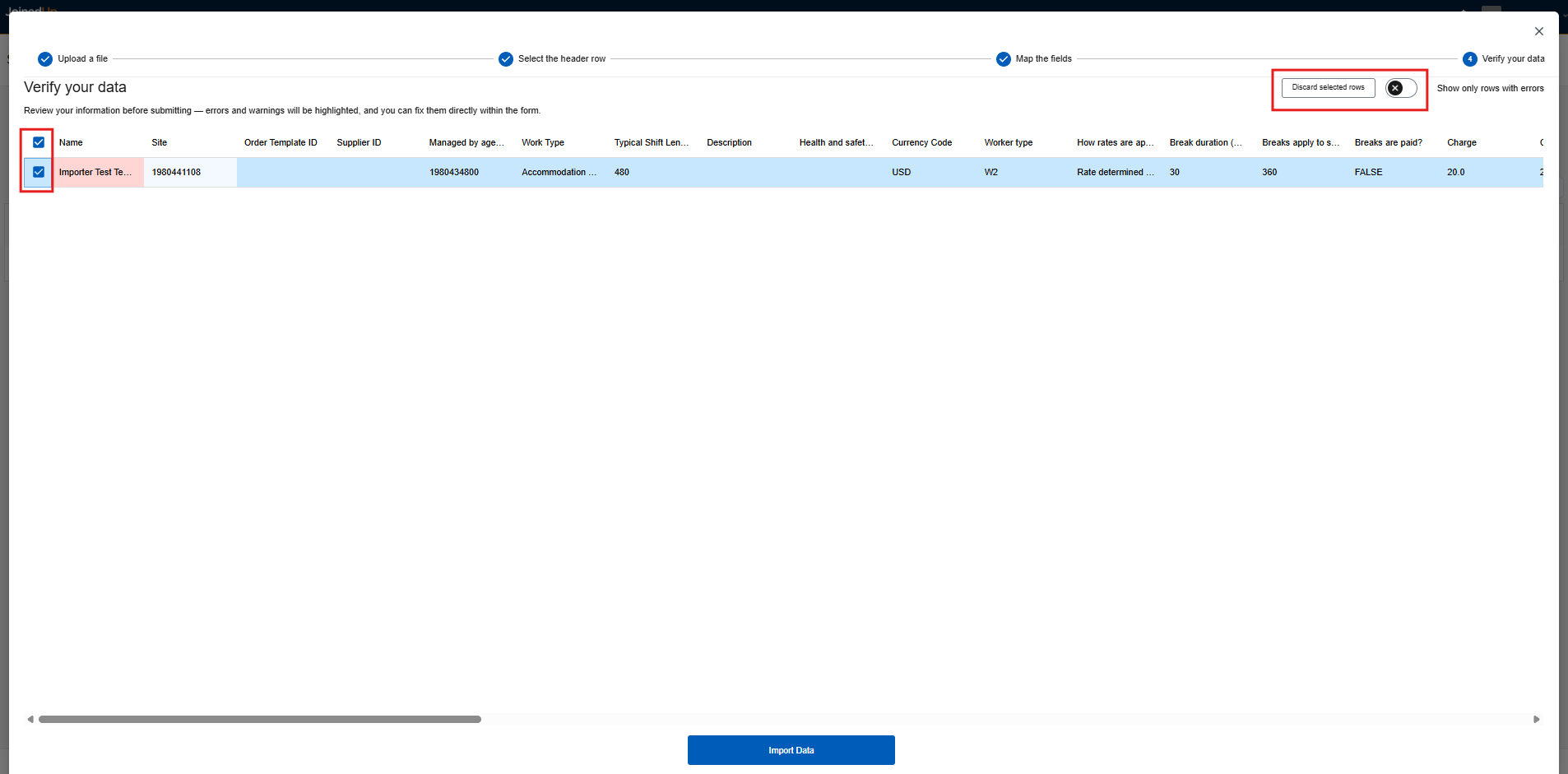
You can discard a row by checking the box beside row and then selecting Discard selected rows found in the upper-right corner of the screen.
Once all errors are fixed, Select Import Data.
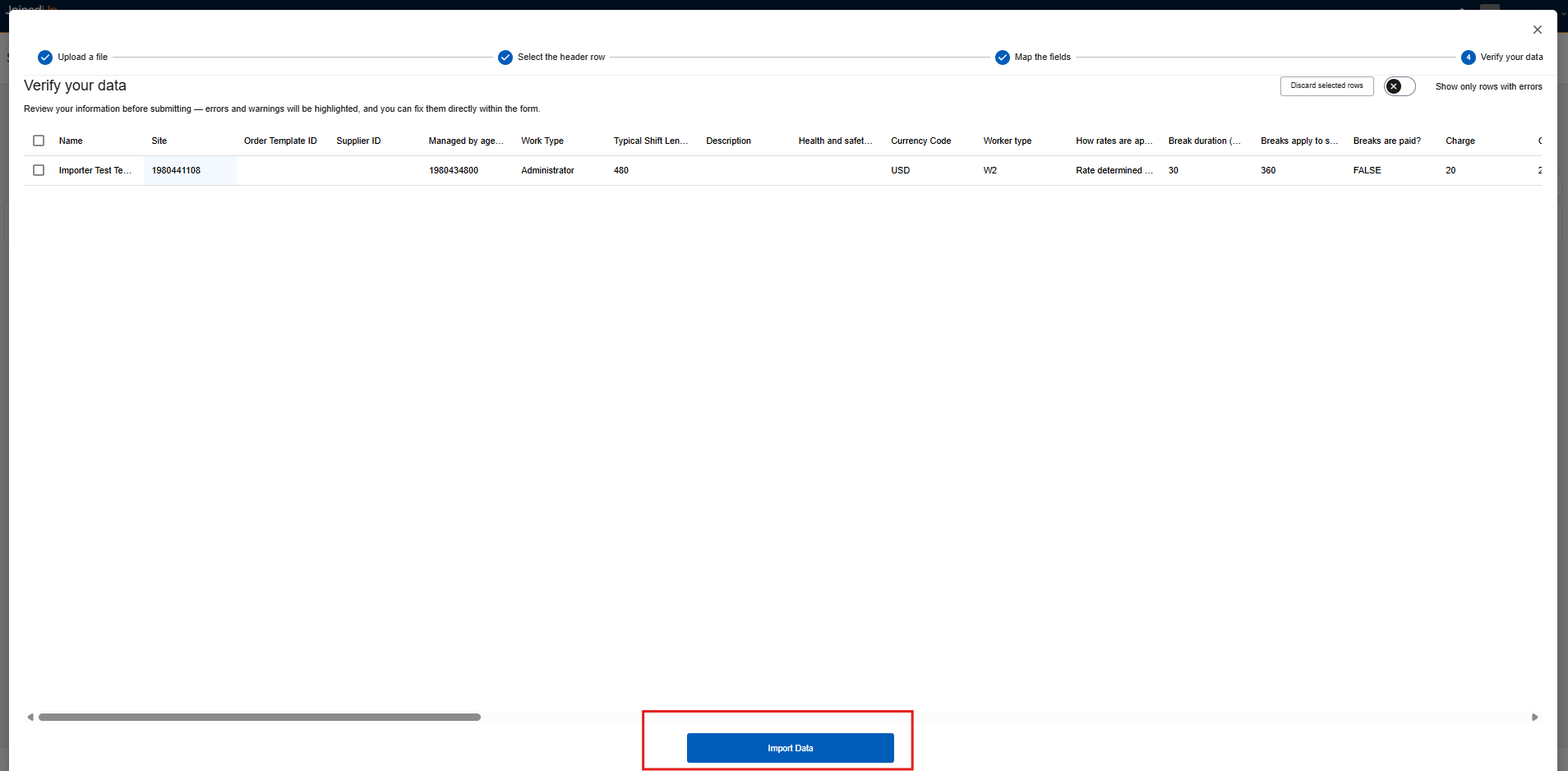
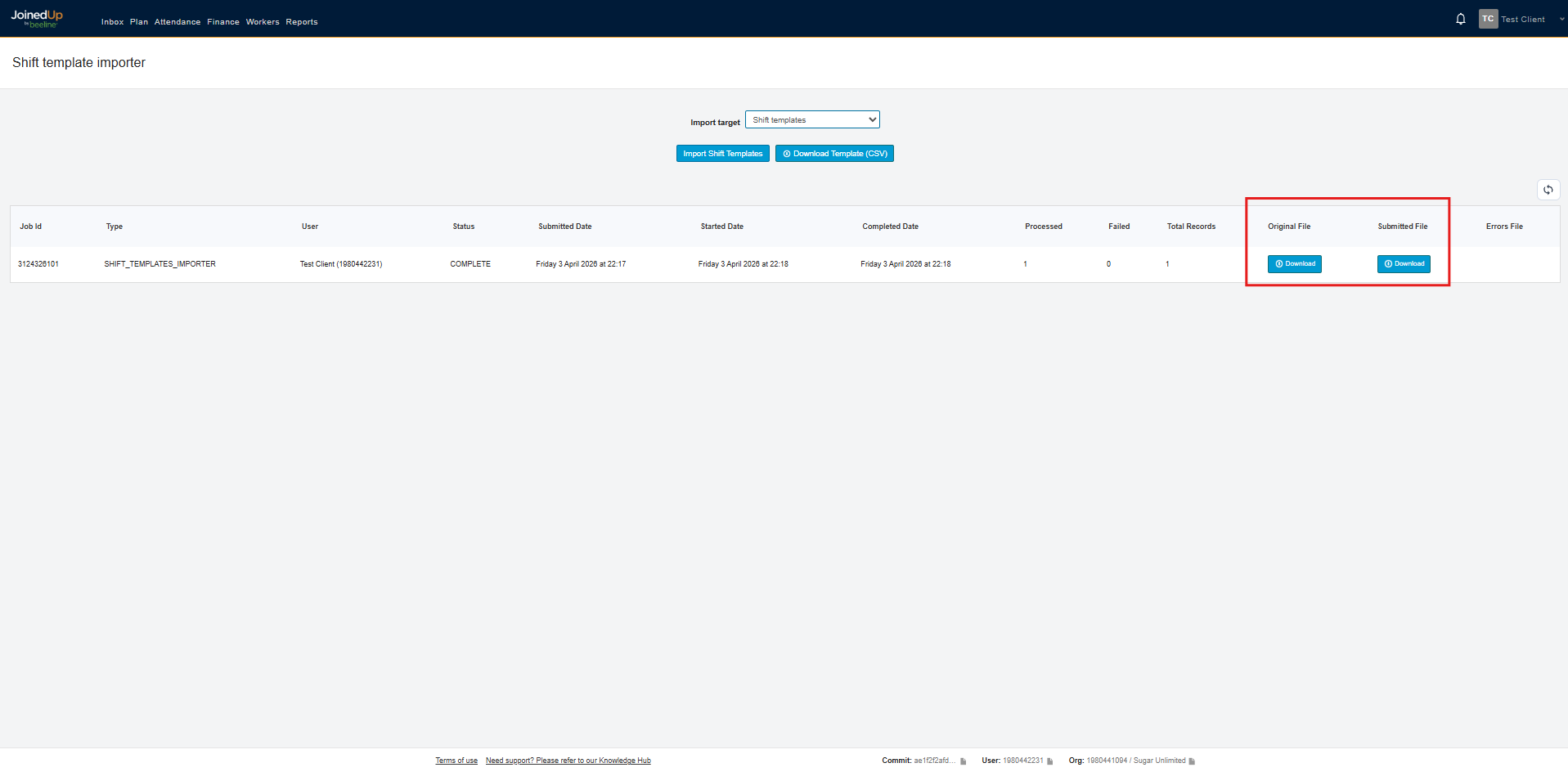
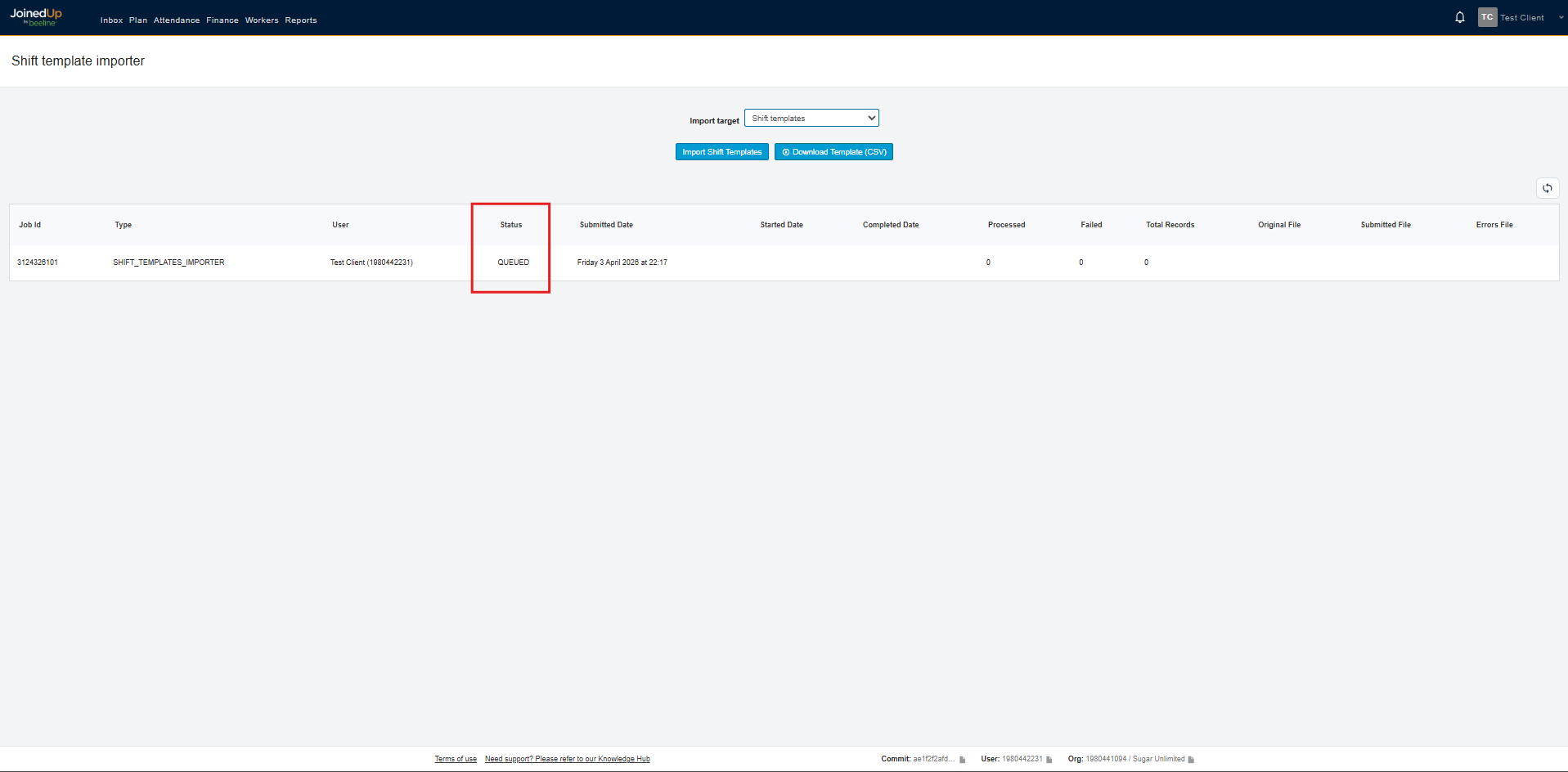
It will go back to the main import screen with a Queued status.
Once it is done processing, the status will be shown as Complete.
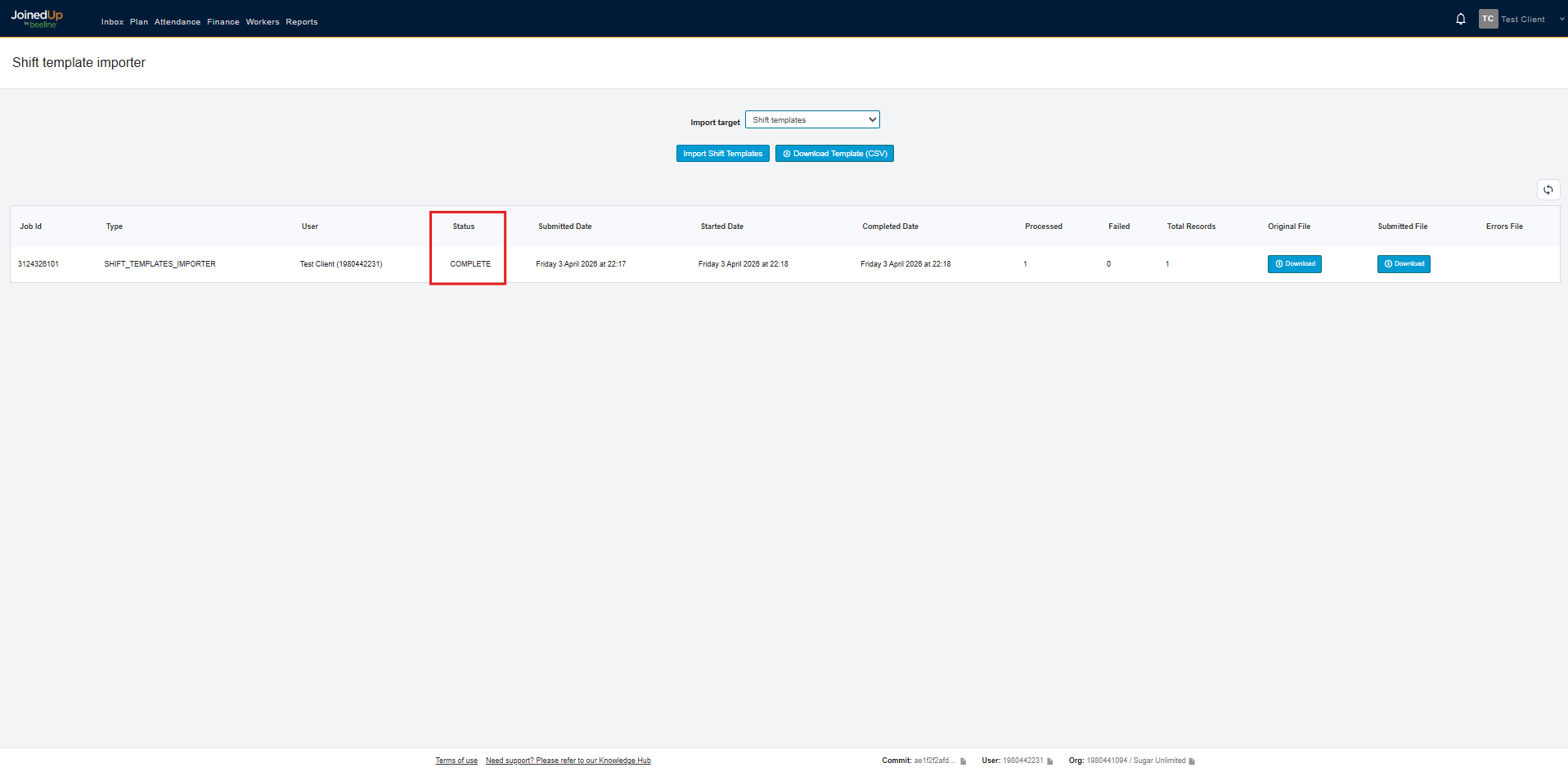
You can also download the Original File which is the one you uploaded and the Submitted File which is file you edited during the import process.