Rate Override Approvals
The Custom Rate Approval feature introduces a structured workflow for managing custom pay schedule (CPS) rate overrides. When a rate override is requested for a worker, it must be reviewed and approved by an authorised user before taking effect on that worker’s shifts.
Key benefits:
-
Clear governance and audit trail for all custom rate assignments.
-
Finance and Admin users retain full visibility and control over rate changes.
-
Flexibility to apply rate changes retrospectively where required.
-
Automated notifications keep all relevant stakeholders informed throughout the process.
User Roles & Permissions
The actions available to you on the Rate Overrides screen depend on your user role:
| Role | Submit Request | Approve/Reject | Cancel | Access Screen |
|---|---|---|---|---|
Admin End-hirer |
Yes |
Yes |
Yes (Own) |
Yes |
Non-Admin End-hirer |
Yes |
No |
Yes (Own) |
Yes (Own) |
Finance User |
Yes |
Yes |
Yes (Own) |
Yes |
Supplier (any role) |
Yes |
No |
Yes (Own) |
Yes |
Time Approver |
No |
No |
No |
No |
| Supplier access to submit requests and view the Rate Overrides screen may be restricted by your organisation’s configuration. If you are a Supplier and cannot see the Rate Overrides option, please contact your administrator. |
Submitting a Rate Override Request
Rate override requests are created within the assessment workflow — either from the Assessments screen or the Worker Profile screen.
Via the Assessment Screen
-
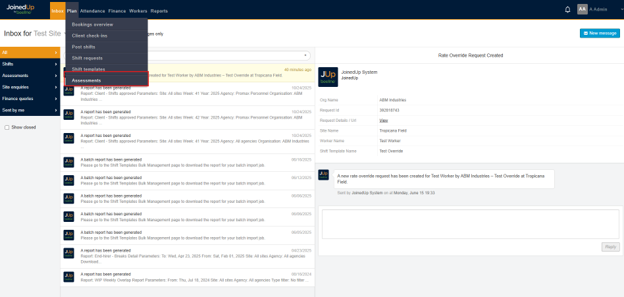
Navigate to Plan, then Assessments
-
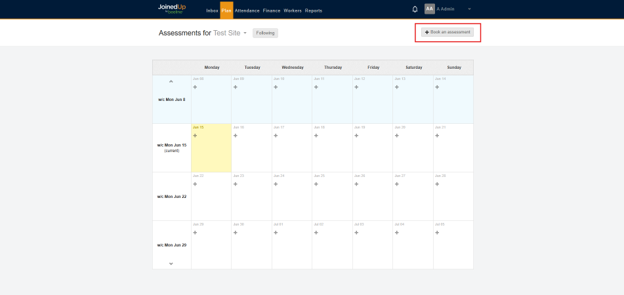
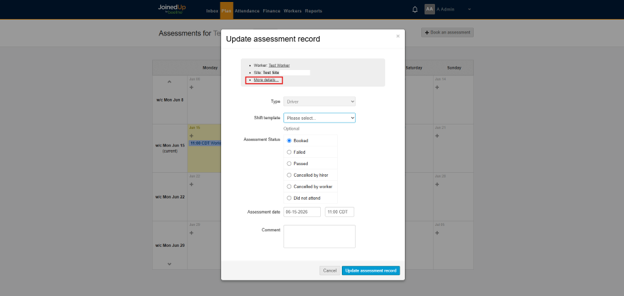
Click Book an assessment to create a new one, or click an existing assessment and select More details.
-
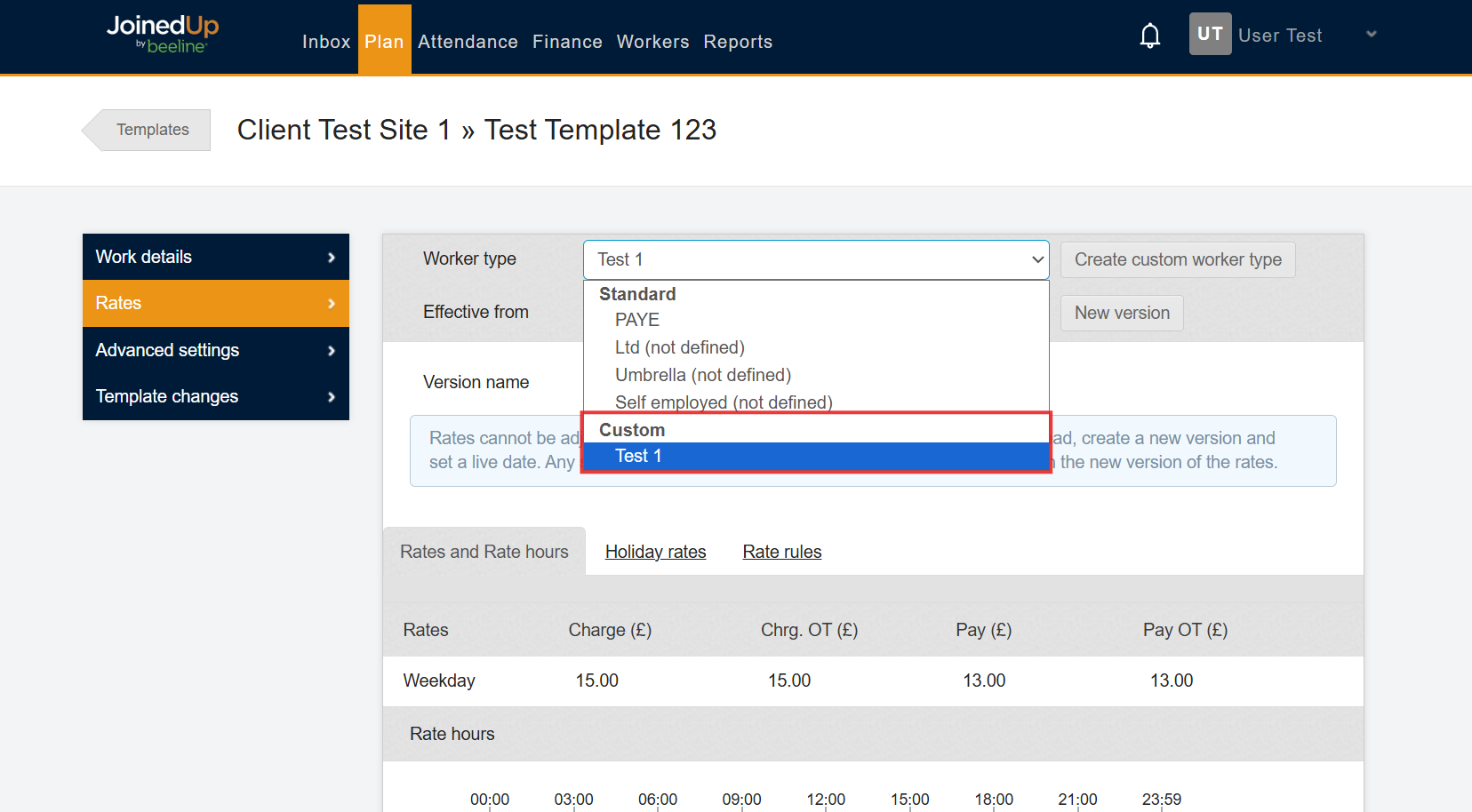
Select a Shift Template with a Custom Rate defined.
-
Once selected, set the Assessment Status to Passed. Then, the Rate Override fields will appear.
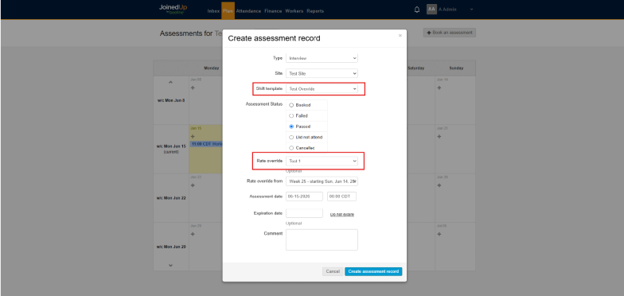
-
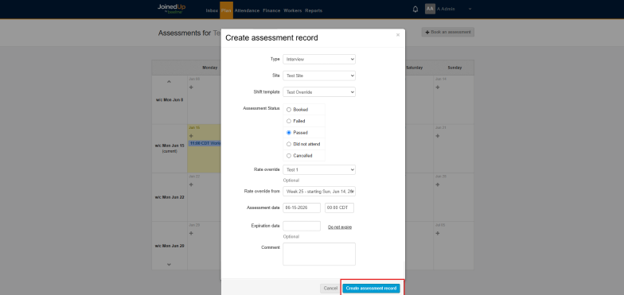
Save the assessment by selecting the Create Assessment Record button. A rate override request will be created automatically with a Pending status.
Via the Worker Profile Screen
-
Navigate to the worker’s profile.
-
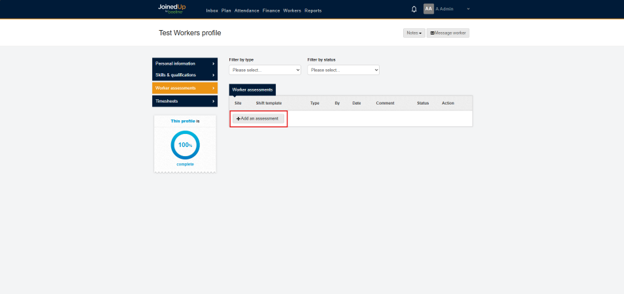
Open the Site Assessments section and click New (or Update to edit an existing assessment).
-
Select a Shift Template with a Custom Rate defined.
-
Once selected, set the Assessment Status to Passed. Then, the Rate Override fields will appear.
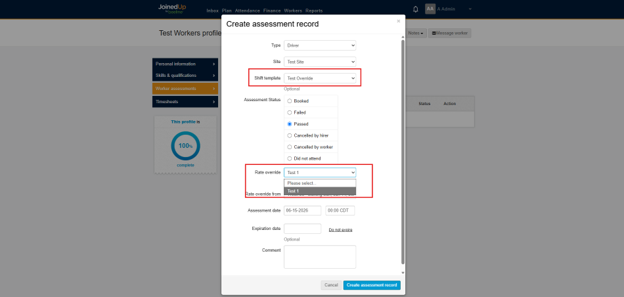
-
Complete the Rate override and Rate override from fields and select Create Assessment Record button to save.
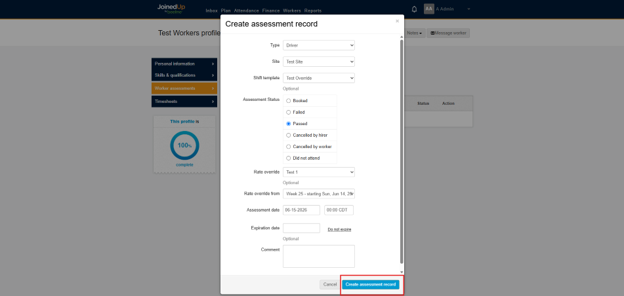
| Once an assessment reaches Passed status, the override fields become read-only. The current request status is shown as: 'This rate override request is [STATUS]'. |
The Rate Overrides Screen
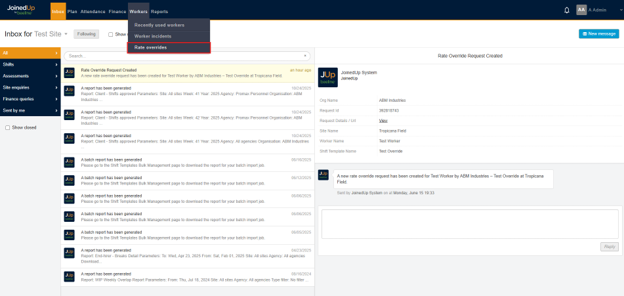
The Rate Overrides screen gives Finance and Admin users a centralised view of all rate override requests. Access it via Workers > Rate overrides in the main navigation bar.
Navigating to the Screen
-
Hover over the Workers menu in the main navigation.
-
Select Rate overrides from the dropdown.
-
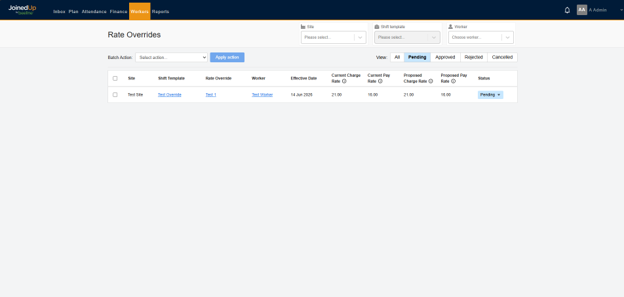
The screen loads with all Pending requests displayed by default.
Screen Columns
Each request displays the following information:
| Column | Description |
|---|---|
Site Name |
The site associated with the request. |
Shift Template Name |
The shift template the worker is being linked to. |
CPS Name |
The custom pay schedule being applied. |
Worker Name |
The worker the override applies to. |
Effective From Date |
The date from which the override rates will take effect. |
Current Charge Rate |
The worker’s existing charge rate. |
Proposed Charge Rate |
The new charge rate being requested. |
Current Pay Rate |
The worker’s existing pay rate. |
Proposed Pay Rate |
The new pay rate being requested. |
Status |
Current status of the request (Pending, Approved, Rejected, Cancelled). |
| Pay rate columns may be hidden depending on your organisation’s financial visibility settings. Contact your administrator if you need access. |
Filtering Request
-
Site — filter by site.
-
Shift Template — filter by shift template.
-
Worker — searchable dropdown.
-
Status — filter by Pending, Approved, Rejected, or Cancelled. The screen defaults to Pending only.
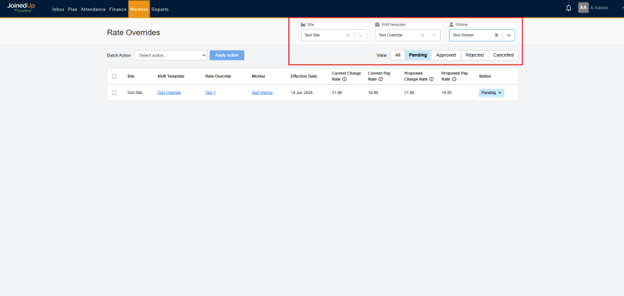
| Filters respect your permissions. Non-Finance and non-Admin users will only see requests they have personally submitted. |
Approving a Request
-
Navigate to Workers > Rate overrides.
-
Locate the pending request you wish to approve.
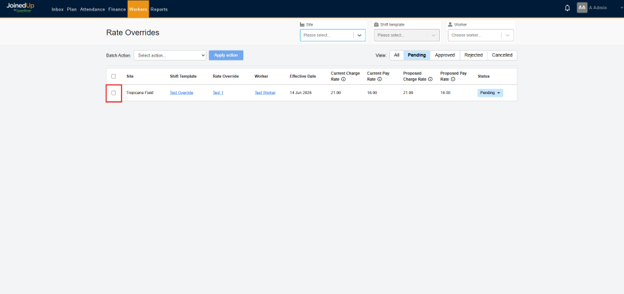
-
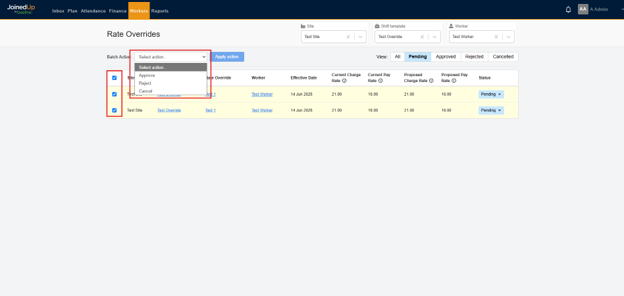
From the action selector, choose Approve.
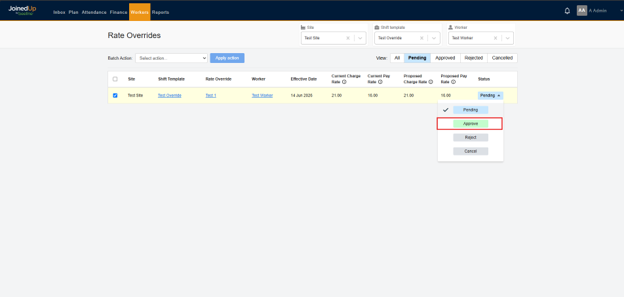
-
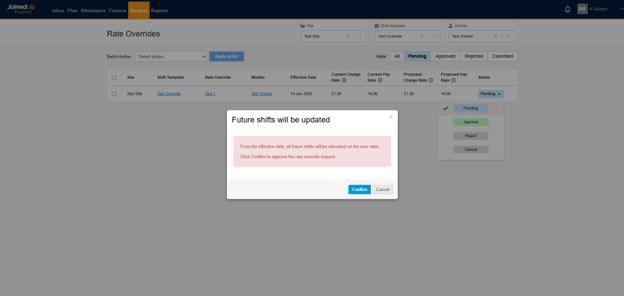
If the effective date affects existing shifts, a confirmation prompt will appear. Review and confirm to proceed.
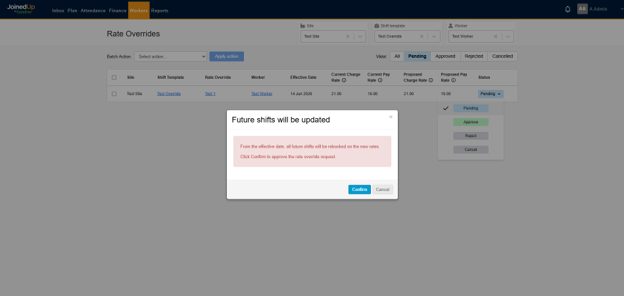
-
On approval, the worker is linked to the shift template and the rate override is applied. Affected shifts are rebooked automatically.
| To approve multiple requests at once, select the checkboxes for all relevant requests before choosing Approve from the action selector. |
Rejecting a Request
-
Navigate to Workers > Rate overrides.
-
Locate your pending request.
-
From the action selector, choose Reject.
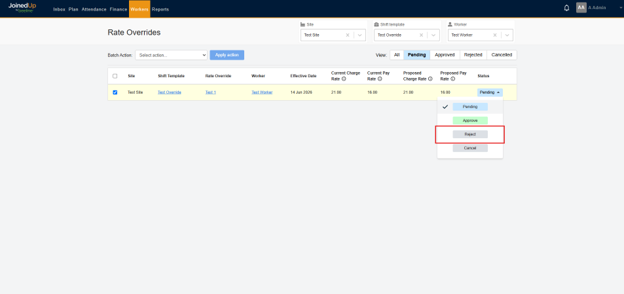
-
No changes are made to the worker’s shift template link or rates. Standard rates continue to apply.
| Once a request has been actioned (approved or rejected), it retains the proposed and current rates recorded at the time of action — even if rates change subsequently. |
Cancelling a Request
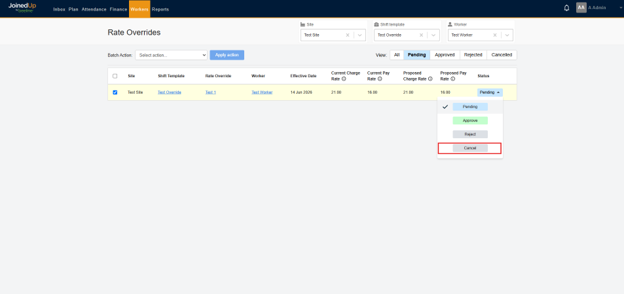
Any user who submitted a rate override request can cancel it, provided the request is still in a Pending state.
-
Navigate to Workers > Rate overrides.
-
Locate your pending request.
-
Choose Cancel from the action selector.
-
No changes are made to the worker’s shift template or rates.
| Non-Admin users can only cancel requests they have personally submitted |
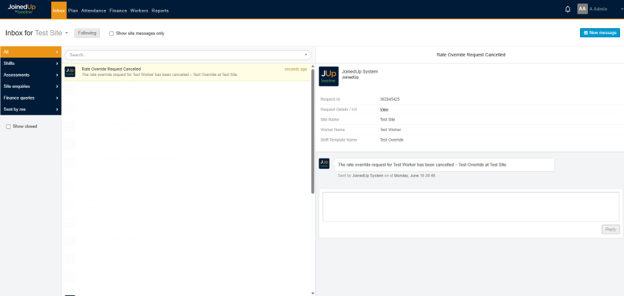
Inbox Notifications
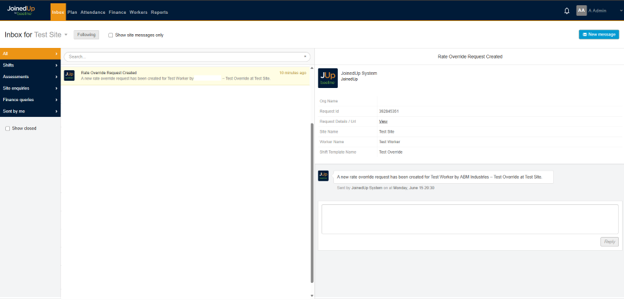
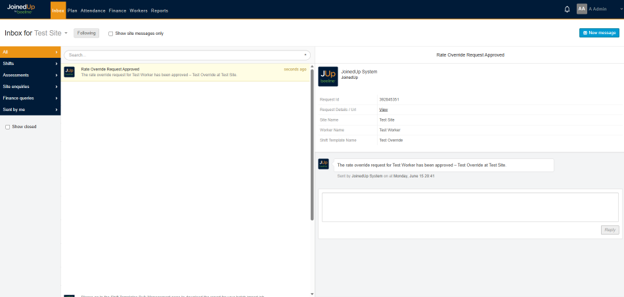
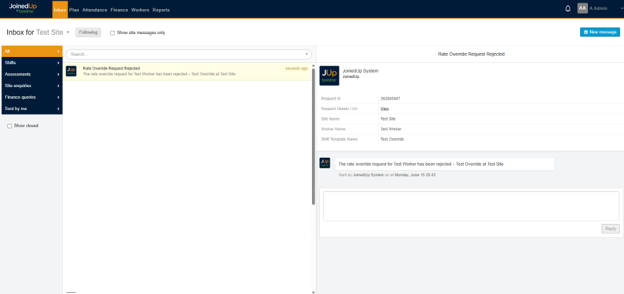
Automated Inbox notifications are sent to the user who submitted the request and to all Admin users following the relevant site for each of the following events:
| Action | Subject | Body |
|---|---|---|
Created |
Rate Override Request Created for [Worker] – [Shift Template] at [Site] |
A new rate override request has been created for [Worker] by [Org] – [Shift Template] at [Site]. |
Approved |
Rate Override Request Approved for [Worker] – [Shift Template] at [Site] |
The rate override request for [Worker] has been approved – [Shift Template] at [Site]. |
Rejected |
Rate Override Request Rejected for [Worker] – [Shift Template] at [Site] |
The rate override request for [Worker] has been rejected – [Shift Template] at [Site]. |
Cancelled |
Rate Override Request Rejected for [Worker] – [Shift Template] at [Site] |
The rate override request for [Worker] has been cancelled – [Shift Template] at [Site]. |
Viewing Override Status on Assessments
You can check the status of a rate override request without navigating to the Rate Overrides screen:
-
Assessment table view: The rate override status is displayed inline, with a Manage rate override link that takes you directly to the Rate Overrides screen.

-
Assessment details screen: A Rate override request section shows the current status and relevant details.
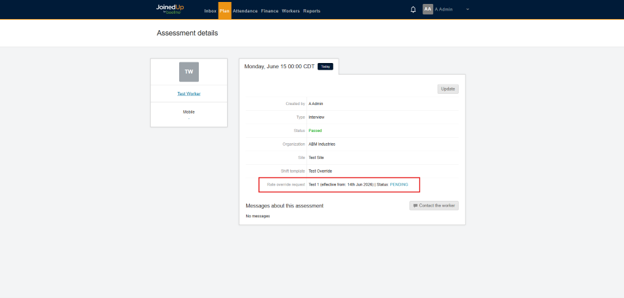
| The 'Manage rate override' link is only visible to users who have access to the Rate Overrides screen. Other users will see the status only. |
Request Status Reference
| Status | Meaning |
|---|---|
Pending |
The request has been submitted and is awaiting review by an Admin or Finance user. |
Approved |
An authorised user has approved the request. The worker is now linked to the shift template and the custom rate is applied. |
Rejected |
An authorised user has declined the request. No changes to rates or worker linking have been made. |
Cancelled |
An authorised user has declined the request. No changes to rates or worker linking have been made. |
Frequently Asked Questions
Can I approve multiple requests at once?
-
Yes. Select the checkboxes for all relevant requests and choose Approve from the action selector.
What happens to shifts when a request is approved with a past effective date?
-
A confirmation prompt will ask you to acknowledge that existing shifts will be affected. On confirmation, those shifts are rebooked automatically using the new custom rate.
Can a Supplier approve or reject requests?
-
No. Approval and rejection are restricted to Admin and Finance End-hirer users. Depending on your organisation’s configuration, Suppliers may also be restricted from submitting requests or accessing the Rate Overrides screen.
I cannot see the Rate overrides menu item. Why?
-
The menu item is visible only to Finance and Admin users. If you believe you should have access, please contact your system administrator.
Can I edit a request after submitting it?
-
No. Once submitted, a request cannot be edited. You can cancel it and create a new one from the assessment if changes are needed.
Why are the pay columns not visible on the Rate Overrides screen?
-
Your organisation’s financial visibility settings may be configured to hide pay totals. Contact your administrator if you believe you should have access to this information.