Best Practices for Cloning Shift Templates
Overview
Cloning a shift template creates a duplicate that copies most configuration from the source template. It’s useful when setting up sites where different jobs share the same rules, rates, or both — or when replicating templates across different sites. However, cloning carries risks if not done carefully, particularly around rates, payroll, and compliance configuration.
How to Clone a Template
-
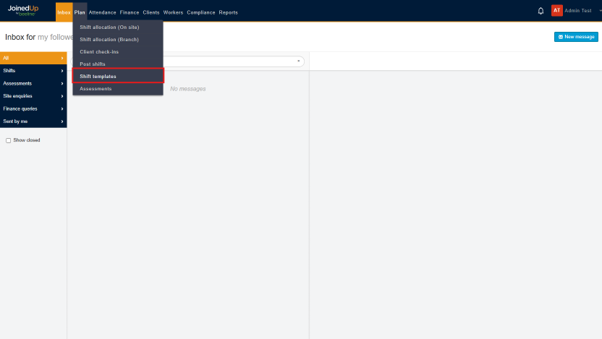
Navigate to Plan > Shift templates
-
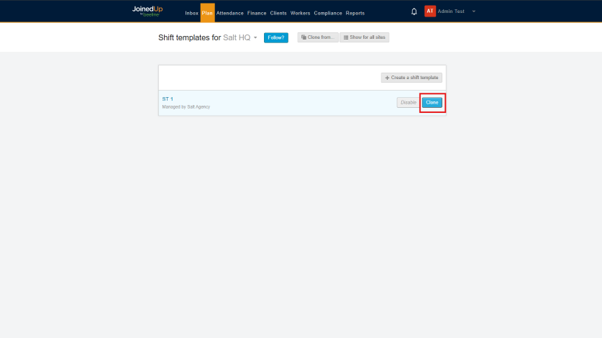
Click Clone next to the relevant template name.
-
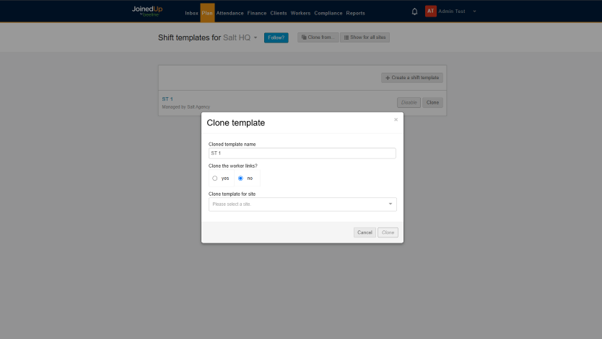
A pop-up window will appear showing the following:
-
Template name — Enter a unique name (duplicates not allowed within the same site; same name is permitted across different sites)
-
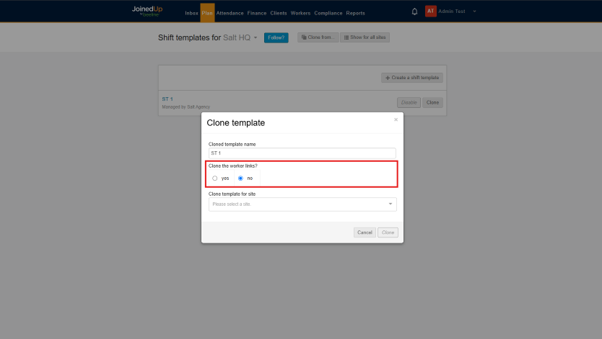
Clone worker links — Only select this if the same group of workers will be working on the new template (applies to On-Site planning tool users, not Branch)
-
Clone template for site — Select the target site (even if cloning within the same site, you must pick it from the list)
What Gets Cloned
The Clone function copies the following:
-
Charge/pay schedules (filtered by legal status feature flags)
-
Custom fields
-
Non-working days
-
Shift template owners
-
Daily rate settings
-
Adjustment managers
-
Attribute requirements
-
Advanced settings (e.g., Enable Automated Worker Acceptance, "Enforce 8-hour rest break between shifts")
| Worker links are cloned only when Yes has been selected on the 'clone the worker links?' option. |
What Does NOT Get Cloned
The following are never carried over and must be set up manually:
-
Shifts (existing bookings)
-
Timesheets
-
Statements
-
Worker shift patterns (auto-create inputs)
-
Audit history
-
Order template worker links (separate from shift template worker links)
Where to Clone From — Always Use the Master Template
|
Always clone from the approved Master template. |
The Master Template serves as your organization’s single source of truth. Once finalized, it is:
-
Reviewed and approved by your team, ensuring accuracy and alignment before deployment
-
Locked under version control, preserving its integrity — any future changes require a new approval cycle to maintain consistency and accountability
Why the Master Template Matters
The Master template contains the validated, correct configuration for rates, rules, and compliance settings. Cloning from the Master ensures consistency and accuracy across all derived templates.
Risks of Cloning from Non-Master Templates
Cloning from a template that is not the Master introduces significant risks:
| Risk | Impact |
|---|---|
Incorrect rates propagated |
Misconfigured overtime or pay rates can cascade across multiple locations, causing payroll errors and financial exposure |
Compliance misconfiguration |
Wrong compliance form data or attribute requirements may be inherited, leading to non-compliant worker placements |
Drift from approved configuration |
Non-Master templates may have been edited ad-hoc, meaning the clone inherits unapproved changes |
Difficult root-cause analysis |
When issues arise, tracing back through a chain of clones (clone of a clone) makes it extremely hard to identify where the error originated |
Scale of impact |
Template cloning can propagate misconfiguration across multiple locations before detection, as seen in past incidents where incorrect overtime settings spread to multiple sites |
Pre-Clone Validation Checklist
Before cloning any template:
-
✅ Confirm you are cloning from the approved Master template
-
✅ Verify the template is not currently in use for live shifts or active payroll processing
-
✅ If the template is in use, confirm:
-
Whether existing shifts need to be transferred to the new template
-
Whether workers assigned to the current template should be cloned to the new version
-
Post-Clone Verification Steps
After cloning, always verify:
-
Rates — Confirm charge/pay schedules are correct and complete on the new template
-
Worker links — If cloned, verify the correct workers are linked; if not cloned, add workers manually
-
Auto-create settings — If auto-creation is needed, reassign worker shift patterns to the new template (they still point to the original)
-
Advanced settings — Verify settings like automated worker acceptance and rest break enforcement
-
Order template worker links — These are separate and must be created independently on the target order template if applicable
-
Template name — Ensure it clearly identifies the site/role to avoid confusion in the planning screen
When to Clone vs. Create from Scratch
| Scenario | Recommendation |
|---|---|
Same rules and rates at a different site |
Clone from Master |
Similar role with minor rate differences |
Clone from Master, then adjust rates |
Completely different role/rules |
Create from scratch |
Large-scale onboarding (many templates) |
Use the Shift Template Importer (RSI Importer) for bulk creation |
Updating rates on an existing template |
Use Clone Version (not Clone Template) — see "Editing shift templates" |