Post Shifts
The Post-Shift Screen is one of three allocation screens available, alongside the Onsite Screen and Branch Screen. It is primarily used for creating and tracking multiple shifts.
This guide covers Post-Shift functionality for Agency Users.
How to Access
You must have the Branch role to access this screen. Contact your organisation’s administrator to request this role.
Once you have the role:
-
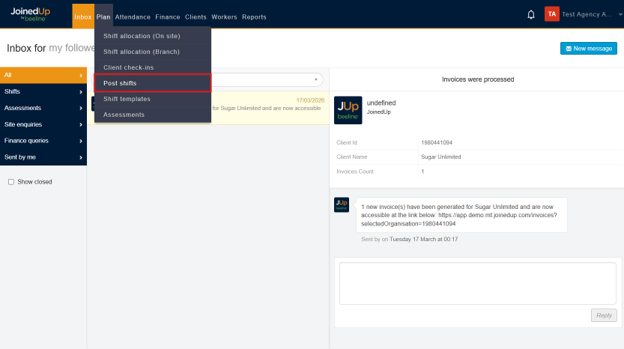
Navigate to the Plan tab
-
Select Post Shifts
Resolving Access Issues
You may encounter the following error message:
Error: "This site has not yet been assigned to a region…"
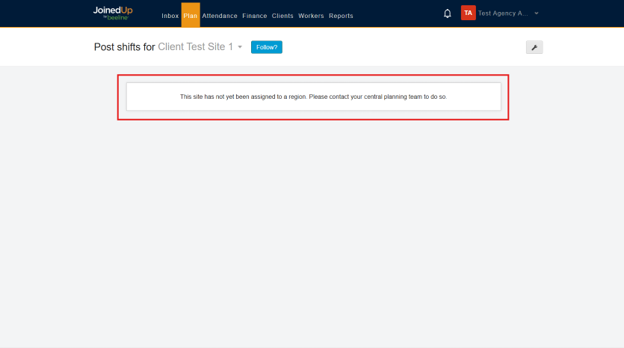
To resolve this one, you need to assign this site to a Branch by going to the Shift Allocation (Branch).
Setting Up a New Branch
To assign a site to a Branch:
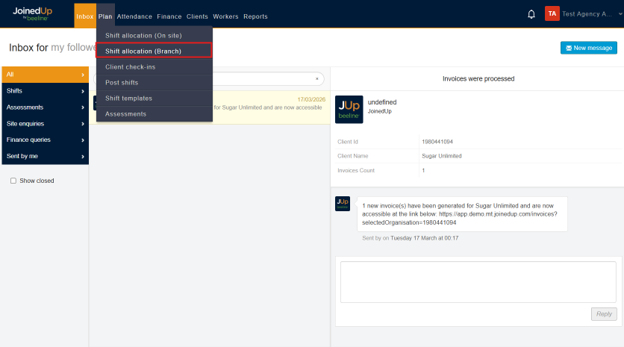
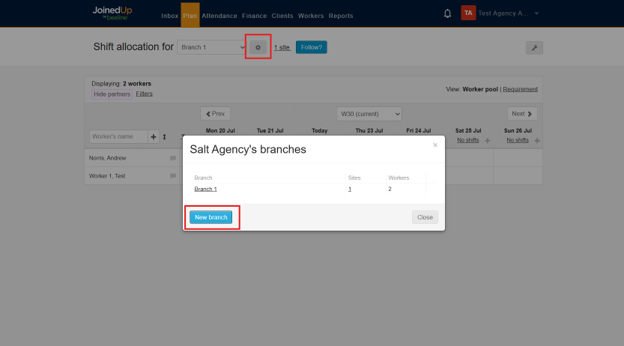
Go to *Shift Allocation (Branch)
-
Click the Gear Icon
-
Select New Branch
-
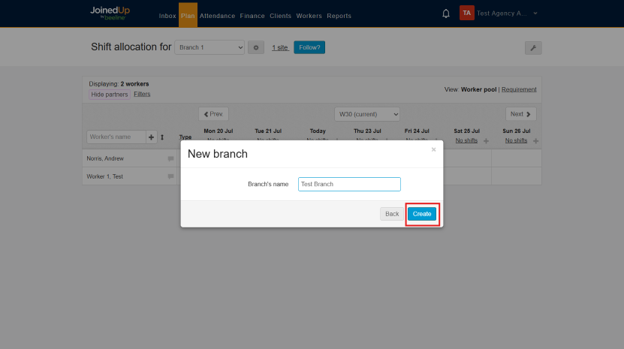
Enter a Branch Name
-
Click Create
Adding a Site to a Branch
-
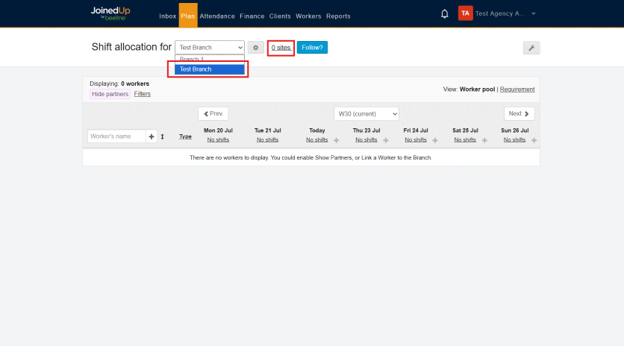
Click the drop-down menu above
-
Select the Branch you created
-
Click the hyperlink that says "(number) sites)"
-
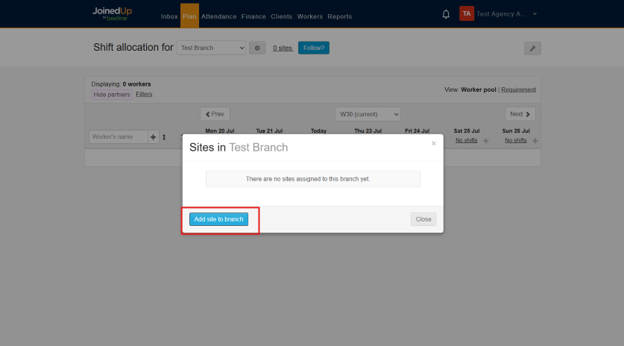
Select Add Site to Branch
-
Choose the corresponding organisation and site from the drop-down menu
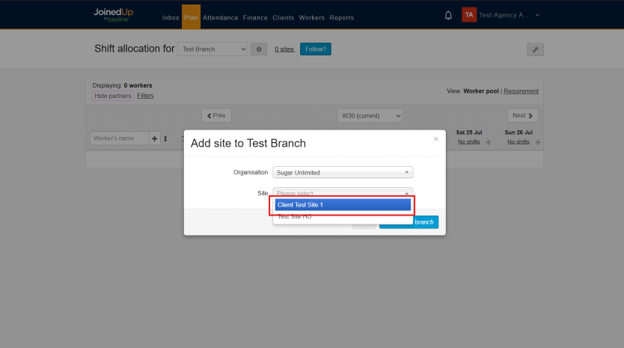
-
A confirmation prompt will appear
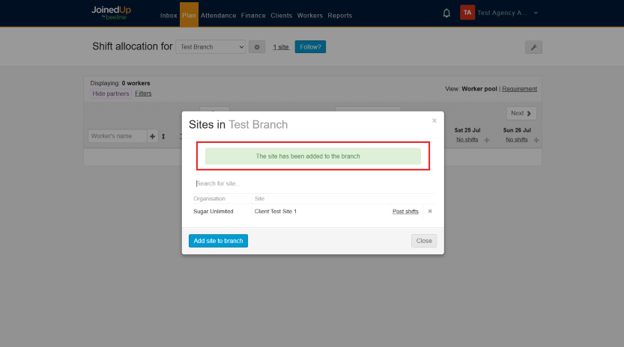
| You can only add sites to a Branch if those sites are shared by your Client. Sites from your own organisation cannot be added to a Branch. |
Once complete, you can access the site in the Post Shift Screen.
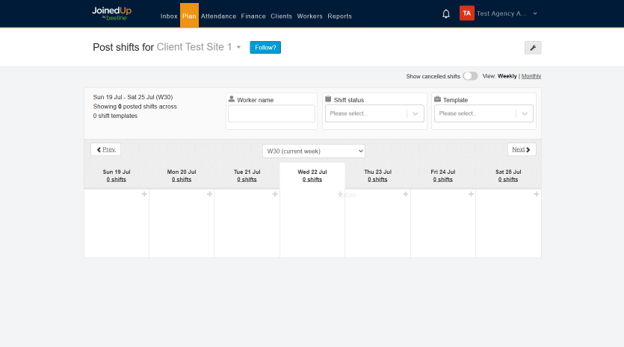
Post Shift Screen Overview
Changing the View
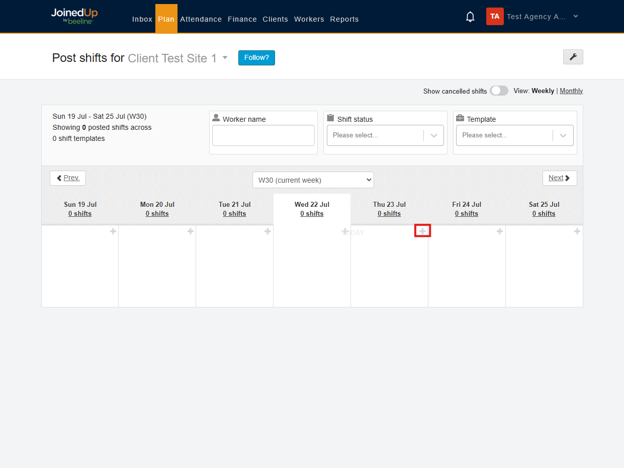
You can switch between Monthly or Weekly View using the options in the upper right corner.
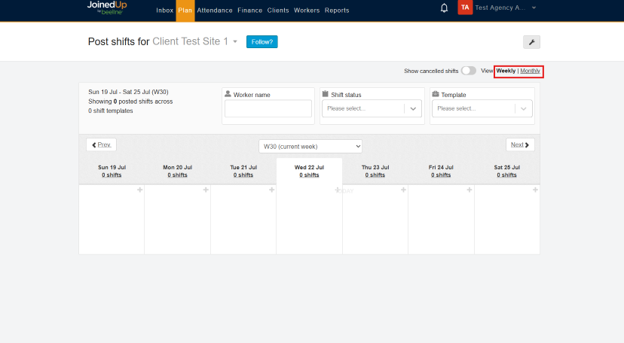
Weekly View
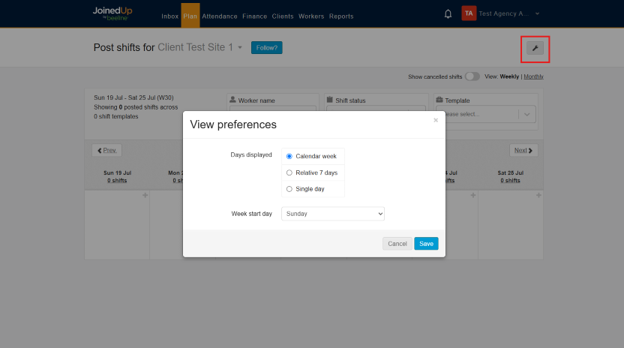
The default view spans Sunday to Saturday. You can customise this by clicking the tool icon in the upper right corner.
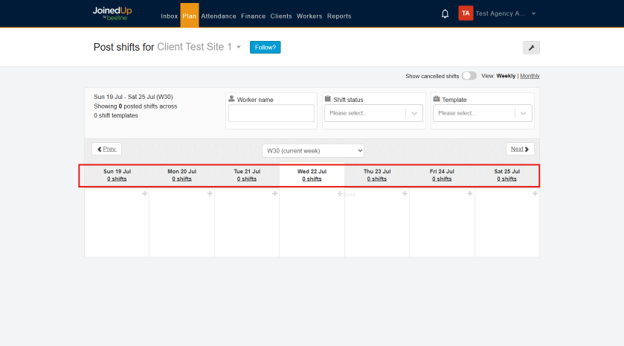
Available options:
-
Calendar Week – Choose your preferred start day of the week
-
Relative 7 Days – Starts from the current day you are viewing. For example, if you are viewing on a Wednesday, the week begins on Wednesday
-
Single Day – Displays only the current day
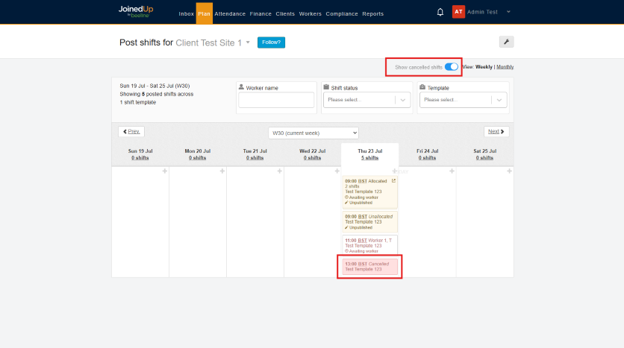
You can also toggle a button to display cancelled shifts.
Monthly View
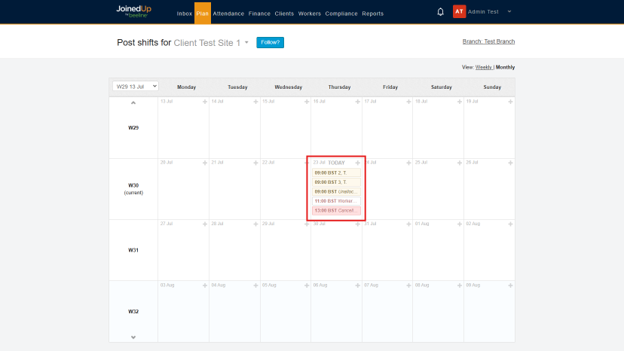
This view displays as a calendar. You can select the starting week using the drop-down in the upper left corner, which defaults to the current week.
You can also see which Branch the site belongs to in the upper right corner.
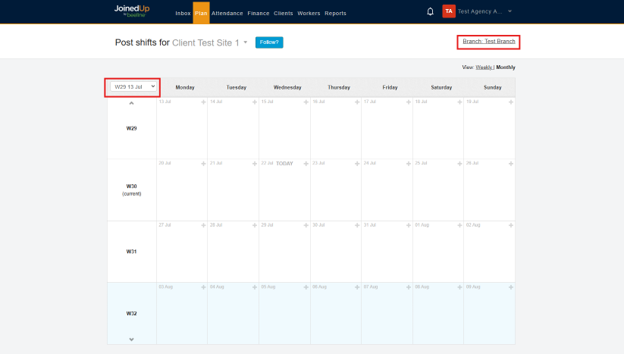
In this view, shifts are listed individually, even if they share the same start time.
Creating Shifts
Initial Setup
-
Click the + icon on the desired date
-
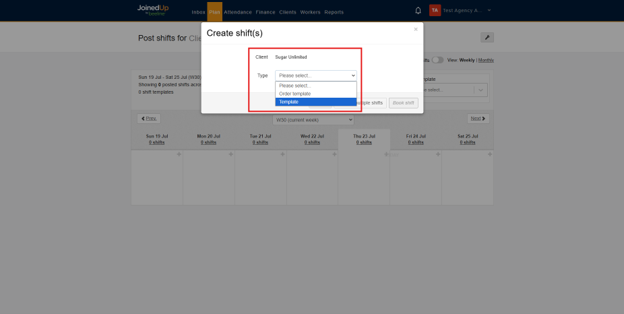
A modal will appear for you to select:
-
The client
-
The template type (Order Template or Normal Shift Template)
-
-
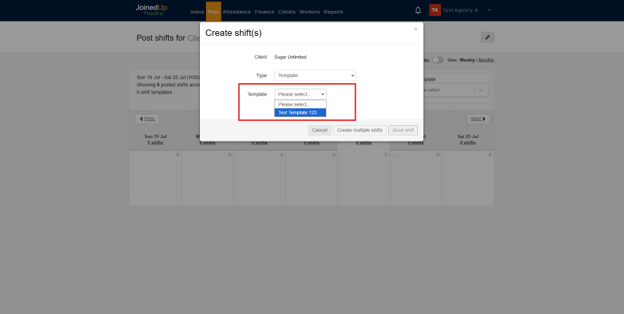
Select the corresponding template for your shifts
Defining Shift Details
The following fields will appear after template selection:
-
Number of Workers – The number of workers required for the shift
-
Show Expected Stop Time and Job Number – Set to Yes to specify a planned stop time and Job Number
-
Planned Start – The planned start time of the shift(s)
-
Notes – A short description of the shifts, if needed
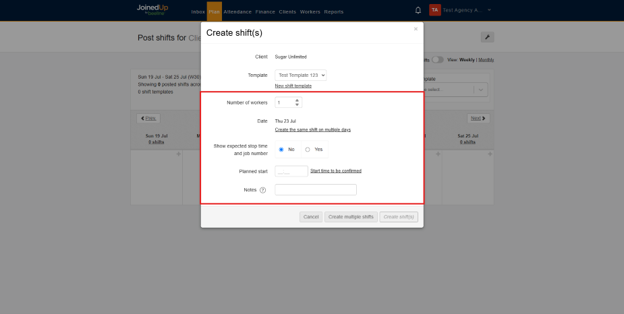
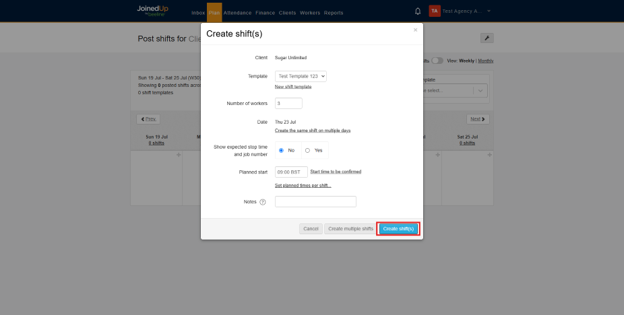
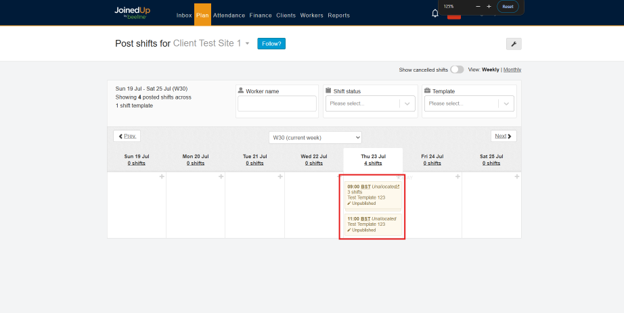
Once all details are configured, click Create Shifts.
Allocating Shifts
Selecting Workers
-
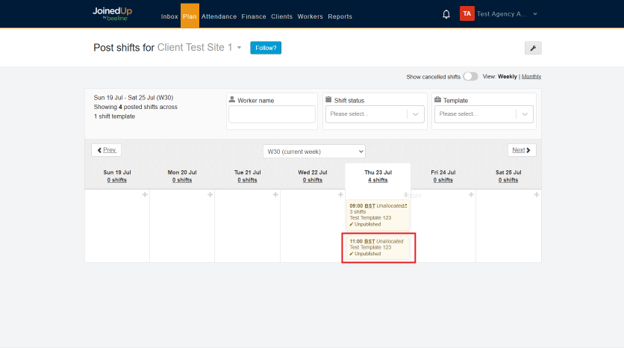
Click on the corresponding shift tile
-
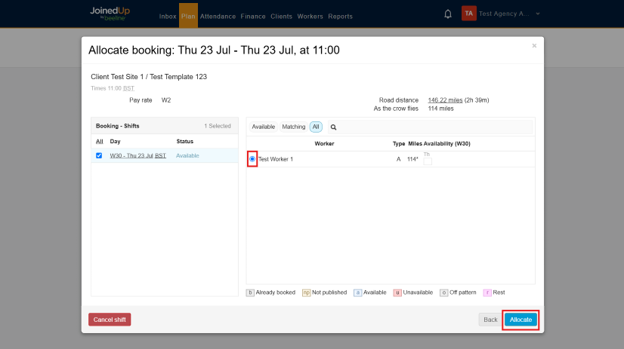
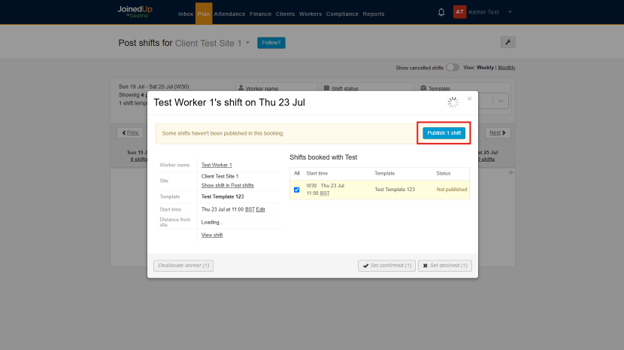
A modal will appear displaying workers available for allocation
-
The modal includes legends indicating workers' calendar availability
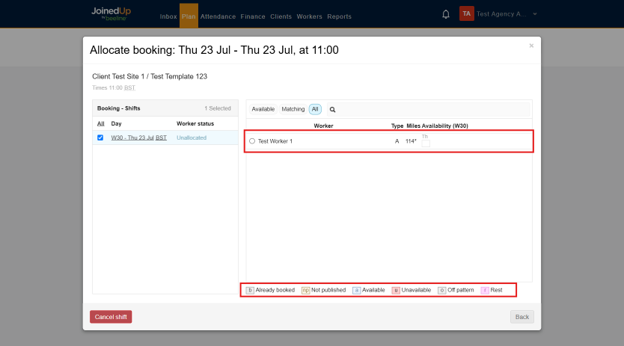
| Workers will only appear in this modal if they are linked to the Branch. You can manage worker links on the Managed Worker Screen. |
Understanding Shift Statuses
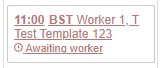
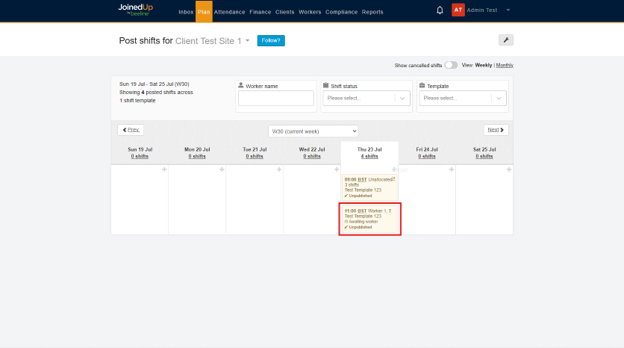
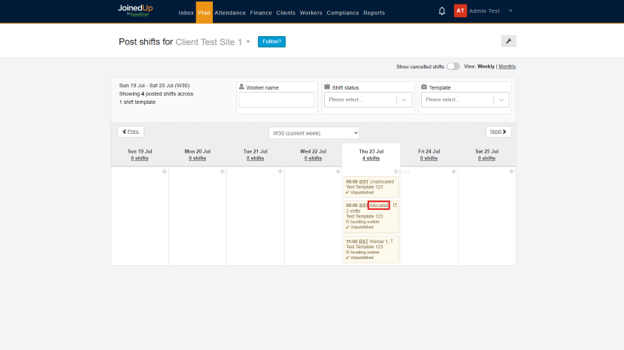
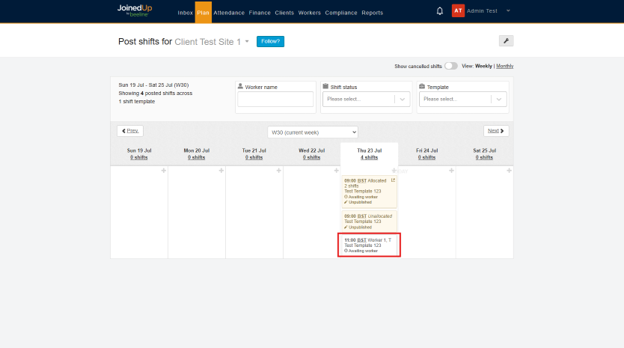
The tiles on the Post Shift Screen use colour-coding to indicate different statuses:
-
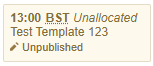
Yellow background – The shift has not been published yet. The shift may already be allocated, but the worker is only notified after publishing.
-
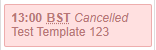
Pink background – The shift has been cancelled.
-
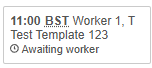
Black font – The worker has been notified but has not yet confirmed their acceptance.
-
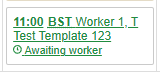
Green font – The worker has been notified and confirmed their acceptance.
-
Red font – The worker has been notified but declined the shift.