Worker Proposals: Grouped Shifts
Overview
When a Shift Request spans multiple days or weeks, you can propose the same worker to every eligible shift in that request at once, instead of proposing shift by shift. This lives on the Plan On-site page, alongside your existing individual shift proposal flow.
| Please reach out to your COS to enable this feature. |
Where to Find This
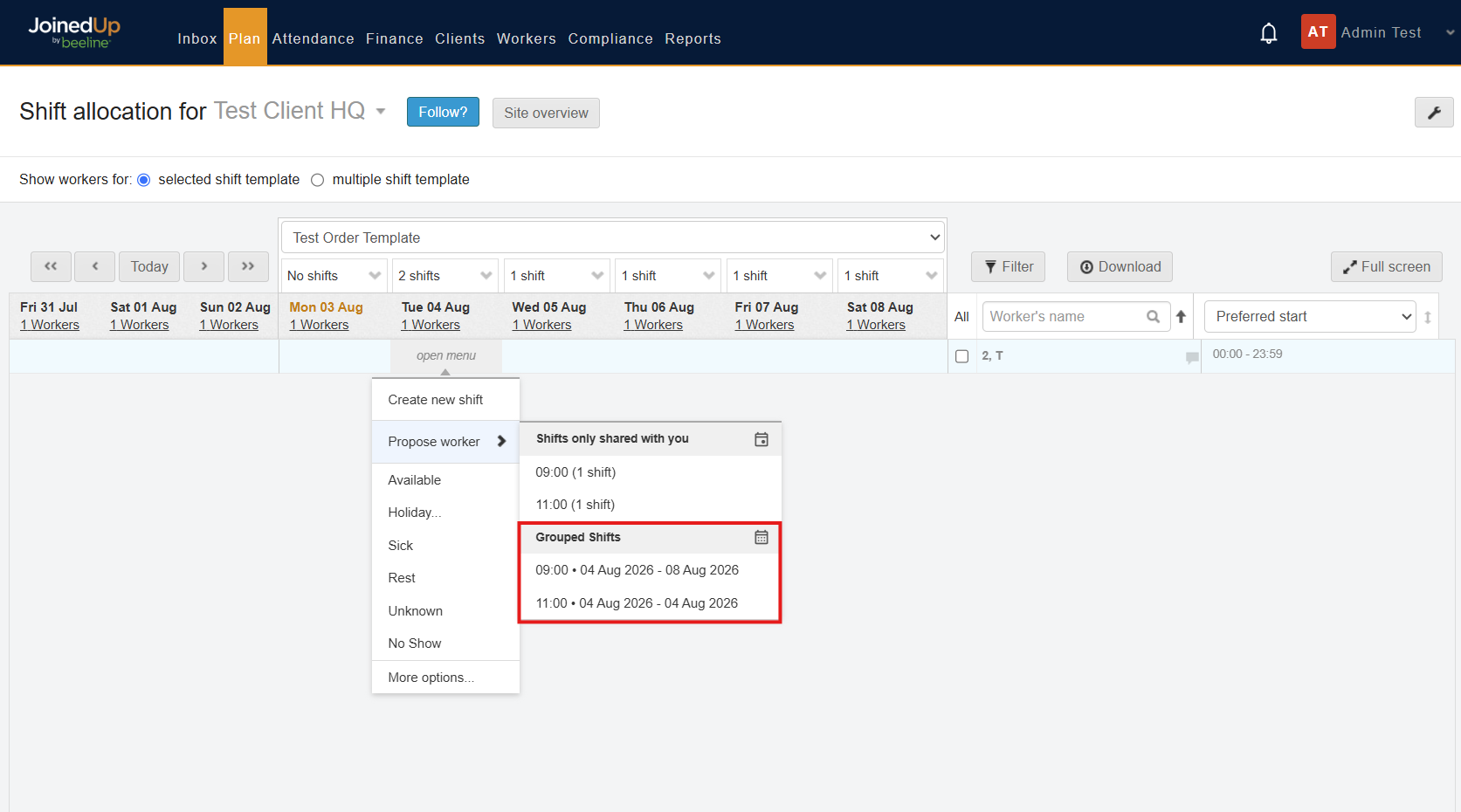
On the Plan On-site page, click into the day cell for a shift and select Propose from the context menu. If the shift is part of a Shift Request — or the order template requires planning approval — the Propose menu shows two sections: Individual Shifts and Grouped Shifts. If planning approval is required but there’s no Shift Request for that day, the Grouped Shifts section shows "No group shifts available.
Step-by-Step: Proposing a Worker to a Shift Request
-
Open the Propose menu. On the Plan On-site page, click the day cell for the worker and shift you want to act on, then choose Propose.
-
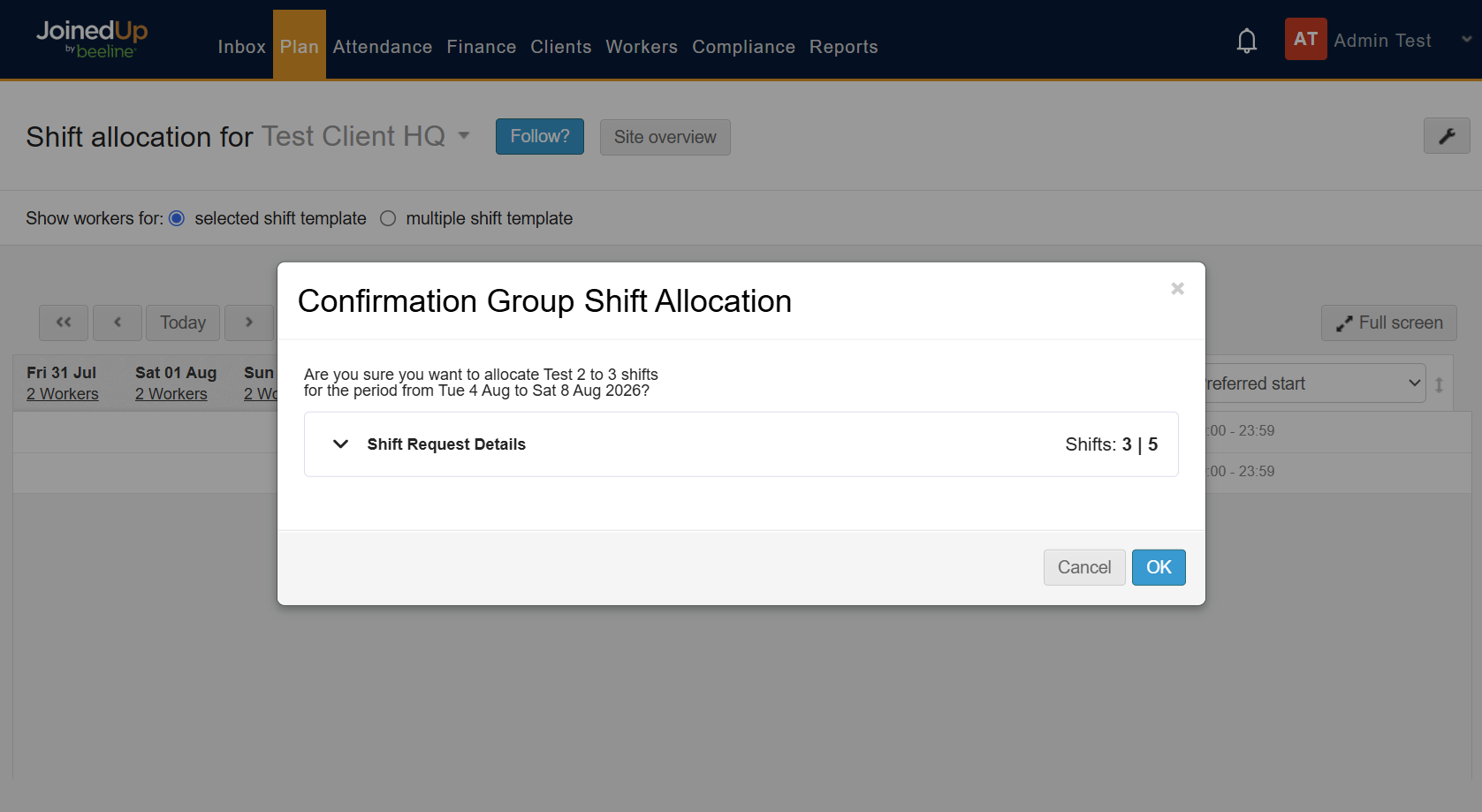
Select the Shift Request under Grouped Shifts. This opens a confirmation popup for that Shift Request.
-
Review the confirmation message. It reads: Are you sure you want to allocate {Worker Name} to {available} of {total} shifts for the period from {start date} to {end date}?
-
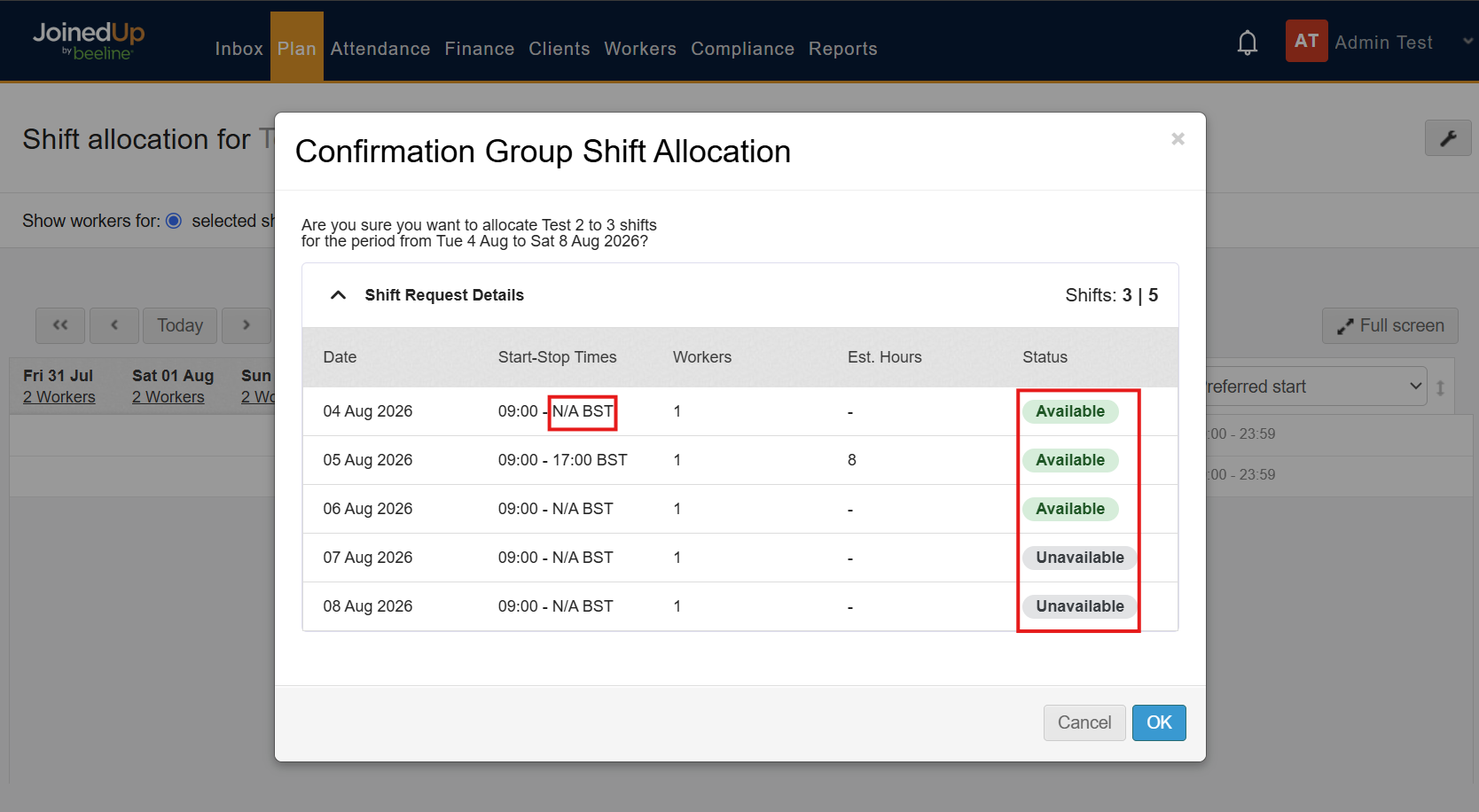
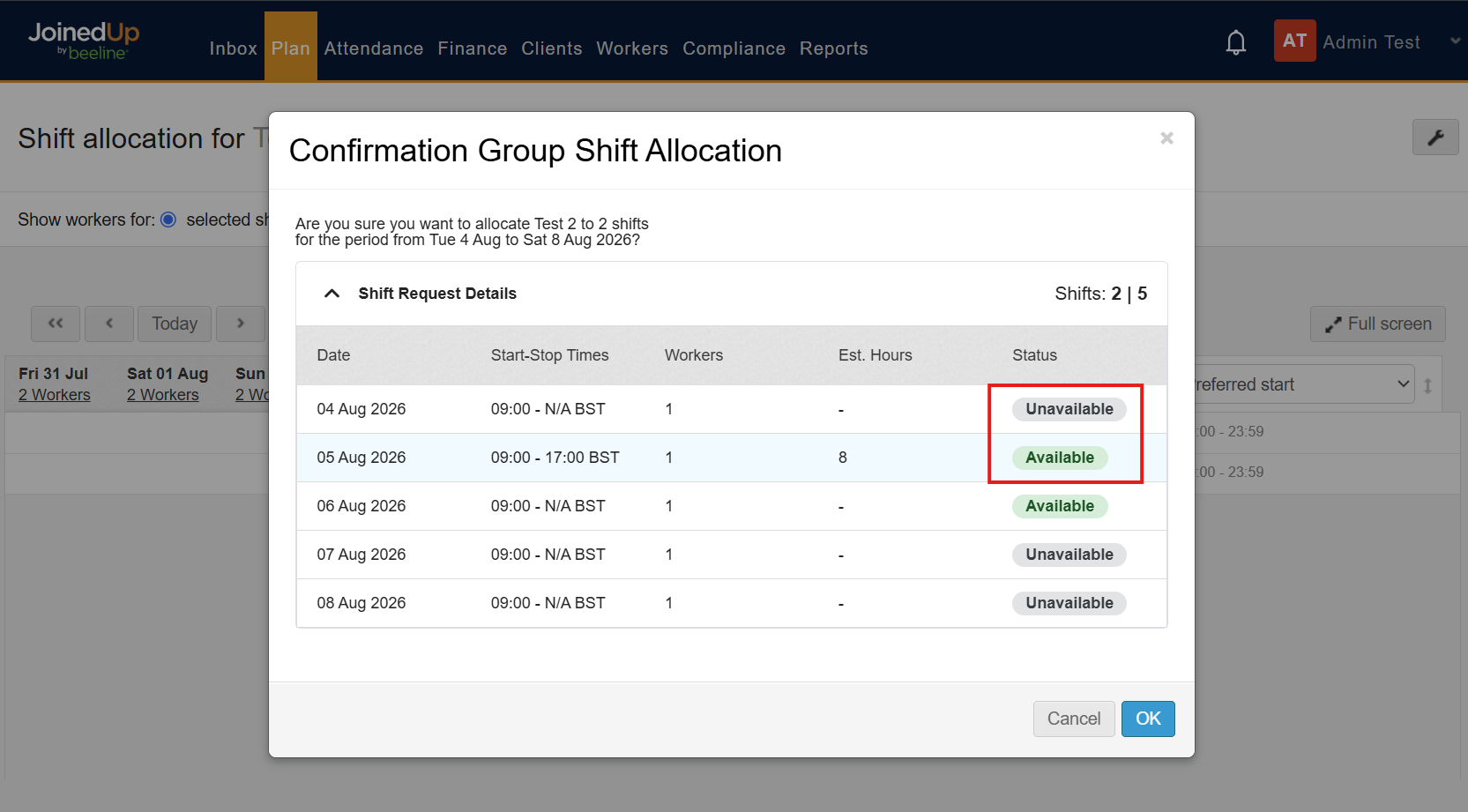
Check the shift details (optional). Expand Shift Request Details to see every shift in the request, with its date, start–stop times, currently assigned workers, estimated hours, and status. Shifts marked Available (green) will be included in the proposal; shifts marked Unavailable (grey) are shown for reference only and won’t be proposed to. If a shift has no expected stop time, it shows as N/A.
-
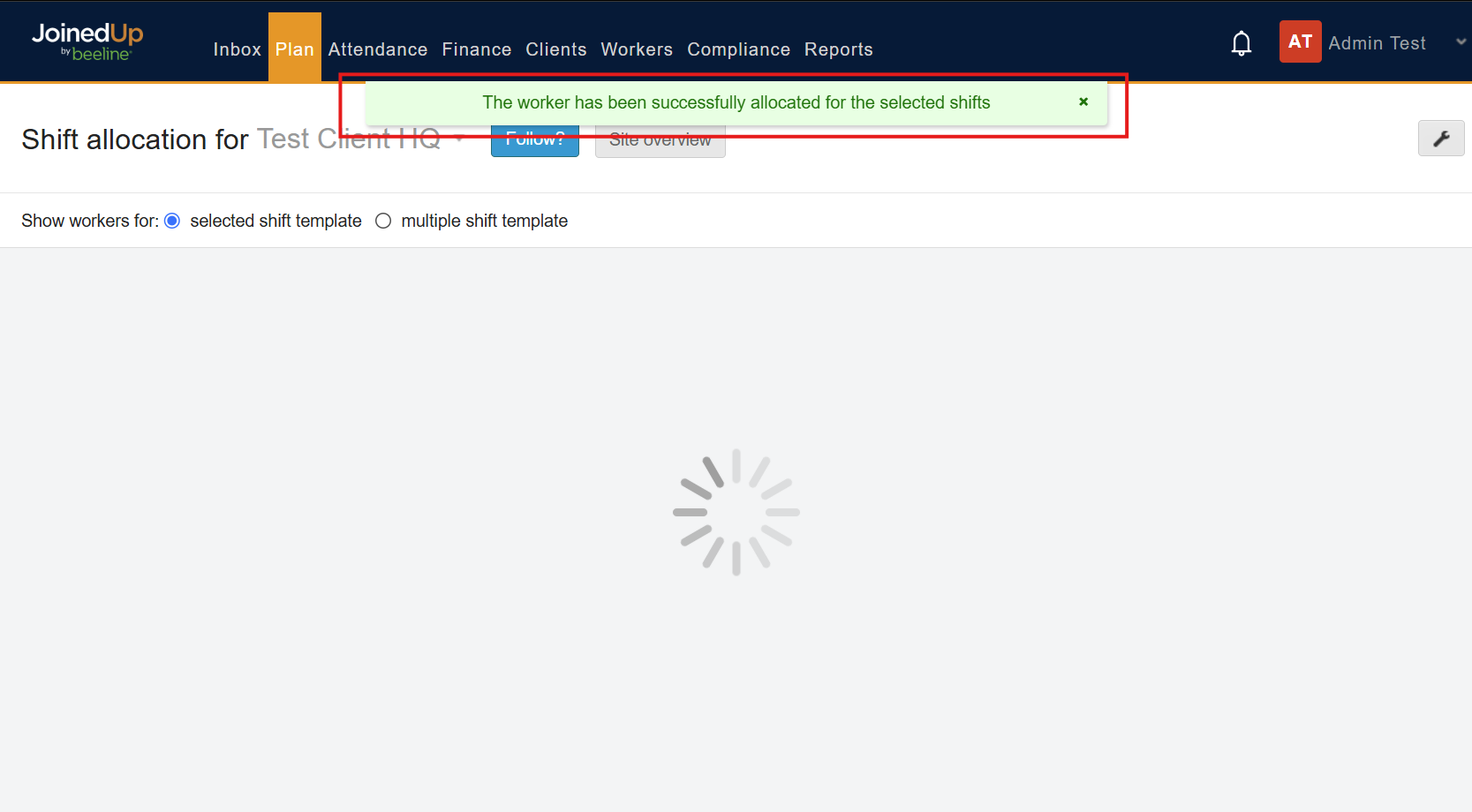
Confirm. Click OK to submit. You’ll see a success message: Success: The Grouped Shifts have been allocated. If submission fails, an error message appears and you can retry.
Removing a Grouped Proposal
You can retract a proposal across a whole Shift Request the same way you submitted it:
-
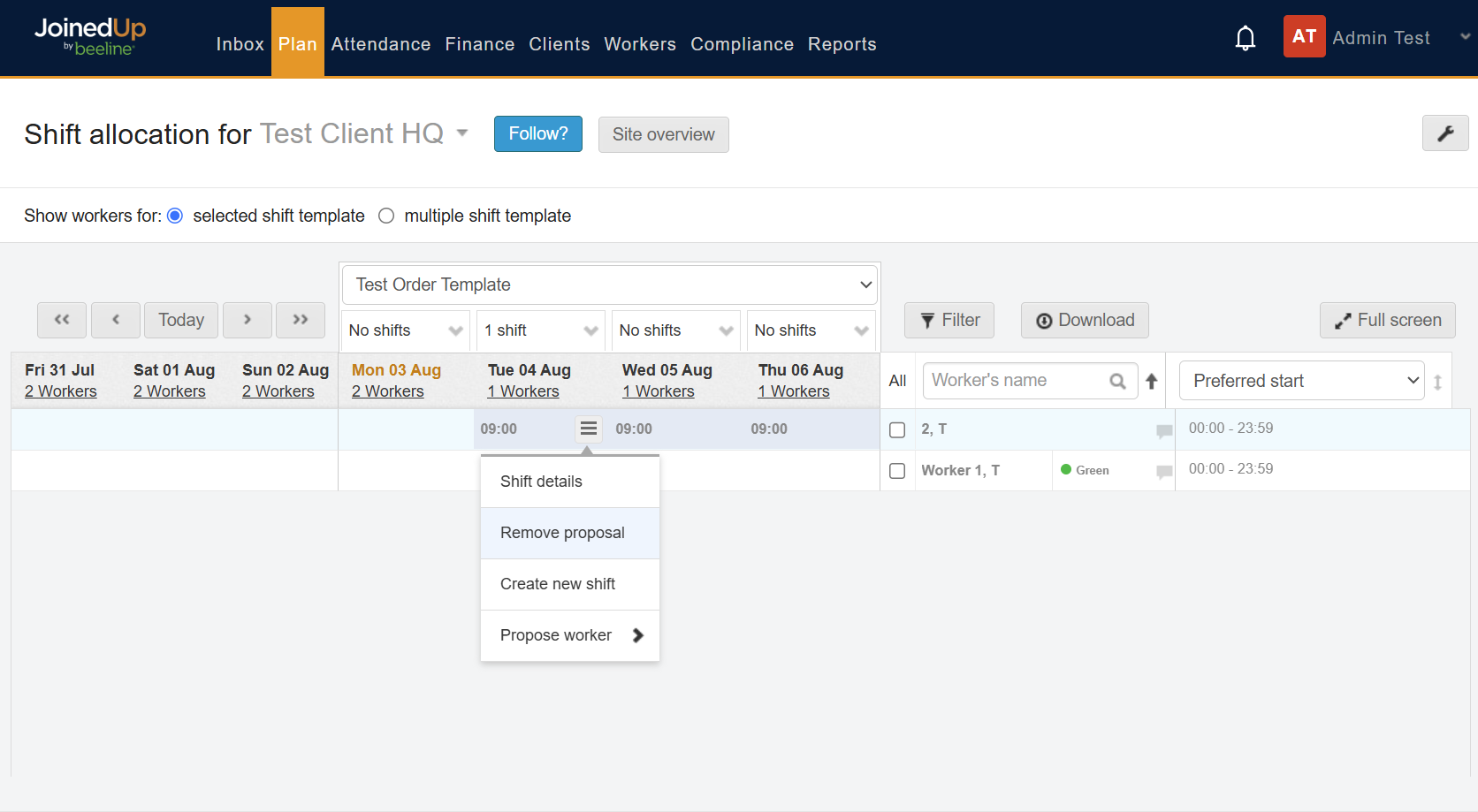
Select Remove proposal on a day cell for a shift that belongs to a Shift Request.
-
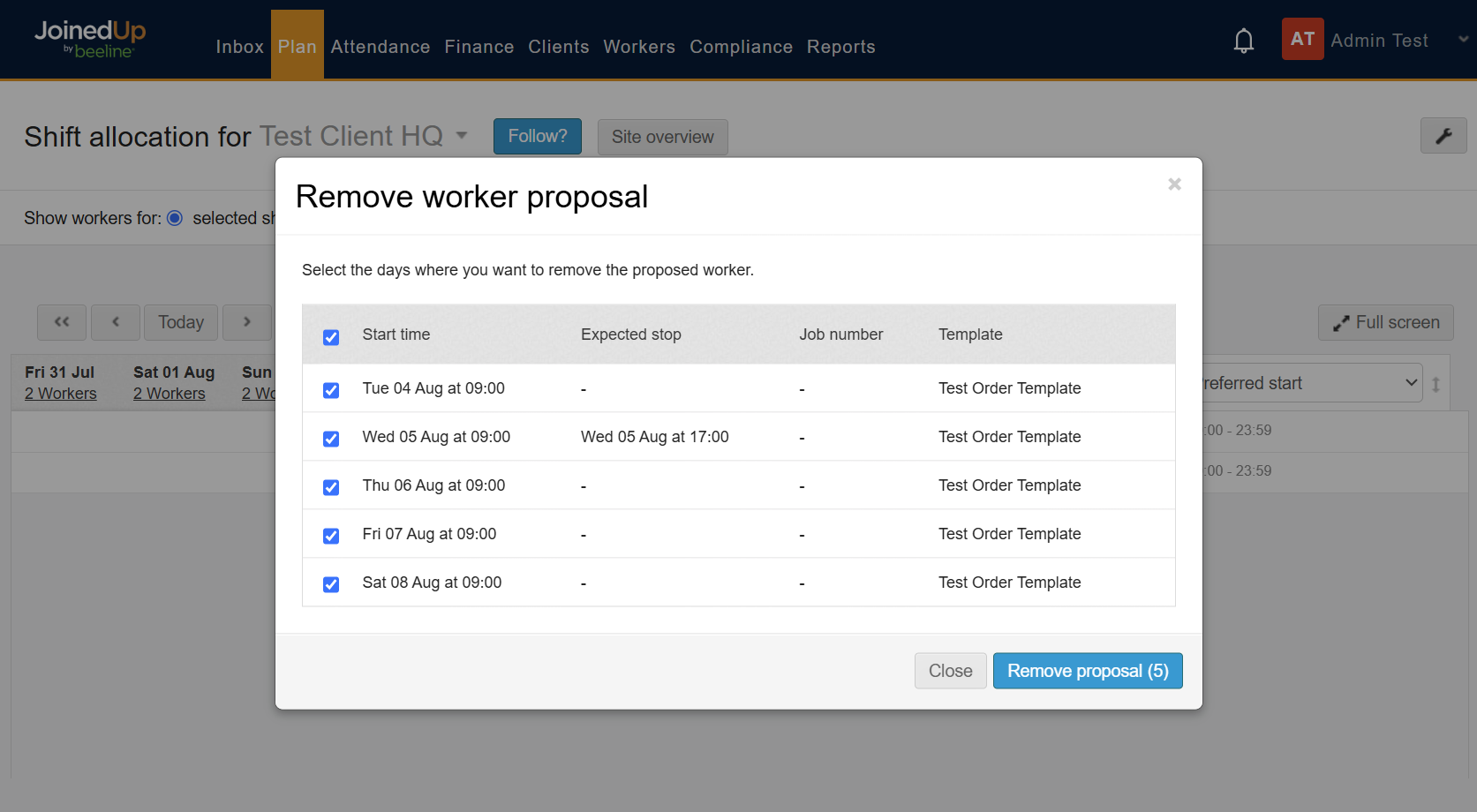
Confirm in the Remove worker proposal popup. It reads: Select the days where you want to remove the proposed worker.
-
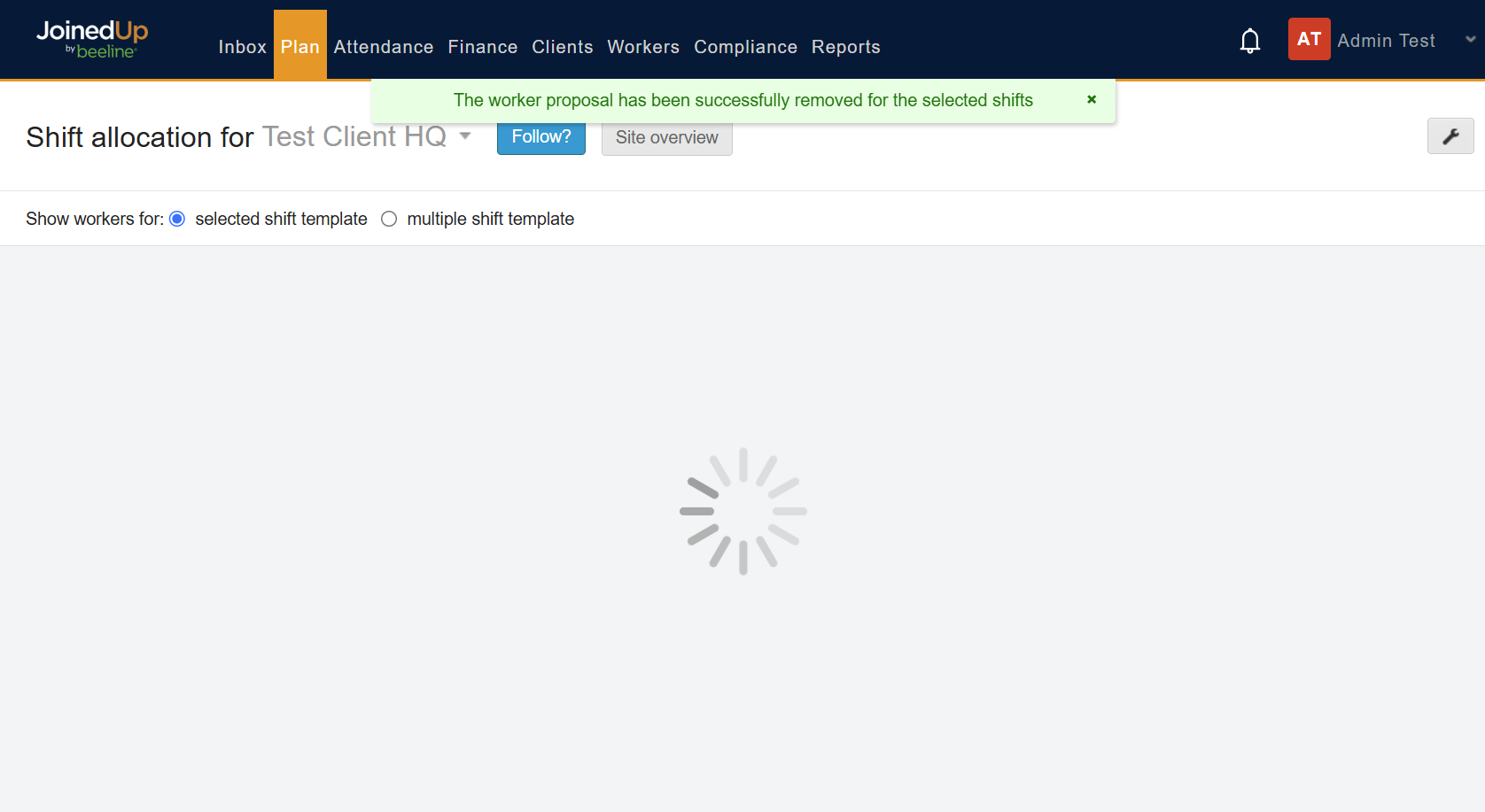
Confirm removal. Every shift in the request where you currently have an active proposal is removed. You’ll see a success message: Success: The Grouped Shifts proposal has been removed. If it fails, an error message appears and you can retry.
How Eligibility Works
Each shift in a Shift Request is automatically marked:
-
Available: the shift is unallocated and you haven’t reached the maximum number of proposals allowed for that day under the order template (by default, one worker per shift unless a higher limit is configured).
-
Unavailable: the shift is already allocated (by you or another supplier), the maximum allowed proposals has been reached, or the shift has been cancelled.
What This Doesn’t Cover
A few things are outside this feature:
-
You can propose one worker per action — proposing different workers to different shifts within the same Shift Request still requires individual proposals.
-
A batch action covers one Shift Request at a time; you can’t batch propose or remove across multiple Shift Requests in a single action.
-
Individual shift proposals work exactly as they did before — this feature is an additional option, not a replacement.