Configurable Profiles
Standardise compliance checking across your organisation by configuring which worker profile fields are required. Your validation scores will then accurately represent true worker readiness, giving your teams the confidence to place workers safely—without the need for extra manual checks.
| Please reach out to your COS to enable the feature. |
How to Access
-
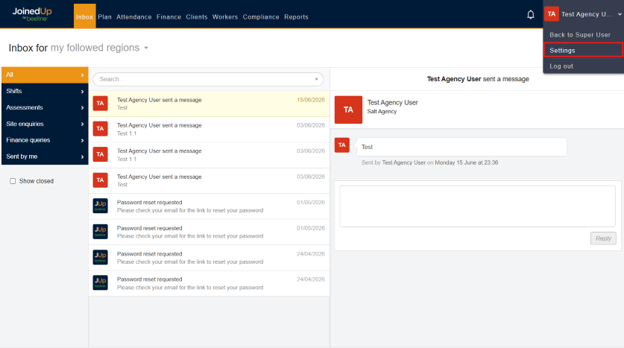
Go to your profile settings.
-
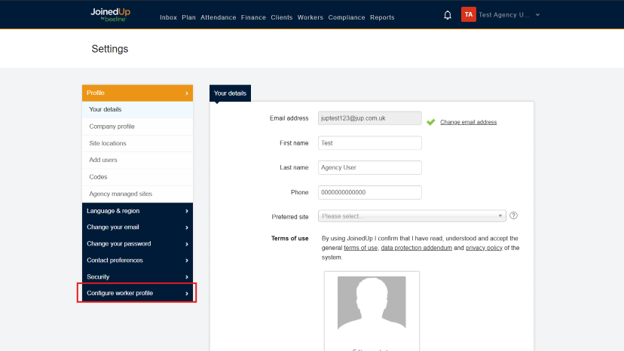
Select on Configure Worker Profile.
-
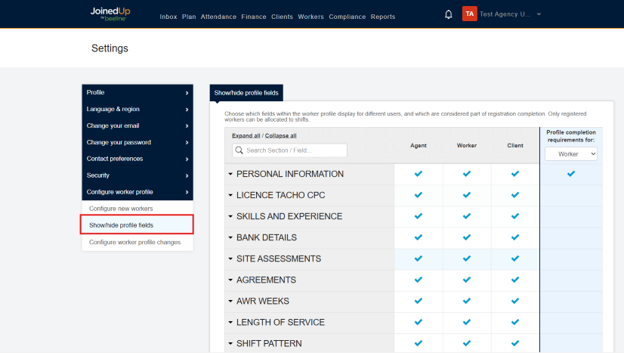
Select Show/Hide profile fields.
Features
After completing the steps above, you’ll see the screen shown below. This is the same interface used for the New Hidden Elements Feature.
A new column appears: "Profile completion requirements for:"
This column controls which worker profile fields are mandatory for 100% registration. You can set different requirements for:
-
Standard profiles
-
Driver profiles
Simply use the drop-down menu to switch between profile types and configure each separately.
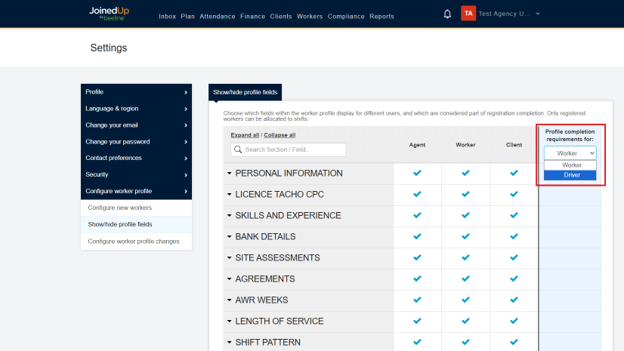
Requirements Configuration
Standard Worker Profiles
Standard Worker Profile is indicated by Worker in the menu.
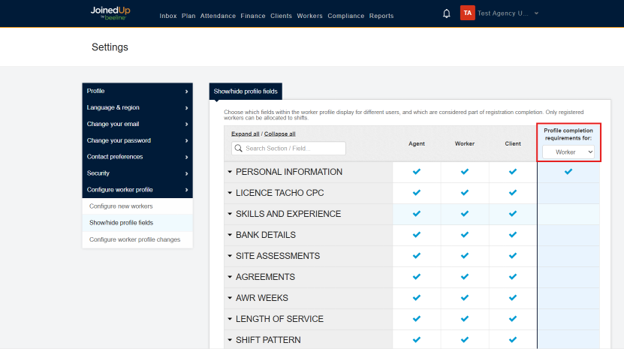
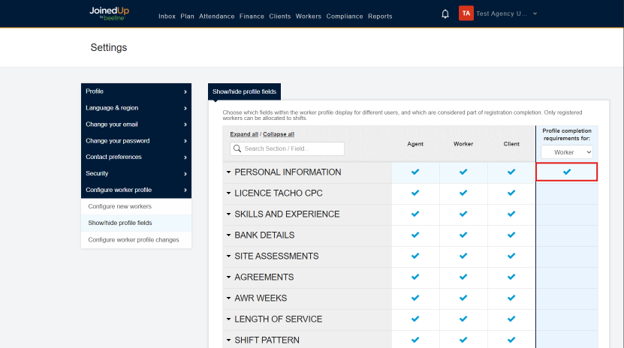
Required fields can only be set for categories with a check mark below the last column. The check mark identifies which category is editable. In this instance, Personal Information is checked and available for configuration.
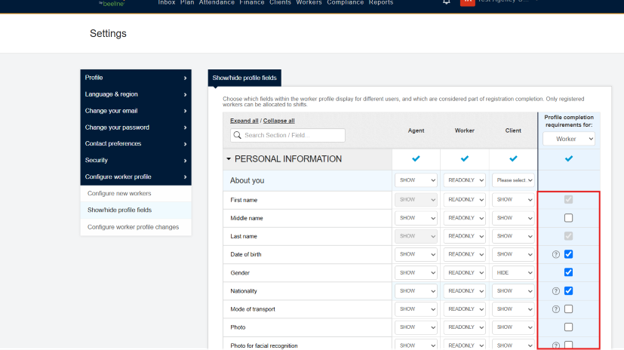
Click the drop-down menu next to Personal Information to expand the category. Then, check the boxes in the last column for any fields you want to make mandatory for 100% profile completion.
Driver Worker Profiles
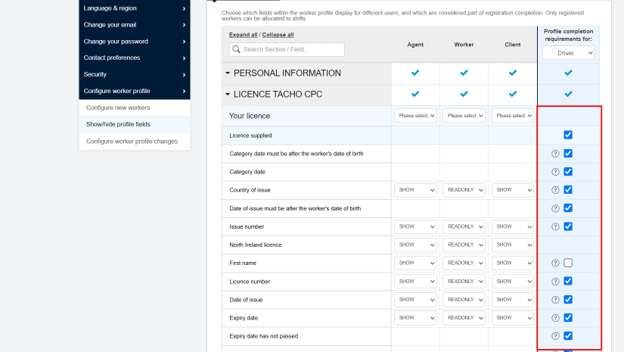
Driver Worker Profile is indicated by Driver on the drop-down menu.
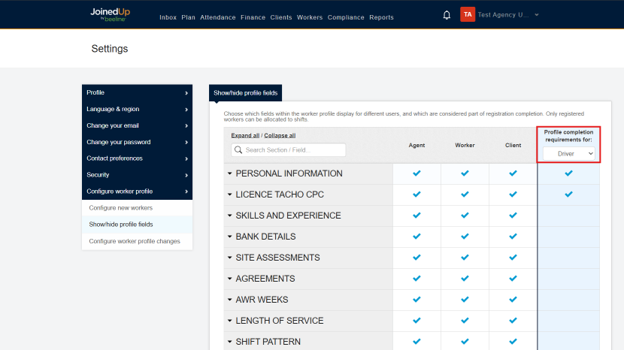
For Driving Profiles, you can set the required fields for Personal Information and Licence Tacho CPC.
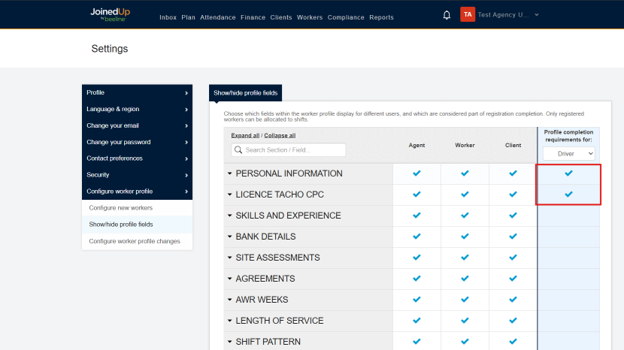
Click the drop-down next to Personal Information or Licence Tacho CPC. Then, check the boxes in the last column for any fields you want to make mandatory for 100% profile completion.