Booking/ Creating shifts
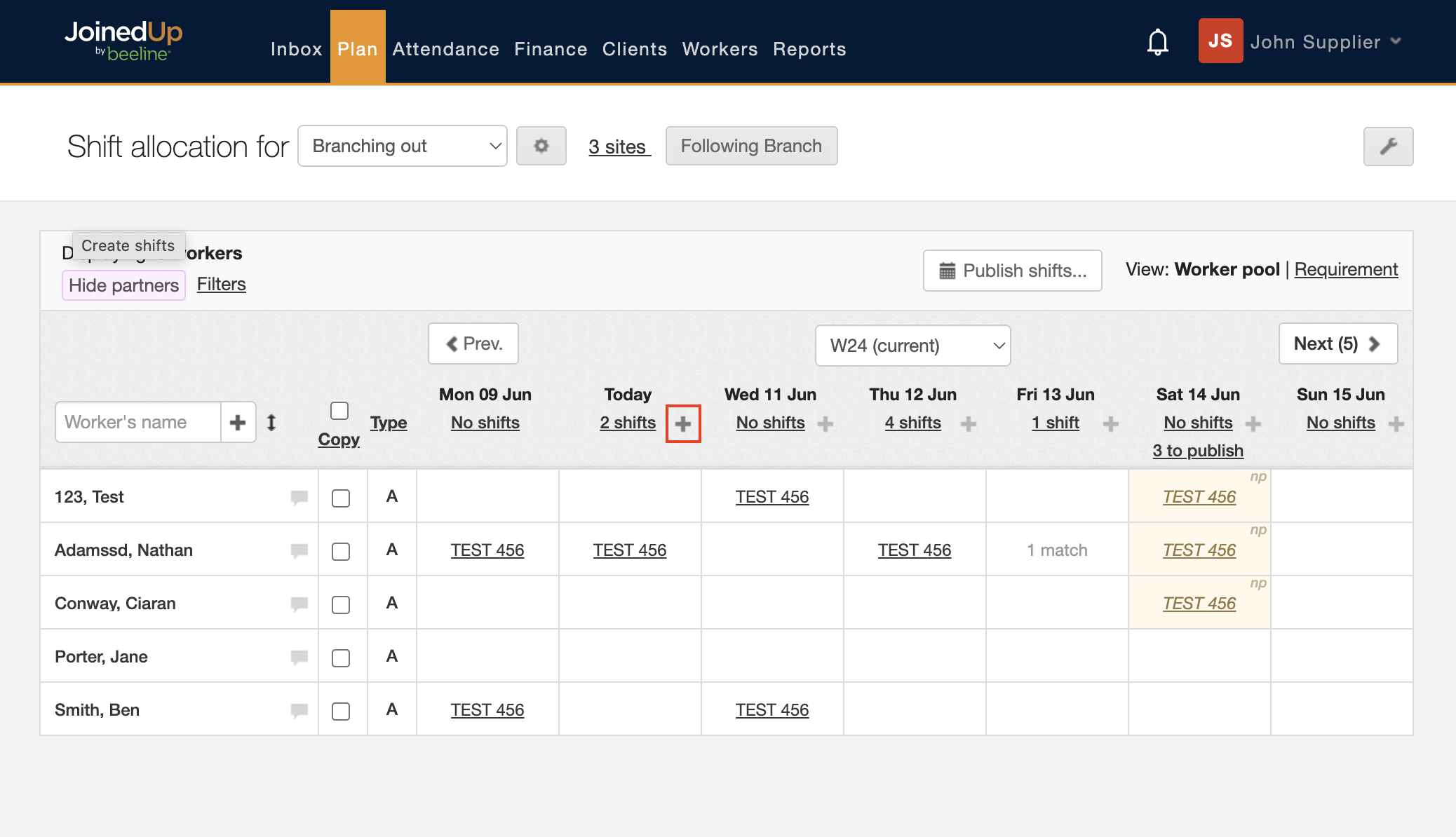
Navigate to Plan > Shift Allocation (Branch).
-
Select + icon on the day you would like to create a booking.
-
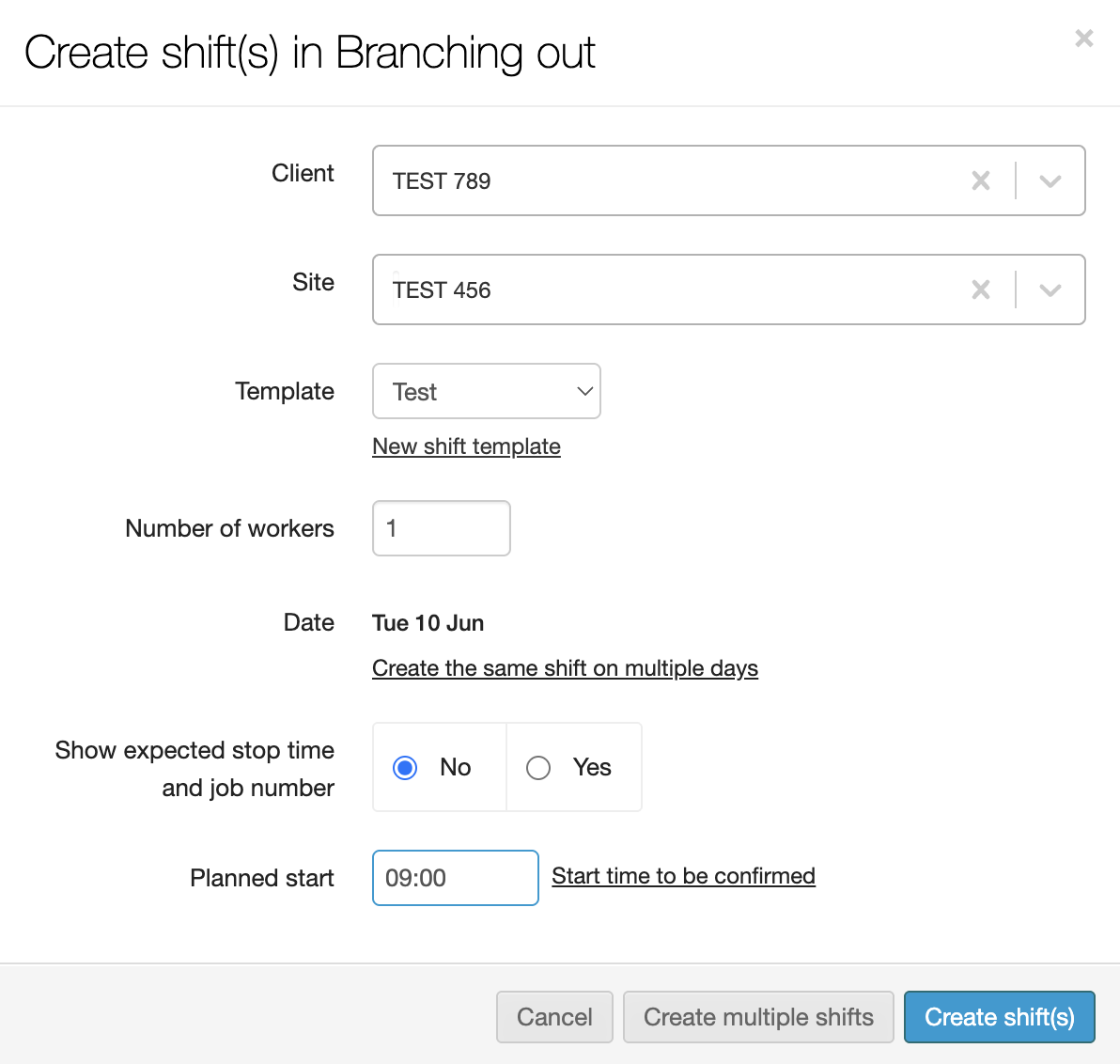
Select the Client, Site and shift template of the booking, as well as the planned start time. You can also enter how many workers you need.
-
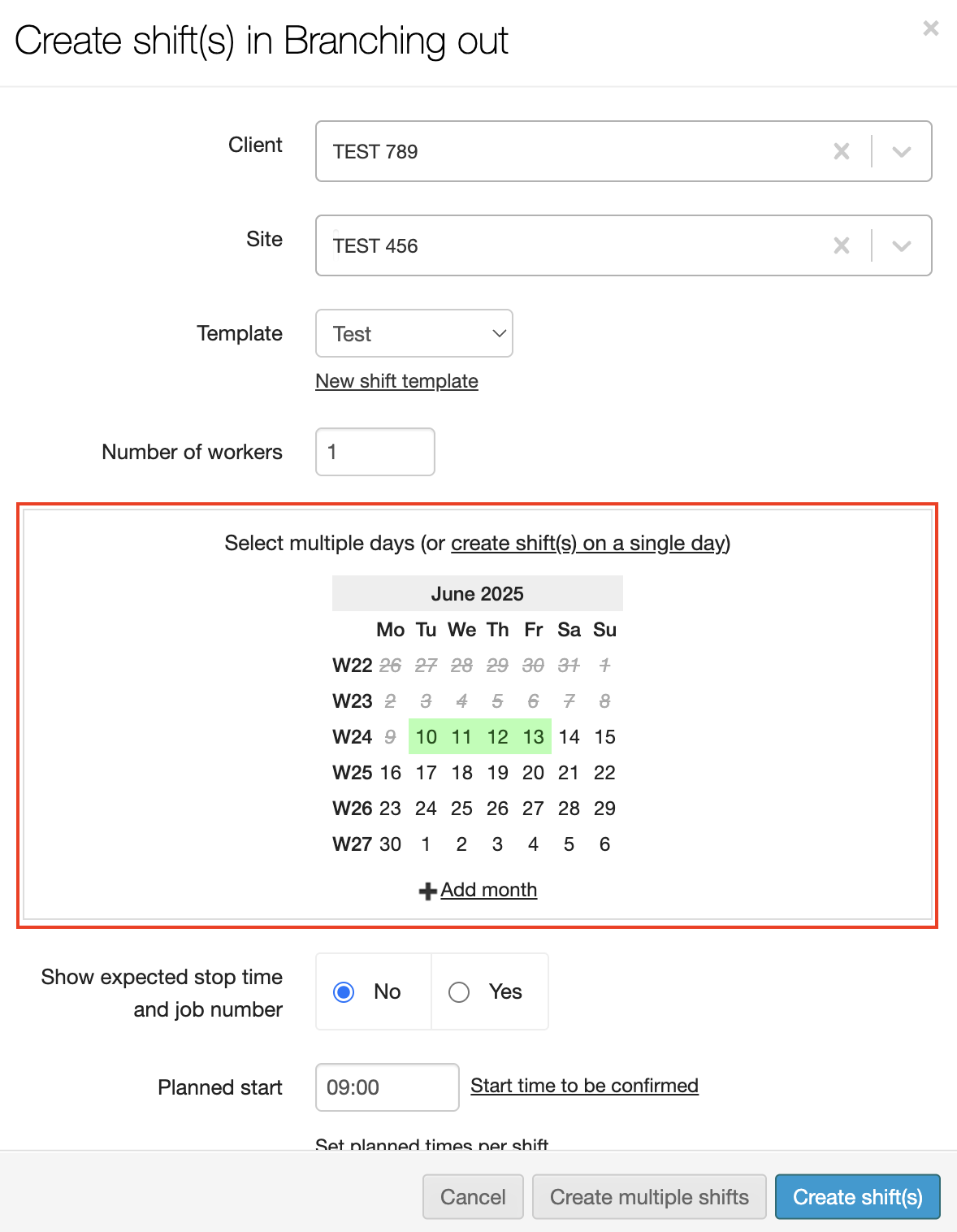
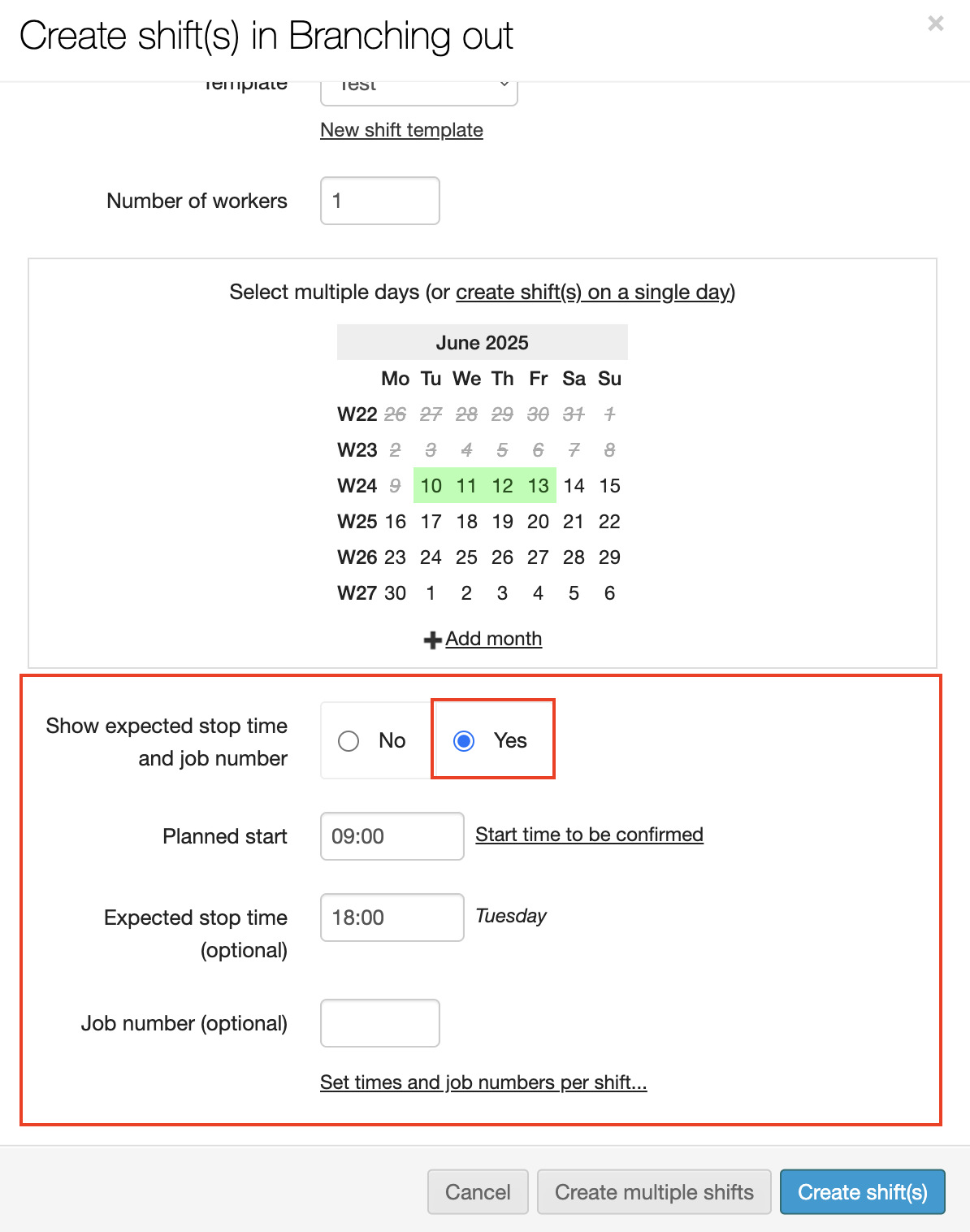
To extend this booking across the week click the link titled Create the same shift on multiple days. Select the additional days you would like to create this booking for. The selected days will appear in green on the calendar.
-
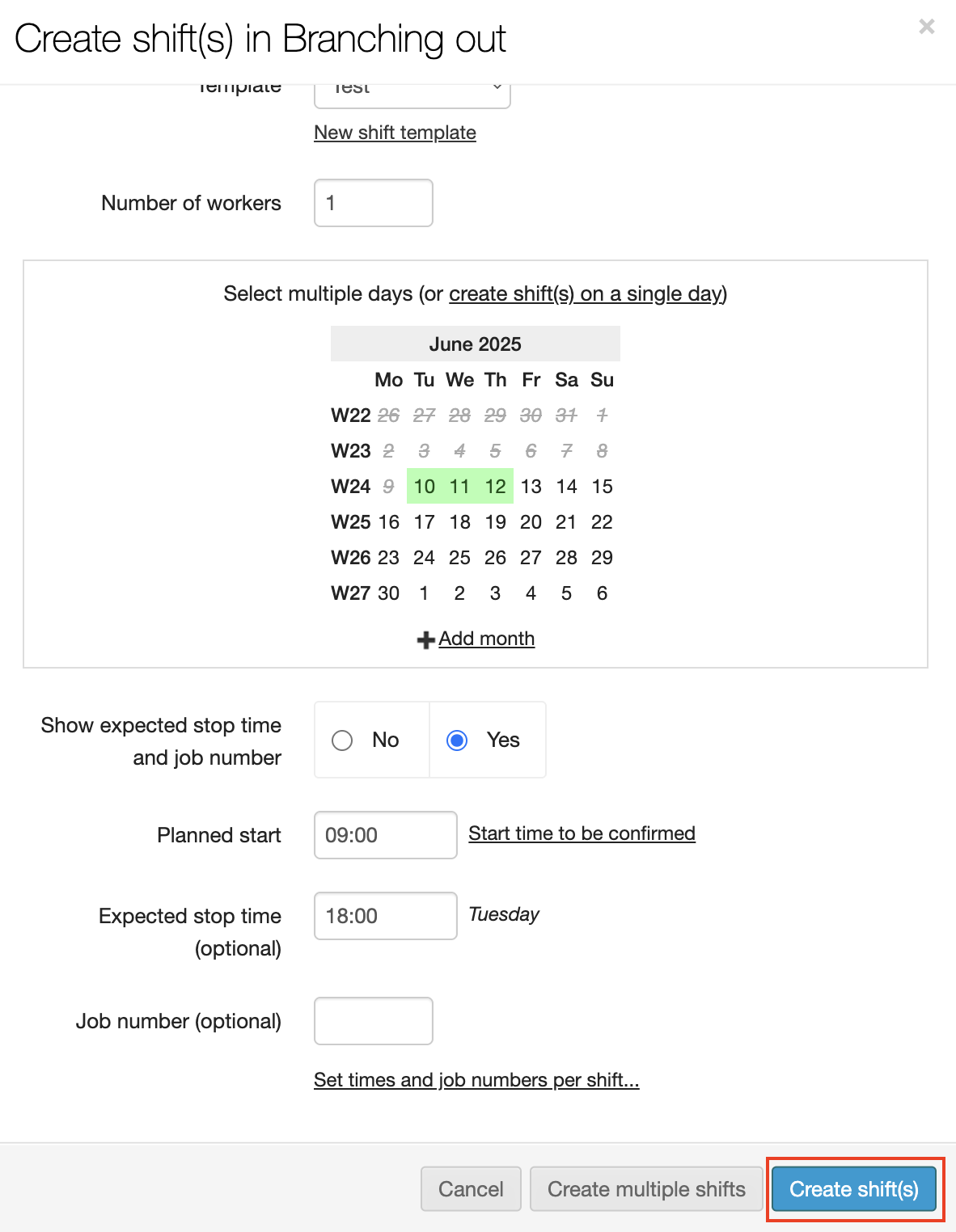
You can also choose to enter an expected stop time and job number if relevant.
-
Once all your information is added, click the blue create shift(s) button.